
QR Codes Page
The QR Codes Page in the Communications Module allows a user to create and manage custom QR codes with specified URL destinations.
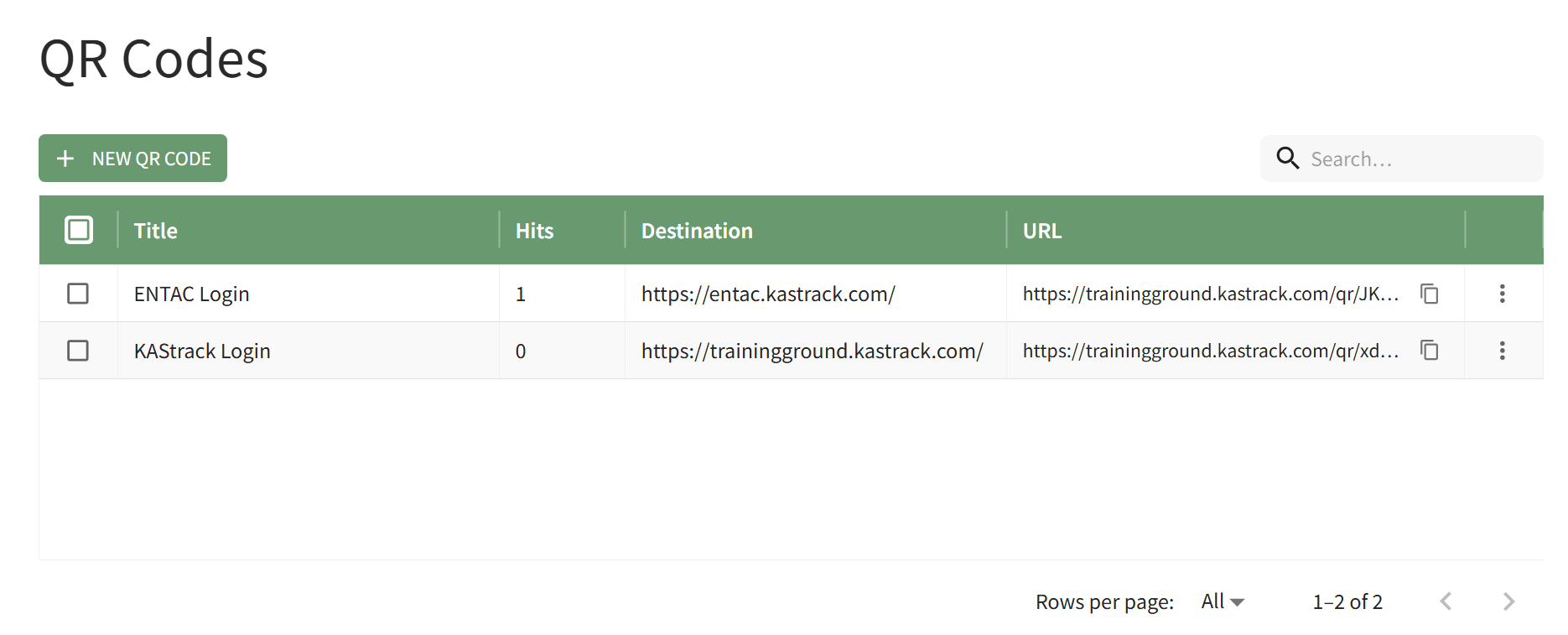
The "+ New QR Code" button beneath the page header allows you to create a new QR code.
How To: Create a New Custom QR Code
{{@925}}
All QR Codes created are listed in the QR Code Table. An explanation of the icons used on the QR Code Page is included in the table below.
QR Code Page Icons | |
Icon | Associated Action |
| Selecting the two-page icon in the URL Column of the QR Code Table copies the QR Code's Destination URL Link. How To: Copy a QR Code's Destination URL Link{{@924}} |

In the far-right column of the QR Code table is vertical three-dot icon that when clicked, opens the QR Code Context Menu. An explanation of each option is included in the table below.
QR Code Table Context Menu Explanations | |
Option | Explanation |
View | Selecting View on the context menu opens the QR Code modal, which shows the QR code properties and allows you to download and copy the individual QR Code. How To: View a Custom QR Code{{@933}} How To: Copy a QR Code{{@923}} |
Download | Selecting Download on the context menu automatically downloads a PNG file of the QR code onto your personal device. How To: Download an Individual QR Code{{@927}} |
Properties | Selecting Properties on the context menu opens the Properties Modal where the QR code details can be edited. How To: Edit a QR Code{{@930}} |
Delete | Selecting Delete on the context menu opens the QR Code Deletion Confirmation Modal. Confirmation is required before a QR Code is permanently deleted. How To: Delete a QR Code{{@926}} |
Download Hits (CSV) | Selecting Download Hits (CSV) on the context menu automatically downloads a CSV file with information relating to the number of hits on the specified QR Code. How To: Download QR Code Hits Data in a CSV File{{@929}} |
Reset Hits Counter | Selecting Reset Hits Counter on the context menu opens the Reset Hits Counter Confirmation Modal. Confirmation is required before a QR Code hits count is permanently reset. How To: Reset the Hits Count on a QR Code{{@931}} |
QR Codes can also be managed in bulk. Clicking the checkbox in the top row of the QR Codes Table will select all QR Codes. You can also individually select multiple checkboxes as needed.
How To: Manage QR Codes in Bulk
{{@928}}