
QR Codes Page
The QR Codes Page in the Communications Module allows a user to create and manage custom QR codes with specified URL destinations.

How To: Download Multiple QR Codes at Once
To download multiple QR Codes at once, open the QR Page in the Communications Module from the Main Menu.
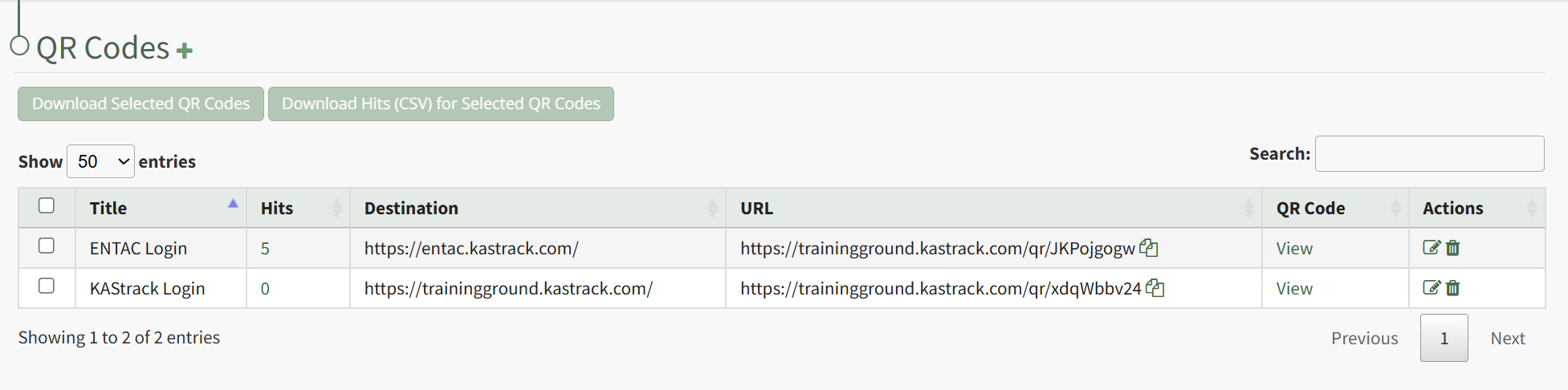
Click the checkboxes to the right of the QR Codes you wish to download, or click the checkbox in the top header row to select all QR Codes.
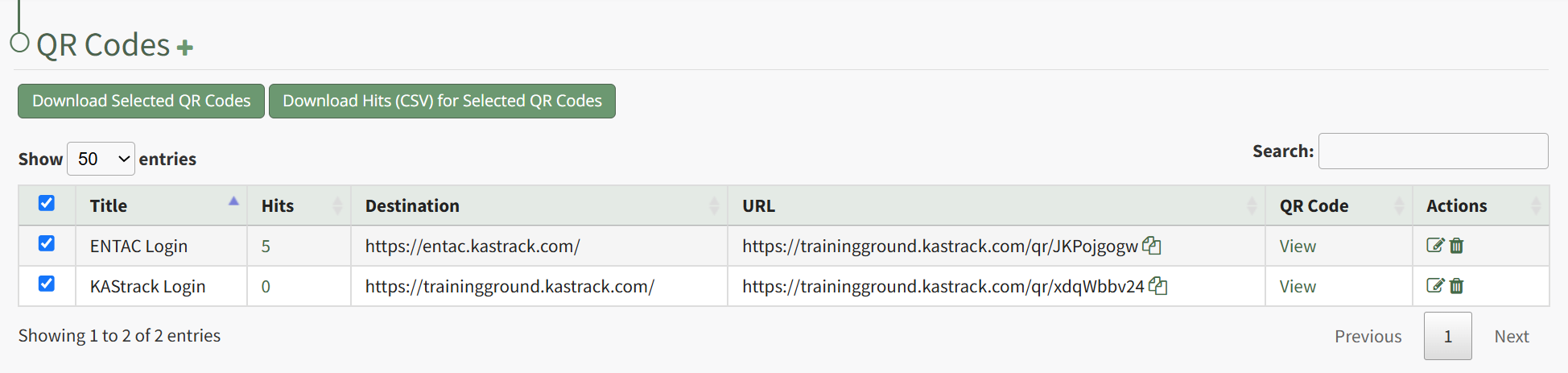
After selecting a checkbox, the buttons beneath the header can now be used. Click the "Download Selected QR Codes" button.
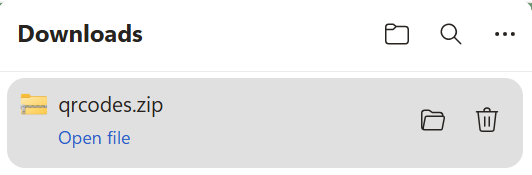
The selected QR Codes will automatically download as a .zip file to your personal device.
How To: Download QR Code Hits Data in a CSV File
To download the number of hits associated with a QR Code in a CSV file, open the QR Page in the Communications Module from the Main Menu.
Click the checkboxes to the right of the QR Codes you wish to download hit data for or click the checkbox in the top header row to download data for all QR Codes.
After selecting the desired checkboxes, click the "Download Hits (CSV) for Selected QR Codes" button.

The .csv file will automatically download to your personal device.
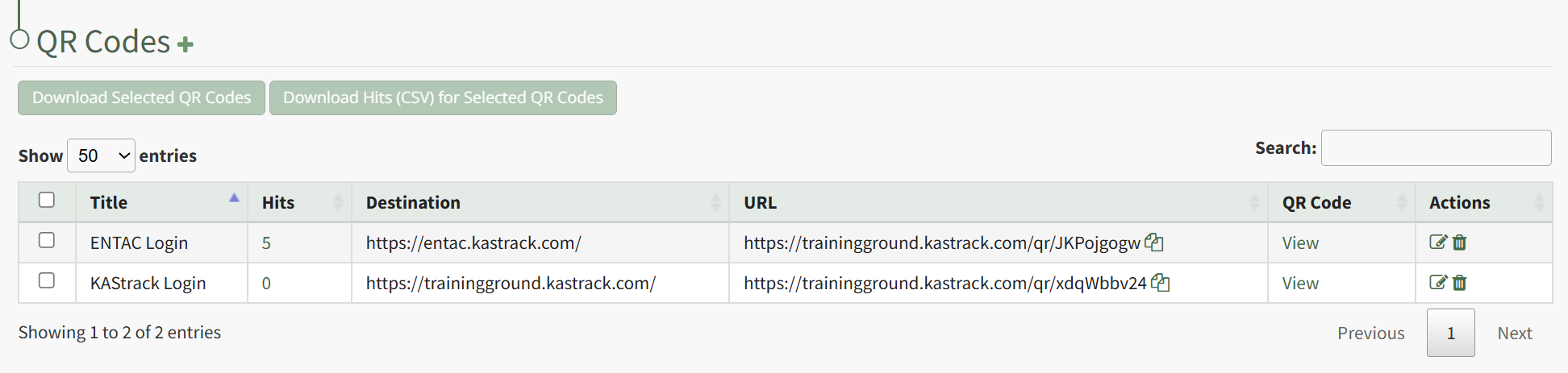
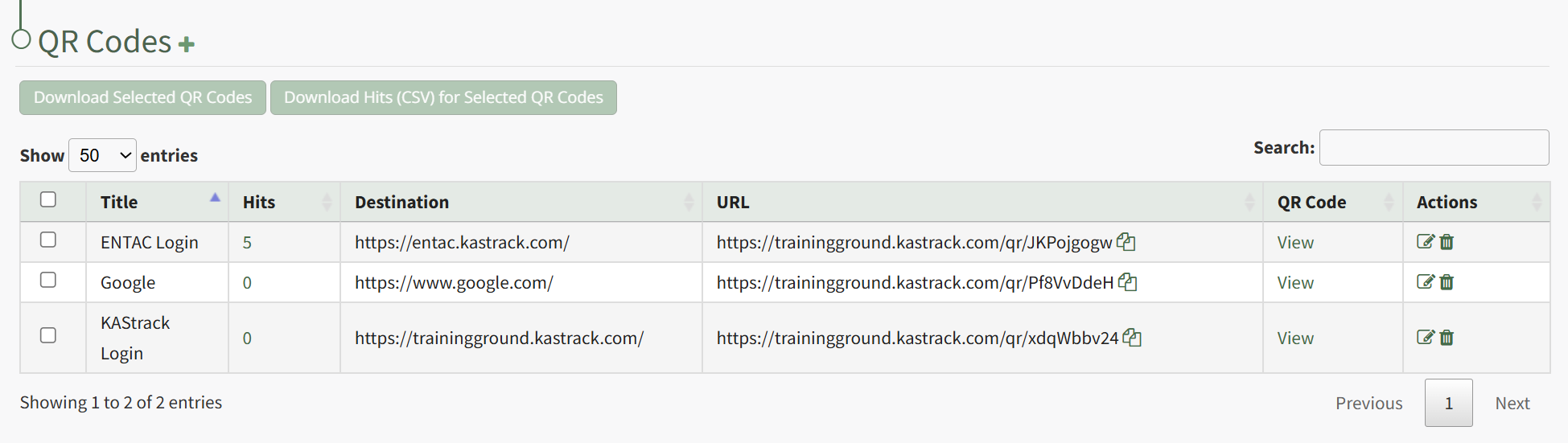
All QR Codes created are listed in the QR Code Table. An explanation of the icons used on the QR Code Page is included in the table below.
QR Code Page Icons | |
Icon | Associated Action |
| Selecting the plus-sign icon to the right of the QR Code page header opens the New QR Code Modal. How To: Create a Custom QR CodeTo create a custom QR Code, open the QR Code Page in the Communications Module from the Main Menu.
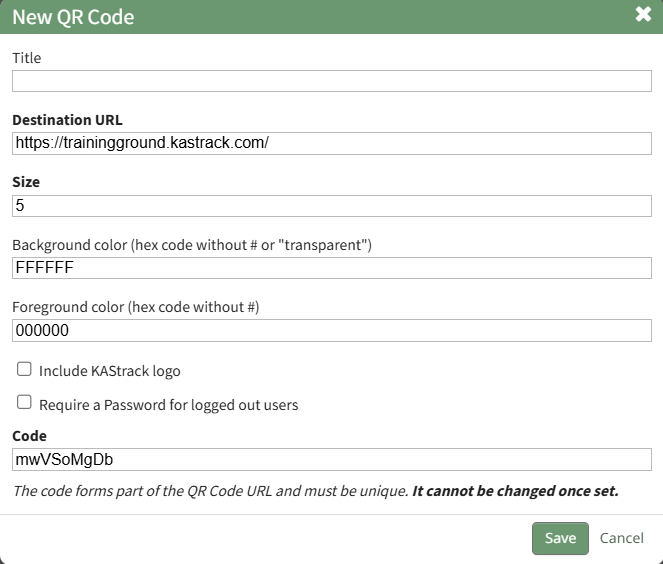
Click the plus sign icon immediately to the right of the page header. This opens the New QR Code Modal.
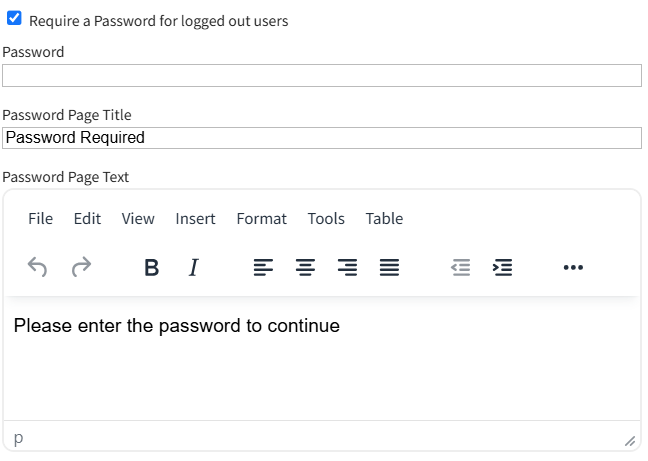
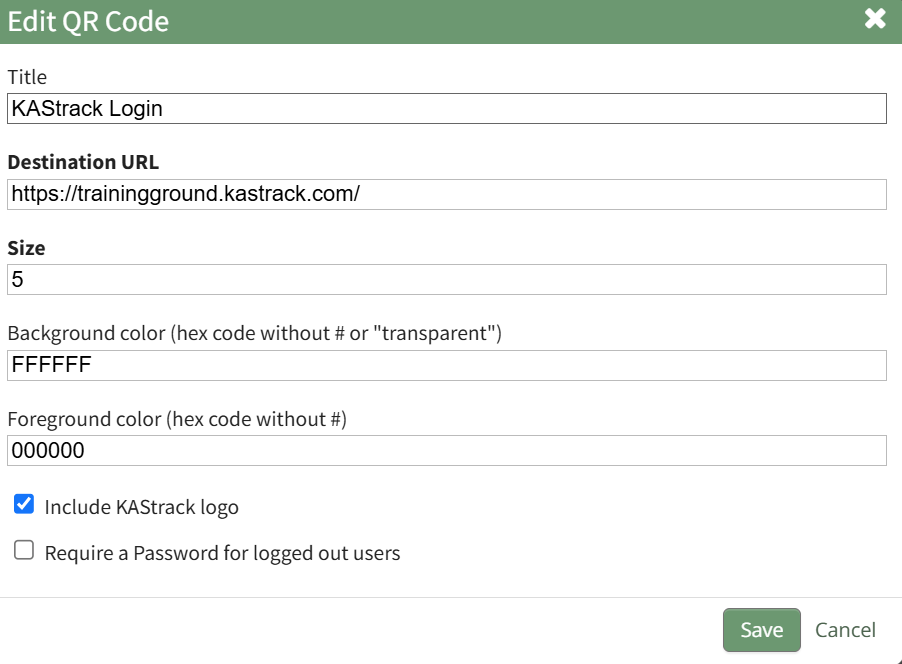
Input the Title for the new QR code. The system will automatically input the login page for your KAStrack domain. Input your desired destination URL. The system automatically inputs 5 as the size. A larger integer will increase the size. A smaller integer will decrease the size. Both the background and foreground color of the QR Code can be customized. Input the desired hex code for each without the #. Select the "Include a KAStrack logo" checkbox if you would like the KAStrack logo to be inserted into the middle of the QR code. Select the "Require a password for logged out users" checkbox if you would like to require a password to access the destination URL.
This expands the Modal so that you can input a password and design the Password Page. If the Destination URL is a KAStrack page, only individuals with permission to access the page in the system will be able to access it through the QR code. The System generates a default code for every new QR Code. It must be unique. You can edit this code if desired, but once the code is set it cannot be altered. After making the desired customizations for your QR Code, click the "Save" button at the bottom of the modal.
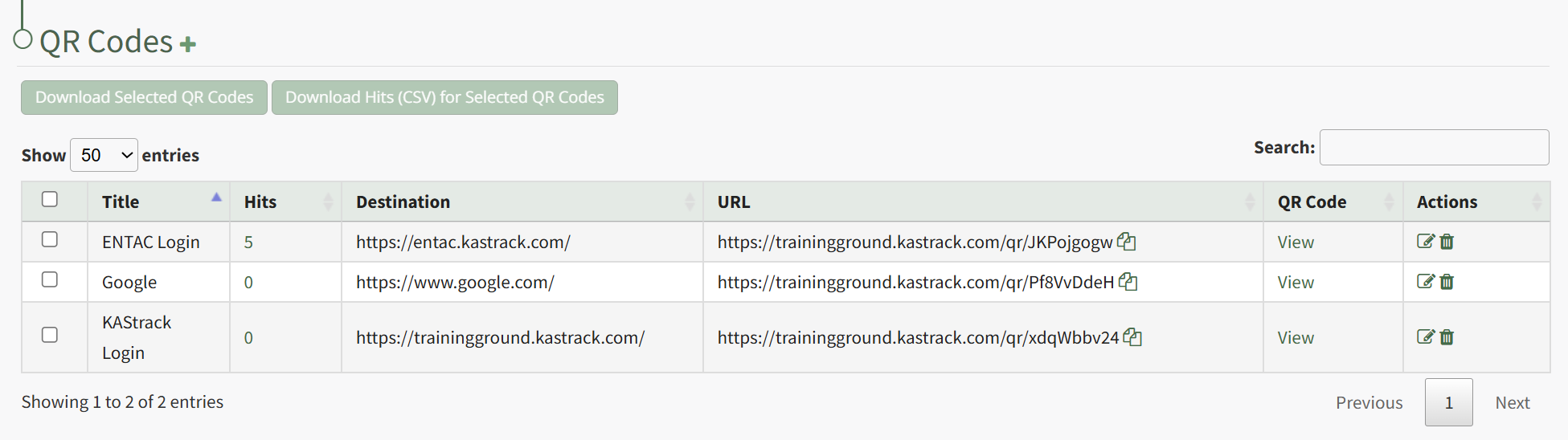
The new QR Code is now visible in the QR Code Table. |
| Selecting the two-page icon in the URL Column of the QR Code Table copies the QR Code's Destination URL Link. How To: Copy a QR Code's Destination URL LinkTo copy the Destination URL Link associated with a specific QR Code, open the QR Code Page in the Communications Module from the Main Menu.
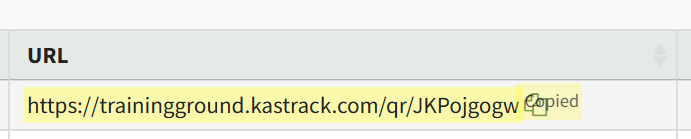
Click the double page icon to the right of the URL Link in the URL Column.
The URL Link is briefly highlighted, confirming that the link has been copied and is ready to be pasted as needed. |
| Selecting the paper and pencil icon in the Actions Column of the QR Code Table opens the Edit QR Code Modal. How To: Edit a QR CodeTo edit a custom QR Code, open the QR Code Page in the Communications Module from the Main Menu.
Click the page and pencil icon in the Actions Column to the right of the QR Code you want to edit, opening the Edit QR Code Modal.
Make the desired changes to the QR Code and click the Save button. The system returns you to the QR Codes Page. |
| Selecting the trashcan icon in the Actions Column of the QR Code Table opens the QR Code Deletion Confirmation Modal. How To: Delete a QR CodeTo delete a QR Code, open the QR Page in the Communications Module from the Main Menu.
Click the trashcan icon in the Actions Column to the right of the QR Code you wish to delete.
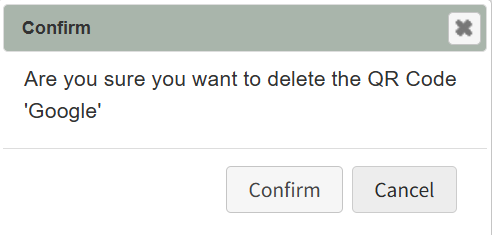
This opens the QR Code Deletion Confirmation Modal, which states "Are you sure you want to delete the QR Code?" Click Confirm.
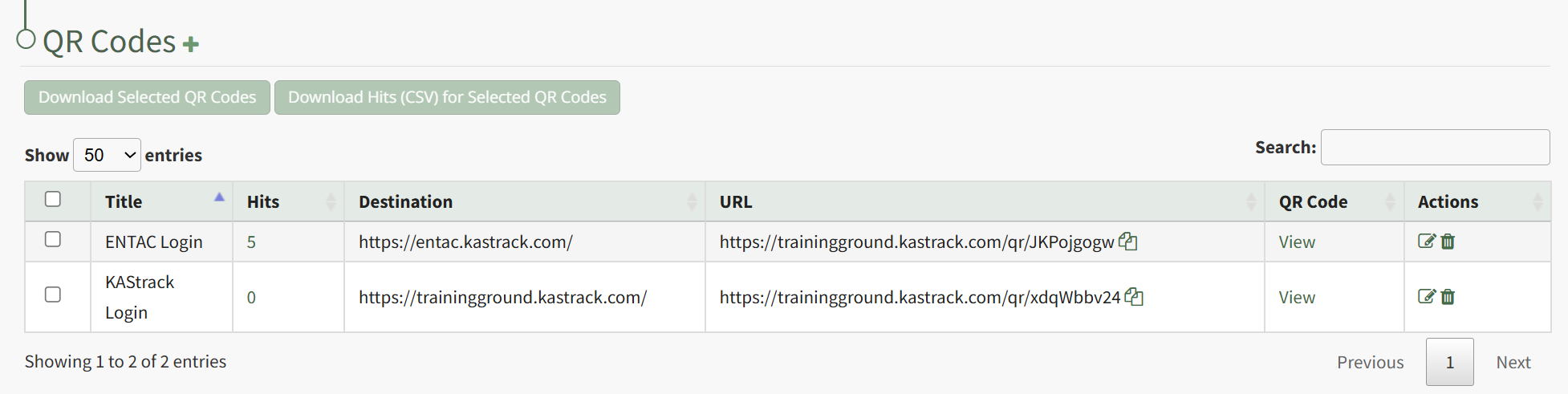
The QR Code is permanently deleted from the QR Code Table. |






Individual QR codes can be viewed, copied, or downloaded as needed.
How To: View a Custom QR Code
To view a specific, custom QR Code, open the QR Code Page of the Communications Module from the Main Menu.
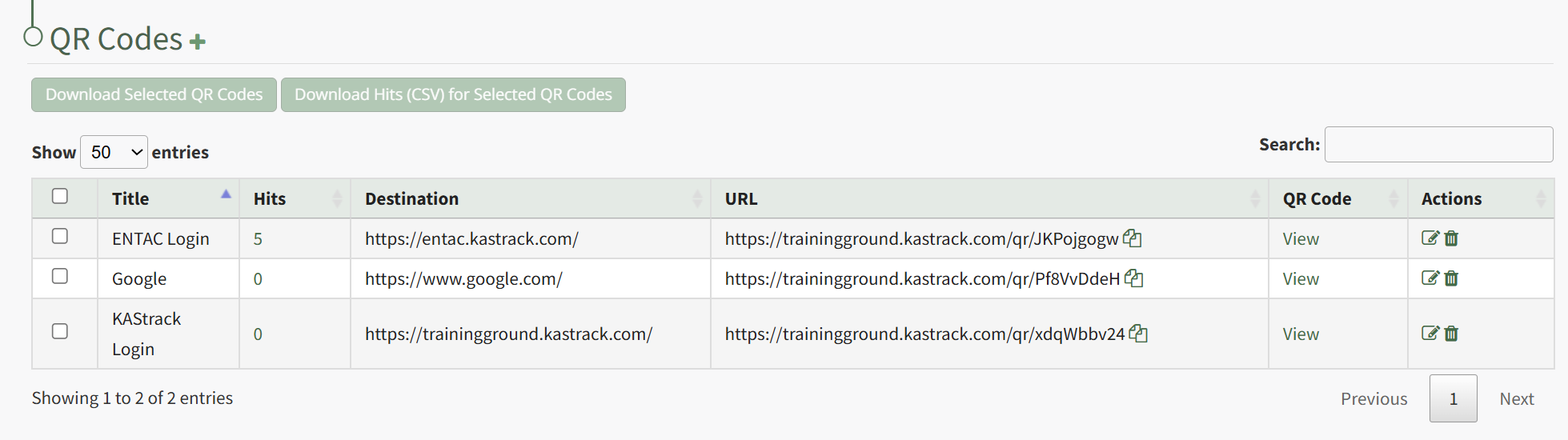
Click "View" in the QR Code Column to the right of the specific QR Code you wish to view.
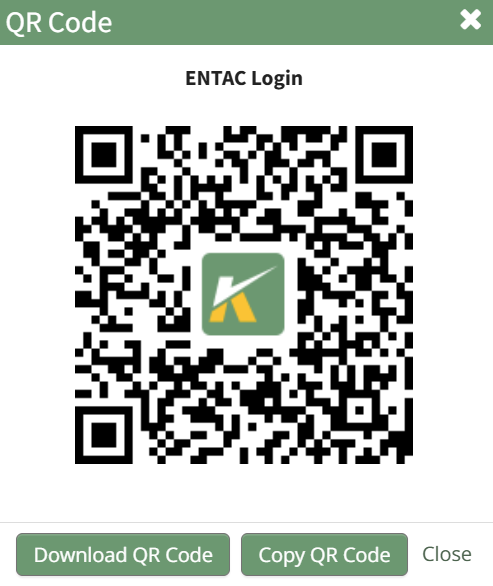
This opens the QR Code Modal and displays the specified QR Code.
How To: Copy a QR Code
To copy an individual QR Code, open the QR Code Page of the Communications Module from the Main Menu.
Click "View" in the QR Code Column to the right of the specific QR Code you wish to view. This opens the QR Code Modal and displays the specified QR Code.
Click the "Copy QR Code" button, and you can now paste the specified QR Code as needed.
How To: Download an Individual QR Code
To download an individual QR Code, open the QR Code Page of the Communications Module from the Main Menu.
Click "View" in the QR Code Column to the right of the specific QR Code you wish to view. This opens the QR Code Modal and displays the specified QR Code.
Click the "Download QR Code" button,
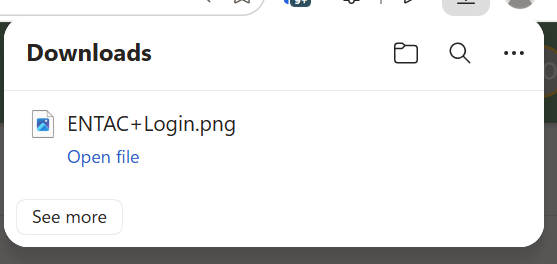
This automatically downloads the specified QR Code to your personal device.
The record of the number of times a QR Code has been used can be reset whenever desired.
How To: Reset the Hit Count on a QR Code
To reset the hit count for a specific QR Code, open the QR Code page of the Communications Module from the Main Menu.
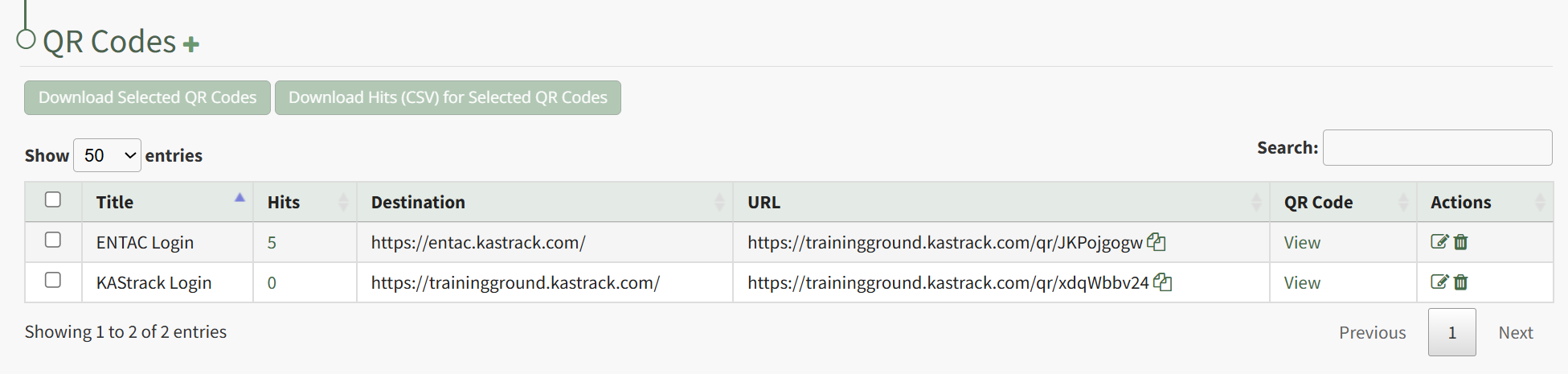
Click on the integer in the Hits Column of the QR Code whose count you wish to reset.
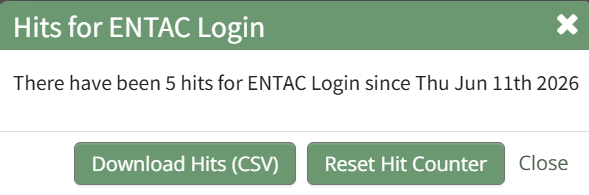
This opens the HIts For QR Code Modal, which states the number of hits and the data that the QR Code was last used. Click the "Reset Hit Counter" button on the modal, opening a Reset Confirmation Modal.
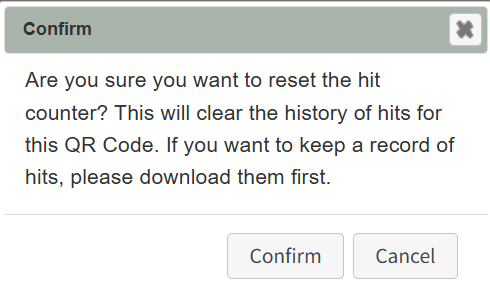
The modal states, "Are you sure you want to reset the hit counter? This will clear the history of hits for this QR Code. If you want to keep a record of hits, please download them first." Click the "Confirm" button.

A pop-up modal confirms that the counter has been reset.
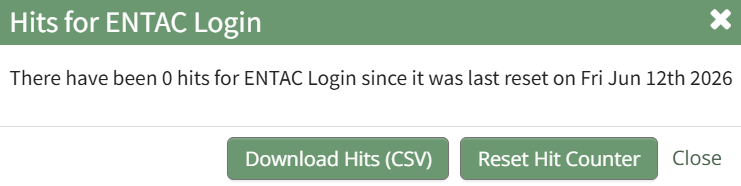
The Hits for QR Code Modal shows that the count is 0 and states the reset date.
No comments to display
No comments to display