
Creating A New Attendance Log
In order to create an attendance log, you must first create a form that is integrated with the Attendance Module. CREATING THE BASE FORM FOR AN ATTENDANCE LOG
Once the base form required for the attendance log field mappings has been created, you are ready to create an Attendance Log. Go to the Home Page of the Attendance Module. Select the “Create Attendance Log” button.
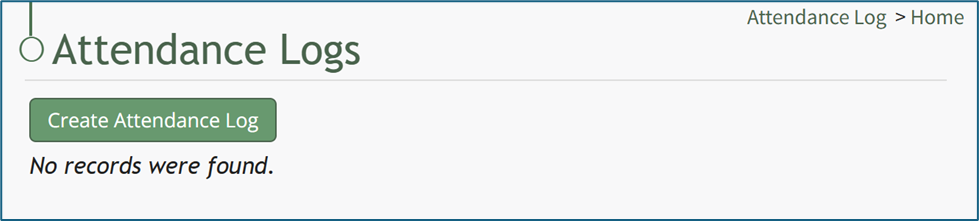
This opens the New Attendance Log Modal.
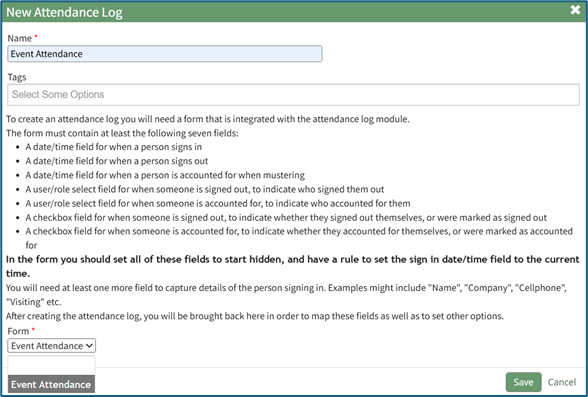
Input the Name of the new attendance log and, if needed, select any tags to be associated with the attendance log. WIKI LINK UNDERSTANDING TAG BEHAVIOR (TAGS MODULE) Select the form for the attendance log from the Form drop-down menu, which will list all forms integrated with the Attendance Module. Select the “Save” button at the bottom of the New Attendance Log Modal.
This opens the Edit Attendance Log Modal.
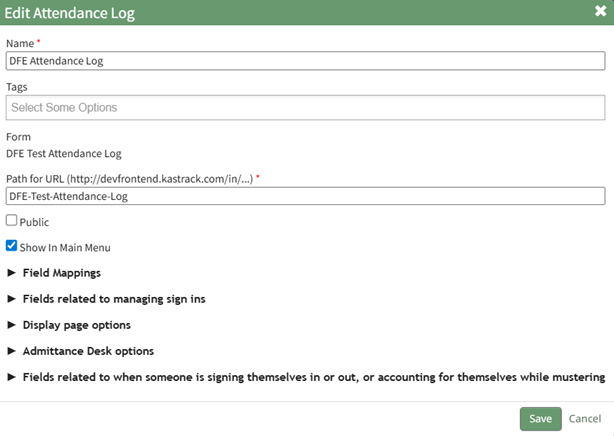
The attendance log name already shows, along with any associated tags. Tags can also be added here if desired. The URL path will add the form’s name to the end, but this can also be edited if desired.
If the associated form was set to public, the Public checkbox will automatically be selected on the Edit Attendance Log Modal. If the form was not made public, the attendance log cannot be made public and this option would not be selectable. Note: You can set the form to public by editing the form in the Forms module and clicking the “Allow Public Entries” checkbox.
Select “Show in Main Menu” if you would like the Attendance Log to show as an option on the Main Menu. Note: In order to see the new attendance log on the main menu, you will either have to refresh the page, or log out and log back in once the new attendance log has been created.
The Edit Attendance Log Modal has five different sections: Field Mappings* WIKI LINK FIELD MAPPINGS, Fields Related to Managing Sign Ins* WIKI LINK FIELDS RELATED TO MANAGING SIGN INS, Display Page Options WIKI LINK DISPLAY PAGE OPTIONS, Admittance Desk Options WIKI LINK ADMITTANCE DESK OPTIONS, and Fields Related to When Someone is signing themselves in or out (or accounting for themselves while mustering)* WIKI LINK FIELDS RELATED TO WHEN SOMEONE IS SIGNING THEMSELVES IN OR OUT OR ACCOUNTING FOR THEMSELVES WHILE MUSTERING. Note: An * asterisk denotes a required field.
After going through each section, select “Save” at the bottom of the modal to return to the Attendance Home Page where the newly created attendance log will show in the Attendance Log Table.