
Assets Home Page - The Upcoming Task Table
The Home Page in the Assets Module is labeled with the header Your Upcoming Tasks and displays the user’s upcoming tasks or workorders for the day that are associated with the assets that individual has been assigned responsibility for. The Upcoming Task Table includes the asset/subcomponent title, asset serial number, upcoming tasks and their status.
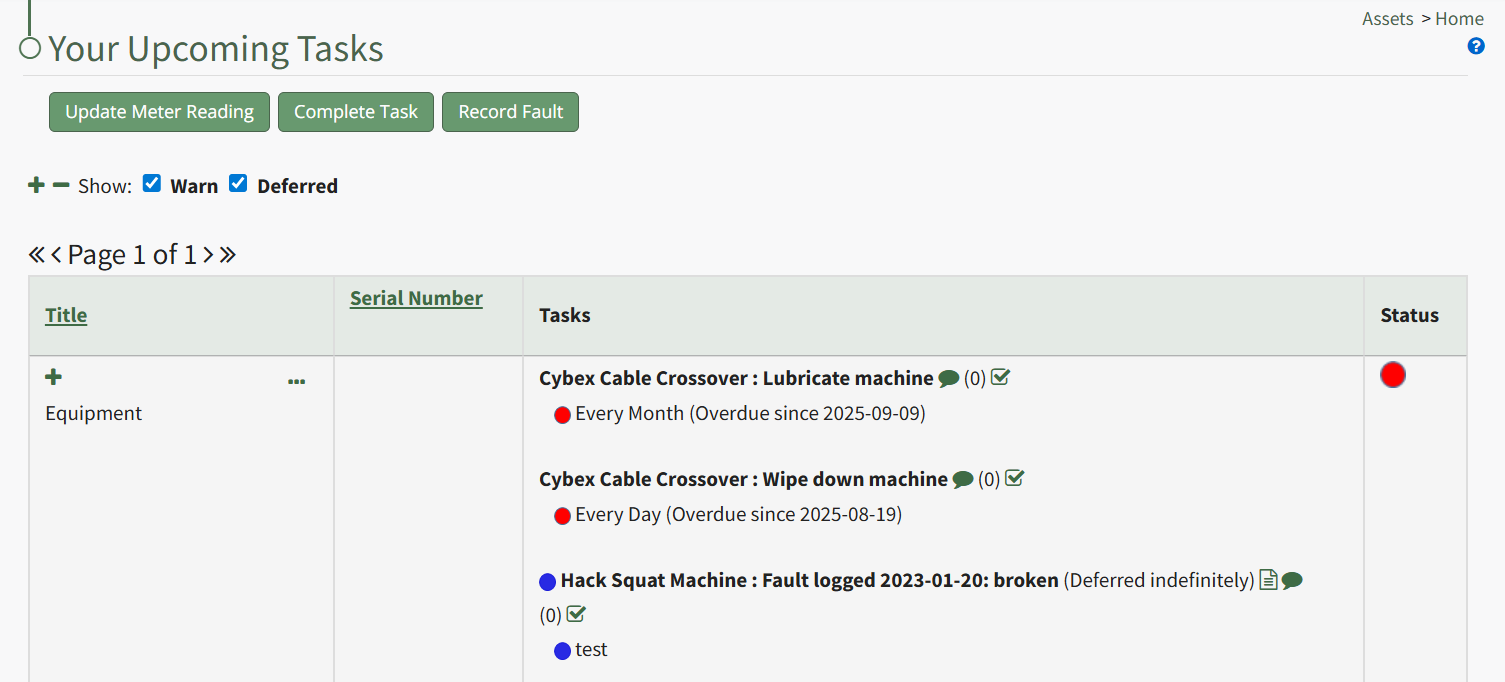
The Home Page has three buttons for Upcoming Task Management that are explained in the Assets Home Page Button Explanation Table below. The icons allow for page viewing customization.
Assets Home Page Button Explanation Table | |
Button | Associated Action |
Update Meter Reading | Clicking the Update Meter Reading button will open a modal that prompts you to select the asset the meter is associated with. The appropriate meter can then be selected from the Update Meter Reading Modal. WIKI LINK HOW TO: UPDATE A METER READING |
Complete Task | Selecting the Complete Task button will open a modal that prompts you to select the asset the task is associated with. The completed task(s) can be selected via checkbox on the Complete Task Modal. WIKI LINK HOW TO: LOG A TASK HAS BEEN COMPLETED |
Record Fault | Selecting the Record Fault button will open a modal that prompts you to select the asset the fault is associated with. The fault can then be recorded through the Record Fault Modal. WIKI LINK HOW TO: LOG FAULT |
| Selecting the plus sign icon expands the view of the Upcoming Task Table, showing tasks organized by subcomponents and not just the parent asset. |
| Selecting the minus sign icon collapses the View of the Upcoming Task Table, grouping all subcomponent tasks together and listing them under the parent asset. |


Checkboxes allow you to include / exclude tasks that are deferred or have a warning status associated with them.
The Assets/Task Status Color Legend and icons associated with the Upcoming Task Table are explained in the Upcoming Task Page Icon Explanation Table below.
Upcoming Task Page Icon Explanation Table | |
Icon | Meaning |
| The page icon indicates that there is a dialogue box with additional information regarding the task. When clicked, an Additional Information Sections with notes appears. |
| The double page icon (I don't see this on the upcoming tasks page anywhere) indicates that a document has been uploaded in the Assets Module for review. Files in the Asset Module are saved independently from the Documents Module. |
| The task note icon opens a text box that allows a user to add notes without completing the task since the last completed maintenance. Any notes previously added interim notes for this task will show under the text box. |
| The number within parenthesis indicates the number of comments that have been made since the last completed maintenance. |
| The checkbox icon is a quick link that opens the Complete Task Modal that is used to mark a task as completed and up to date. WIKI LINK HOW TO: LOG A TASK HAS BEEN COMPLETED |
| A greet status icon in the Assets Module indicates that a task is current and up to date. |
| A yellow status icon in the Assets Module is a warning that a deadline is upcoming. |
| A red status icon in the Assets Module indicates that a task is past due. |
| A blue status icon in the Assets Module indicates that a task has been deferred. |
| A grey status icon in the Assets Module indicates that an asset or component is out of service. Any subcomponent would also be archived. |
| A white status icon in the Assets Module indicates that an asset or component is archived. Any subcomponent would also be archived. |
| A purple status icon in the Assets Module indicates that a before task linked to a deferred corrective action. |
| A yellow triangle status icon in the Assets Module is a warning that a critical item has an upcoming deadline |
| A red triangle status icon in the Assets Module indicates that a critical item is past due. |


Tasks are grouped together and displayed in the Upcoming Task table by asset, highlighting the tasks that are not current / up to date.
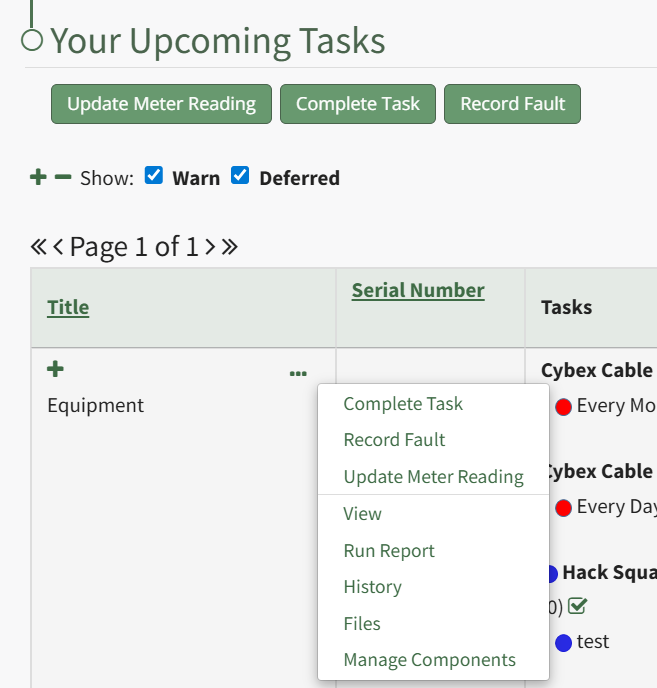 To the right of each asset title is a three-dot icon that opens a context menu with a list of options for quick task management. The Upcoming Task Table Context Menu Options are explained in the table below.
My Upcoming Tasks Table Context Menu Option Explanations | |
Option | Explanation |
Complete Task | Selecting “Complete Task” on the context menu opens the Complete Task Modal, allowing a user to record necessary details and mark the task as complete. WIKILINK HOW TO: LOG A TASK HAS BEEN COMPLETED |
Record Fault | Selecting “Record Fault” on the context menu opens the Record Fault Modal, allowing a user to record any necessary details about a fault. WIKILINK HOW TO: RECORD A FAULT |
Update Meter Reading | Selecting “Update Meter Reading” on the context menu opens the Update Meter Reading Modal, allowing a user to record details regarding a meter reading. WIKILINK HOW TO: UPDATE A METER READING |
View | Selecting “View” from the context menu opens an Asset Summary Modal with a summary of the asset/component information. The read-only modal displays details, any associated meters, subcomponents, assignments, and tasks associated with an asset. WIKI LINK HOW TO VIEW AN ASSET SUMMARY MODAL |
Run Report | Selecting “Run Report” from the context menu open the Assets Report Modal, allowing the user to select between five customizable Asset Reports. WIKILINK MY ASSETS DROPDOWN MENU RUN REPORT |
History | Selecting “History” from the context menu opens the Asset History Page with historical entries for the components/subcomponents that were selected. The Asset History Page contains four historical logs - tasks completed, tasks deferred, as well meter and fault logs. WIKILINK VIEW AN ASSET'S HISTORICAL LOGS |
Files | Selecting “Files” from the context menu will open the Files Modal and display any files attached to the asset or component. WIKILINK HOW TO VIEW TASK FILES Only users with appropriate permissions will be able to access files associated with an asset or task. |
Manage Components | Selecting “Manage Components” from the context menu will open the Manage Asset Components Page where assets and their components can be managed. Only users with appropriate permissions will have access to this page. |