
Assets Home Page - The Upcoming Task Table
The Home Page in the Assets Module is labeled with the header Your Upcoming Tasks and displays the user’s upcoming tasks or workorders for the day that are associated with the assets that individual has been assigned responsibility for.
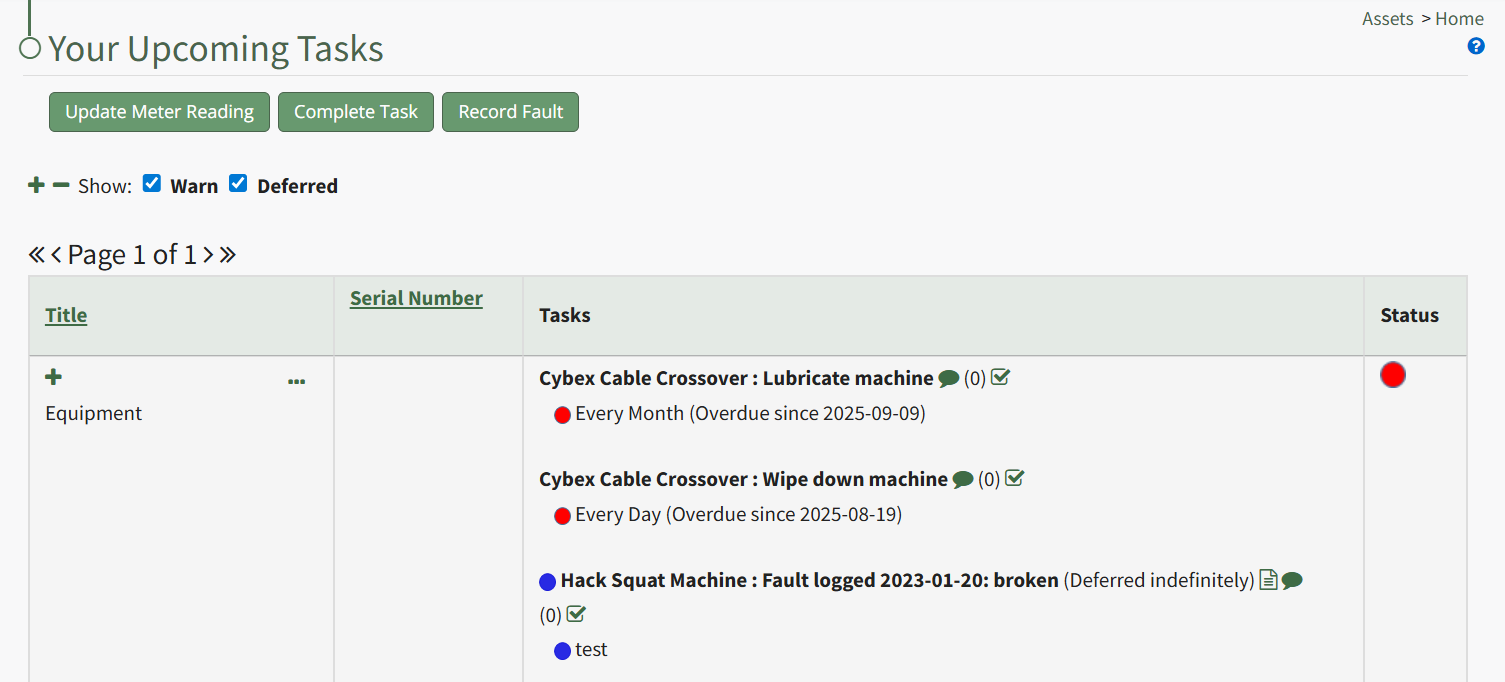
The Home Page has three buttons for Upcoming Task Management that are explained in the Assets Home Page Button Explanation Table below.
Assets Home Page Button Explanation Table | |
Button | Associated Action |
Update Meter Reading | Clicking the Update Meter Reading button will open a modal that prompts you to select the asset the meter is associated with. The appropriate meter can then be selected from the Update Meter Reading Modal. WIKI LINK HOW TO: UPDATE A METER READING |
Complete Task | Selecting the Complete Task button will open a modal that prompts you to select the asset the task is associated with. The completed task(s) can be selected via checkbox on the Complete Task Modal. WIKI LINK HOW TO: LOG A TASK HAS BEEN COMPLETED |
Record Fault | Selecting the Record Fault button will open a modal that prompts you to select the asset the fault is associated with. The fault can then be recorded through the Record Fault Modal. WIKI LINK HOW TO: LOG FAULT |
The Assets/Task Status Color Legend and icons associated with the Upcoming Task Table are explained in the Upcoming Task Page Icon Explanation Table below.
Upcoming Task Page Icon Explanation Table | |
Icon | Meaning |
| |
| |
| |
| |
| |
| |
| |
| A yellow triangle icon in the Assets Module is a warning that a critical item has an upcoming deadline |
| A red triangle icon in the Assets Module indicates that a critical item is past due. |


