
An Asset's History Page
Each asset created in KAStrack will have it's own Asset History Page that contains a task log, defer log, meter log and fault log which can be used to track, access, and manage historical data gained through the use of KAStrack's Asset Module.
To access the Asset History Page, click the three-dot icon to the right of the asset title whose history you want to view opening the Asset Management Context Menu and select History.
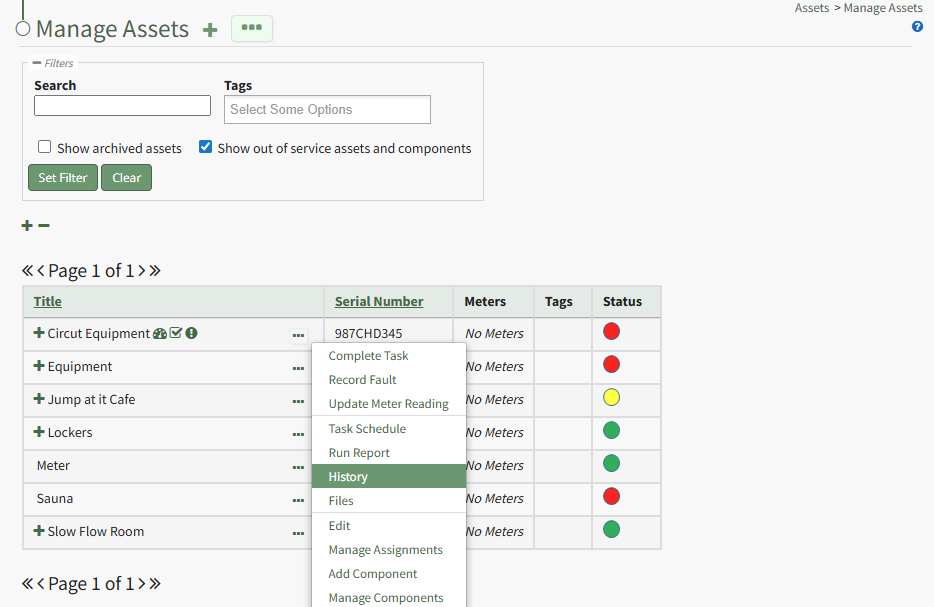
The asset title in the History Page is a clickable link that, when selected, will review back to the Manage Assets Table showing just the specified asset and its components. A dropdown menu allows you to filter between individual or all log views. Historical logs for specific components of the asset can be selected on the "Switch to logs for" dropdown menu.
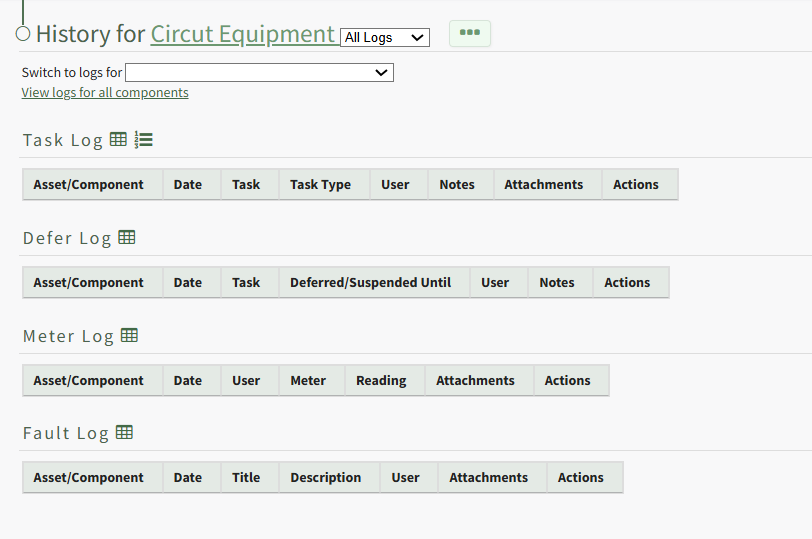
The three-dot icon to the right of the log view filter opens the History Page Context Menu with options for quick actions. Those options are explained in the table below.
History Page Context Menu Option Explanation Table | |
Option | Explanation |
Complete Task | Selecting Complete from the context menu will open a modal that prompts you to select the asset the task is associated with. The completed task(s) can be selected via checkbox on the Complete Task Modal. WIKI LINK HOW TO: LOG A TASK HAS BEEN COMPLETED |
Record Fault | Selecting Record Fault from the context menu will open a modal that prompts you to select the asset the fault is associated with. The fault can then be recorded through the Record Fault Modal. WIKI LINK HOW TO: LOG FAULT |
Update Meter Reading | Selecting Update Meter Reading from the context menu will open a modal that prompts you to select the asset the meter is associated with. The appropriate meter can then be selected from the Update Meter Reading Modal. WIKI LINK HOW TO: UPDATE A METER READING |
Task Schedule |
Selecting "Task Schedule" on the context menu opens an asset's Task Schedule, where new tasks can be added and existing tasks can be managed. WIKI LINK HOW TO VIEW AN ASSET'S TASK SCHEDULE
|
Run Report | Selecting “Run Report” from the context menu open the Assets Report Modal, allowing the user to select between five customizable Asset Reports. WIKI LINK HOW TO RUN AN ASSET REPORT |
Edit | Select "Edit” from the to open the Edit Asset modal, which allows the user to edit the key information regarding the asset and an asset's alert preferences. WIKI LINK HOW TO EDIT AN ASSET |
Manage Assignments | Selecting "Manage Assignments" on the context menu opens the Asset Assignments Modal which allows individual users and certification roles to be assigned to an asset. WIKI LINK HOW TO ASSIGN / UNASSIGN USERS AND CERTIFICATION ROLES TO AN ASSET |
Add Component | Selecting "Add Component" on the context menu opens the New Component Modal, which allows new components to be added to an asset. WIKI LINK HOW TO CREATE ASSET COMPONENTS/SUBCOMPONENTS |
Manage Components | Selecting “Manage Components” from the context menu will open the Manage Asset Components Page where assets and their components can be managed. Only users with appropriate permissions will have access to this page. |
The actions associated with the icons used on the History Page of the Assets Module are explained on the table below.
Asset History Page Icon Explanation Table | |
Icon | Associated Action |
| Clicking the spreadsheet icon on the History Page will convert the selected table on the History Page to a datatable. Datatables enable you to sort information by column header. Refresh the browser to revert back to the original tabular view. |
| Clicking the numbered list icon to the right of the Task Log header on the History Page will open a Task Reports Modal that allows you to run a report on the asset tasks. WIKI LINK HOW TO RUN REPORTS ON HISTORICAL TASK DATA |
| Clicking the download icon in the Attachments Column of a Log Tab will open the Downloading Attachments Modal, which generates a clickable link when the one-time download is ready. Clicking the download link downloads the attachment associated with a historical log. WIKI LINK HOW TO DOWNLOAD HISTORICAL TASK ATTACHMENTS |
| Clicking the eyeball icon in the Actions Column of a Log Table will open the Task Details Module which displays recorded meter readings and files associated with the task. |
| Clicking the dialogue icon opens the Interim Notes Modal which shows all interim notes associated with the historical record. WIKI LINK HOW TO VIEW INTERIM NOTES ASSOCIATED WITH HISTORICAL TASKS |
| Clicking the upload icon in the Actions Column of the Log Table will open the Upload Files Modal, allowing you to upload files to a logged task after the fact. WIKI LINK HOW TO UPLOAD FILES TO A TASK AFTER A TASK HAS BEEN COMPLETED |
| Clicking the Pencil/Page Icon opens the Edit Log Entry Modal which allows you to change the date and time of task completion and include any notes. WIKI LINK HOW TO EDIT THE DAY/TIME OF TASK COMPLETION FOR HISTORICAL TASKS |
| Clicking the trashcan icon opens the Delete Record Confirmation modal which states, "Are you sure you wish to delete this record?" WIKI LINK HOW TO DELETE HISTORICAL TASK RECORDS |


