
An Asset's History Page
Each asset created in KAStrack will have it's own Asset History Page that contains a task log, defer log, meter log and fault log which can be used to track, access, and manage historical data gained through the use of KAStrack's Asset Module.
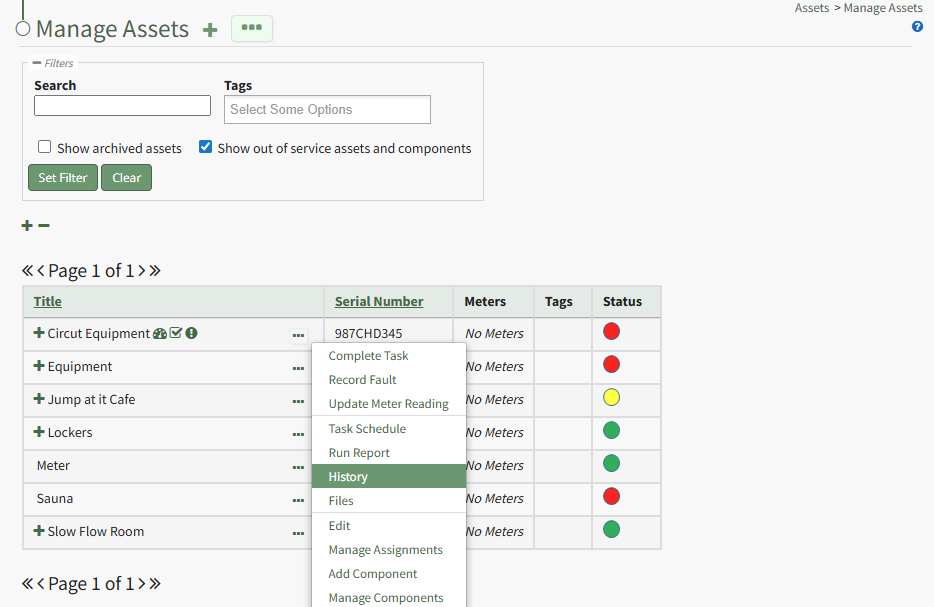
To access the Asset History Page, click the three-dot icon to the right of the asset title whose history you want to view opening the Asset Management Context Menu and select History.
The asset title in the History Page is a clickable link that, when selected, will review back to the Manage Assets Table showing just the specified asset and its components. A dropdown menu allows you to filter between individual or all log views.
The three-dot icon to the right of the log view filter opens the History Page Context Menu with options for quick actions. Those options are explained in the table below.
History Page Context Menu Option Explanation Table | |
Option | Explanation |
View |
Select “View” from the context menu to open the View Modal that shows the title of the Task Template.
|
Meters | Select “Meters” from the context menu to open the Meters for (Name of Task Template) modal. The modal provides a list of all meters associated with the Task Template and includes an “Add Meter” button that allows the user to add additional meters to the Task Template. WIKI LINK HOW TO: ADD METERS TO A TASK TEMPLATE |
Edit | Select “Edit” from the to open the Edit Task Template modal, which allows the user to change the task template name. WIKI LINK HOW TO: CHANGE A TASK TEMPLATE NAME |
Copy | Select “Copy” from the context menu to open the Copy (Name of Task Template) Modal in order to make a copy of the task template from a pre-existing task template. WIKI LINK HOW TO: COPY AND RENAME A TASK TEMPLATE |
Tasks | Select “Tasks” from the context menu to open the Task Schedule for the Task Template Page. Additional tasks and permissive groups can be added to the task template here. WIKI LINK HOW TO: ADD TASKS TO A TASK TEMPLATE |