
An Asset's Components Page
Each asset created in KAStrack will have its own Components Page and Manage Components Page that displays the hierarchal structure of an asset and its components.
Users with appropriate module level permissions will also have access to a Manage Components Page with more options for asset management. The context menu options visible to users will vary based on their individual module level permissions.
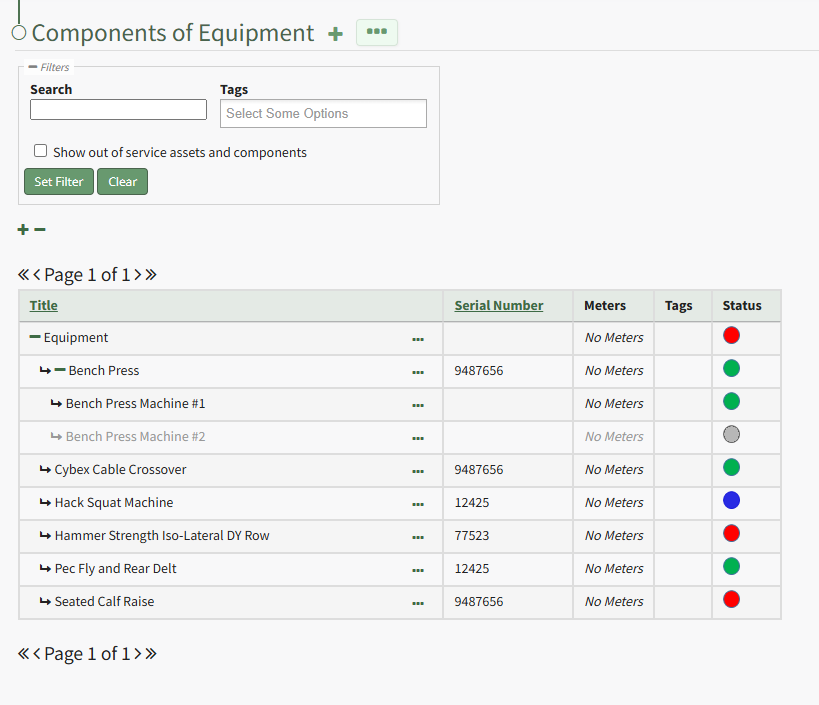
Clicking the plus sign icon to the right of the page header opens the New Component Modal, allowing you to add a new component beneath a parent asset. WIKI LINK HOW TO ADD NEW COMPONENTS TO A PARENT ASSET
The three-dot icon to the right of the header opens the Components Page Context Menu with options for asset/component management. The Components Page Context Menu options are explained in the table below.
Components Page Context Menu Option Explanations | |
Option | Explanation |
Create Component | Selecting “Create Component” from the context menu opens the New Component Modal. The plus sign icon to the right of the page header opens the same modal. WIKI LINK HOW TO ADD NEW COMPONENTS |
Export | Selecting "Export" from the context menu opens the Export Asset Modal that allows you to select all assets/components or specific asset types. There is a checkbox that when selected, will include all asset type fields in the export. WIKI LINK HOW TO EXPORT ASSET INFORMATION
|
Import | Selecting “Import” on the context menu opens the Import Components Modal that allows you to upload a .csv file for bulk importation of asset information. WIKI LINK HOW TO BULK IMPORT ASSET INFORMATION
|
The Asset Component Table displays the asset/component title, serial number, associated meters and tags, as well as the asset status. To the right of the asset/component title in the table is a three-dot icon that opens the Component Context Menu.
Components Context Menu Option Explanations | |
Option | Explanation |
Complete Task | Selecting “Complete Task” on the context menu opens the Complete Task Modal, allowing a user to record necessary details and mark the task as complete. WIKILINK HOW TO: LOG A TASK HAS BEEN COMPLETED |
Record Fault | Selecting “Record Fault” on the context menu opens the Record Fault Modal, allowing a user to record any necessary details about a fault. WIKILINK HOW TO: RECORD A FAULT |
Update Meter Reading | Selecting “Update Meter Reading” on the context menu opens the Update Meter Reading Modal, allowing a user to record details regarding a meter reading. WIKILINK HOW TO: UPDATE A METER READING |
Task Schedule | Selecting "Task Schedule" on the context menu opens an asset's Task Schedule, where new tasks can be added and existing tasks can be managed. WIKILINK HOW TO VIEW AN ASSETS TASK SCHEDULE |
Run Report | Selecting “Run Report” from the context menu open the Assets Report Modal, allowing the user to select between five customizable Asset Reports. WIKILINK MY ASSETS DROPDOWN MENU RUN REPORT |
History | Selecting “History” from the context menu opens the Asset History Page with historical entries for the components/subcomponents that were selected. The Asset History Page contains four historical logs - tasks completed, tasks deferred, as well meter and fault logs. WIKILINK VIEW AN ASSET'S HISTORICAL LOGS |
Files | Selecting “Files” from the context menu will open the Files Modal and display any files attached to the asset or component. WIKILINK HOW TO VIEW TASK FILES
WIKI LINK HOW TO UPLOAD A TASK FILE Only users with appropriate permissions will be able to access files associated with an asset or task. |
Edit | Selecting "Edit" on the context menu opens the Edit Component Modal, which is used to alter asset details. WIKILINK HOW TO EDIT AN ASSET |
Manage Assignments | Selecting "Manage Assignments" on the context menu opens the Asset Assignments Modal which allows individual users and certification roles to be assigned to an asset. WIKILINK HOW TO ASSIGN/UNASSIGN USERS AND CERTIFICATION ROLES TO AN ASSET |
Add Component | Selecting "Add Component" on the context menu opens the New Component Modal, which allows new components to be added to an asset. WIKILINK HOW TO CREATE ASSET COMPONENTS/SUB-COMPONENTS |
Manage Components | Selecting “Manage Components” from the context menu will open the Manage Asset Components Page where assets and their components can be managed. Only users with appropriate permissions will have access to this page. |
Duplicate | Selecting "Duplicate" on the context menu opens the Copy Asset Modal that allows you to rename the asset before copying. WIKILINK HOW TO COPY AND RENAME AN ASSET |
Move | Selecting "Move" on the context menu opens the Move Asset Modal, allowing you to move an asset/component under another asset/component. WIKILINK HOW TO MOVE AN ASSET/COMPONENT UNDER ANOTHER ASSET/COMPONENT |
View | Selecting “View” from the context menu opens an Asset Summary Modal with a summary of the asset/component information. The read-only modal displays details, any associated meters, subcomponents, assignments, and tasks associated with an asset. WIKI LINK HOW TO VIEW AN ASSET SUMMARY MODAL |
PDF Sheet | Selecting "PDF Sheet" on the context menu opens a PDF Copy of an Asset Data Sheet in a new widow. WIKILINK HOW TO ACCESS AN ASSET'S PDF DATA SHEET |
QR Code | Selecting "QR Code" on the context menu opens the Asset QR Code modal, which displays the QR Code associated with the Asset that when scanned will link a user to asset details. WIKILINK HOW TO ACCESS AN ASSET'S QR CODE |
Manage Meters | Selecting "Manage Meters" on the context menu opens the Asset Meter Modal which lists all meters associated with the asset and allows for new meters to be created. WIKILINK HOW TO ADD A METER TO AN ASSET |
Cost / Time Summary | Selecting "Cost / Time Summary" on the context menu opens the Cost and Time Summary Modal. WIKILINK HOW TO VIEW AN ASSET'S COST / TIME SUMMARY |
Archive | Selecting "Archive" on the context menu opens the Archive Confirmation Modal which states, "Are you sure you want to archive this asset? This will also archive any components." WIKILINK HOW TO ARCHIVE AN ASSET OR COMPONENT |