
Actions Settings Page: Bulk Edit Tab
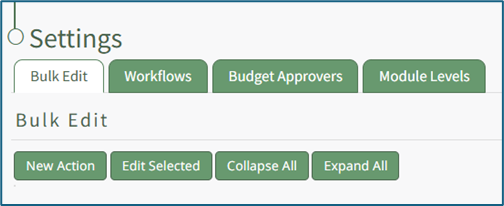
The Bulk Edit Tab on the Settings Page of the Actions Module allows for the simultaneous management of multiple action groups. If no actions have been created, the page displays four button options: New Action, Edit Selected, Collapse All, and Expand All.
Any action groups created in the Actions Module will appear in list form underneath these tabs and can be expanded to view the actions associated with them.
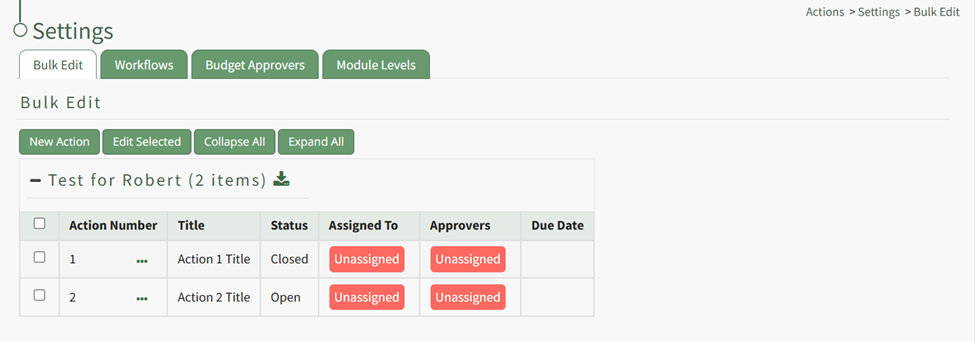
To the right of the action title is a three dot icon, that if clicked will open the Bulk Edit Action Context Menu. An explanation of each option is included in the table below.
Bulk Edit Actions Context Menu Option Explanation Table | |
Option | Explanation |
View Action | Selecting the "View Action" option will open the Action Page which pertinent information, including file uploads and comments. |
Upload File(s) | Selecting the "Upload File(s)" option opens the Upload File Modal, allowing you to attach a file to an action. How To: Upload Files to an Action{{@729}} |
Edit Actions | Selecting the "Edit Actions" option open the Edit Action Modal, where key details about the action can be altered. How To: Edit an Existing Action{{@603}} |
Delete Action | Selecting the "Delete Actions" option opens the Delete Action Confirmation modal, which will permanently delete the action. How To: Delete an Action{{@647}} |