
Actions Home Page
The Actions Module Home Page, the Actions Page, lists all open actions associated with a user account. If you have no open actions under the filter conditions applied, the system will state you have no open actions.
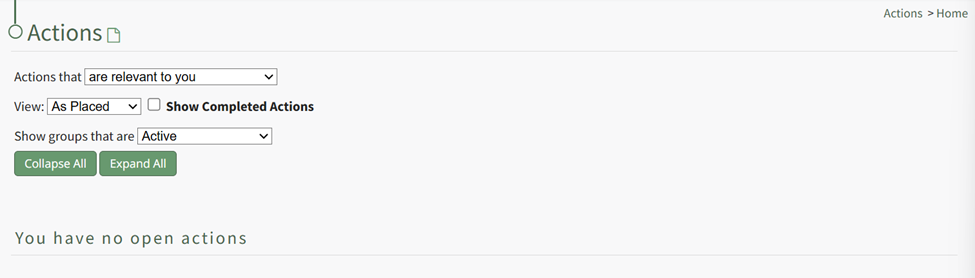
Hovering the cursor over the page icon to the right of the Actions header opens a context menu with quick link options to navigate the module. An explanation of the Actions Module Home Page Context Menu is included in the table below. Both New Actions and New Action Groups can be created on the Actions Home Page through the use of the context menu.
WIKI LINK HOW TO CREATE NEW ACTIONS
WIKI LINK HOW TO CREATE NEW ACTION GROUPS
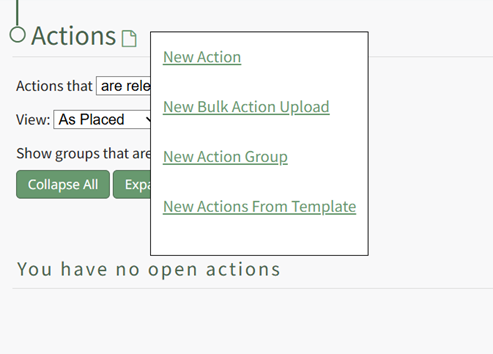
Actions Home Page Context Menu Option Explanation | |
Option | Explanation |
New Action | Selecting "New Action" from the context menu will open the New Action Modal allowing for the creation of a New Action. WIKI LINK HOW TO CREATE A NEW ACTION |
New Bulk Action Upload | Selecting "New Bulk Action Upload" opens the Import Actions Page which allows bulk actions to be imported into KAStrack via .csv file. WIKI LINK IMPORT ACTIONS PAGE |
New Action Group | Selecting “New Action Group” opens the New Action Group Modal that create a new action group. WIKI LINK: HOW TO CREATE A NEW ACTION GROUP |
New Actions from Template | Selecting "New Actions from Template" INSERT MORE EXPLANATION |
The Home Page displays open actions associated with a user. A filter allows a user to customize the view of open actions.
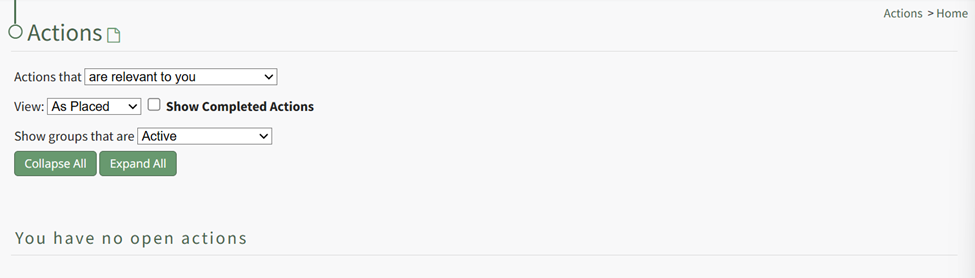
The Actions Module Home Page Filter Options are explained in the table below.
Actions Module Home Page Filter Option Explanations | ||
Field | Options | Explanation |
Actions that (dropdown menu) | are relevant to you | Selecting "are relevant to you" will show a list of all actions that are relevant to you. |
are assigned to you | Selecting "Are Assigned to You" will show a list of all actions that are assigned to you. | |
you are an approver for | Selecting "You are an Approver For" will show a list of all actions that you are identified as an approver for. | |
you are interested party for | Selecting "You are an Interested Party For" will show a list of all actions that you have been identified as an interested party for. | |
show all actions | Selecting "Shows all Actions" will show a list of all actions. | |
View (dropdown menu) | As Placed | Selecting "View As Placed" will show a list of all actions organized by Action Groups. |
By Due Date | Selecting "View by Due Date" will show a list of all actions organized by Overdue, 15-30 days, and No Due Date. | |
By User | Selecting "View by User" will organize alphabetically by the first assigned user. All unassigned actions will show at the bottom of the action list. | |
Show Completed Action (checkbox) | Selecting the "Show Completed Actions" checkbox will include completed actions in the list on the filtered view. | |
Show groups that are (dropdown menu) | Active | Selecting "Active" will only show actions associated with Active status Action Groups on the filtered list. |
In Need of Attention | Selecting "In Need of Attention" will only show actions associated with In Need of Attention status Action Groups on the filtered list. | |
Cancelled | Selecting "Cancelled" will only show actions associated with Cancelled status Action Groups on the filtered list. | |
Archived | Selecting "Archived" will only show actions associated with Archived status Action Groups on the filtered list. | |
Show All Groups | Selecting "Show All Groups" will show all actions associated with any Action Groups on the filtered list. | |
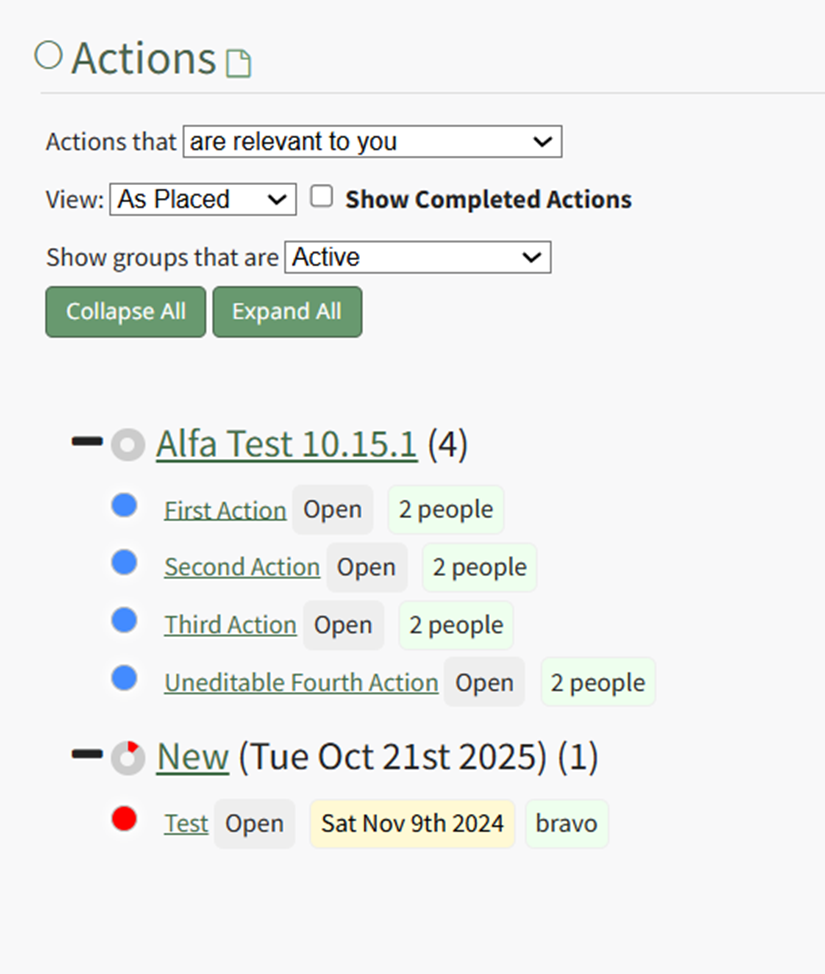
Actions can be edited from the Actions Home Page by hovering the cursor over the action and clicking the edit action icon. Both icons show for an action group and the edit icon shows for an action.
WIKI LINK HOW TO CREATE A NEW ACTION
WIKI LINK HOW TO EDIT AN EXISTING ACTION
Action Home Page Icon Explanation | |
Icon | Explanation |
| Selecting the New Action Icon will open the New Action Modal, allowing for the creation of a new action within the selected activity group. WHAT ACTIVITY GROUP INFO GETS TRANFERRED TO THE ACTION? |
| Selecting the Edit Icon will open the Edit Action Group or Edit Action Modal. |


colored dot before each action or action group indicates information about the action/action group, explained in the table below.
Action Module Legend - Actions Color Coding | |
Icon | Explanation |
| The color green indicates that the action has been completed. |
| The color sky blue indicates that the action is outstanding with no due date. |
| The color blue indicates that the action is outstanding. |
| The color yellow indicates that the action is nearing its due date. |
| The color red indicates that the action is overdue. |


The Action Group Line shows a doughnut chart that highlights the percentage of actions that are completed. When you hover the icon over the doughnut chart, a modal will show the number of action completed and the total number of actions, will stat the percent complete, and will indicate if there are any overdue items.

The Action Group Title follows, along with the action group date and the number of items associated with the action group. If a purple dot follows the Action Group information, it is indicating that the action group is past the number of days of inactivity that was established for the Action Group.

Next to the action title, key information about the action is indicated.

The action status will be shown first, highlighted in grey. The Action Date follows, highlighted in yellow. Finally, the user or role assigned the action will be indicated by green highlight. If no one was assigned the action, Unassigned will be highlighted in red.
The highlighting behind key action information is only for visual clarity and is not representative of any meaning.