
Actions Home Page
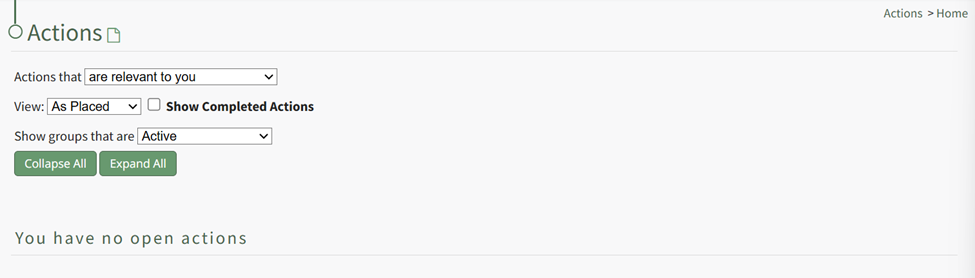
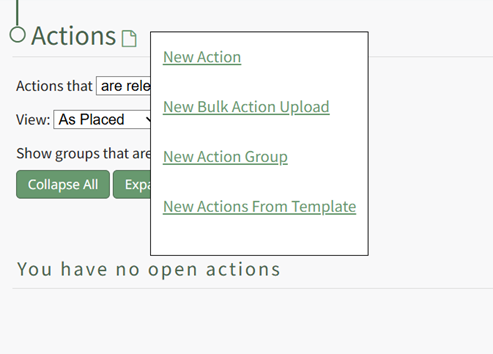
Actions Home Page Context Menu Option Explanation | |
Option | Explanation |
New Action | Selecting "New Action" from the context menu will open the New Action Modal allowing for the creation of a New Action. WIKI LINK HOW TO CREATE A NEW ACTION |
New Bulk Action Upload | Selecting "New Bulk Action Upload" opens the Import Actions Page which allows bulk actions to be imported into KAStrack via .csv file. WIKI LINK IMPORT ACTIONS PAGE |
New Action Group | Selecting “New Action Group” opens the New Action Group Modal that create a new action group. WIKI LINK: HOW TO CREATE A NEW ACTION GROUP |
New Actions from Template | Selecting "New Actions from Template" INSERT MORE EXPLANATION |
Actions Module Home Page Filter Option Explanations | ||
Field | Options | Explanation |
Actions that (dropdown menu) | are relevant to you | Selecting "are relevant to you" will show a list of all actions that are relevant to you. |
are assigned to you | Selecting "Are Assigned to You" will show a list of all actions that are assigned to you. | |
you are an approver for | Selecting "You are an Approver For" will show a list of all actions that you are identified as an approver for. | |
you are interested party for | Selecting "You are an Interested Party For" will show a list of all actions that you have been identified as an interested party for. | |
show all actions | Selecting "Shows all Actions" will show a list of all actions. | |
View (dropdown menu) | As Placed | Selecting "View As Placed" will show a list of all actions organized by Action Groups. |
By Due Date | Selecting "View by Due Date" will show a list of all actions organized by Overdue, 15-30 days, and No Due Date. | |
By User | Selecting "View by User" will organize alphabetically by the first assigned user. All unassigned actions will show at the bottom of the action list. | |
Show Completed Action (checkbox) | Selecting the "Show Completed Actions" checkbox will include completed actions in the list on the filtered view. | |
Show groups that are (dropdown menu) | Active | Selecting "Active" will only show actions associated with Active status Action Groups on the filtered list. |
In Need of Attention | Selecting "In Need of Attention" will only show actions associated with In Need of Attention status Action Groups on the filtered list. | |
Cancelled | Selecting "Cancelled" will only show actions associated with Cancelled status Action Groups on the filtered list. | |
Archived | Selecting "Archived" will only show actions associated with Archived status Action Groups on the filtered list. | |
Show All Groups | Selecting "Show All Groups" will show all actions associated with any Action Groups on the filtered list. | |
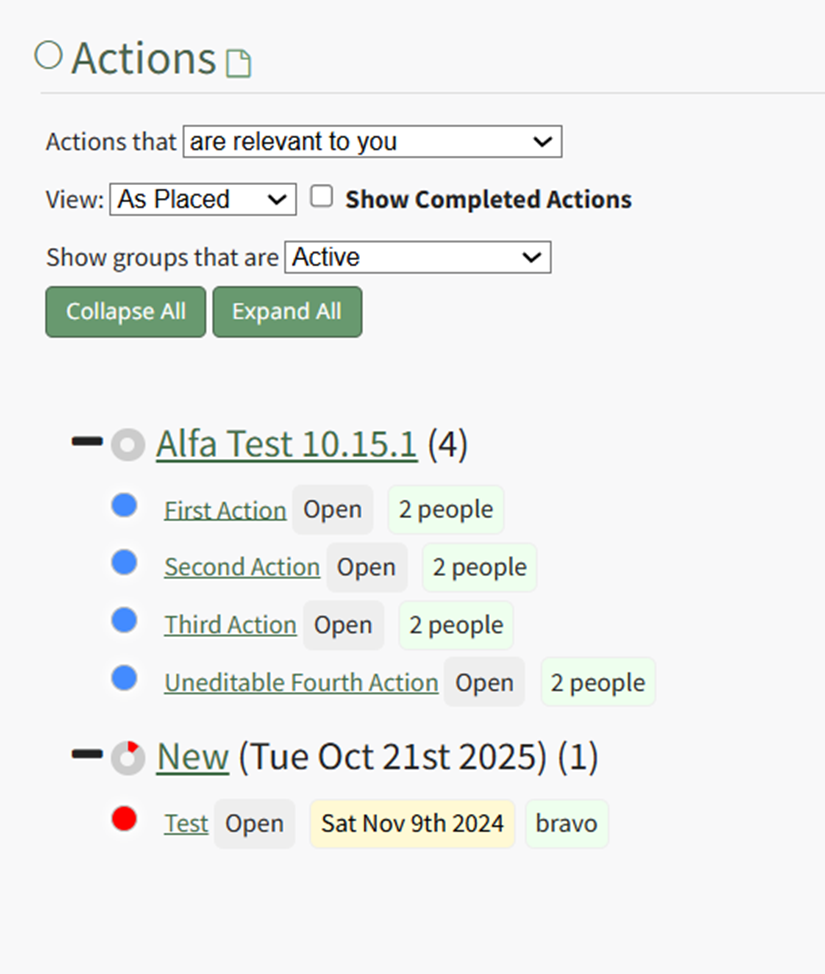
Action Home Page Icon Explanation | |
Icon | Explanation |
| Selecting the New Action Icon will open the New Action Modal, allowing for the creation of a new action within the selected activity group. WHAT ACTIVITY GROUP INFO GETS TRANFERRED TO THE ACTION? |
| Selecting the Edit Icon will open the Edit Action Group or Edit Action Modal. |


Action Module Legend - Actions Color Coding | |
Icon | Explanation |
| The color green indicates that the action has been completed. |
| The color sky blue indicates that the action is outstanding with no due date. |
| The color blue indicates that the action is outstanding. |
| The color yellow indicates that the action is nearing its due date. |
| The color red indicates that the action is overdue. |





The highlighting behind key action information is only for visual clarity and is not representative of any meaning.