Actions: Introduction
- Actions Module Summary
- Understanding Workflows
- Understanding the Integration between Action Groups and Finance Module Budgets
- Actions Module Legend
Actions Module Summary
The Actions Module tracks action items for project management, recurring events, or processes. The Actions Module allows an organization the ability to track and manage action plans for projects. It is unique in its ability to build customized workflows with approval management for individual actions within an action group. The Actions Module is the go-to module for managing findings from internal or external audits. It is used for the implementation of recurring action item to do lists, such as steps to take for a employee/new client onboarding.
Actions integrates with the People Module and can automatically create and apply a template assigned to an individual when they are assigned to a new certification role within KAStrack. Actions also integrates with the Finance Module, which brings simple budgeting tools to action / task management.
Action Groups
Action Groups can be defined as the overarching goal/event/task that is brought to fruition through the completion of the associated actions. Each action must be associated with a specific action group. Action Groups organize actions and defines like settings between its associated tasks.
The Module Pages summarized in the table below explain how actions and action groups can be created, managed, and utilized by your organization.
Actions Module Page Summary Table | |
Page | Summary |
Selecting Home Page from the Main Menu opens the Actions Home Page, which lists any open actions in tabular form. The Home Page offers a variety of filters for actions that enable efficient workflow management. | |
Selecting the Groups Page from the Main Menu opens the Action Groups Management Page, where new action groups can be created and managed. | |
Selecting the Templates Page from the Main Menu opens the Action Groups Template Page. Templates can be created to quickly populate new action groups with a repeatedly used set of actions. | |
The Supervisors Page is only visible to account if they have supervised users. Selecting the Supervisors Page from the Main Menu opens the Supervisors Page which allows you to see actions organized by supervisor for a hierarchical management perspective. | |
The Settings Page in the Actions Module allows a user (with appropriate permissions) to designate parameters specific to the Actions Module and select the settings to be applied to Action Groups. The Settings Page is comprised of four tabs: Bulk Edit, Workflows, Budget Approvers, and Module Levels. | |
The User Manual for the Actions Module is updated through Version 11.12.
Understanding Workflows
Each action in KAStrack is assigned a workflow, a process an action follows from when it is first opened to marked as complete. Each action has its own workflow – to create a new action you are required to select one.
There are three default workflows in KAStrack, explained in the Workflow Explanation Table below.
Workflow Explanation Table | ||
Workflow | Explanation | Image |
Basic | The Basic Workflow is the bare minimum workflow, where an action status is marked as open and changes to closed when completed. |
|
Basic with Approval | The Basic with Approval Workflow adds an intermediary step to the workflow. An approver is assigned (at the action level) to ensure that the action was satisfactorily completed before it given completed status. |
|
Complex with Approval | The Complex with Approval Workflow has several status phases (open, scheduled, in-progress) allowing for an action to be cancelled before being submitted for approval and completion. |
|
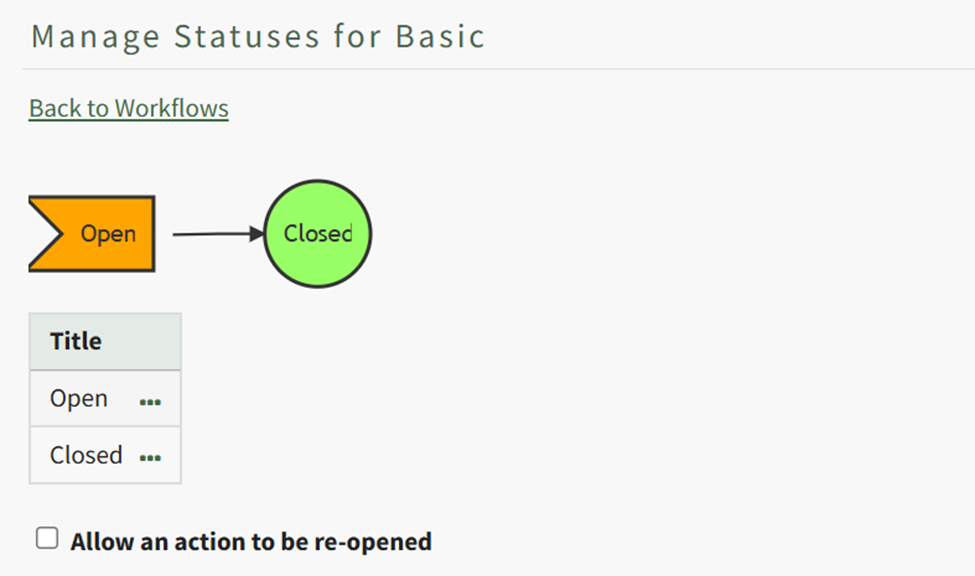
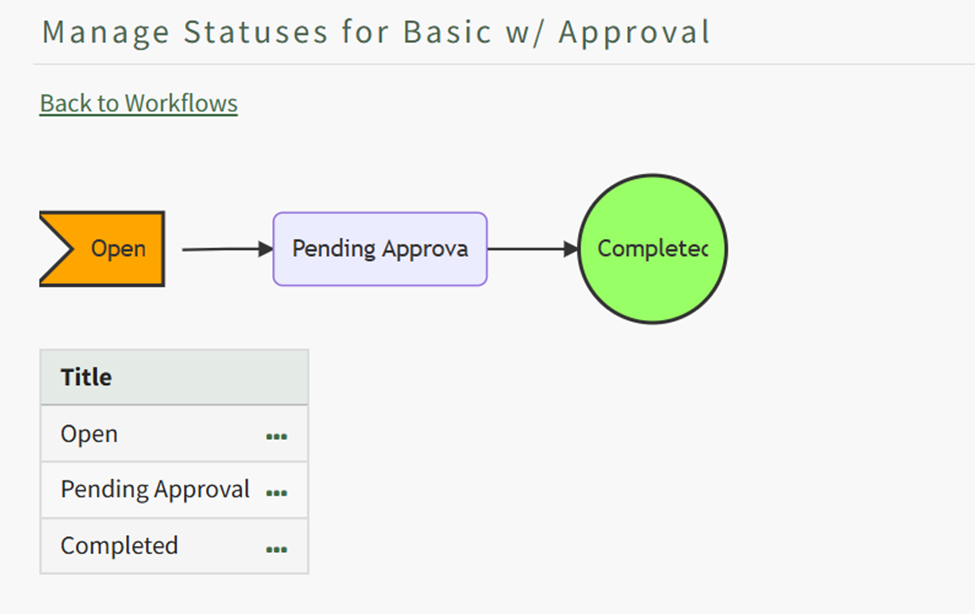
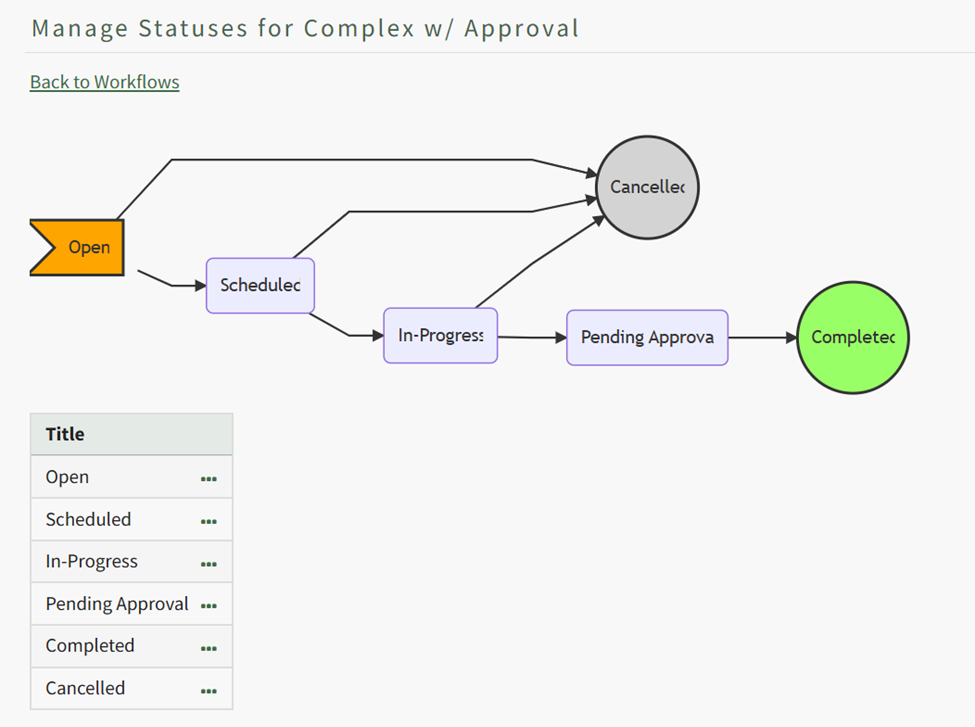
A user with Admin access level permissions can create new workflows customized to your organization.
How To: Create a New Workflow
To create a new workflow, select Settings under the Action Module on the Main Menu. Open the Workflows tab.
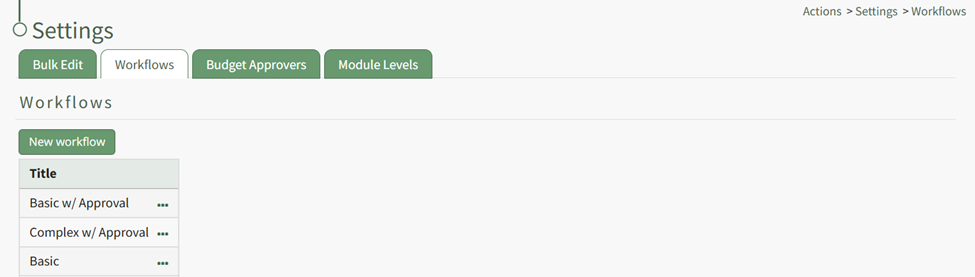
Click the “New Workflow” button opening the New Workflow Title Modal.
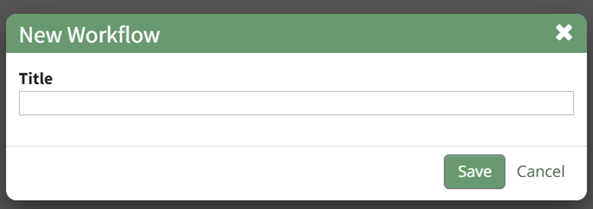
Input the title of the new workflow and select the “Save” button.
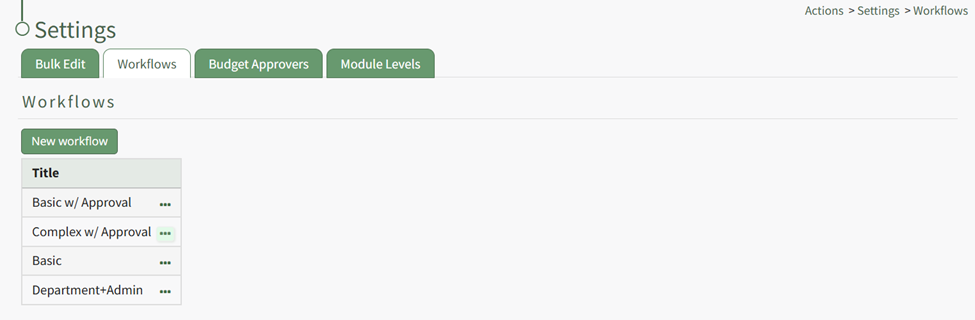
The new workflow is now visible in the Workflow Title Table. Click the three dot icon to the right of the new workflow opening the Workflow Context Menu.
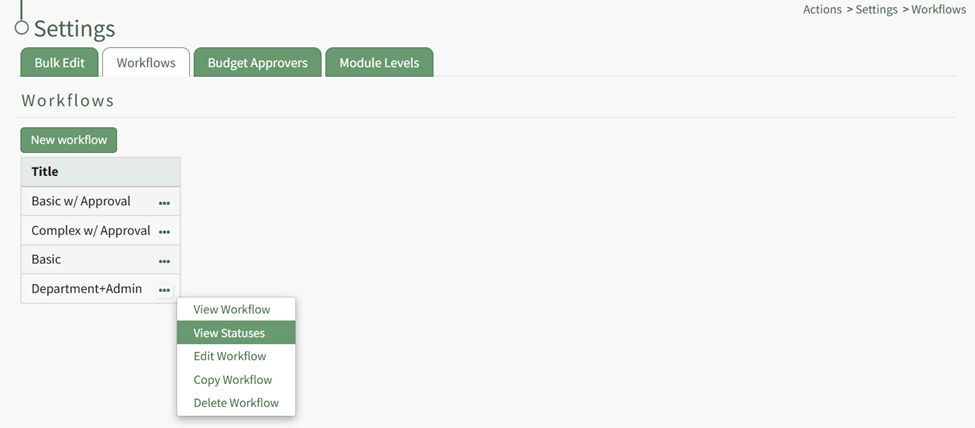
Select “View Statuses” opening the Manage Statuses Page for your workflow.
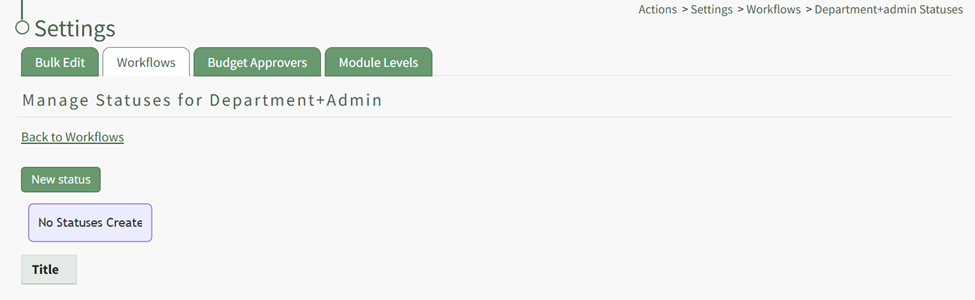
Click the “New Status” button opening the New Status Modal.
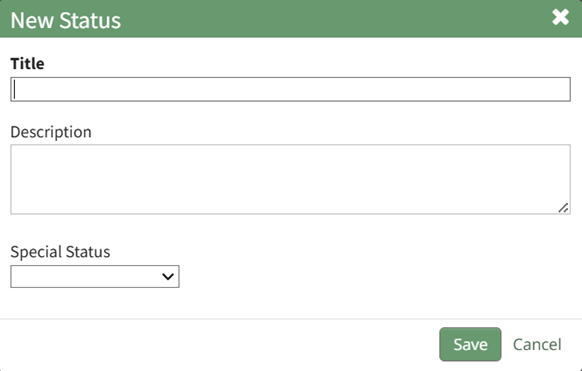
Input a title and description for the new workflow status.
The Special Status dropdown menu displays: Close, Close and Repeat, and Opened. Select which if it applies and select the “Save” button. The status now shows on the Manage Status Page.
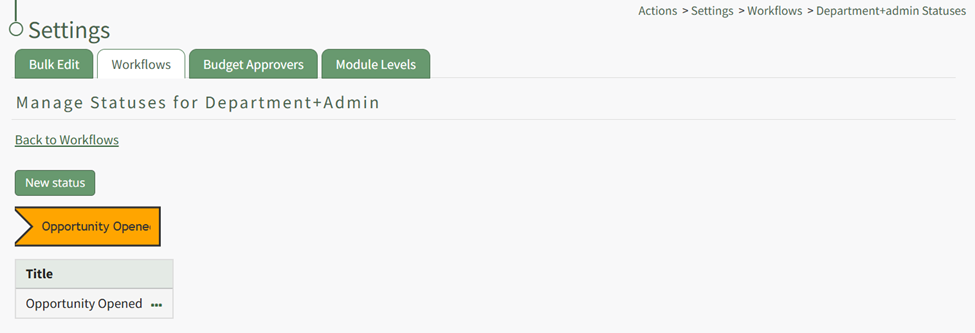
Repeat the process to create the next stage of your workflow.
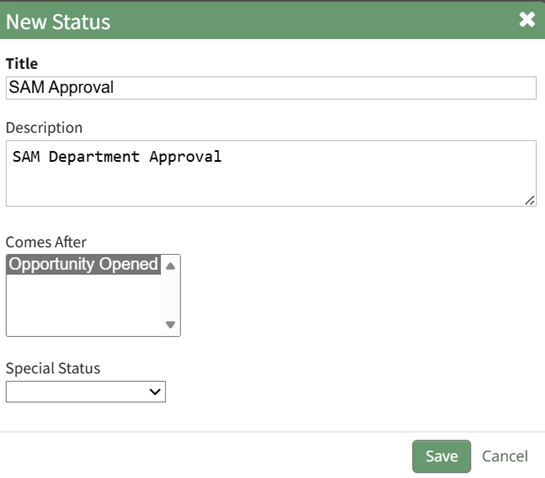
The New Status Modal will now require you to repeat the process, now requiring you to select which step this status is to follow. Repeat the process until your customized workflow has been completed.
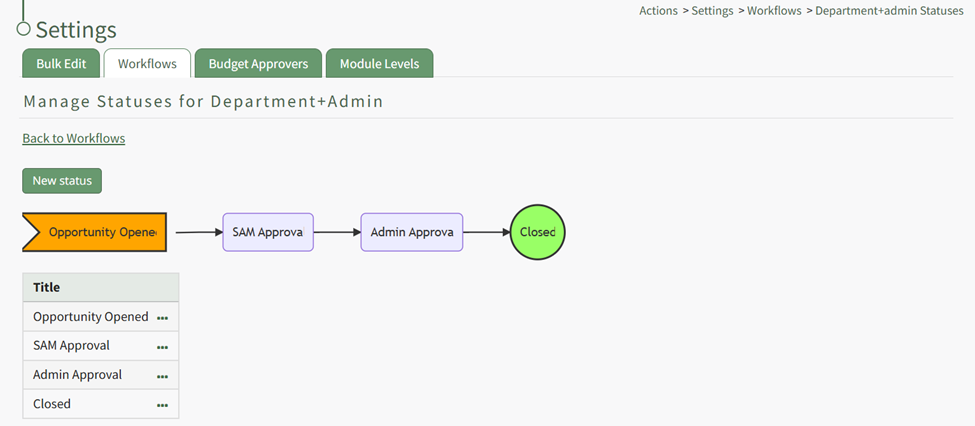
Actions can be approved by an individual. Multiple individuals can be assigned as approvers or interested parties. Any assigned approver will be able to change the action status and only one individual’s approval is needed for the status to change.
Understanding the Integration between Action Groups and Finance Module Budgets
The Actions Module has the ability to link action groups with budgets in the Finance Module and new budgets can automatically be created when new Action Groups are created by assigning a dollar amount in the New Action Group Modal.
When creating new Action Groups, the New Action Group Modal allows for the input of a budget amount, for budget alerts to be added, and budget approvers to be designated.
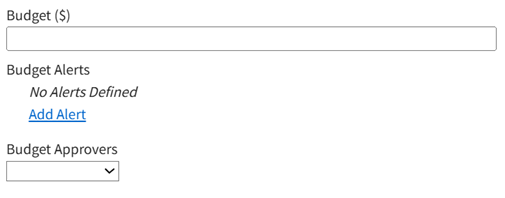
Any budget can have customized alerts that notify individuals or certification roles when the amount or percentage remaining of a budget falls below a specified threshold. The Budget Alerts feature permits the user to designate a threshold for this alert. Selecting this option will have KAStrack send an alert to a designated user if the budget amount or percentage (selected from a drop-down list) falls below an amount set by the user. Budget Alerts can be sent to users or roles.
How To: Add a Budget Alert for an Action Group
To add a budget alert for an action group, edit the group from the Groups Page, or go to the Actions Home Page and click the title of the action group you wish to create a budget alert for.
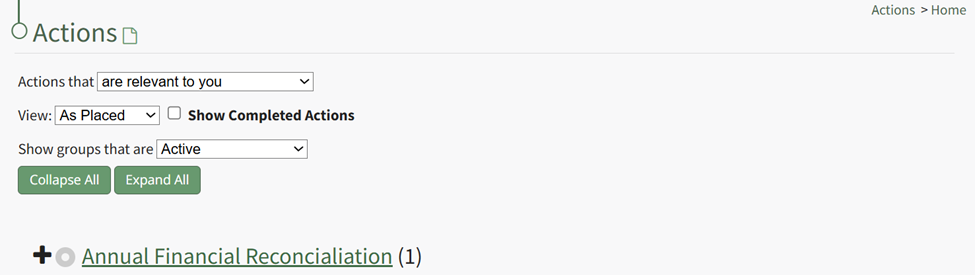
This opens the specific action group page. The second icon to the right of the action group header is the edit action group icon.
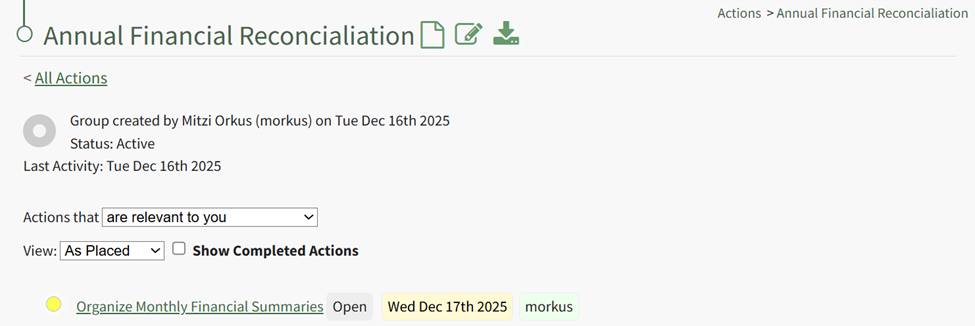
Select the Action Group Properties Icon, opening the Action Group Properties Modal.
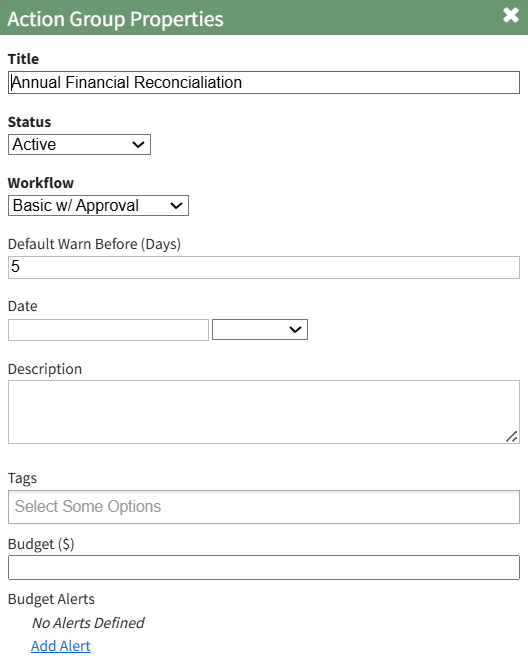
Select the clickable “Add Alert” link, expanding the modal to include new fields.

The alert can be triggered by the amount remaining in the budget falling below a specified amount, or if the percentage remaining falls before a specified percentage. Budget alerts can be sent to users or roles.
Input the preferred alert specifics and select add. The newly saved budget alert will show as saved in the modal.

Multiple budget alerts can be customized within the action group.
Please refer to the Finance Module Book in the User Manual for a better understanding of budgets, budget items, and the budget item approval process.
Actions Module Legend
The Actions Module has its own color coding system, explained in the Actions Module Legend color coding table below. The colors are used to indicate the status of an individual action.
Action Module Legend - Actions Color Coding | |
Icon | Explanation |
| The color green indicates that the action has been completed. |
| The color sky blue indicates that the action is outstanding with no due date. |
| The color blue indicates that the action is outstanding. |
| The color yellow indicates that the action is nearing its due date. |
| The color red indicates that the action is overdue. |
| The color purple indicates the action group is past the number of days of inactivity that was established for the action group. It is never used as an indicator for an individual action. |


Action Groups

Action Group icons are doughnut charts that utilize the same color-coding system as individual actions. The color shown for each action group icon will be aligned with the most critical status in the action group. How much of the doughnut chart is colored indicates the percentage of actions completed out of the number of total actions.

Hover your cursor of the action group icon and the number of actions completed, total number of actions, and percent completed will show. If any actions are overdue, it will be stated here.
Actions are not weighted. Each action counts for an equivalent percentage of the doughnut chart.