
Accounts Page Archived Tab
The Archived Tab on the Accounts Page displays the Archived Accounts Table, which shows the user accounts that have been intentionally archived. Archived accounts are not visible anywhere in KAStrack other than this table, including Reports. Archived users will be unable to log back into KAStrack unless an administrator restores their account first.
Only individuals with an Admin module level access will see the Archived Accounts Tab.
The Archived Account Table shows user account information for user accounts that have been archived. Account fields are used as the column headers. The default columns are Name, Username, Email, Last Active, Un-archive, and Delete.
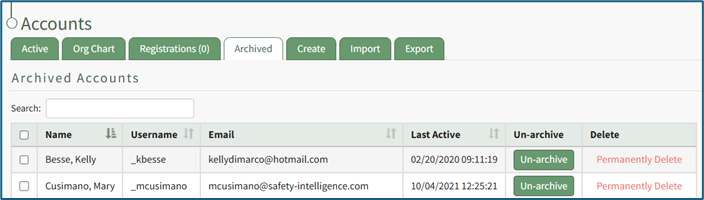
Any desired account field can be created by an administrator. WIKI LINK HOW TO: ADD A CUSTOM / ADDITIONAL USER ACCOUNT INFORMATION FIELD.
The Archived Accounts Table is customizable via the Table Defaults Tab in the Site Settings Module. WIKI LINK HOW TO: EDIT COLUMNS TABLE DEFAULTS TAB (SITE SETTINGS MODULE) This would include any additional account fields created as discussed above plus other existing account fields such as First Name, Last Name, Employee ID, Phone, Address 1, and Address 2.
Selecting any checkbox in a row opens a bulk actions modal above the table. Selecting the checkbox in the first column of the top row selects / deselects all rows in the table.
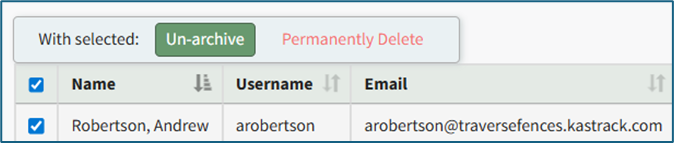
Bulk action options on the Archived Tab are Un-archive and Permanently Delete.
How To: Archive a User Account
To archive an account, open the Active Tab on the Accounts Page in the Accounts Module.
Click the three dot (…) icon next to the user in the Active Accounts Table, opening the context menu. Select “Archive Account”.

Selecting “Archive Account” from the context menu will open a Confirmation Modal.

The modal states, “Are you sure you want to archive this account? Archived accounts are not visible anywhere on the site, including reports.”
Select the “OK” button to archive the selected user account. The user account will be removed from the table of active accounts. Their account information is now found under the Archived Tab on the Accounts Page.
Select the “Cancel” button and return to the Active Tab on the Accounts Page.
How To: Restore an Archived User Account
To restore an archived account, go to the Archived Tab on the Accounts Page in the Accounts Module.

All archived accounts show in the Archived Accounts Table. Identify the user whose account you want to restore and select the “Un-archive” button.

A message will appear in blue indicating that the selected user has been un-archived. The user no longer appears on the Archived Tab, showing on the Active Account Table on the Active Tab instead.
If you wish to restore multiple accounts at once, use the checkboxes beside each account to select multiple accounts, then click the Un-archive button from the With Select popup that shows above the table once checkboxes have been selected.
How To: Permanently Delete a User Account
An account must first be archived before it can be deleted.
How To: Archive a User Account
To archive an account, open the Active Tab on the Accounts Page in the Accounts Module.
Click the three dot (…) icon next to the user in the Active Accounts Table, opening the context menu. Select “Archive Account”.
Selecting “Archive Account” from the context menu will open a Confirmation Modal.
The modal states, “Are you sure you want to archive this account? Archived accounts are not visible anywhere on the site, including reports.”
Select the “OK” button to archive the selected user account. The user account will be removed from the table of active accounts. Their account information is now found under the Archived Tab on the Accounts Page.
Select the “Cancel” button and return to the Active Tab on the Accounts Page.
To permanently delete a user account, go to the Archived Tab on the Accounts Page in the Accounts Module.

Identify the user whose account you want to permanently delete and click “Permanently Delete” within that user’s information row.

A confirmation modal appears stating, “This cannot be undone! Are you sure you want to permanently delete this account and all associated certifications from the system?”
Select the “OK” button to permanently delete the user’s account. Click “Cancel” to return to the Archived Tab without making any changes.
If you wish to delete multiple accounts at once, use the checkboxes beside each account to select multiple accounts, then click the Permanently Delete button from the With Select popup above the table once checkboxes have been selected.