
Manage Page

The Manage Page of the Tags Module is comprised of two tabs: Tags and Categories. New tags and new categories can be created, edited, and deleted from the Manage Page.
By default, in the Manage Tags tab, individuals with an Admin module level for the Tags Module or an Admin access level will see ALL tags, regardless of if they have been assigned visibility to them. This is an exception to the visibility rules associated with permissive and restrictive tags. This is the only page where they will be granted this exception.
WIKI LINK HOW TO: CREATE A NEW TAG IN TO THE TAGS MODULE
WIKI LINK HOW TO: CREATE A NEW TAG CATEGORY
Tag categories determine the appearance of tags (their color and formatting). The Categories Tab is home to the Categories List, that lists all tag categories with columns that show the category style and category color.
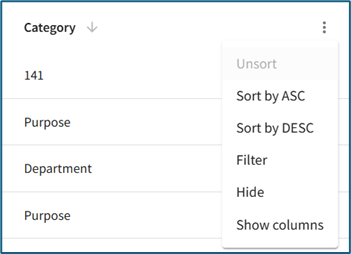
When the cursor hovers over the column header on the Tags List or the Categories List, an arrow and a vertical three dot icon appear.
Tag Behavior | |
Icon | Explanation |
| The up and down arrow icon impacts the alphabetical column sorting communicating if it is set to ascending or descending. |
| The vertical triple dot icon opens the tag table context menu that shows the following options: Sort by ASC, Sort by DESC, Filter, Hide, Show Columns |


The options on the Tag List Context Menu are explained in the Table below.
Tag and Category List Context Menu Option Explanations | |
Option | Explanation |
Sort by ASC | Selecting “Sort by ASC” will organize the data in that column from A to Z. |
Sort by DESC | Selecting “Sort by DESC” will organize the data in that column from Z to A. |
Filter | Selecting “Filter” opens a modal that allows an individual to customize the Tag List. Operator allows for the preferred method of filtering, and any value can be entered into the Value Field. |
Hide | Selecting “Hide” will remove the column from the Tag List. To see the column again, refresh the page. |
Show Columns | Selecting “Show Columns” opens a column header modal. The user has the ability to customize which column headers show on the Tags List. The user’s customized selections will remain in place until they are manually changed again through the Column Header modal or the page is refreshed. The “actions” option controls the visibility of the vertical dot icon that opens the context menu. |
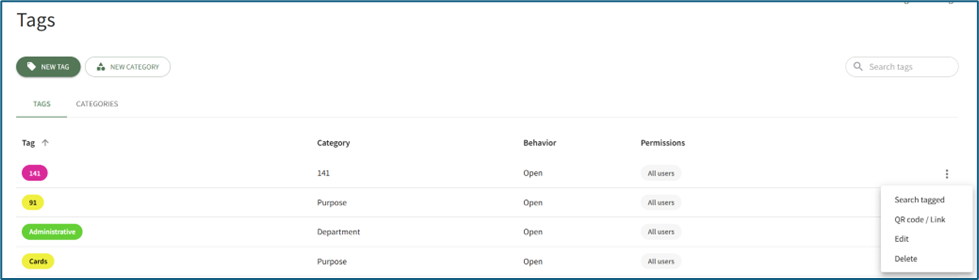
To the far right of each tag entry on the Tags list is a vertical three dot icon that opens a context menu with options that pertain to the specific tag. An explanation of each option is included in the Tag Context Menu Option Explanation Below.
Tag Context Menu Option Explanation | |
Option | Explanation |
Search Tagged | Selecting “Search Tagged” from the context menu will search the system for entities assigned to the tag selected, opening to the search results on the Search Tagged Page. |
QR Code / Link | Selecting “QR Code / Link” from the context menu generates a QR Code and a URL Link that, when accessed, will take an individual to the Search Tagged Page displaying the list of entities associated with the tag category.
|
When an individual who is not in the KAStrack system accesses the QR Code/URL Link, they will have access to an Items Tagged With (TAG) Page that shows all public entities with that Tag. The individual will be able to access and download the public files and folders as desired. Only Open Tags can be accessed by individuals not logged into KAStrack. | |
Edit | Selecting “Edit” from the context menu opens the Edit Tag Modal.WIKI LINK HOW TO: EDIT A TAG |
Delete | Selecting “Delete” from the context menu will open the Delete Tag Modal. WIKI LINK HOW TO: DELETE A TAG |
To the far right of each category entry on the Categories list is a vertical three dot icon that opens a context menu with options that pertain to the specific category. An explanation of each option is included in the Category Context Menu Option Explanation Below.
Category Context Menu Explanation | |
Option | Explanation |
Add Tags | Selecting “Add Tag” from the context menu will open the New Tag Modal and prefill this Category for the new Tag. WIKI LINK HOW TO: ADD A NEW TAG IN THE TAGS MODULE |
Edit | Selecting “Edit” from the context menu will open the Edit Category Modal. WIKI LINK HOW TO: EDIT A CATEGORY |
Delete | Selecting “Delete” from the context menu will open the Delete Category Modal. WIKI LINK HOW TO: DELETE A CATEGORY |