
Access Levels Tab
The Access Level Tab in the Site Setting Module displays access levels and module levels, allows the creation of new access levels, and assigns remote access profiles.
The first clickable link below the Access Levels header, KAStrack, serves a different purpose than the clickable module names. Clicking “KAStrack” shows each of the four default access levels (and any customized access levels that have been created) and their associated module levels. The clickable module names to the right of the KAStrack tab open the module level table for the module selected.

Specific user permissions for each module are assigned to Module Levels and each Access Level is comprised of assigned module levels.
Each module has default module levels with default permissions assigned to them. Default module levels cannot be altered, but new module levels with customizable permissions can be created.
Within KAStrack, there are four default access levels that identify system user privileges: Admin, Supervisor, Employee, and Observer. Each Access Level is comprised of multiple module levels. The table below shows the four default access levels and the module levels assigned to each access level. New access levels can be created in the Site Settings Module.
How To: Create a Customized Access Level
Go to the Access Level Tab in the Site Settings Module and select “KAStrack”, the first clickable link below the Access Levels header.

Select the “Create Access Level” button opening the editable Create Access Level Page.

Input your new access level name.
Click the pencil icon opening the Add Module Level modal.


As module levels are added to the new access level, they will show in the Module Access Levels table. Continue clicking the pencil icon and adding module levels as desired.
If a module level is not assigned to the access level for a specific module, the user assigned to the access level will not be able to view the module.
After all desired module levels have been assigned, select the “Create Access Level” button. The customized access level now shows under “KAStrack” on the Access Levels Tab of the Site Settings Module.

Access Levels: | Admin | Supervisor | Employee | Observer |
Module | Module Access Level | |||
Accounts | Admin | Supervisor | Employee | Observer |
Actions | Admin | Manager | Staff | Guest |
Assets | Admin | Manager | Maintainer | Observer |
Attendance Log | Admin | Manager | Staff | Guest |
Calendar | Admin | Manager | Staff | Guest |
Comments | Admin | Manager | Staff | Guest |
Communications | Admin | Manager | Staff | |
Courses | Admin | Manager | Staff | Guest |
Dashboard | Admin | Manager | Staff | Guest |
Database | Admin | Manager | Staff | |
Dispatch | Admin | Manager | Staff | Guest |
Documents | Admin | Manager | Staff | Guest |
Finance | Admin | Supervisor | Employee | Observer |
Forms | Admin | Manager | ||
Grid | Admin | Manager | Staff | Guest |
Integrations | Admin | |||
Inventory | Admin | Manager | Staff | Guest |
Kanban | Admin | Manager | Staff | Guest |
Meetings | Admin | Admin | User | User |
People | Admin | Supervisor | Employee | Observer |
Remotes | Admin | |||
Reports | Admin | Manager | Staff | |
Tags | Admin | Manager | Staff | Guest |
All users must be assigned an access level in order to access the modules in the system and can be assigned to multiple access levels simultaneously.
For a user with an Admin Access Level to be tracked within the People Module, they must also be assigned an Employee Access Level.
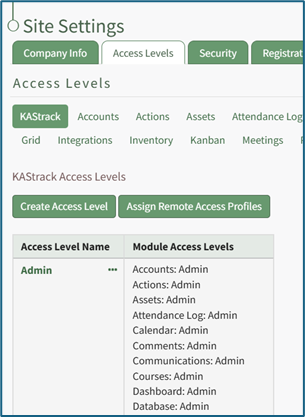
Selecting the three dot (…) icon next to the Access Level name opens a context menu with the option to View Access Level. Selecting View Access Level opens an access level page that shows the module level information for that specific access level (and no longer shows details for all access levels). The context menu for Customized Access Levels includes options to Edit Access Level and Edit Module Access.
How To: Edit a Customized Access Level
To edit a customized access level, go to the Access Levels Tab in the Site Settings Module.
Only customized access levels can be edited or deleted. The KAStrack generated default Access Levels (admin, supervisor, employee, and observer) cannot be edited or deleted.

The three dot (…) icon next to the customized access level opens a context menu with three options: View Access Level, Edit Access Level, and Edit Module Access.

Selecting “Edit Access Level” from the context menu opens the Edit Access Level Page where the pencil icon can be used to add module levels and the X icon can be used to delete module levels.

Selecting “Edit Module Access” from the context menu opens the (Access Level): Edit Module Access Modal.

Selecting a module’s checkbox will prohibit a user with this access level from accessing the specified module.
Clicking a module name along the top of the Access Levels page will open the Module Level Table, allowing you view the different module levels for that module within the Site Settings Module.
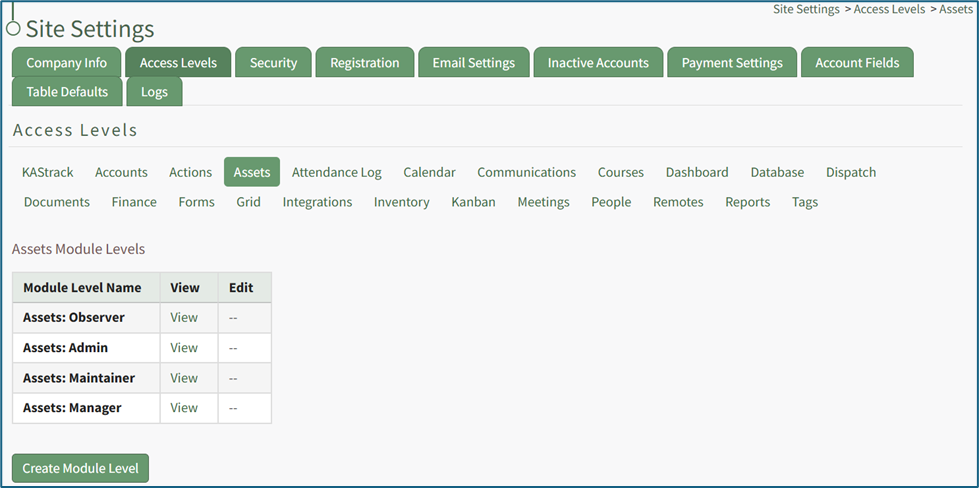
For most modules, selecting “View” within the module level table will bring the user to the Settings Page for the module selected, where specific permissions for the module level can then be viewed. To create a new customized module level, see the How To: Create a New Module Level in the User Manual for the module of interest. Selecting the “Create Module Level” button will direct you to the Settings Page of that module. After creating a new module level, it will show on this page. The Edit button will also direct you to the Settings Page of that module to make any alterations there.
For the modules Accounts, Finance, and Meetings, the View and Edit buttons direct you to sub-pages within Site Settings where you can make any necessary changes.
How To: Delete a Customized Access Level
To delete a customized access level, go to the Access Levels Tab in the Site Settings Module.
Only customized access levels can be edited or deleted. The KAStrack generated default Access Levels (admin, supervisor, employee, and observer) cannot be edited or deleted.

The three dot (…) icon next to your customized access level opens a context menu with three options: View Access Level, Edit Access Level, and Edit Module Access.

Selecting “Edit Access Level” from the context menu opens the Edit Access Level Page.
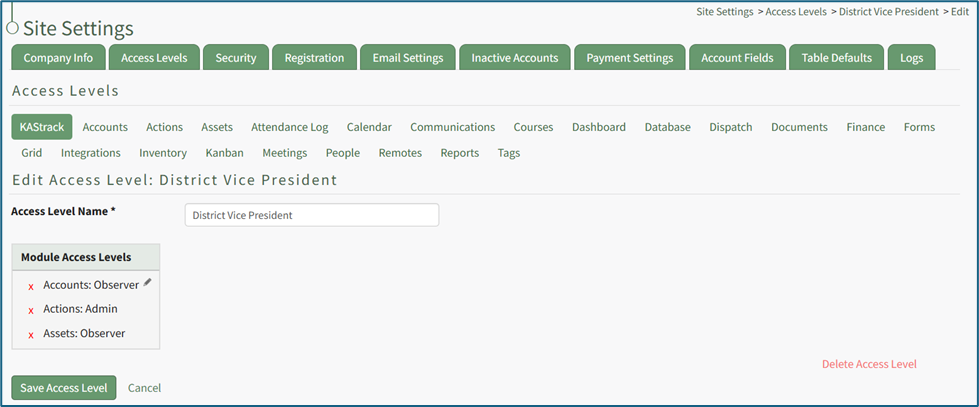
In the bottom right corner is a clickable “Delete Access Level” link. Selecting this opens a confirmation modal that states, “This will delete the access level. Are you sure you want to delete this access level?”
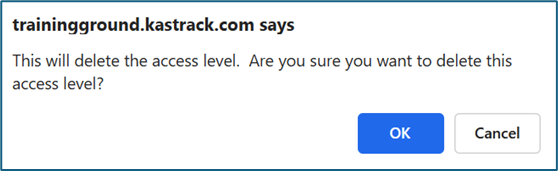
Click “Cancel” if you do not wish to delete the access level. Select “OK” to permanently delete the Access Level and return to the KAStrack Access Level Page.
How To: Assign Remote Access Profiles
Remote access profiles are utilized by franchises and organizations that use multiple, different subdomains. If this applies to your organization, contact the KAStrack Technical Support team directly due the complexity of setting up remote access profiles. The customization of this feature is a part of your support services.