Reports Page
The Reports Page in the People Module permits supervisors to generate, view, and share reports regarding user certification status. By default, employees do not have access to the Reports Page. Observers, supervisors, and administrators do.
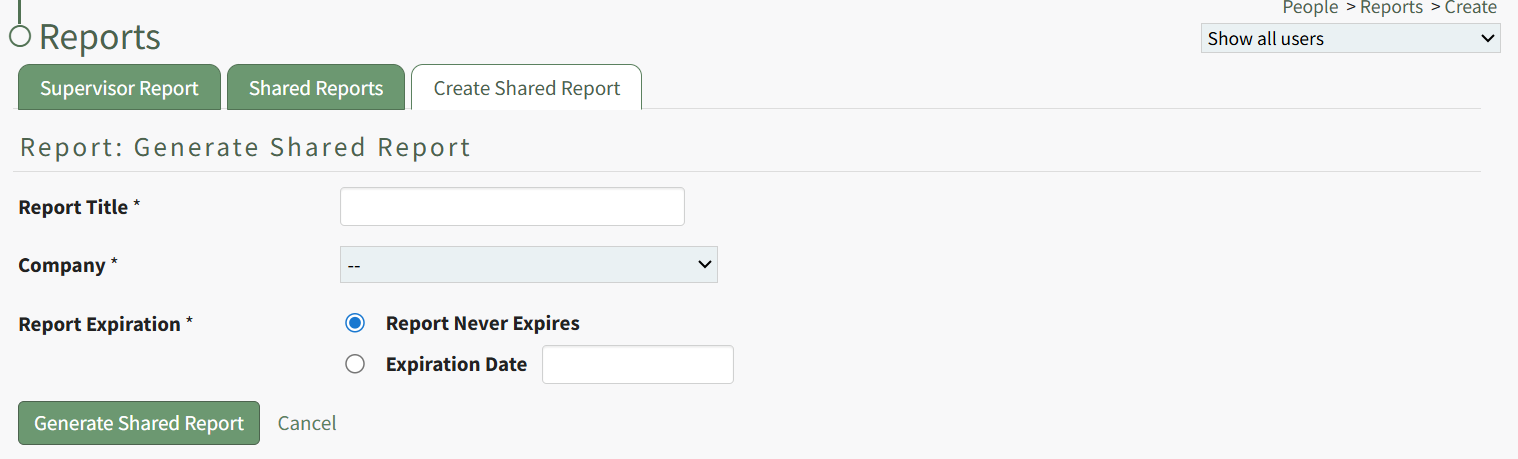
The Reports Page has three tabs: Supervisor Report, Shared Reports, and Create Shared Reports.
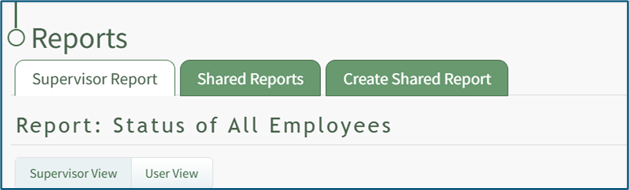
The Reports Page Tab Summary Explanation Table includes information about the each of the tabs accessible from the Reports Page.
Reports Page Tab Summary Explanation | |
Tab | Explanation |
Supervisor Report | The Supervisor Report Tab allows a supervisor to view all outstanding certifications and competency status information for user accounts they manage. It can be displayed in both an organizational hierarchal Supervisor View as well an alphabetized User View. |
Shared Reports | The Shared Reports Tab shows a listing of all previously created Shared Reports, allowing a user to share certification role status information for selected users with individuals external to the company via a shareable link. |
Create Shared Reports | The Create Shared Report Tabs allows for the creation a new shared report that shows the certification role status of a selection of users relative to selected roles. |
The Supervisor Report Tab
The Supervisor Report Tab allows users to quickly visualize outstanding certification status in tabular format with columns that indicate the User’s Name, the name of the certification/competency, and expiration date. The Supervisor Report is broken into 5 subcategories: Expired Certifications/Competencies, Overdue Certifications/Competencies, Due Certifications, Training Certifications/Competencies, and Deferred Certifications.
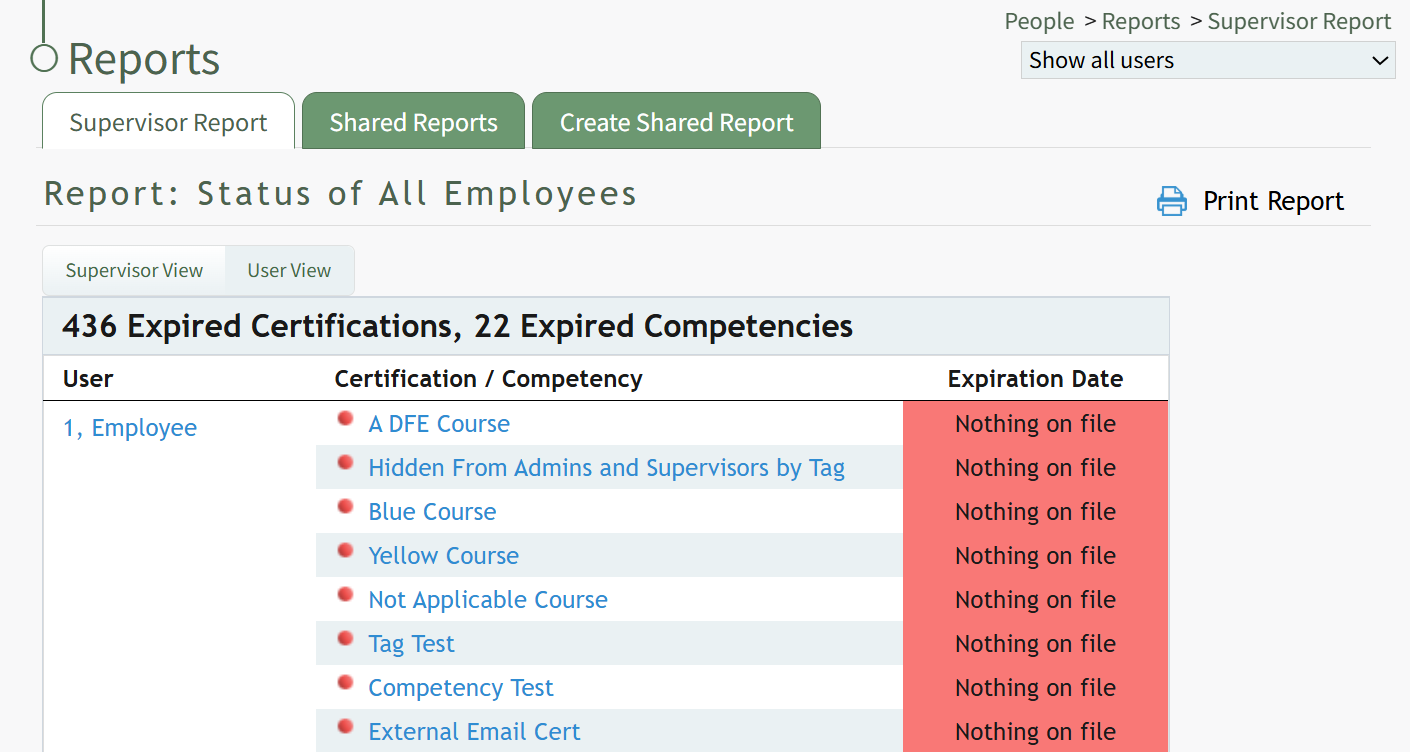
The information can be displayed in an organizational hierarchal supervisor view or an alphabetized user view. Use the "Supervisor View" and "User View" buttons to toggle between the two.
When in Supervisor View, employee names are subcategorized according to their designated supervisors. If a user has certifications/competencies that are outstanding, they are included in this report. The term “BEGIN” will appear to the right of the supervisor’s name on a row header above the first listed user’s name, indicating the supervisor hierarchy for the users below the BEGIN header.
Clicking a user’s name will open the individual’s User Page Certification Tables. Clicking on a certification or competency will open the specified certification on the User Certification Tab on an individual’s User Page.
You can send the report by email, with optional attachments, via the Email Report tool at the bottom of the page in either of the Supervisor or the User views. WIKI LINK HOW TO SEND A SHARED CERTIFICATIONS REPORT VIA EMAIL
When all pending certifications/competencies are certified for an employee, the term “Begin” to the right of the supervisor’s name of the Report: Status table (in Supervisor View) will change to “End”.
The Shared Reports Tab
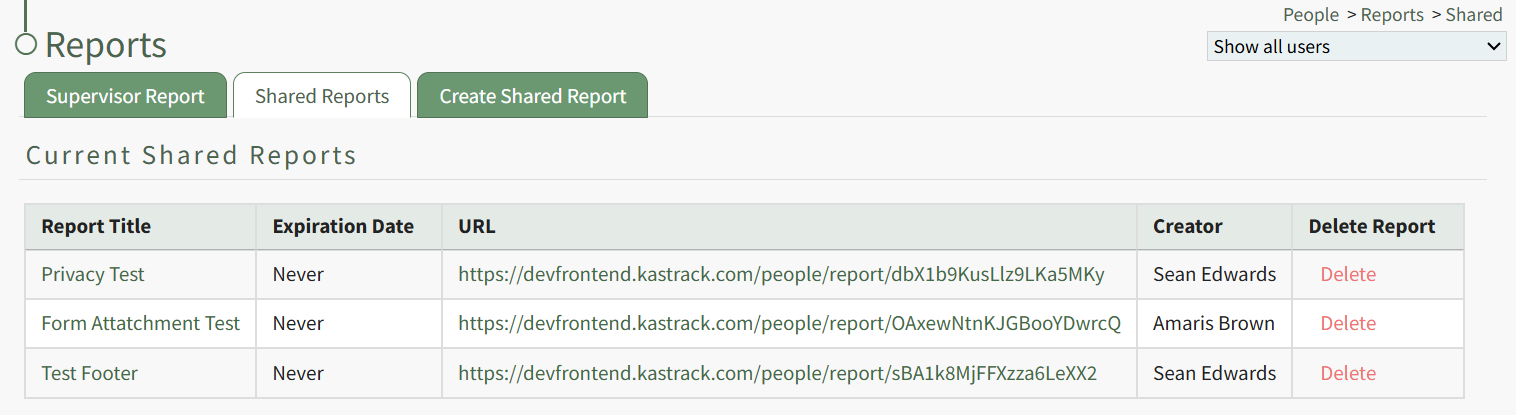
Clicking on the Shared Reports Tab will open a table with the shared report titles, expiration dates, URLs, and the creator(s) of the report(s). There is also a “Delete” option in red font within the far-right column of the table. WIKI LINK HOW TO DELETE A SHARED CERTIFICATIONS REPORT
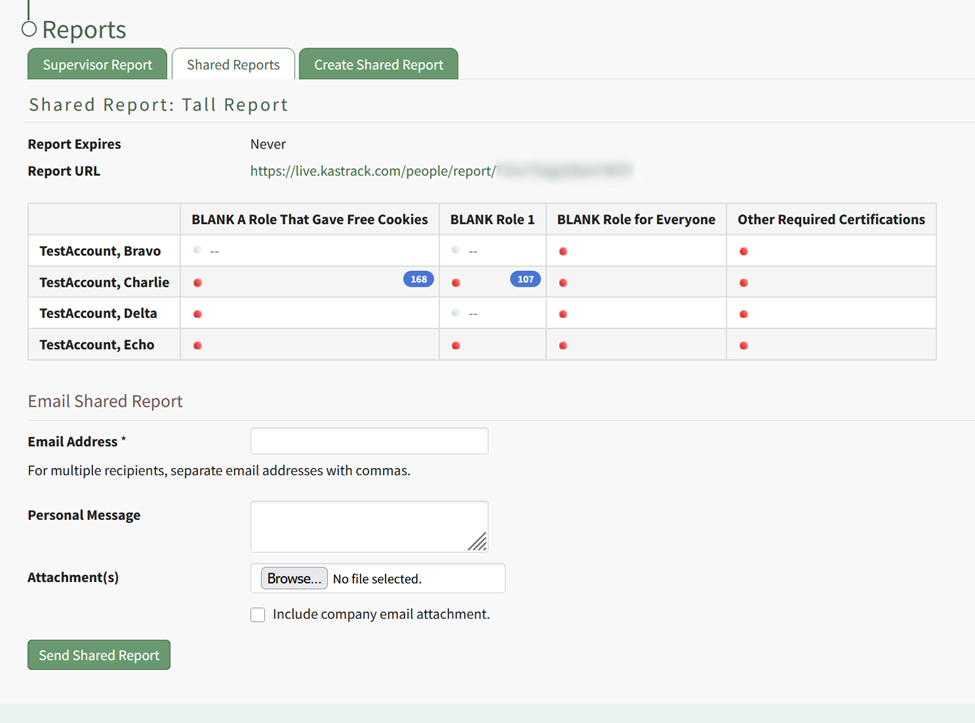
The name of the Report Title in the Current Shared Reports Title is a clickable link that, when selected, will open the specific Shared Report Page. This page again lists the expiration date for the report, its shareable Report URL, and a sample of the report information. You can send the reports by email, with optional attachments, via the Email Shared Report tool at the bottom of the page.
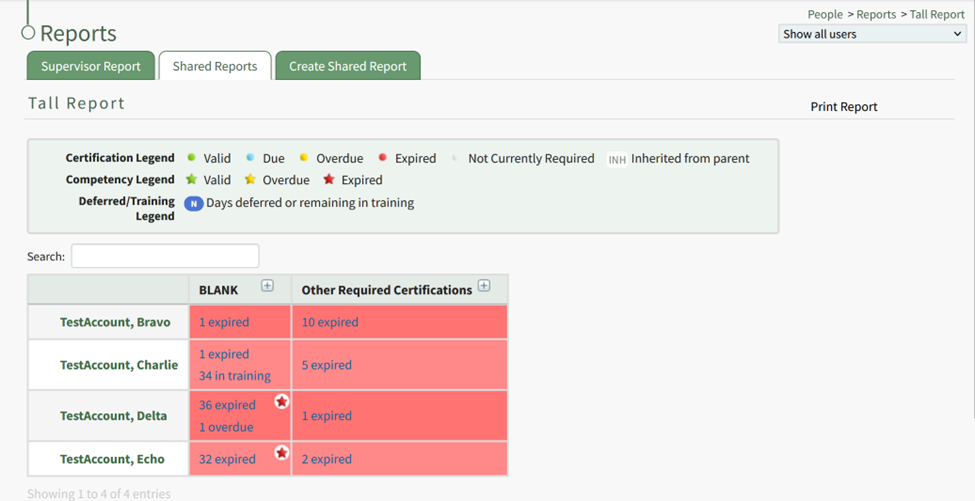
Clicking the Report URL in the Current Shared Reports Table will load the report table in KAStrack.
The Create Shared Reports Tab