
Matrix Page
The Matrix Page in the People Module allows for a quick visualization of all available user’s certification statuses in table format. The Matrix Page can be accessed from the Main Menu.
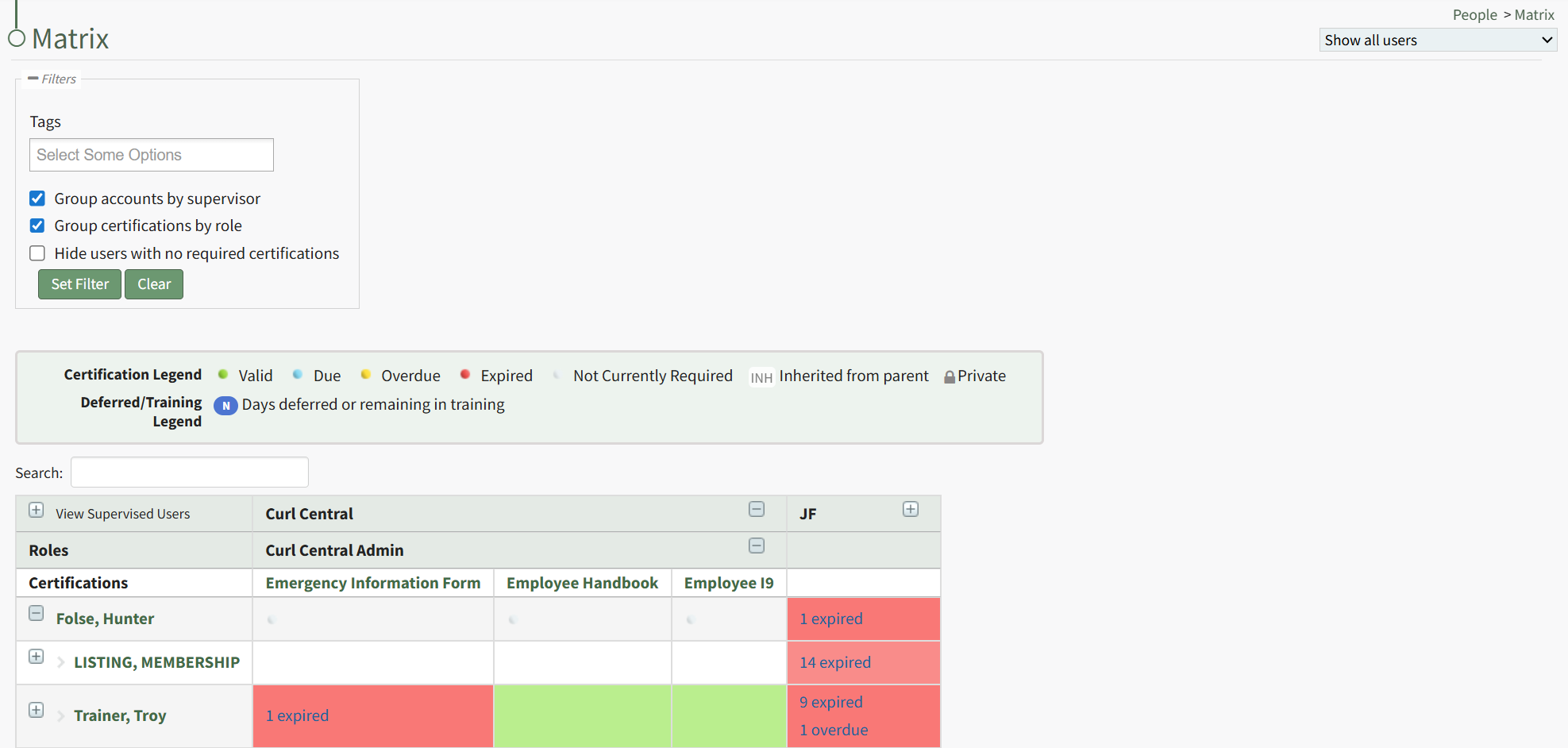
A filter box immediately below the Matrix Page header allows an administrator/supervisor to filter by tags. Tags can be created as desired within the Tags Module on the Manage Page. WIKI LINK HOW TO: TABS MODULE THAT HASN’T BEEN WRITTEN YET
You can only filter Certifications by Tags that you have access to.
Selecting the appropriate checkbox will group accounts by supervisor, group certifications by role, or hide users with no required filters.
Administrators can update assigned certifications records within the Matrix Table. WIKI LINK HOW TO UPDATE ASSIGNED CERTIFICATION RECORDS FROM THE MATRIX TABLE
Understanding the Matrix Table
The far-left column lists users names, first in Supervisor View then alphabetical order (if the “Group account by supervisor” filter is enabled). Pressing the plus sign icon to the left of the Supervisor’s name will expand to show their supervised users.
Clicking on the name of an employee will bring a supervisor to the specified User's Page.
The first header row lists the different companies established in KAStrack. Pressing the plus sign icon to the right of the company name will expand opening a second header row that shows all certification roles within the company. Pressing the plus sign icon to the right of the certification roles will expand to show a third header row. The third header row shows all certifications associated with that Company’s certification role.
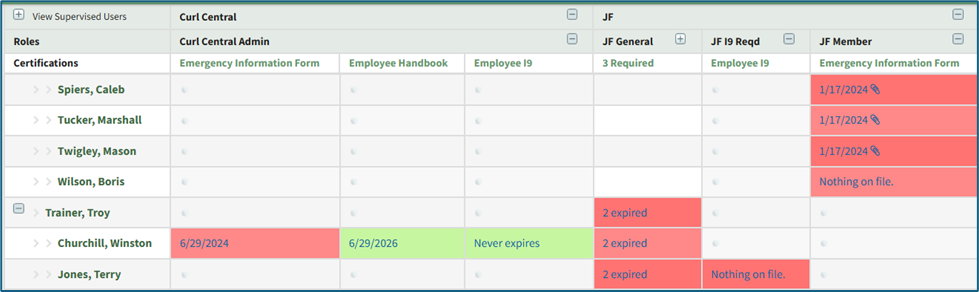
Cells underneath the certification columns are colored according to the Certification Legend.
If there is no information submitted for that Certification for the specified user, then the associated cell states “Nothing on file.” If the certification does not apply to a particular user, that cell will not have any highlighting and contain a blue oval with the letters “N/A” in white font.
The cells in the Matrix Table are clickable links. Clicking on the Certification Due Date (red, yellow, or blue cells) or the Expiration Date (green cells) opens the user's Certification Details Modal.
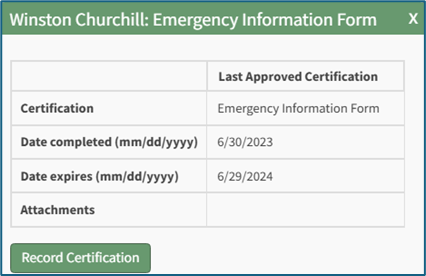
Clicking the Record Certification button on a Certification Details Modal allows users to update assigned certifications directly from the Matrix Page. WIKI LINK HOW TO UPDATE ASSIGNED CERTIFICATION ROLES FROM THE MATRIX TABLE