Certifications Page
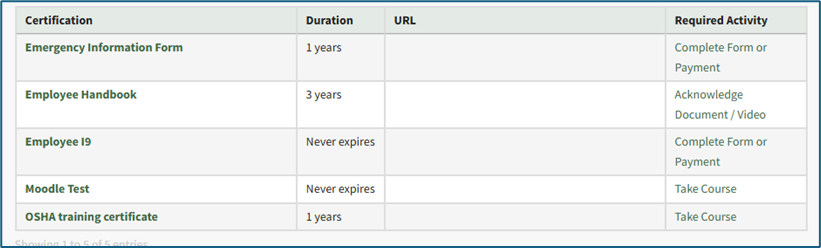
Selecting Certifications in the People Module on the Main Menu opens the Certifications Page showing a Certifications Table listing any certifications that have been created. The Certifications Page allows an individual to create, edit or view and submit current certifications/qualifications.
The Certifications Page can be viewed by a supervisor/admin from the Main Menu in the People Module. Users have access to information about the certifications they have been assigned on the My Certifications Tab on the user's My Account Page.
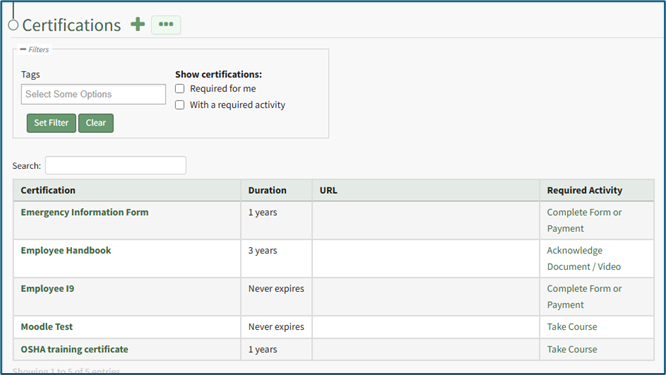
Clicking the plus sign icon to the right of the Certifications Page header opens the Add Certification Page. WIKI LINK HOW TO CREATE A NEW CERTIFICATION
Selecting the three-dot icon to the right of the header opens the Certification Page Context Menu with options for certification management. The Certifications Page Context Menu options are explained in the table below.
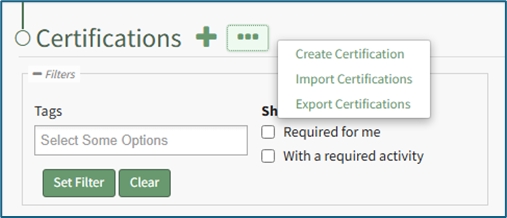
Certifications Page Context Menu Option Explanation | |
Option | Explanation |
Create Certification | Selecting Create Certification from the Certifications Page Context Menu opens the Add Certification Page. The action initiated by this option is the same as clicking the plus sign icon in the header row.
How |
Import Certification | Selecting Import Certification from the Certifications Page Context Menu opens the Import Certifications Page which offers a downloadable template for ease in bulk importing certification information. How |
Export Certification | Selecting Export Certification from the Certifications Page Context Menu opens the Export Certifications Confirmation Modal. Select the Export button to download certification information to your personal device. How |
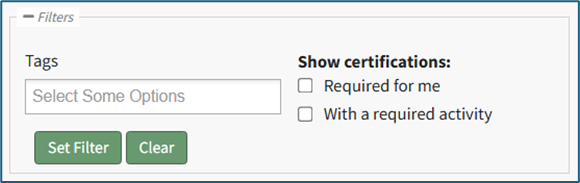
A filter box below the Certifications Page header allows an individual to select tags and viewing parameters to quickly sort the items within the Certifications table. Checkboxes enable the system to show certifications “Required for me” and to show certifications “With a required activity”. A supervisor or administrator will see the option to show certifications “Required for my supervised users.”
The columns of the Certification Table state the Certification Name, Duration, URL, and Required Activity (which, if applicable, indicates the type of user activity that validates the certification). Required Activity options include: Complete Form or Payment, Acknowledge Document / Video, or Take Course. If a Certification has no Required Activity, this field will be empty – a regular Certification Submission would still be necessary to complete the Certification for a user.