
Certification Roles Page
The Certification Roles Page is available in the People Module on the Main Menu as Roles. When Roles selected from the Main Menu, the Certification Roles Page opens allowing individuals with permission to input all user certification roles and to organize certifications according to roles/department.
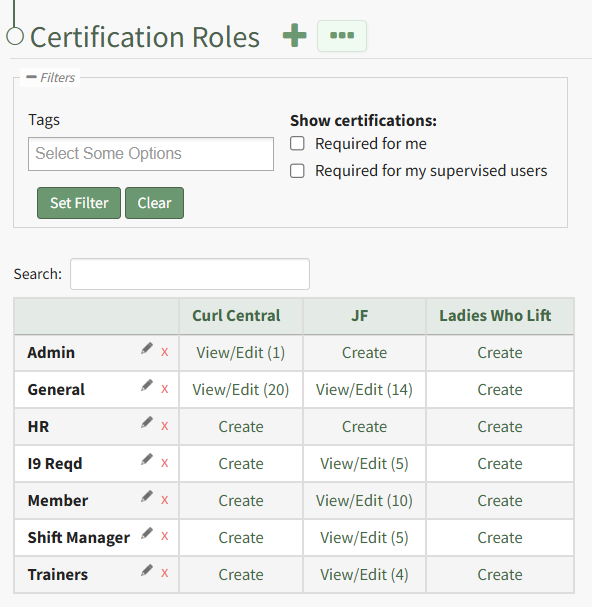
Within KAStrack, the term “Certification Role” pertains to what role an employee has within a company, or what department / grouping they’re associated with. A user can have one role, multiple roles, or none. Certification roles are utilized to make setup, organization, asset responsibility and resource access simpler. In the People Module, roles can be utilized to assign Certification requirements to groups of users in similar positions.
Individuals with certification roles are not required to have certifications, which can be useful for activities such as communication, asset ownership, approvals, etc. Individuals may also have Certification requirements outside of a Certification Role, known as “Other Required Certifications”.
Understanding the Roles Page
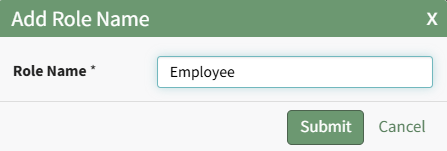
Clicking the plus sign icon to the right of the Certification Roles header will open the Add Role Name Modal, allowing for the creation of new roles in KAStrack.
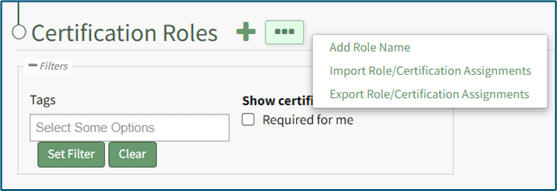
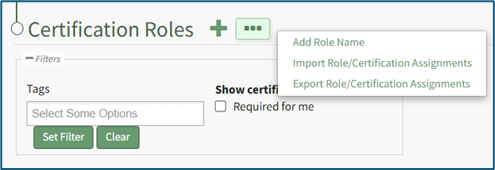
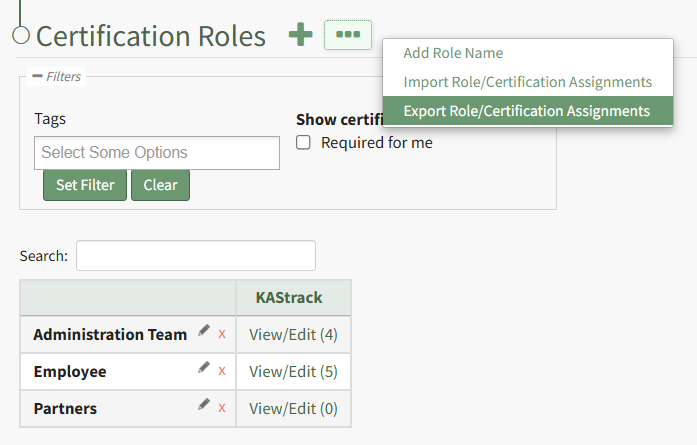
Selecting the three-dot icon in the header row opens the Certification Roles Page Content Menu. The options on the context menu are explained in the table below.
Certification Roles Page Context Menu Option Explanations | |
Option | Explanation |
Add Role Name | Selecting the Add Role Name option from the context menu opens the Add Role Name Modal, initiating the same action as the plus sign icon in the header row. How To: Create, Define, and Assign Users to a New Certification RoleTo create and define a new certification role, select Roles in the People Module on the Main Menu opening the Certification Roles Page.
Click the plus sign icon to the right of the Certification Roles header to open the Add Role Name Modal. Clicking the three-dot icon to the right of the header and selecting Add Role Name from the Certification Roles Page Context Menu will initiate the same action as selecting the plus sign icon.
Input the new role's name and click the Submit button. The newly created role is now visible on the Certification Roles Table in alphabetical order.
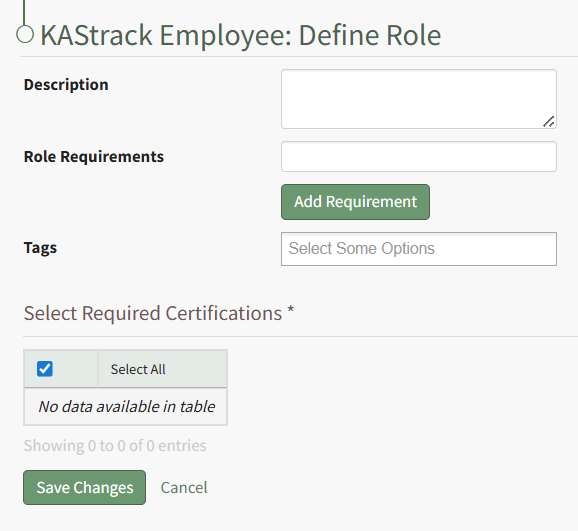
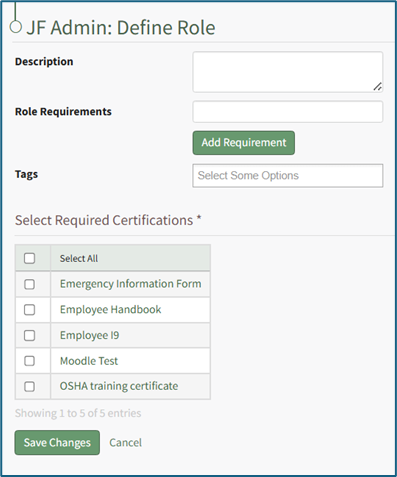
Select the clickable link to "Create" opening the Define Role Page.
Input the role description and any relevant role requirements. Role requirements are specific to your organization. Multuple requirements can be included. Any existing certifications will be listed in the table in the Select Required Certifications Table and can be selected via checkbox. Certification roles are not required to have a certification associated with them. Select "Save Changes" and certification role's Edit Users Page opens.
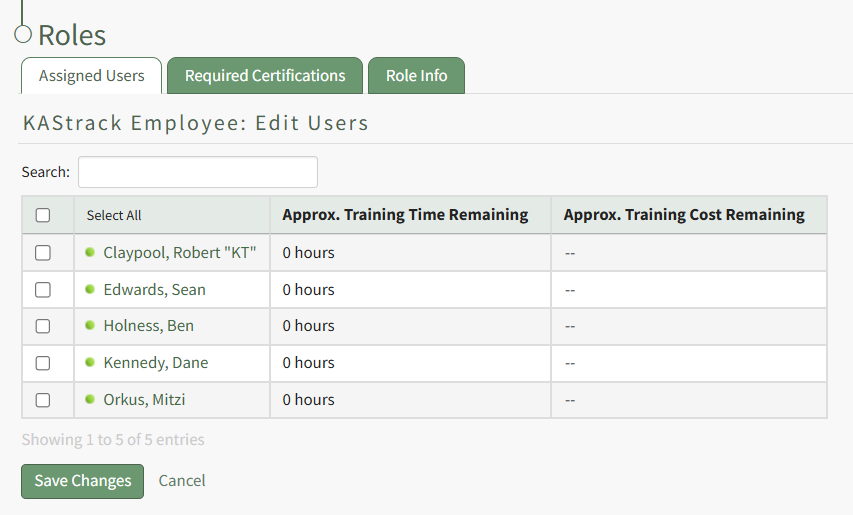
Identify the users that should be assigned to the certification role by selecting the checkbox to the left of the user's name. Selecting the checkbox on the top row of the table will select/deselect all checkboxes in the table. Click the Save Changes button below the table and the assigned users will now show in the newly created certification role. |
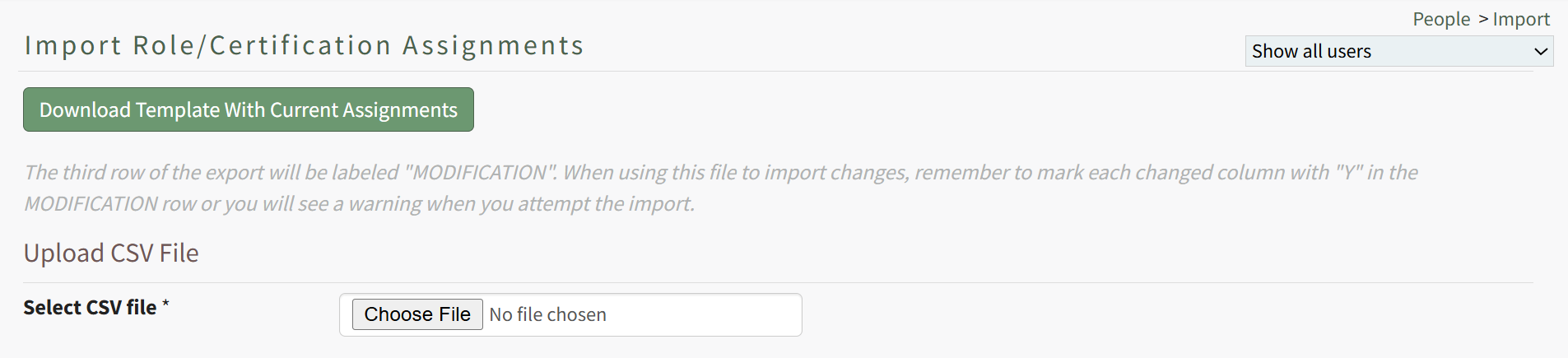
Import Role/Certification Assignments | Selecting the Import Role/Certification Assignment option from the context menu opens the Import Roles/Certification Assignments Page, which provides a downloadable template with current assignments and enables the upload of a CSV file. How To: Import Role/Certification AssignmentsCertification assignments to Certification Roles can be imported in bulk into KAStrack. Select the Roles Page in the People Module from the Main Menu to display the Certification Roles Table. Click the three dot (…) icon to open a context menu and select “Import Role/Certification Assignments”.
A template is provided to simplify importing.
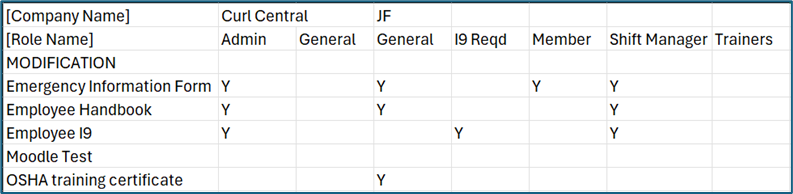
Click the “Download Template with Current Assignments” button to download the Role Certifications Template CSV to your device. This template includes the current assignment of Certifications to Certification Roles.
The first column of the template starting in the fourth row lists the name of all available Certifications in KAStrack. The first row of the template contains the name of the Company the Certification Role is associated with. The second row contains the names of Certification Roles. The Company Name will only be listed once in the [Company Name] row, in the cell above its first associated Certification Role. Thus, all Certification Roles to the right of that one are part of the same Company, until another Company Name appears in the top row (if applicable). To change which Certification Roles a Certification is assigned to, insert a capital ‘Y’ in the cell to the right of the desired Certification below the Certification Role you wish to have it assigned to. You can assign a Certification to any number of Certification Roles. To remove assignment of a Certification from a Role, simply remove the capital ‘Y’ from its cell (you will still need to enter a ‘Y’ in the MODIFICATION row to alert the system to this change). After making the desired changes to the template, save the spreadsheet with a UTF-8 CSV file format. Back in KAStrack, click the “Choose File” button to select the file from your device. Click the “Import role/certification assignments” to upload the file and import the changes into KAStrack. The screen will then display a success or fail message, and, if failed, alert to any changes that should be made to the imported file. |
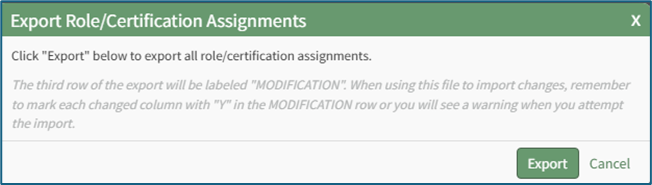
Export Role/Certification Assignments | Selecting the Export Role/Certification Assignments option from the context menu opens the Export Role/Certification Assignments Modal that requires a user to click "Export" before downloading the role/certification assignments to your personal device. How To: Export Role/Certification AssignmentsCertification assignments to Certification Roles can be exported from KAStrack into a CSV file. Select Roles Page in the People Module from the Main Menu to open the Certification Roles Table. Click the three-dot icon to the right of the header to open the Certification Roles Page Context Menu and select “Export Roles/Certification Assignments”.
This opens the Export Role/Certification Assignments Modal.
Select the “Export” button to download a CSV file into your device’s Downloads folder that contains all role/certification assignments. |
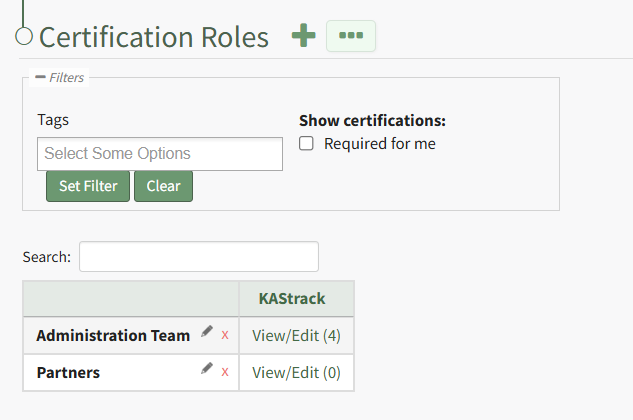
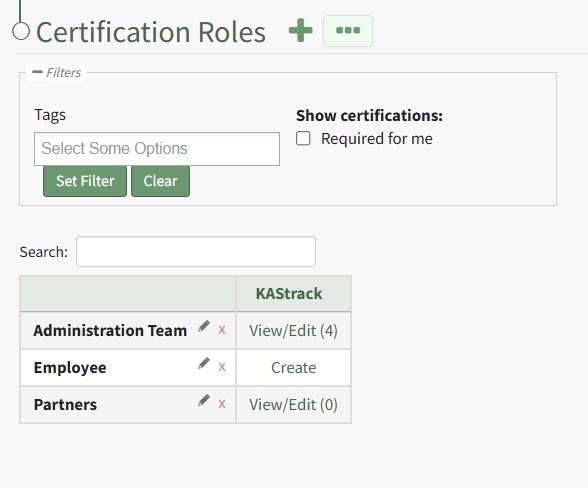
The filter section on the Certification Roles Page allows you to filter roles by tags. Checkboxes allow an individual to show certifications "Required for me" or to show certifications "Required for my supervised users".
The Certification Roles Table lists all certification roles (rows) and all companies (columns) created in KAStrack.
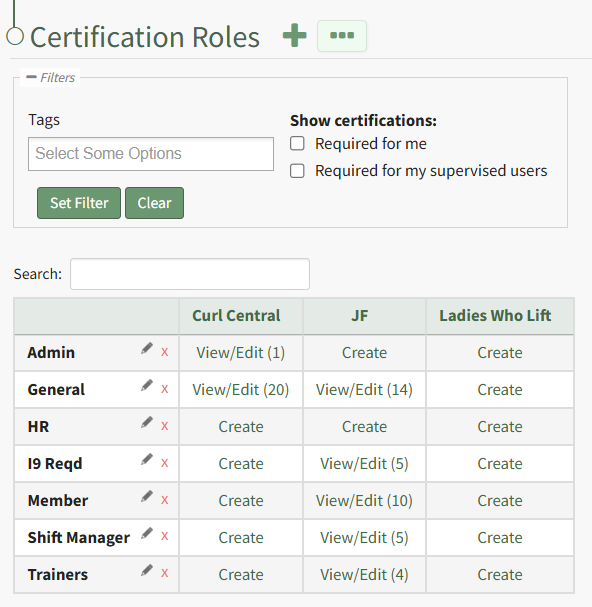
Role names can be edited or deleted within this table by clicking the pencil icon (to edit) or the “X” icon (to delete). WIKI LINK HOW TO CHANGE A CERTIFICATION ROLE NAME
WIKI LINK HOW TO PERMANENTLY DELETE A CERTIFICATION ROLE
Each cell in the Certification Roles Table is a clickable link. If a certification role has not yet been defined for a company, the clickable link states Create. Selecting this open opens the Define Role Page for the specified certification role.
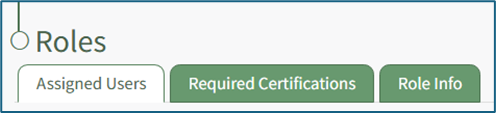
Once the role has been defined, the Certifications Role Table will display a clickable link to "View/Edit (#)". The number in parenthesis indicates the number of users that have been assigned to the specific certification role. When clicked, the system opens a specific certification role's Details Page. There are three tabs associated with a Role Details Page. Each are briefly explained in the table below.
Roles Details Page Tab Summary Explanation | |
Tab | Explanation |
Assigned Users Tab | The Assigned Users Tab on the certification role's Details Page lists all users currently assigned to the certification role and displays their certification status. The view is filtered to this specific role. |
Required Certifications Tab | The Required Certifications Tab on the certification role's Details Page lists the required certifications associated with the specific certification role and allows an administrator to edit the list of required certifications. |
Role Info Tab | The Role Info Tab on the certification role's Details Page states the description, role requirements and tags associated with a certification role, as well as competency settings for the Certification Role (if competency tracking is enabled for your KAStrack installation and allows an administrator to edit this information |
Review the Certification Role Details Page in the User Manual for a more detailed explanation.