
A Supervised User's Certifications Details Page
Each user in KAStrack will have their own User Certifications Details Page. The User Certifications Details Page is comprised of three tabs: User Certifications, Submit Certifications, and Manage Roles/Certifications. Each tab is explained in detail on this page.
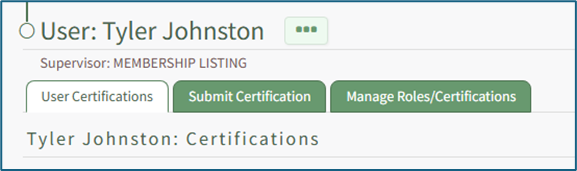
Select Users in the People Module from the Main Menu to open the Users Page. Clicking on the name of a specific user will open their User's Certifications Details Page.
To the right of the User Certifications Details Page header (User: First / Last Name) is a three-dot context menu that, when selected, opens to display the User Certifications Details Page Context Menu. The opens in the context menu are explained in the table below.
User Certifications Details Page Context Menu Option Explanations | |
Option | Explanation |
View Account Info | Selecting View Account Info from the User Certifications Details Page Context Menu opens the specified individual's Account Info Page in the Accounts Module where the individual's account information can be viewed. |
Edit Account Info | Selecting Edit Account Info from the User Certification Details Page Context Menu opens the Edit Account Info Page in the Accounts Module where the individual's account information can be edited. How To: Edit a Supervised User's Account Information from the People Module{{@821}} |
QR Code (User Report) | Selecting QR Code (User Report) from the Users Context Menu opens the QR Code for the specified individual that can be used to access both the individual's roles and certification report. How To: Access a User's Roles and Certifications Report QR Code{{@820}} |
User Report | Selecting User Report from the Users Table Context Menu opens an individual user's Role and Certifications Report.
How To: View a User's Roles and Certifications Report{{@825}} |
The tables displayed on the User Certifications Details Page have three-dot icons in the first column that open a context menu with various options for certification management. Options visible on the context menu will vary based on the certification and the user's module level access permissions.
User Certifications Details Page Table Context Menu Option Explanations | |
Option | Explanation |
Submit Certifications | Selecting Submit Certification from the context menu for a specific certification opens the certification's Submit Certification Modal. How To: Submit a Certification{{@441}} |
Complete Form or Payment | Selecting Complete Form or Payment from the context menu for a specific certification will open the form or payment process that needs to be completed. How To: Complete Payment for a Required Certification{{@865}} How To: Complete a Form Associated with a Required Certification{{@830}} |
Take Course | Selecting Take Course from the context menu from a specific certification will open the Course Instructions Page in Courses Module where you can start the required course. How To: Take a Course Associated with a Required Certification{{@831}} |
Acknowledge Document/Video | Selecting Acknowledge Document/Video from the context menu for a specific certification open the Document/Video Acknowledgement Modal allowing the user to acknowledge the required document/video. How To: Acknowledge a Document/Video Associated with a Required Certification{{@829}} |
Approve | Selecting Approve from the context menu in the Certifications Submitted for Approval Table will automatically approve the certification, removing it from the table. How To: Approve a Submitted Certification Pending Approval{{@835}} |
Decline | Selecting Decline from the context menu in the Certifications Submitted for Approval Table will open the Decline Submitted Certifications Modal. How To: Decline a Submitted Certification Pending Approval
|
Edit | Selecting Edit from the context menu opens the Edit User Certification Modal, where the date the certification was completed, the date the certification expires, and file attachments and links can be edited. WIKI LINK HOW TO EDIT A USER'S CERTIFICATION COMPLETION/EXPIRATION DATES WIKI LINK HOW TO ATTACH A FILE OR LINK TO A USER'S CERTIFICATION |
Delete | Selecting Delete from the context menu opens the Delete Certification Confirmation Modal which requires confirmation before permanently deleting the user's certification record. WIKI LINK HOW TO DELETE A USER'S CERTIFICATION |
History | Selecting History from the context menu opens the specific user's Certification History Modal. This read-only modal summarizes the historical details associated with the user's certification. How To: View a User's Certification History Modal{{@832}} If the Certification has already been declined, this will not show as an option on the context menu. |
Notify | Selecting Notify from the context menu opens the Certification Notification Modal, which allows you to include an optional message to the user regarding their certification. How To: Send a User an Email Notification Regarding a Certification{{@833}} If the certification assigned to the user has visibility restrictions (based on the certification's privacy settings) that prevent the user from seeing it, you will not be able to notify the user about that Certification. The Notify button will be disabled, and a lock symbol will be shown inline on the dropdown menu. |
Not Applicable/Defer | Selecting Not Applicable / Defer from the context menu opens the Defer Certification Modal that allows a certification to be designated as not applicable for the individual or to defer the certification for the individual. WIKI LINK HOW TO DEFER A CERTIFICATION FOR A SPECIFIED USER(S) WIKI LINK HOW TO INDICATE A REQUIRED CERTIFICATION IS NOT APPLICABLE TO A SPECIFIED USER(S) |
If there are no certifications relevant to the specific section, no table is visible below the section header.
The User Certifications Tab
The Users Certifications Tab on a Users Certification Details Page allows a supervisor (with access permissions) to view another user’s certifications summary.
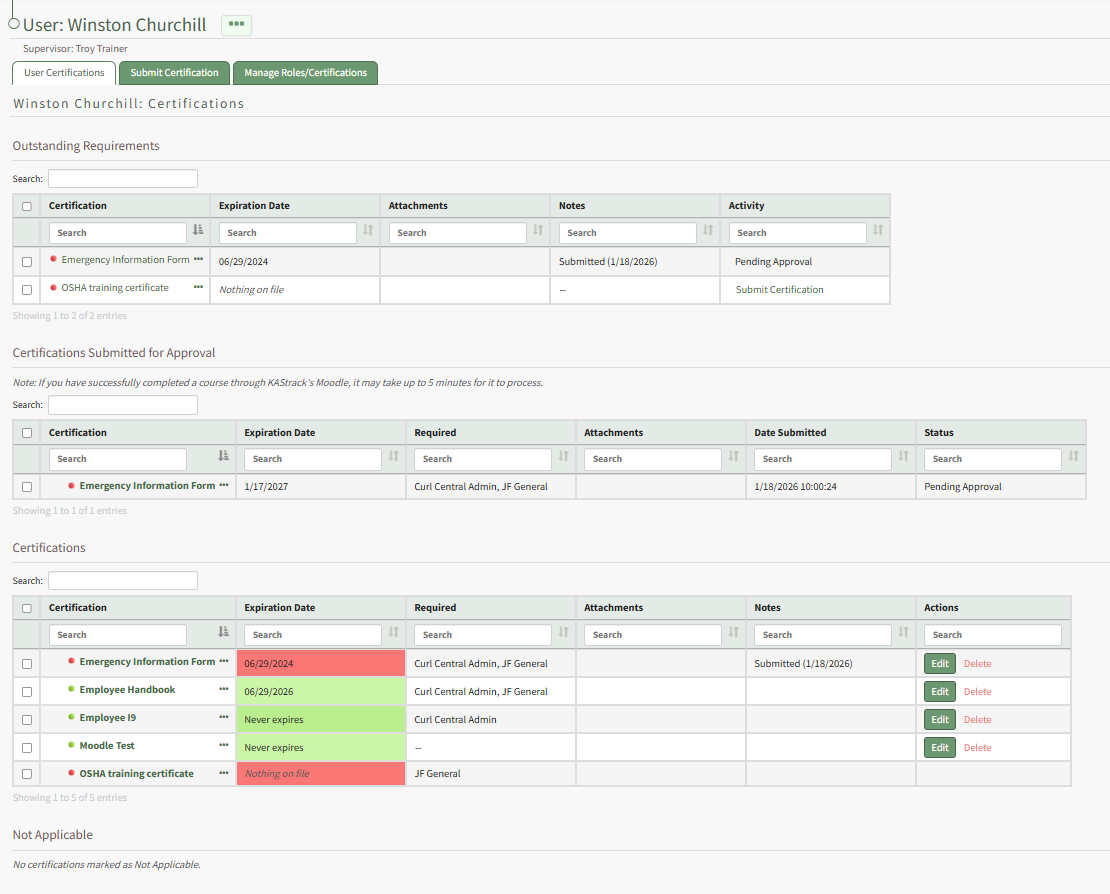
The Users Certifications Tab is comprised of four tables: Outstanding Requirements, Certifications Submitted for Approval, Certifications, and Not Applicable. Each section is explained in detail below. To the right of each certification in a table on the Users Certification Tab is a three-dot icon that opens the User Certifications Tab Context Menu whose options were previously explained on this page.
Outstanding Requirements Section
The Outstanding Requirements Section contains a table that displays the certifications that the user is responsible for but does not have on file or are expired.
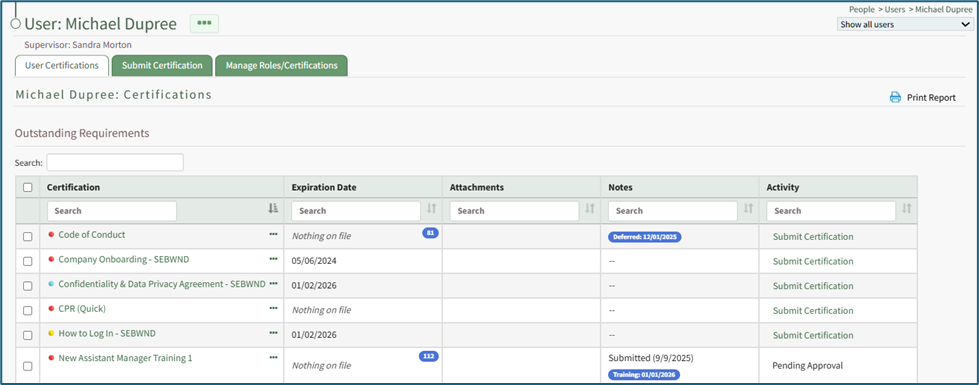
There is a search bar for the entire table as well as search bars for each of the individual columns (Certification Name, Expiration Date, Attachments, Notes, and Activity).
The Submit Certification button in the Activity column of the Outstanding Requirements table provides the same access as the dropdown menu.
An employee viewing their own User: (Name) Page will only see the relevant required activity button in the context menu; a supervisor / admin will additionally see a Submit Certification button in other users’ context menus. This allows a supervisor to assist users in submitting certifications that may have been completed previously/externally or for accurate record-keeping purposes.
Certifications Submitted for Approval Section
The Certifications Submitted for Approval Section contains a table that displays the certifications that have been submitted and are waiting for supervisor approval.

The three-dot icon to the right of the certification name offers options to Approve or Decline the submitted certification.
By default, a certification will require a supervisor's approval when submitted. Certifications can be auto-approved by customizing the certification's Advanced Settings. WIKI LINK HOW TO AUTO APPROVE USER CERTIFICATION SUBMISSIONS
Certifications Section
The Certifications Section contains a table that displays the certifications that shows all certifications that are required or were previously completed by the user.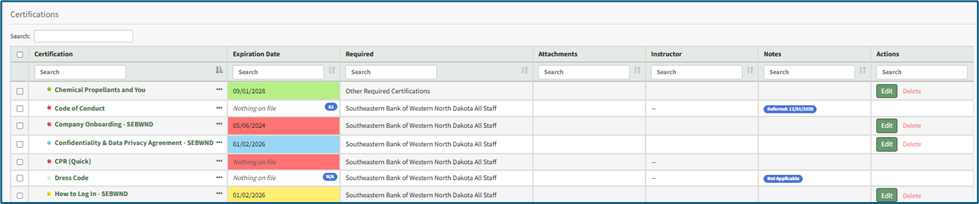
Next to the certification name, the dot to the left of name indicates the certification status. This matches the coloring of the expiration date cell.
The required column states which certification role the certification is required for, or if the certification is directly assigned to the user without a traditional certification role (denoted by the phrase “Other Required Certification”).
The attachments column may include a PDF of the form entry, an auto-generated certificate of completion, or manual uploads by the person submitting / approving the certification.
Not Applicable Section
The Not Applicable Section separates certifications that are assigned to a user through their role, but the user is not required to complete. It contains a table that displays certifications that are required for other employees in that role but are not applicable for this user. 
The Submit Certifications Tab
The Submit Certifications tab is where a supervisor can submit / approve a certification for an employee.
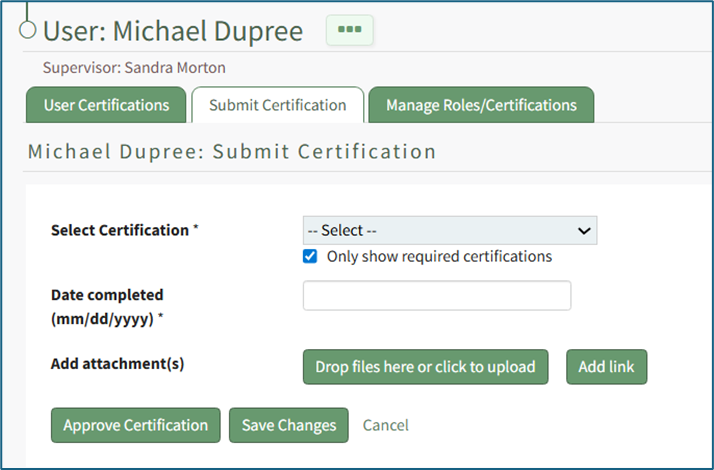
Employees can also submit their own certifications quickly and efficiently from the Submit Certifications Tab. WIKI LINK HOW TO SUBMIT A REQUIRED CERTIFICATION
The Manage Roles/Certifications Tab
The Manage Roles/Certifications tab displays the Certification Roles Table (showing the required certifications roles assigned to an employee through their certification roles) and the Other Required Certifications Table (showing certifications assigned to a user independent of their certification roles).
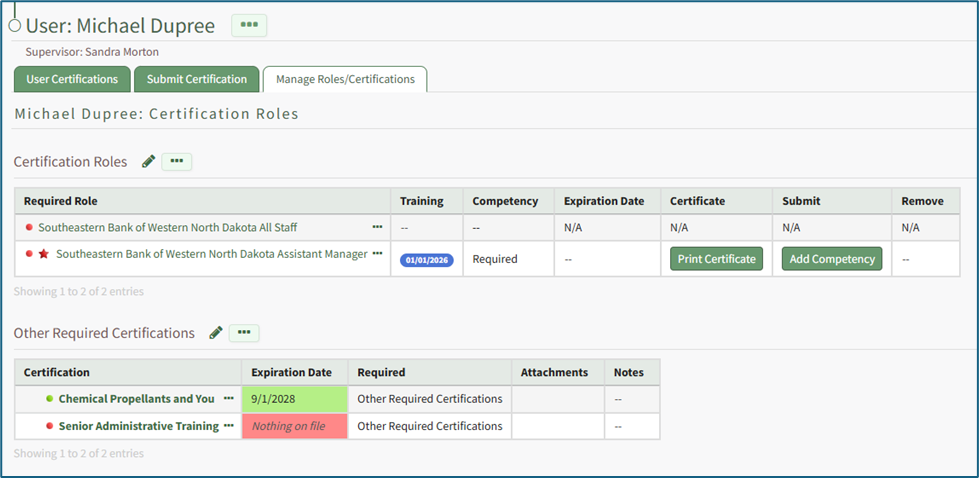
The Certification Roles Table
The colored dot to the left of the Required Role designates the status of an employee’s certification. The colored star following the dot designates the status of an employee’s competency for the role (the star does not show if competency is not required for the role in question). Table columns indicate if an employee is in training, notes on a competency, the expiration date (if there is one), and the completed competency certificate. The submit column allows for a competency submission, and the remove column allows for the removal of the competency.
The three dot (…) icon located to the right of the Required Role in the Certification Roles Table opens a context menu whose options are explained in the table below.
Certification Roles Table Context Menu Option Explanation | |
Option | Explanations |
View Details | Selecting View Details from the context menu opens the Required Certifications Table displaying the user's recorded certifications on the Manage Roles/Certifications Tab. |
Set Training | Selecting Set Training from the context menu opens the Set Training Modal where a user can be indicated as in-trained for a specified period of time. WIKI LINK HOW TO: DESIGNATE THAT AN EMPLOYEE IS IN TRAINING |
The Other Required Certifications Table
Below the Certification Roles Table on the Manage Roles/Certifications tab, is a table for Other Required Certifications that are not associated with a user’s required roles.
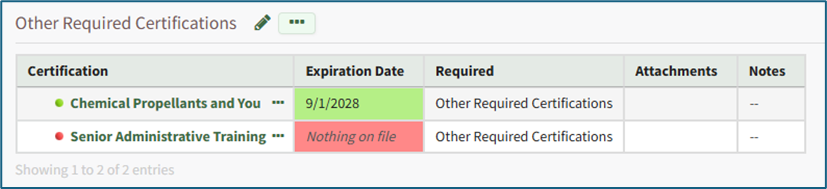
Selecting the pencil icon opens the Select Other Required Certifications Modal which will allow an administrator to add additional required certifications independent of a certification role. The three-dot icon to the right of a certification name opens a context menu with an option to Select Other Required Certifications that initiates the same action as the pencil icon.
WIKI LINK HOW TO: ASSIGN CERTIFICATIONS TO A USER INDEPENDENT OF A REQUIRED CERTIFICATION ROLE