
A Certification's Details Page
Each certification created in KAStrack will have its own Certification's Details Page. You can access the Certification Details Page by clicking the certification name in the Certifications Table on the Certifications Page of the People Module. A Certification Details Page is comprised of three tabs: Certification Info, Associated Roles, and Associated Users. Each tab is explained in detail on this page.
The Associated Roles Tab and Associated Users Tab are not visible to all users. Visibility is dependent on Module Level access permissions. WIKI LINK HOW TO CREATE NEW MODULE LEVELS (PEOPLE MODULE)
Certification Info Tab
The Certification Info Tab shows the details for a specific certification.
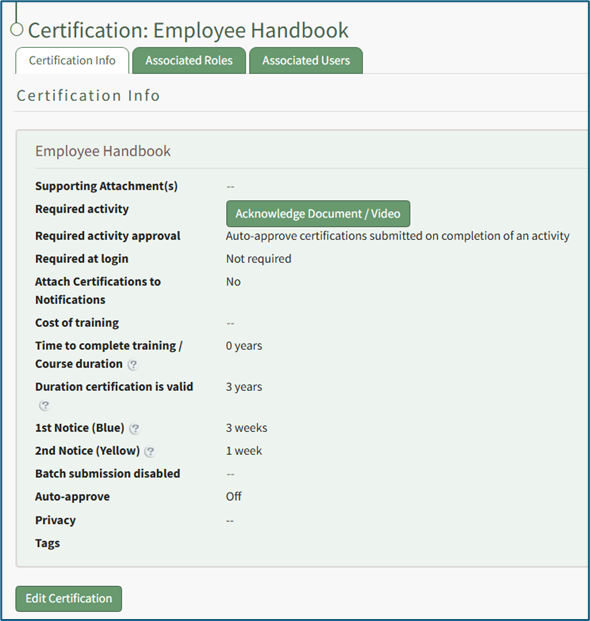
Users have an ability to complete the certification's required activity on the Certification Info Tab. Administrators can edit certification information from the Certification Info Tab. WIKI LINK HOW TO EDIT A CERTIFICATION
Associated Roles Tab
The Associated Roles Tab shows list of the certification roles that have been assigned this specific certification.
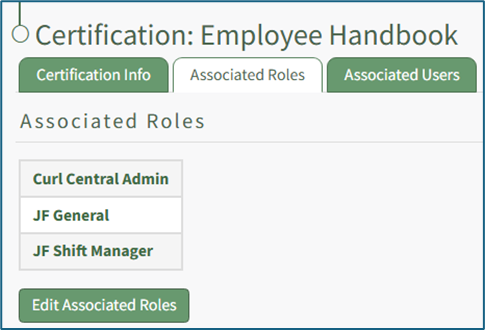
An account administrator can edit the associated certification roles directly from the Associated Roles Tab.
How To: Edit Certification Role Information
To edit the information associated with a specific certification role, select Roles in the People Module from the Main Menu to open the Certification Roles Page.
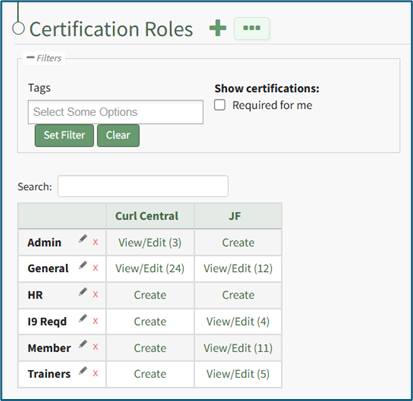
Identify the certification role whose information you wish to edit and click the “View/Edit (#)” clickable link associated with it to open a specific certification role's Details Page. Select the Role Info Tab.
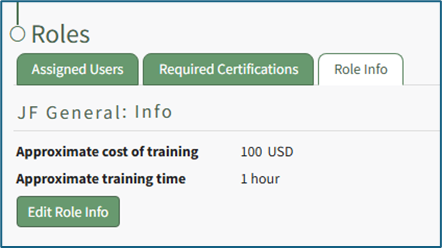
Click the “Edit Role Info” button opening the Edit Info Page allowing you to edit the certification role information specified when the certification role was created.
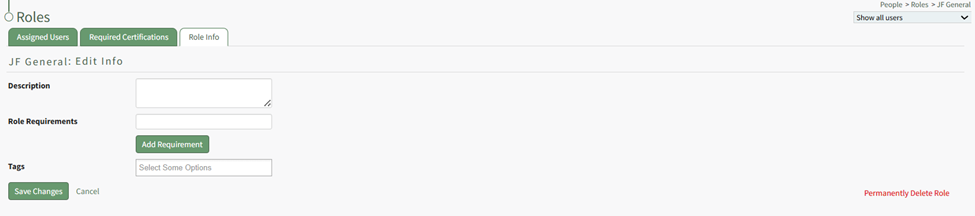
Alter the description, role required, tags, and/or any competency settings for the Certification Role (if competency tracking is enabled for your KAStrack installation), and then click the “Save Changes” button to return to the Role Info Tab.
How To: Define Competency Settings for a Role
If competency tracking is enabled for your KAStrack installation, you can define the Competency Settings for a Certification Role while creating or editing the role. Competency allows your organization a way to track users’ fitness / competence to be assigned to a particular role. This provides a way to ensure users meet the necessary requirements and standards to perform the role they're in.
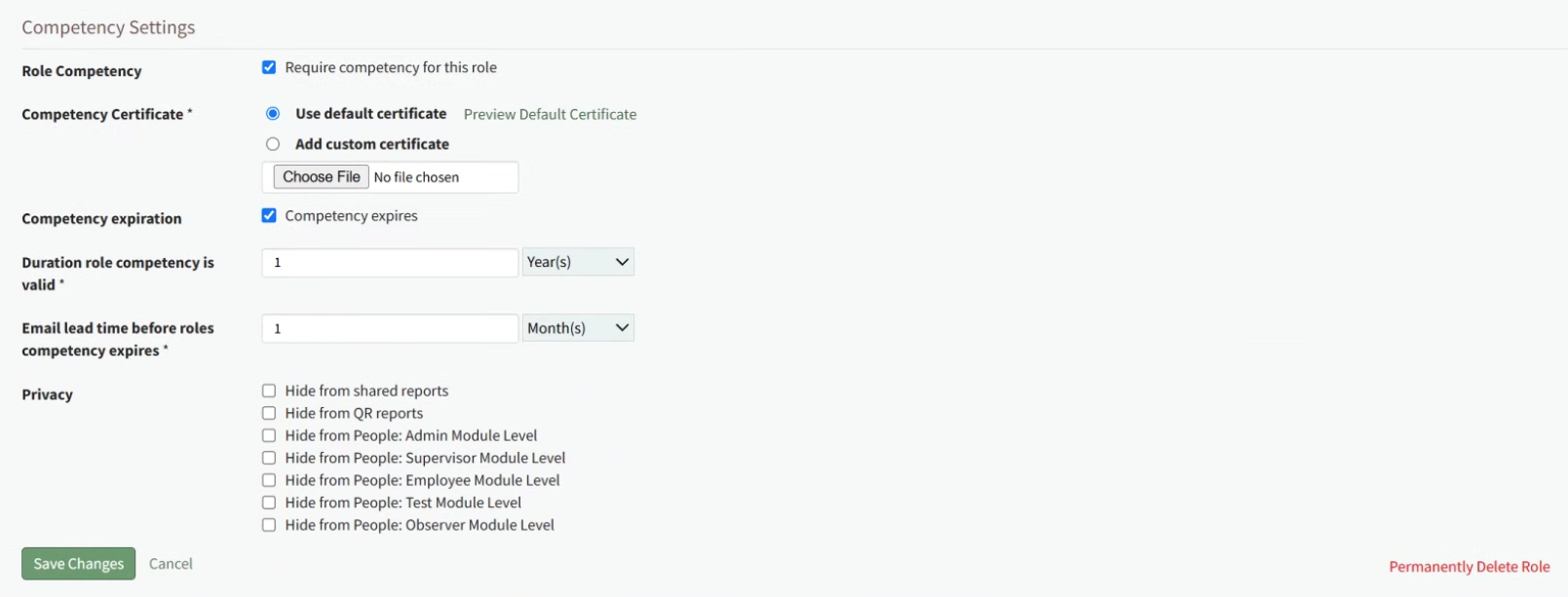
To enable Competency tracking for a Certification Role, click the checkbox next to “Require competency for this role”.
Next, choose whether to “Use default certificate” or “Add custom certificate” for Competency evaluation. Using the default certificate will assign a system-generated evaluation worksheet to be filled out when the assigned user’s competency requirement is being completed. If you’d like to use a different certificate for this purpose, choose “Add custom certificate” and then select the “Choose File” button underneath it and upload the desired file.
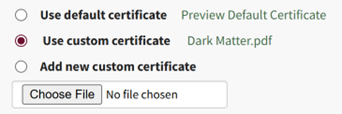
When editing Competency Settings after a custom certificate has been selected, these options change to allow selection between the default certificate, the existing custom certificate, and adding a new custom certificate.
If the competency expires after a certain amount of time, click the checkbox next to “Competency expires”. This allows you to define the “Duration role competency is valid” and “Email lead time before roles competency expires”. The duration the competency is valid refers to the time until the competency expires. The email lead time refers to the warning period given to the user before their competency has expired. Fill in a numerical value next to each field, and choose the time period of either years, months, weeks, or days. To ensure the user is properly alerted that their competency is expiring soon, make sure that the “Email lead time” value is sooner than the value for the “Duration role competency is valid”.
Privacy settings on the Competency allow you to hide competency for this role from various reports and/or users with specified People Module Levels. Click the checkbox next to any options you’d like to hide the role competency from. If choosing People Module Levels, users with only those Module Levels will not see the role competency when viewing reports that include it, and also will not see it as a required action If they are assigned to this Certification Role. If you’d like to hide the Competency from inclusion in any shared reports or QR reports, regardless of a user’s People Module Levels, select those options.
Selecting a People Module Level in Privacy hides the Competency from users with only that Module Level. If a user has multiple People Module Levels, they may still see the Competency unless the Competency is hidden from all of those Module Levels.
How To: Record a New Competency Certificate
Competency tracking allows your organization a way to track users’ fitness / competence to be assigned to a particular role. This provides a way to ensure users meet the necessary requirements and standards to perform the role they're in. When competency tracking is enabled for your KAStrack installation, you can set up individual Certification Roles to track competency by defining competency settings in the Certification Role's Details Page.
Define Competency Settings for a Role
{{@875}}
Once a Certification Role has Competency settings defined, there are three ways that the Competency can be marked complete for a user.
Recording Competency Certificates from an individual User's Page
Employees, their Supervisor(s), and site Admins can record Competency Certificates by visiting an individual User's page in the People Module.
For an Employee looking to record their own Competency Certificate, click on People, then My Account, then Certification Roles from the Main Menu to access the Manage Roles/Certifications tab of the User page.
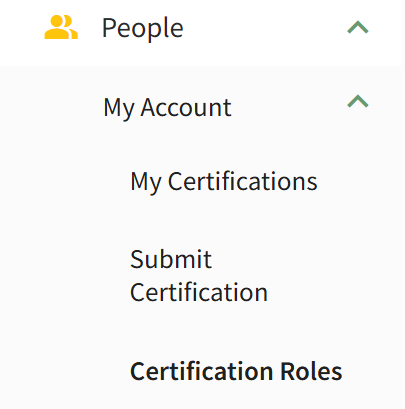
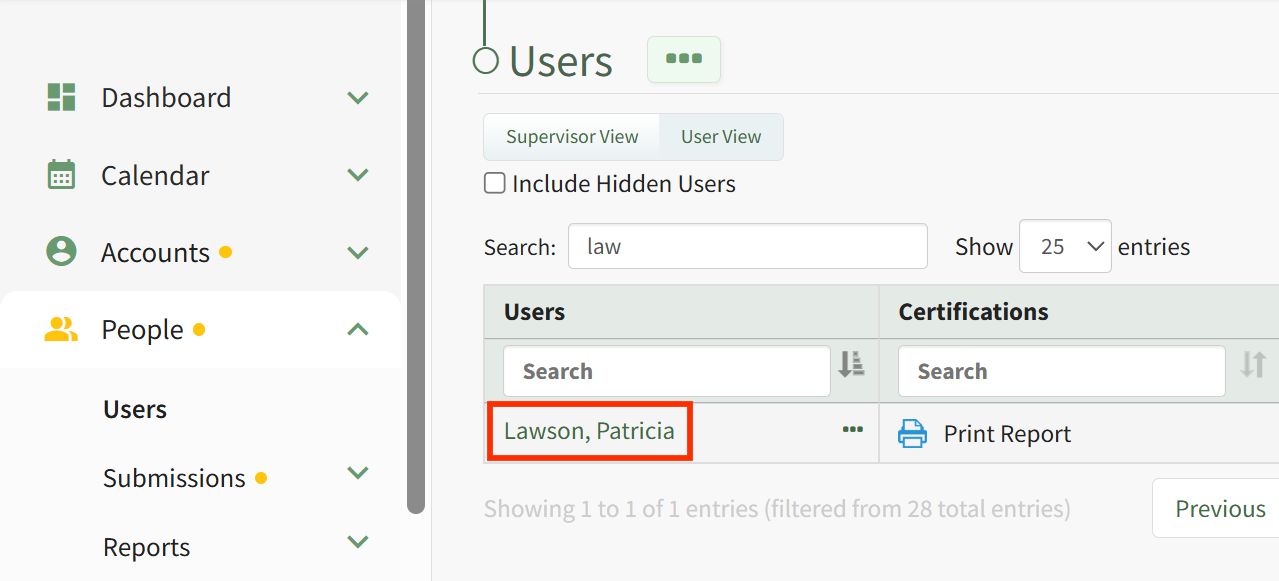
For a Supervisor or Admin looking to record Competency for another user, click on People, then Users from the Main Menu, then click on the name of the user you wish to record Competency for.
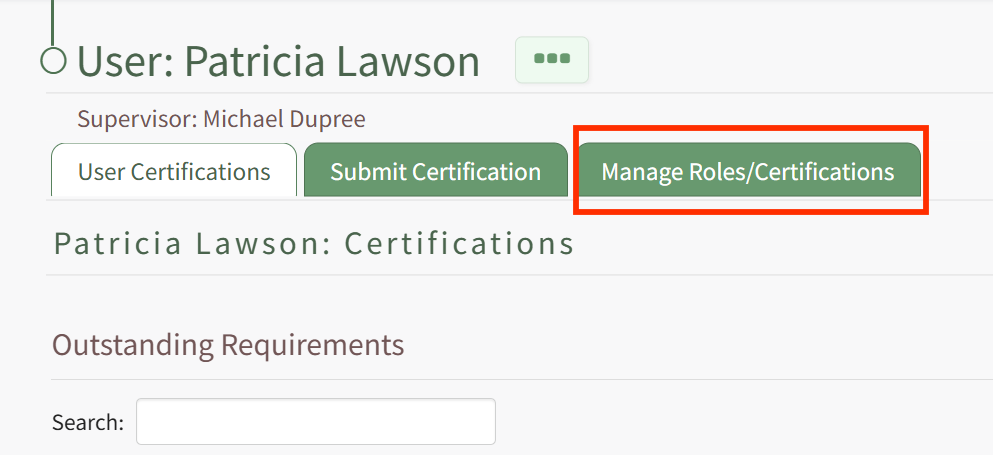
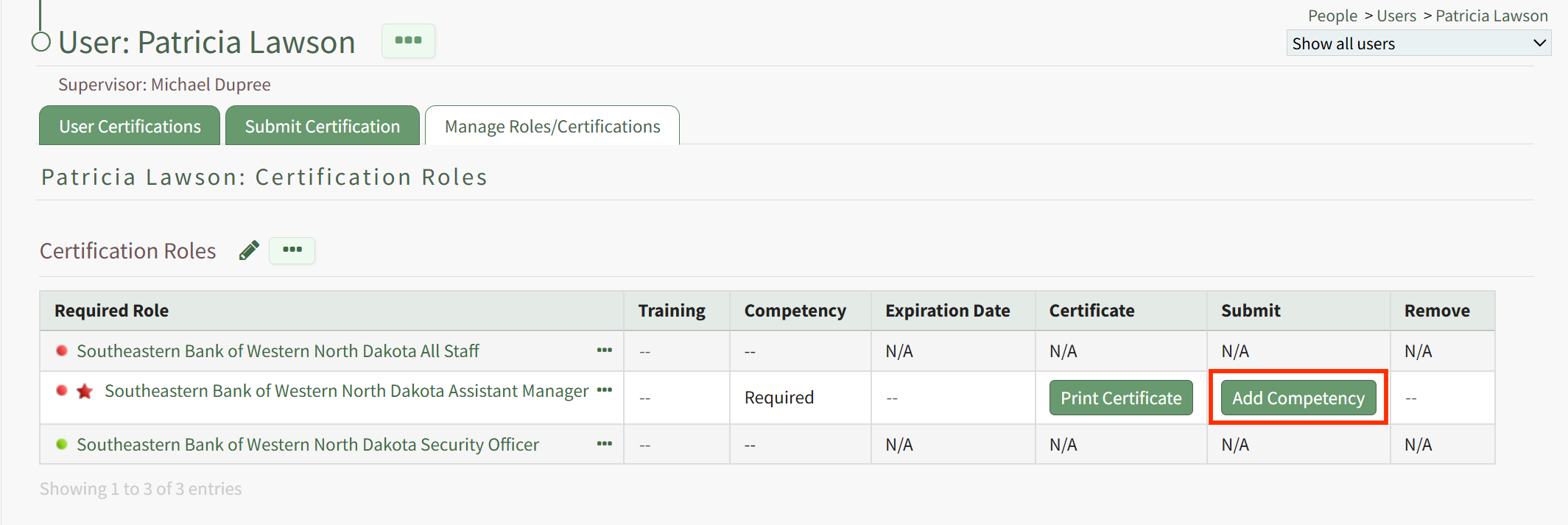
Once on the Manage Roles/Certifications tab, you will see the Certification Roles and Other Required Certifications tables. If the user is assigned a Certification Role that has Competency required, this will be indicated in the Certification Roles table by a star icon next to the Certification Role's Name in the Required Role column. The Competency column of the table will show a status message, an Expiration Date will be provided in the Expiration Column (if an approved submission already exists), a Certificate Template can be printed from the Certificate column (this may take a few minutes), and you can record the new Competency Completion from the Submit Column. Thus, to record a new Competency Completion for the associated Role, click the Add Competency button in the Submit column.
Clicking Add Competency launches the Add Competency to Required Role page for the user. Fill in the fields on the page, including who has approved the completion and the Date Completed. If the competency expires, an expiration date will be filled in automatically for the user. If this expiration date is not acceptable, you can change it to a sufficient expiration date. If a Competency Certificate is required for completion, then select the Choose File button to upload the completed Certificate file.
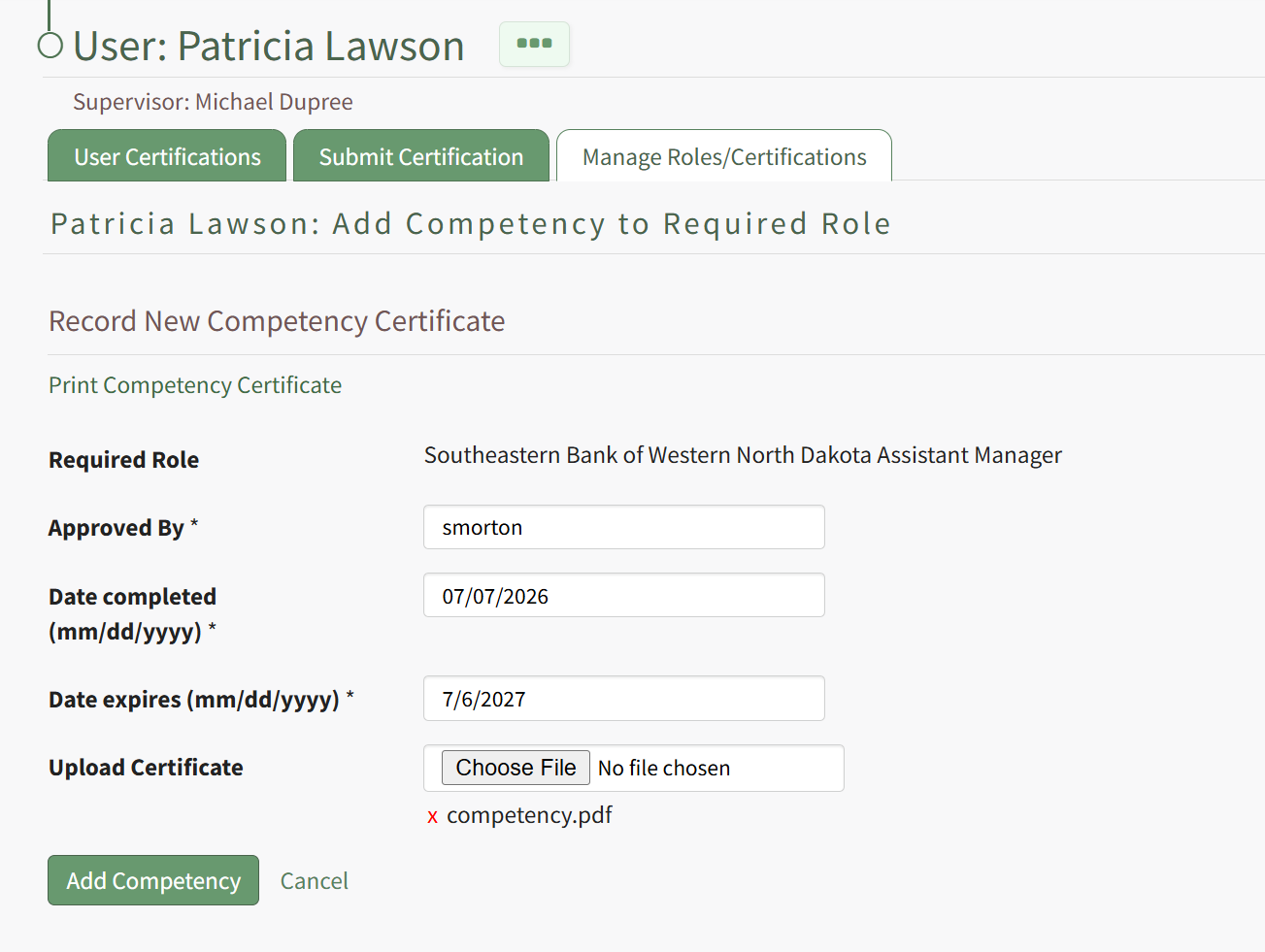
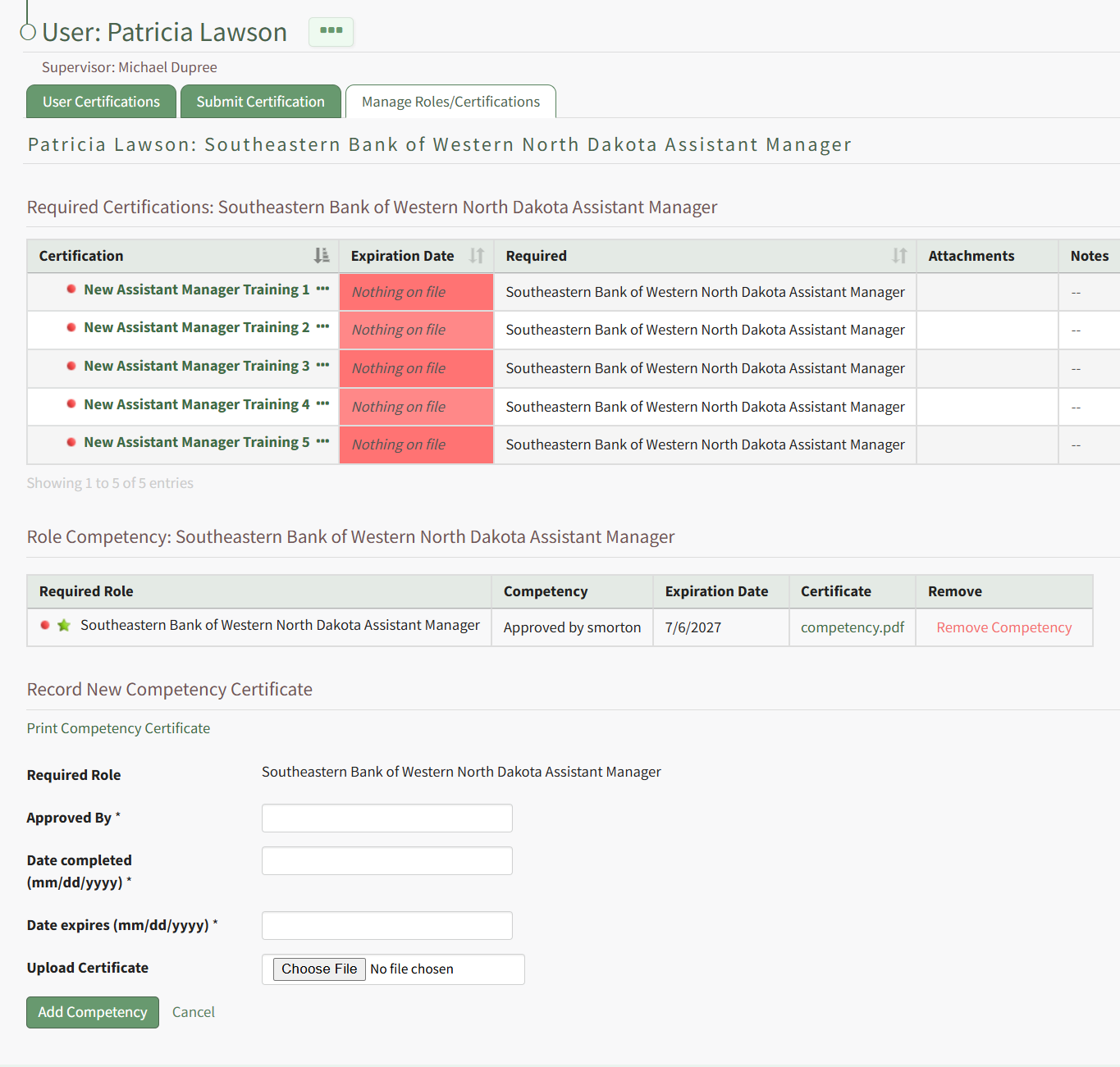
Hit the Add Competency button, and the completion will be submitted. This will redirect to the specific Role Page for this user, and show a summary of the Competency Completion submission.
If submitted by an Admin or Supervisor, the Competency Completion will show as approved.
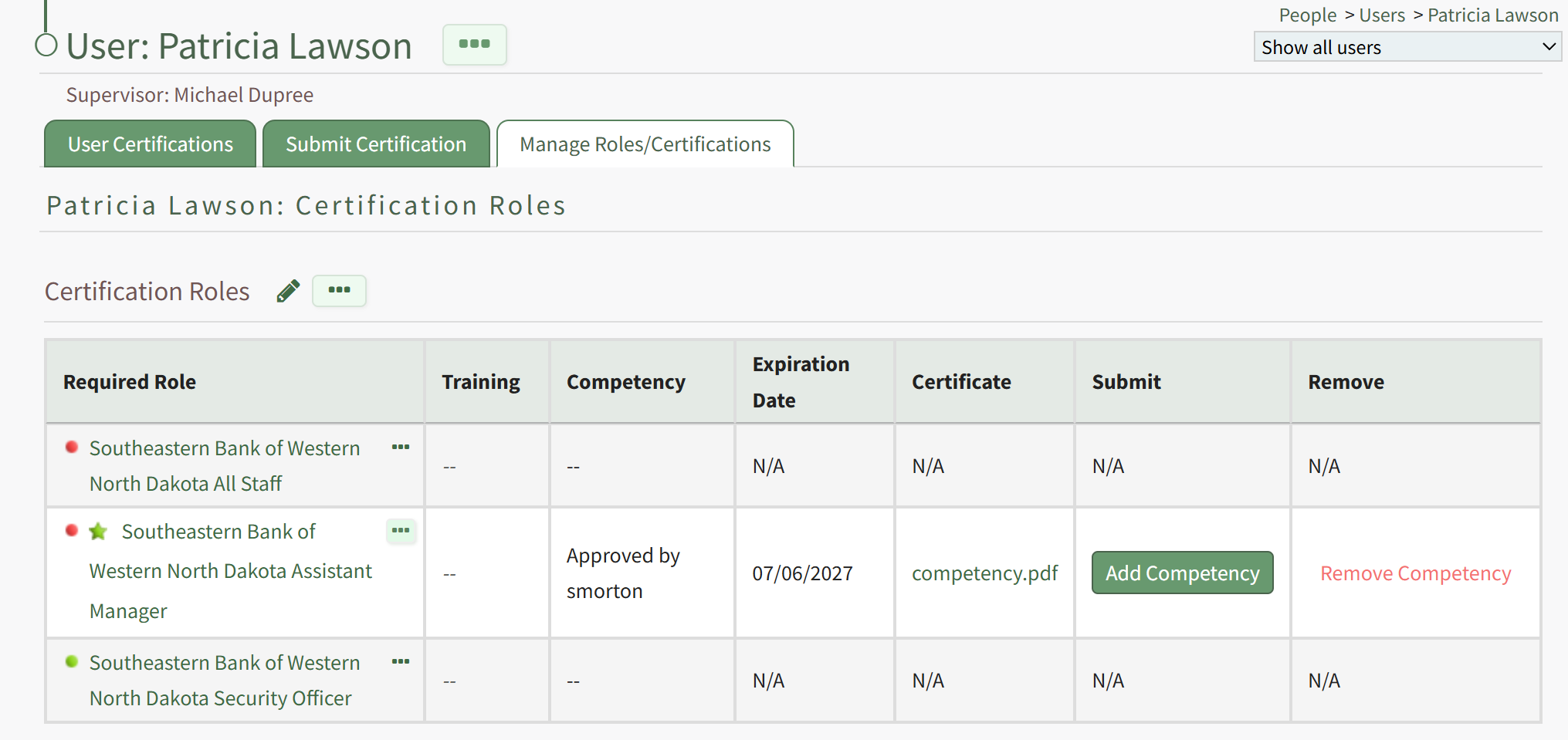
This is also reflected in the overall Certification Roles table for the user from the Manage Roles/Certifications tab.
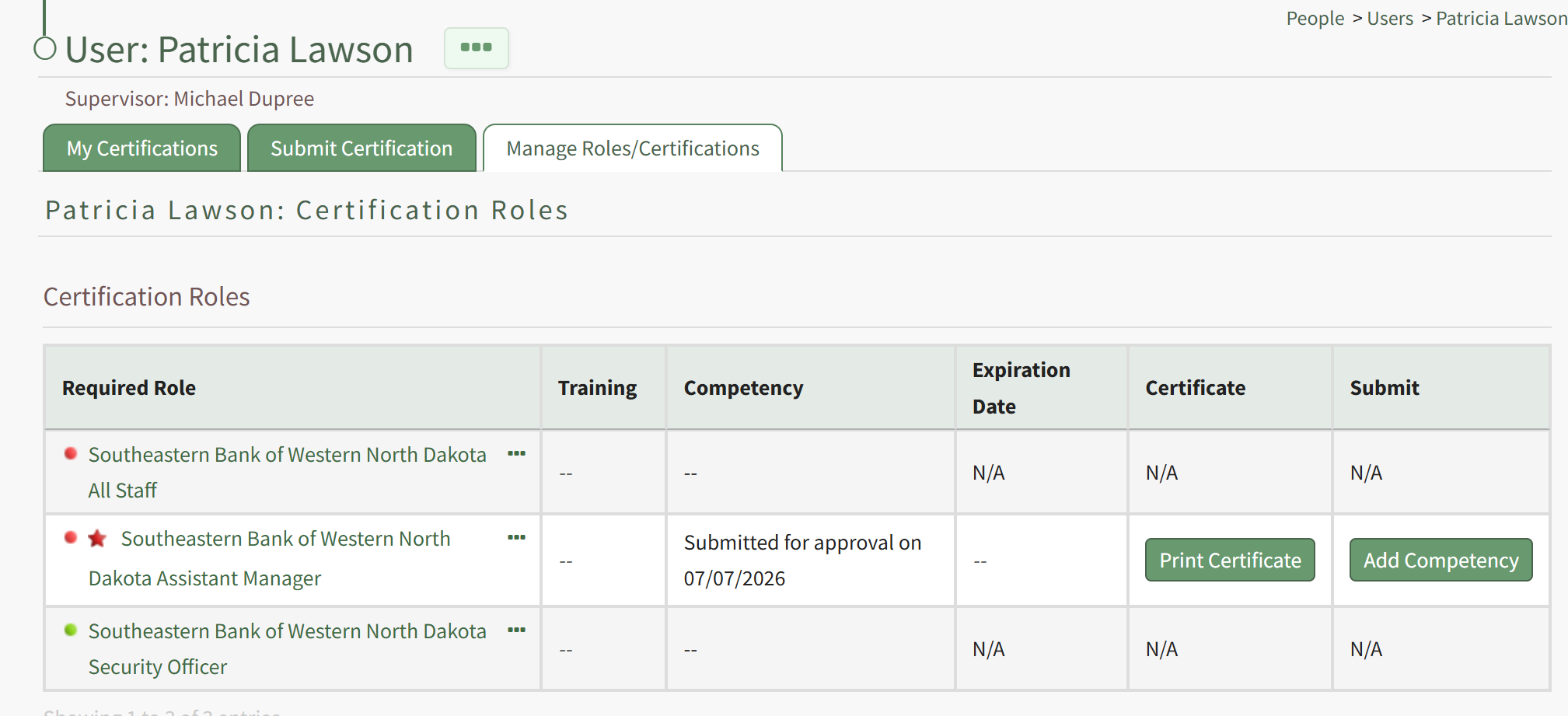
If the Employee has submitted their own Competency Completion, the status will show as "Submitted for approval".
An Admin or Supervisor can then review the Competency Completion by going to People, then clicking Submissions, then Pending Approvals from the Main Menu. Competency Completions pending approval are shown in the bottom table, "Competency Certificates Submitted For Approval".
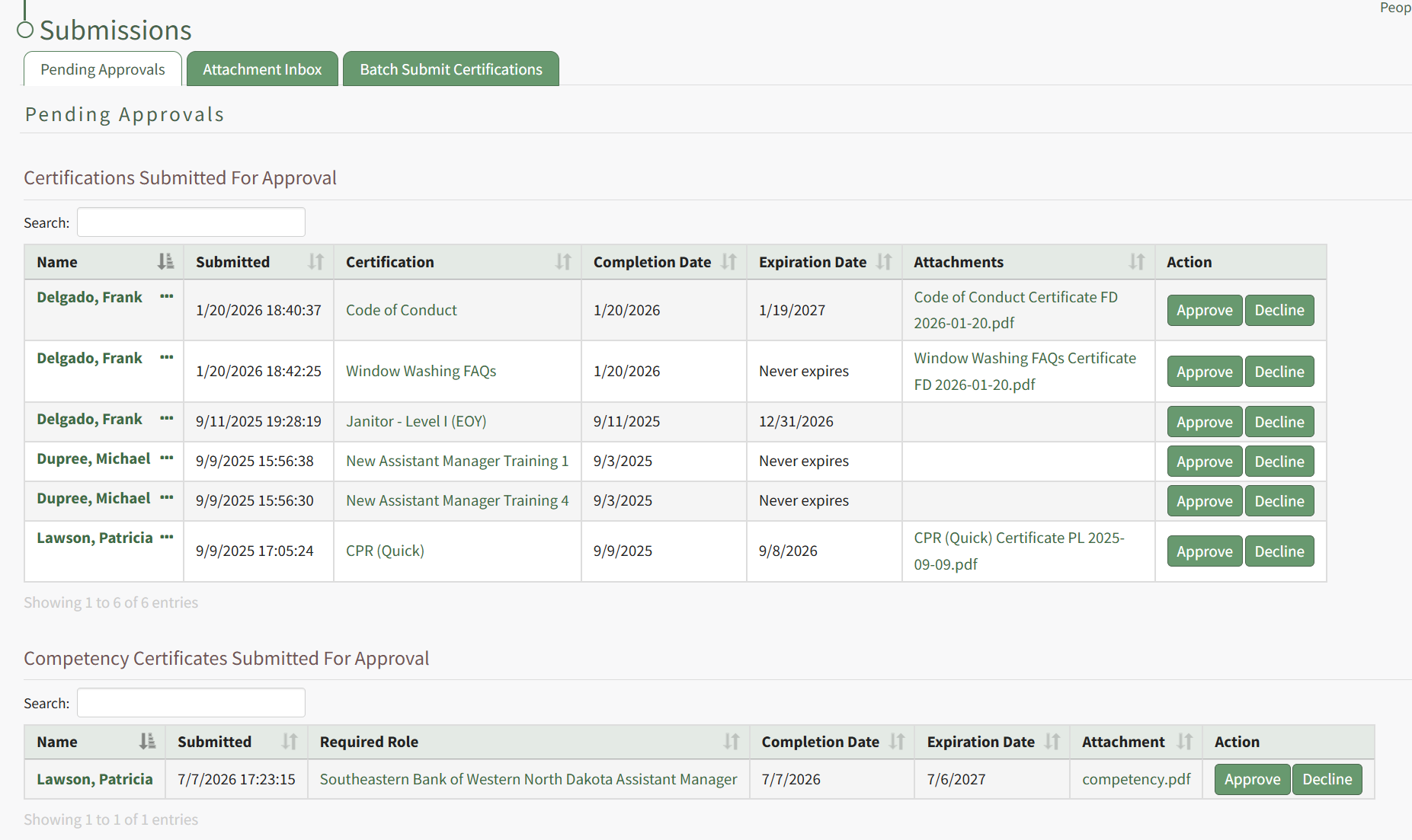
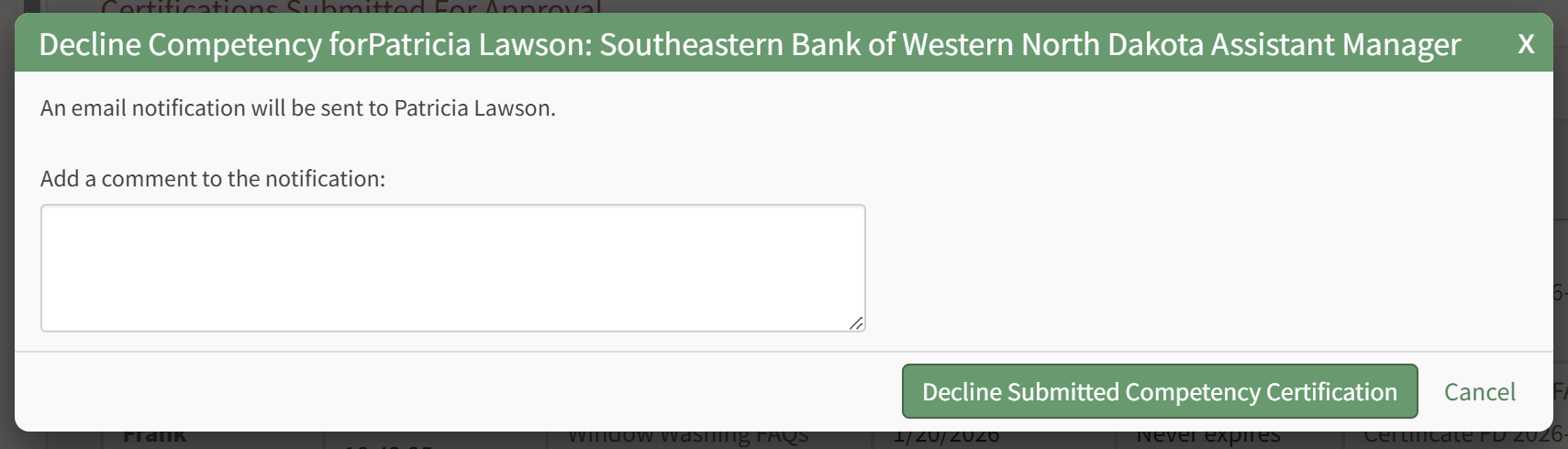
Click Approve to Approve the submission, or Decline if there are issues with the submission. If you select Decline, a modal appears allow for input of a message to the user of why the submission was declined.
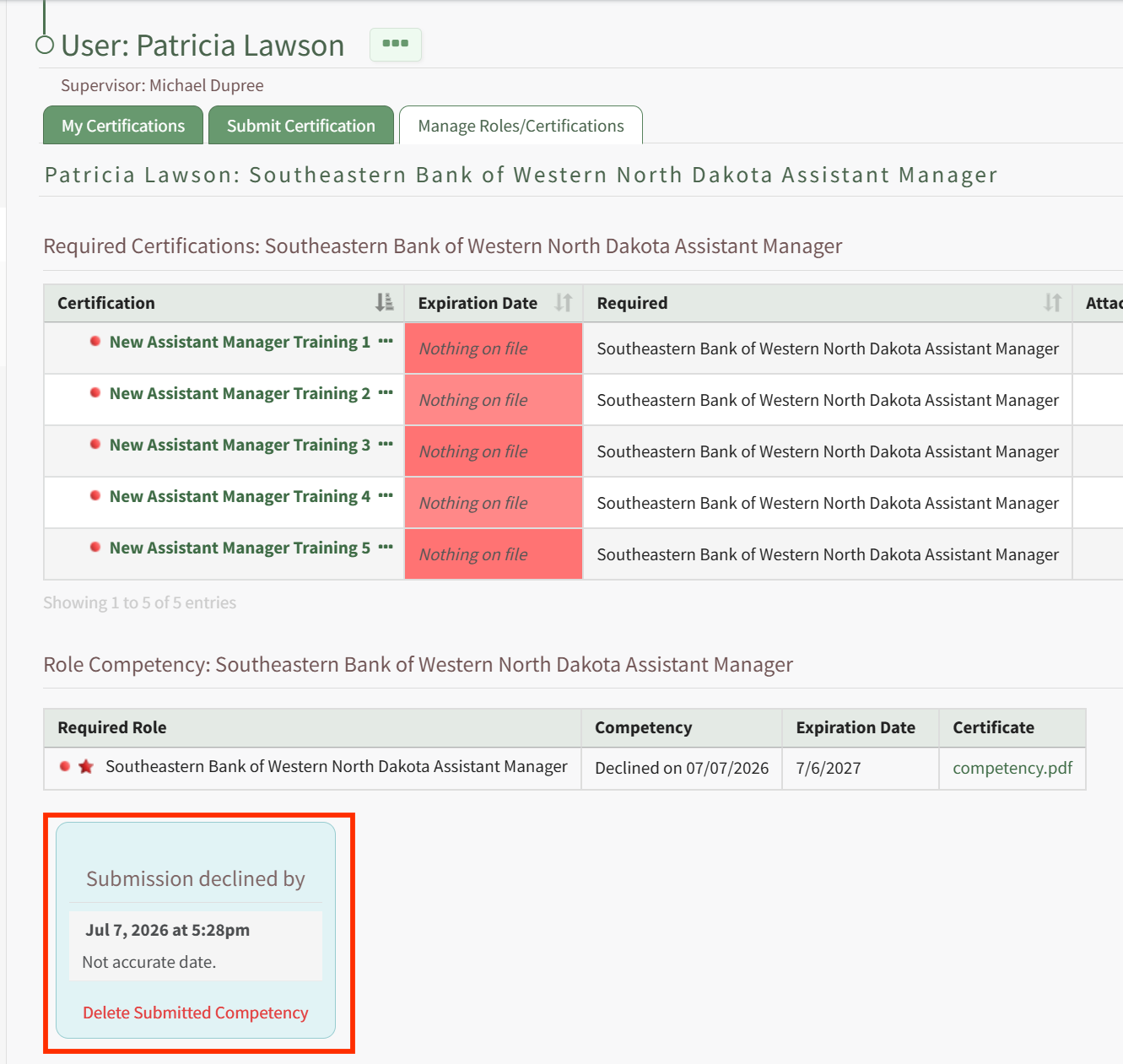
The user will see this message in the specific role page associated with that Competency.
Recording Competency Certificates from the Roles Page
A Supervisor or site Admin can record Competency Certificates by visiting the Roles page of the People Module.
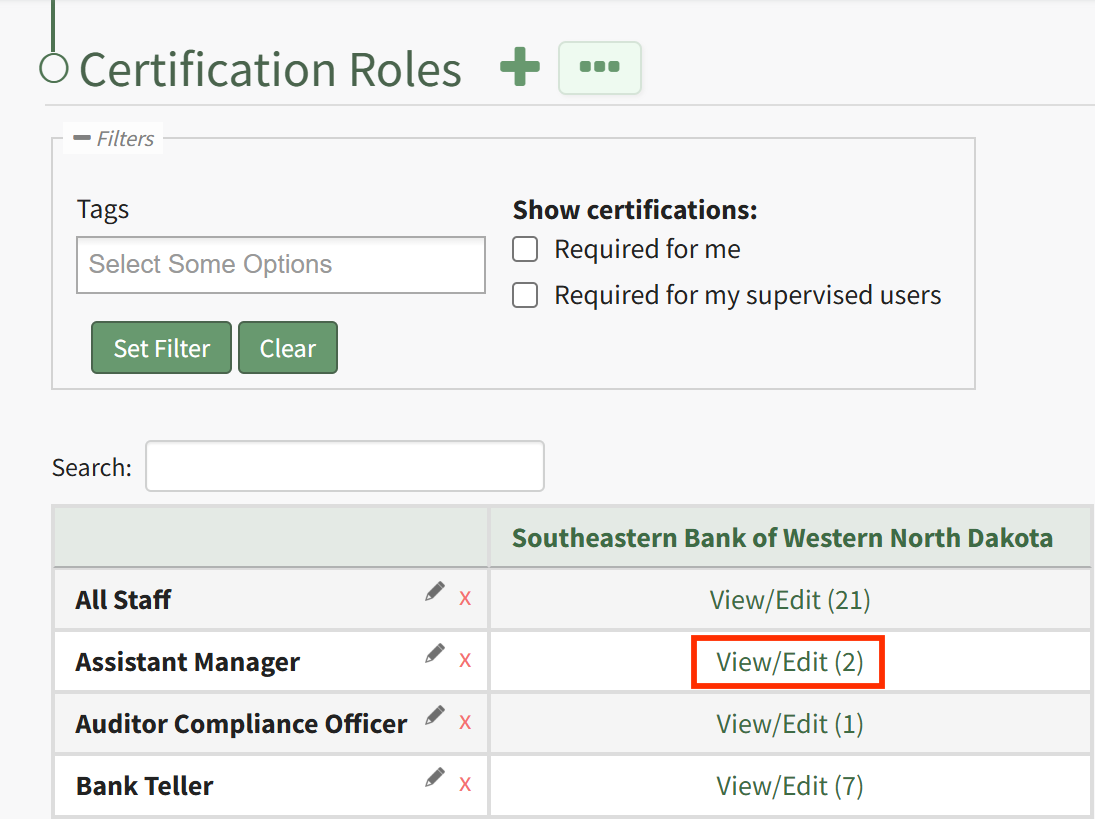
To do this, click the "View/Edit (#)" link for the particular Certification Role with Competency under its associated Company.
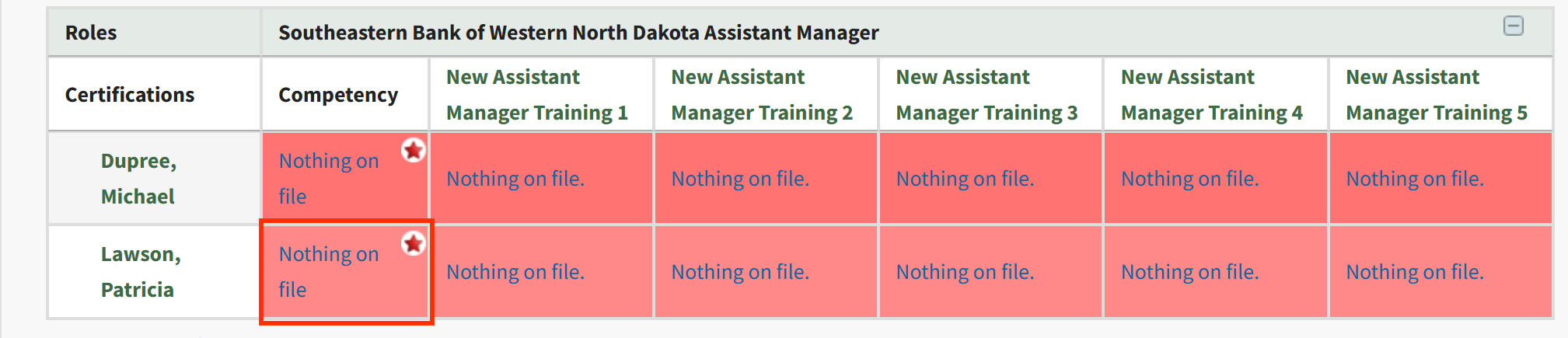
This launches the Roles page for this specific role. From the Assigned Users tab, locate the filtered matrix table of users assigned to this role. If Competency is required for this role, a star will be visible in the cell for users assigned a Competency requirement.
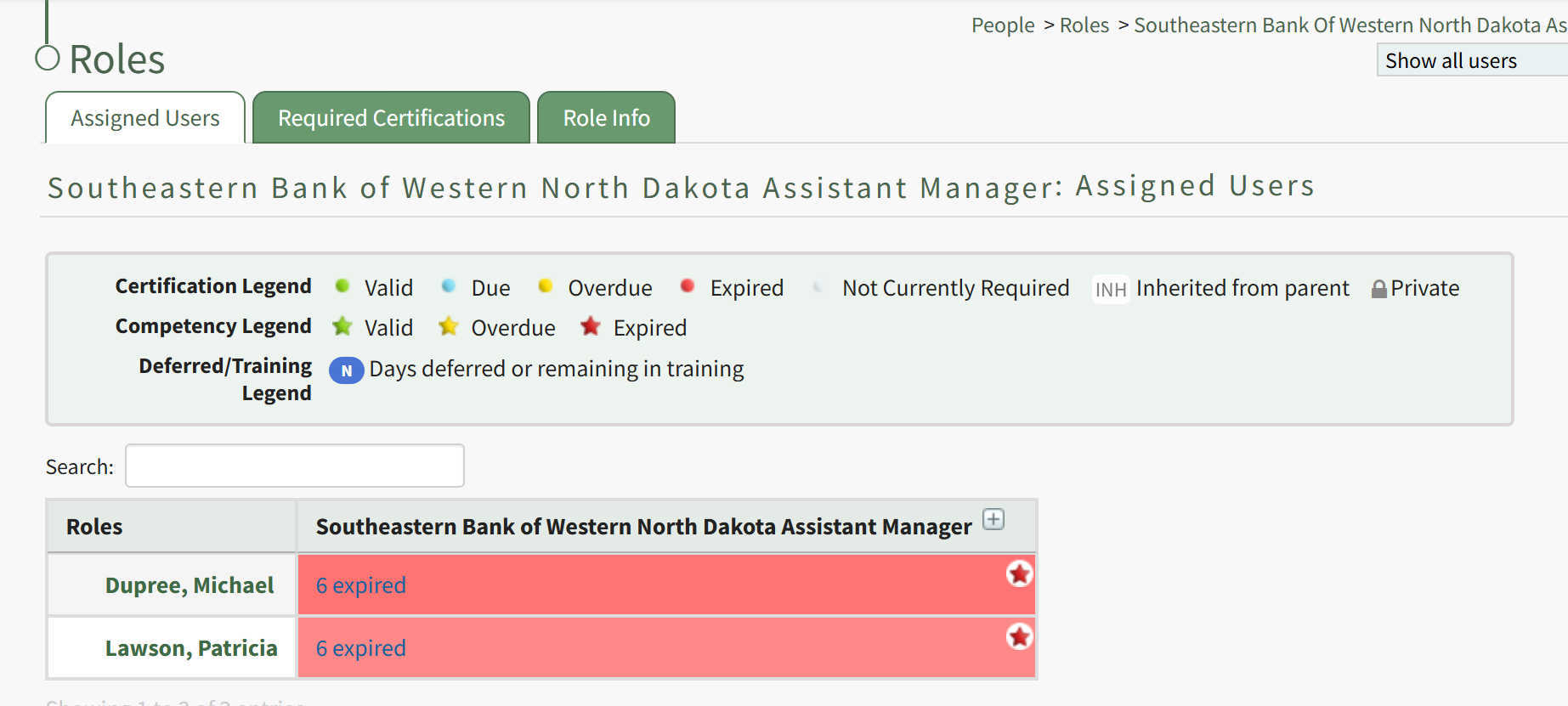
Click on the plus button next to the role name in the column heading for the matrix, or on a particular cell, to expand the table. When competency is enabled, the first column after assigned users' names will be a column for the Role's Competency, followed by columns for Certifications required by that Role. To record a new Competency Completion, click the cell for the user you wish to record Competency for.
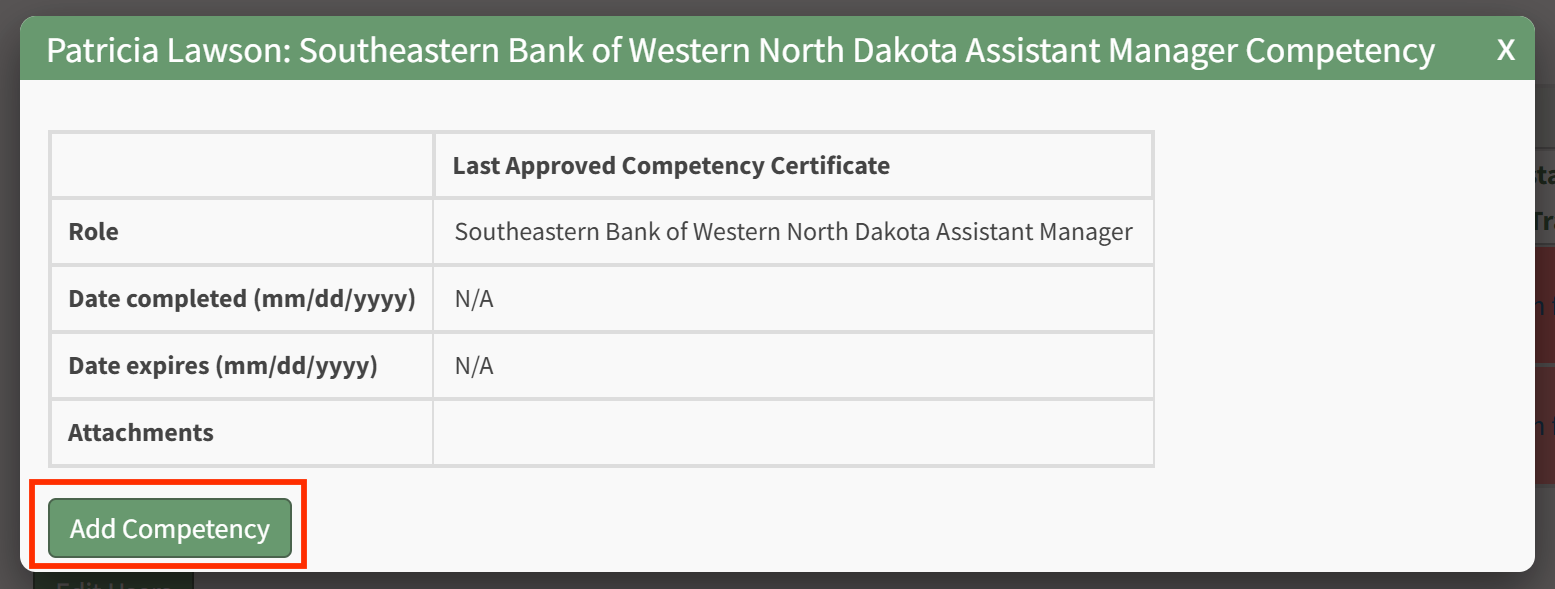
This will launch the Competency modal for this Assigned User. Click the Add Competency button to Add Competency as described in the section above.
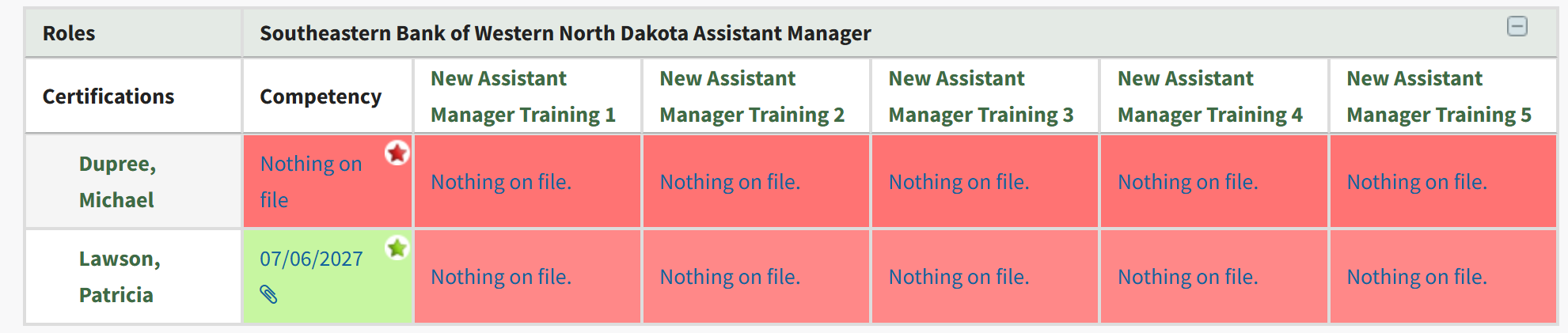
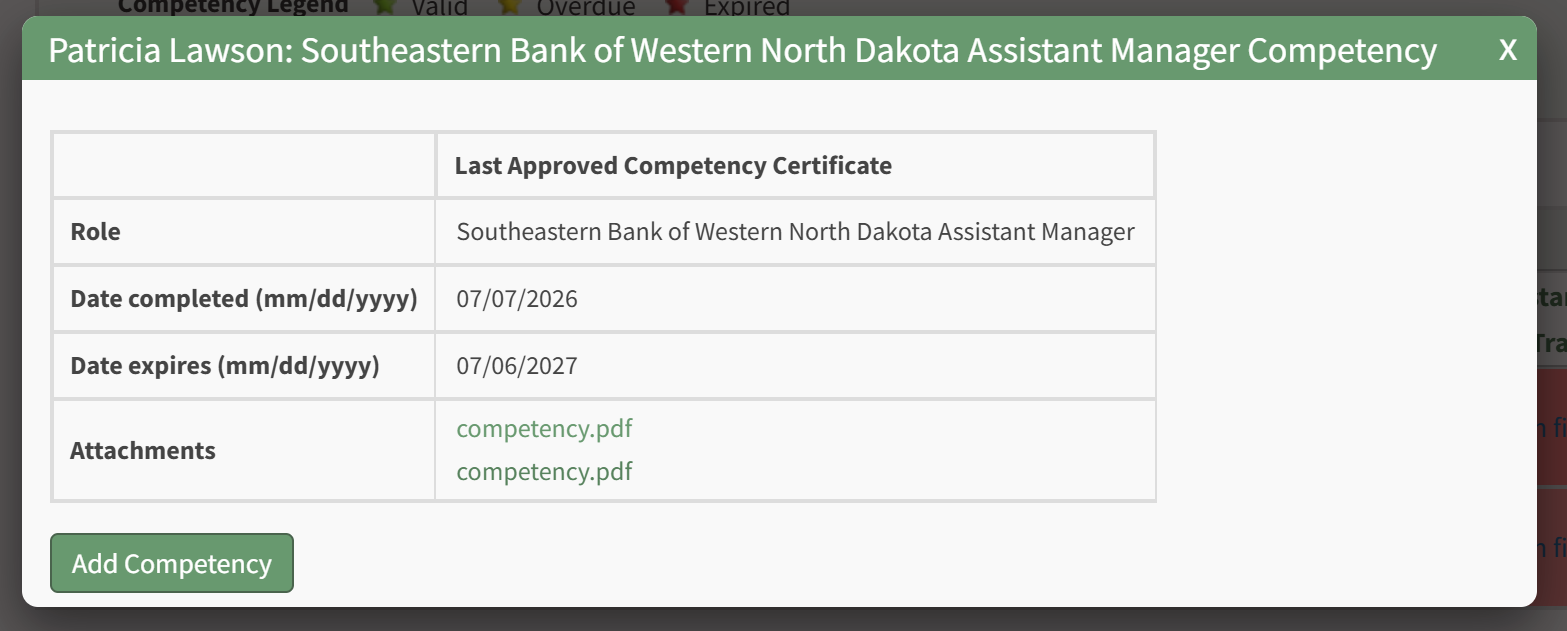
After completion has been submitted and approved, you will be redirected to the specific Role Page for this user, and show a summary of the Competency Completion submission.
Recording Competency Certificates from the People Matrix
A Supervisor or site Admin can record Competency Certificates by visiting the Matrix page of the People Module.
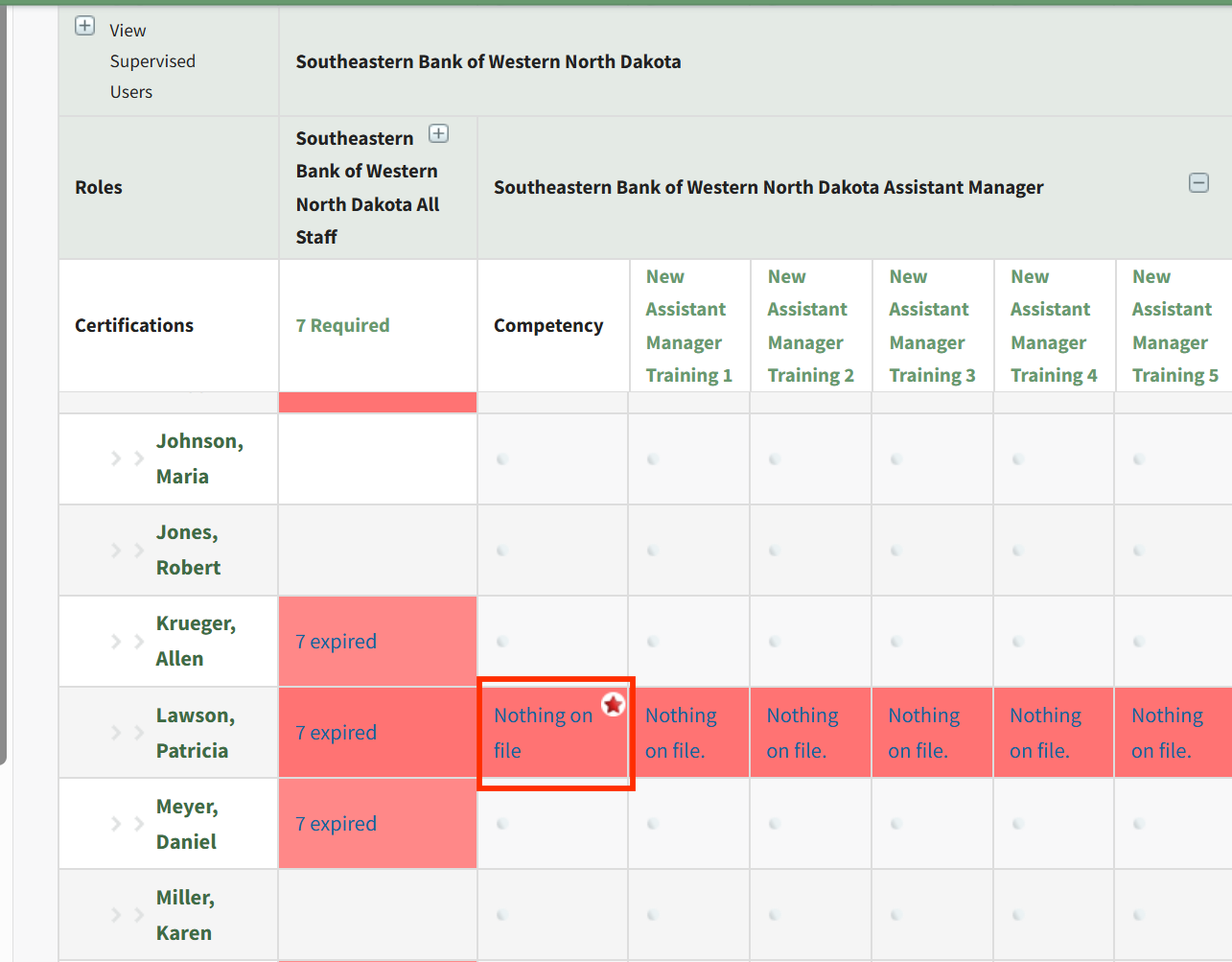
This launches the Matrix page for all Certifications Roles and associated users. Locate the full matrix table of users and their associated Certification Roles. If Competency is required for a role, a star will be visible in the cell for users assigned a Competency requirement.
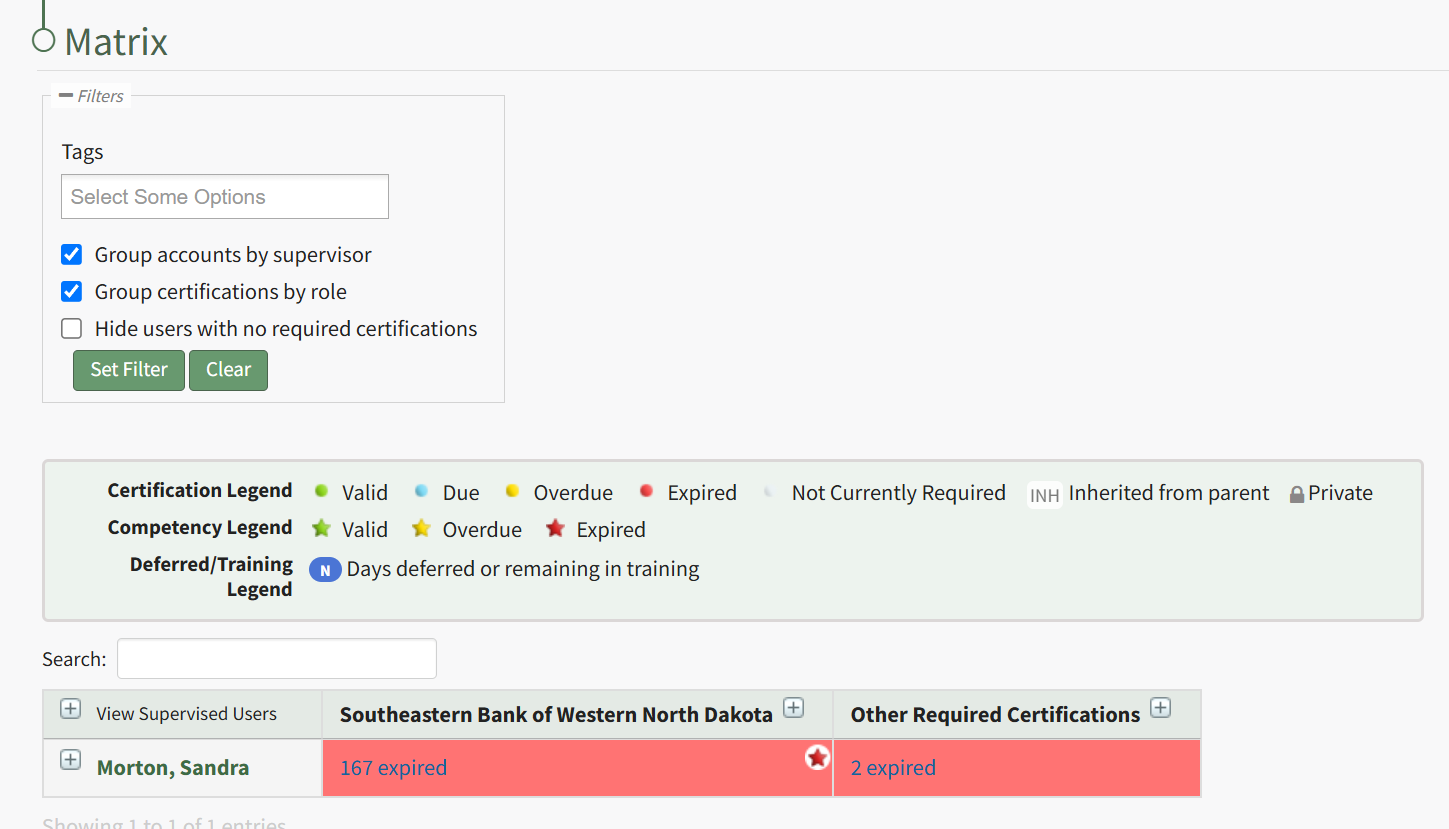
Click on the plus button next to the role name in the column heading for the matrix, or on a particular cell, to expand the table. When competency is enabled, the first sub-column under the Role Name heading will be for the Role's Competency, followed by columns for Certifications required by that Role. To record a new Competency Completion, click the cell for the user you wish to record Competency for.
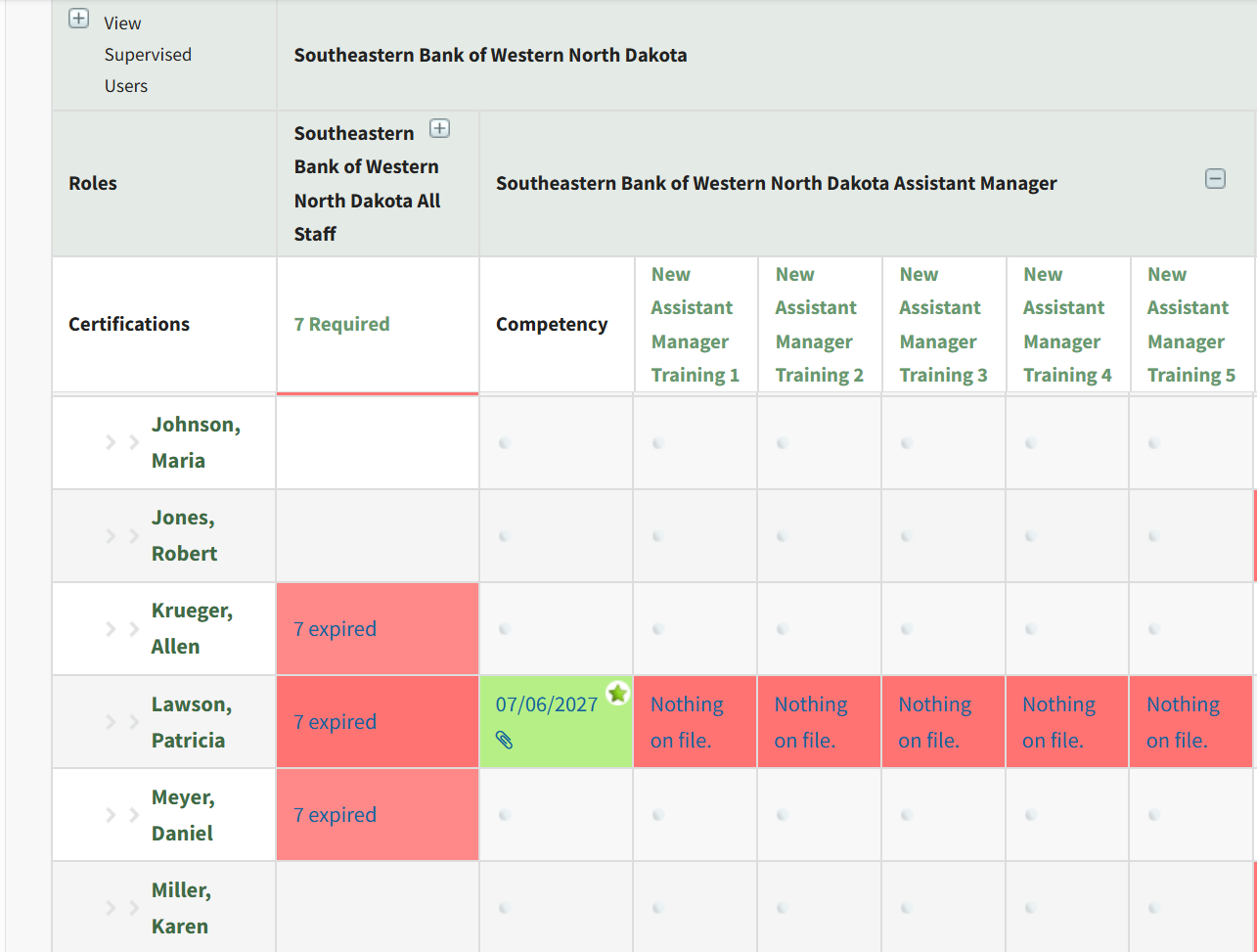
This will launch the Competency modal for this Assigned User. Click the Add Competency button to Add Competency as described in the section above.
After completion has been submitted and approved, you will be redirected to the specific Role Page for this user, and show a summary of the Competency Completion submission.
Associated Users Tab
The Associated Users Tab displays the Associated Users Table, which shows a listing of all users who are currently required to complete this certification or who have previously completed it.
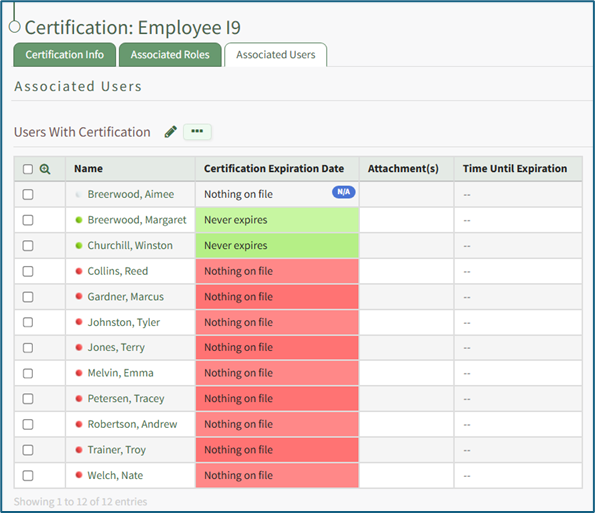
Both the pencil icon and the context menu on the Associated Users Tab allows an administrator to assign this certification as an "Other Required Certification" independent of any assigned certification role. WIKI LINK HOW TO ASSIGN A CERTIFICATION INDEPENDENT OF A REQUIRED CERTIFICATION ROLE
Clicking the checkboxes to the left of the user's name opens an additional modal.
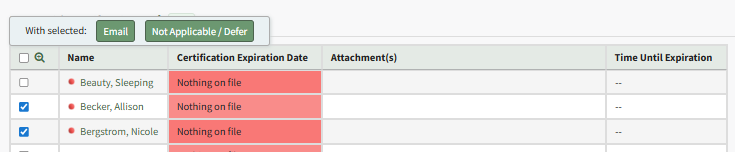
Selecting the Email button opens a modal that is used to send a certification email notification to the specified users. The modal offers the option to add a message to the email notification.
How To: Send a User an Email Notification Regarding a Certification
To send a user an email notification regarding a specific certification, you must open the supervised user's Certifications Details Page. To do so, select Users in the People Module from the Main Menu.
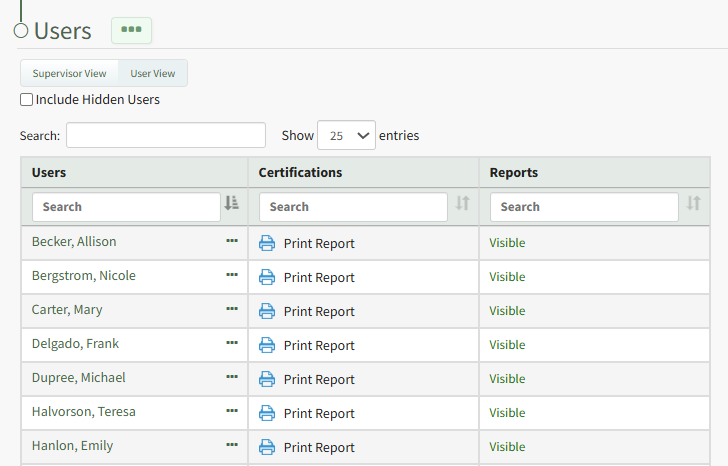
Click the name of the relevant user on the Users Table opening their Certification Details Page. To the right of a certification name in the Outstanding Requirements Table is a three-icon that opens the Outstanding Requirements Context Menu.
Notify is only a context menu option for the Outstanding Requirements Table.
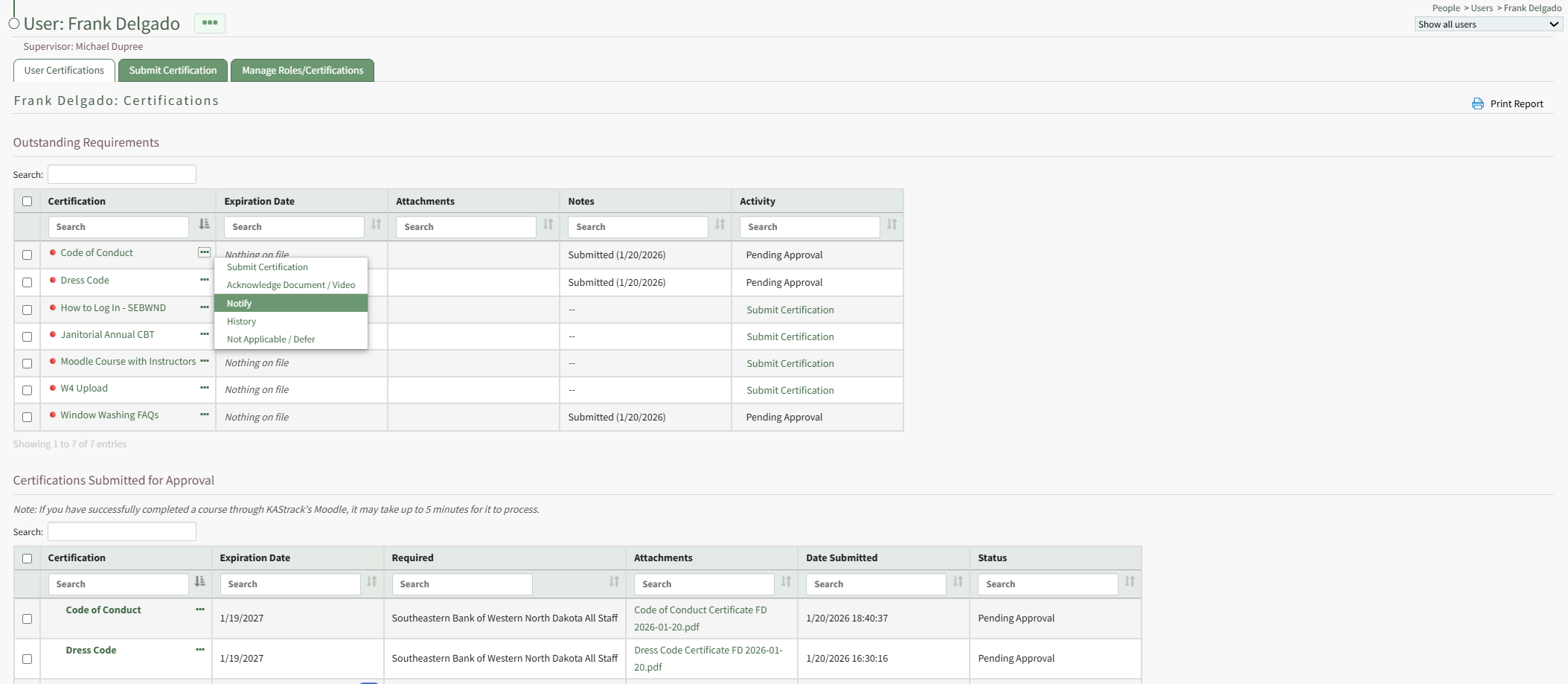
Select the option Notify opening the Send Notification Modal. Use the modal to include an optional message that will be included in the Certification Notification that will be sent to the user through the system via email.
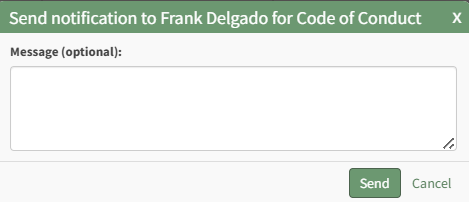
Select the Send button.

The modal changes, indicating that the email notification is sent.
Selecting the Not Applicable / Defer button opens the Defer Certification Modal. Certification can be required (not allowed to defer), designated as not applicable for the user, or deferred until a specified date/time.
WIKI LINK HOW TO INDICATE A REQUIRED CERTIFICATION CANNOT BE DEFERRED
WIKI LINK HOW TO INDICATE A REQUIRED CERTIFICATION IS NOT APPLICABLE TO A SPECIFIED USER(S)
WIKI LINK HOW TO DEFER A CERTIFICATION FOR A SPECIFIED USER