
Use Attachment Inbox to Upload a File and Attach it to a Certification
To upload files in the attachment inbox and add them to user certifications, open the Submissions Page in the People Module from the Main Menu. Open the Attachment Inbox Tab.
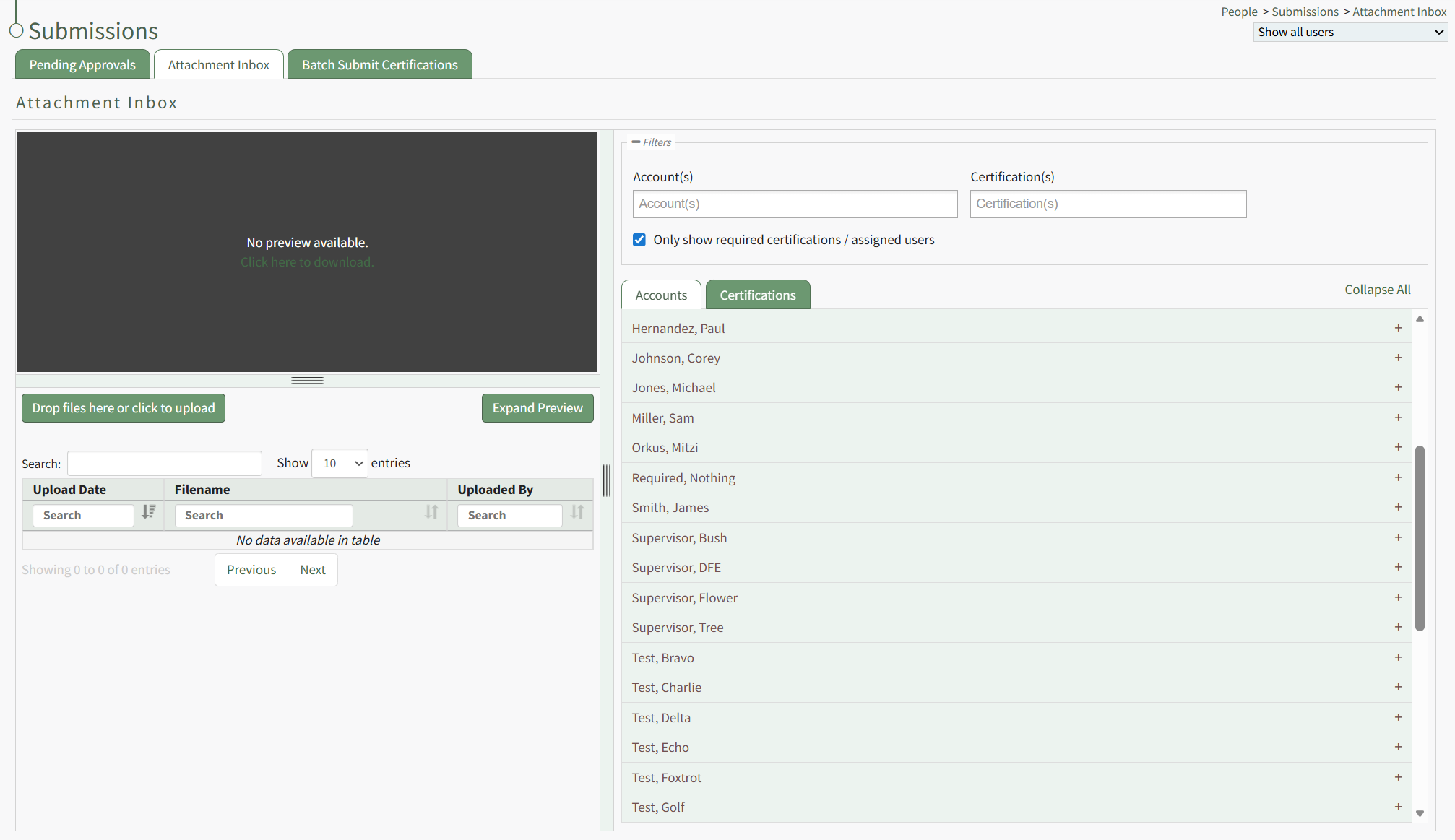
Drag and drop the desired files or click the "Drop Files Here or Click to Upload" button to upload the appropriate files.
PDF files will be visible in the preview window. Other file types can be downloaded if desired.
For flexibility, the file can be assigned to user accounts or a specified certification. Select the view best for your purposes and click the plus sign icon to the right of the account or certification to expand it.
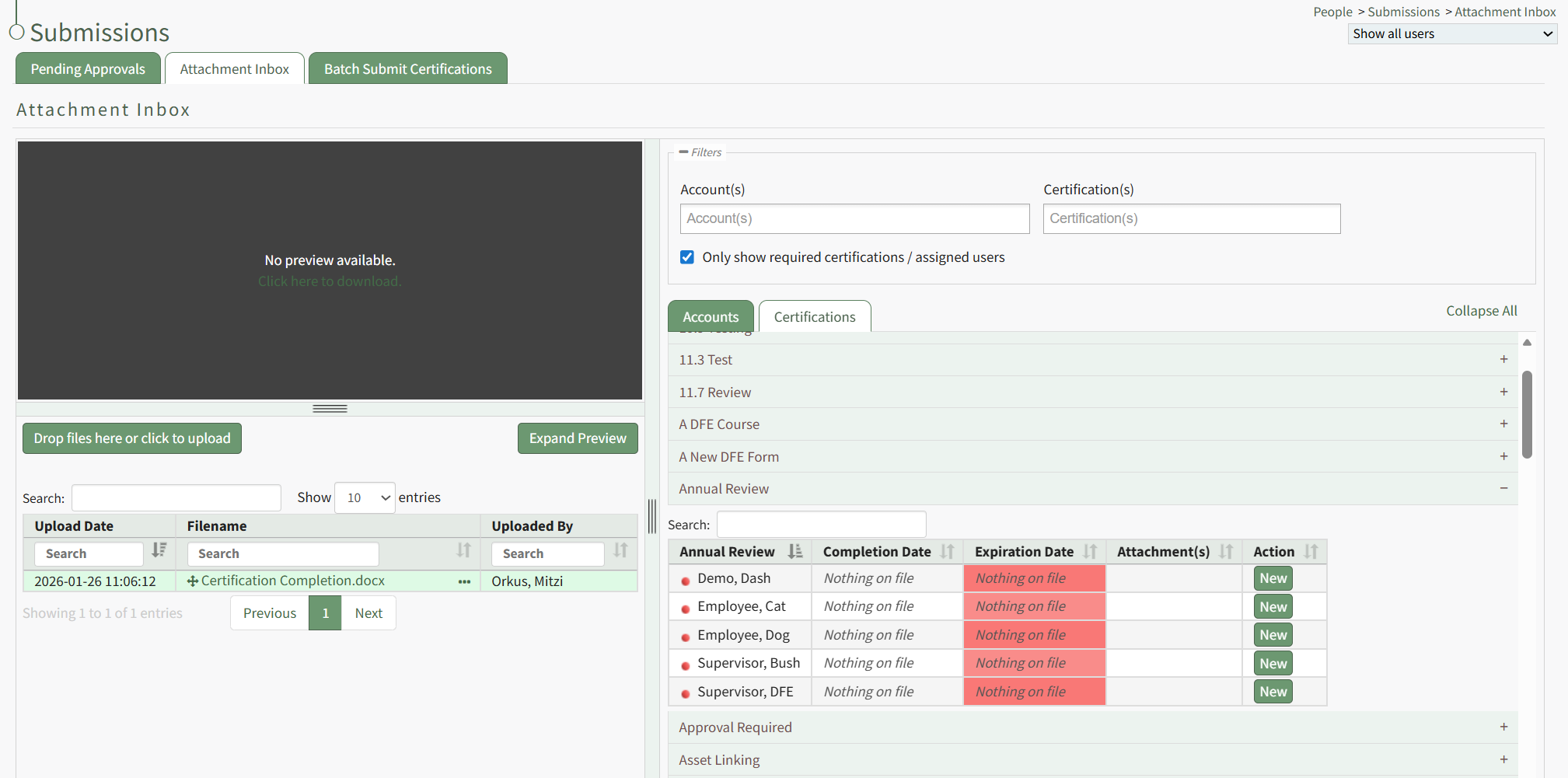
A table shows the users assigned to the certification. Click the New button in the Action column opening the Rename Attachment Modal.
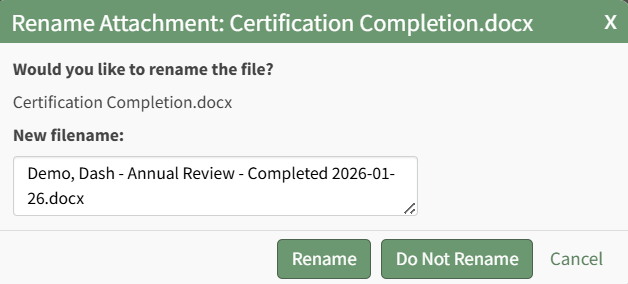
The modal renames the file according to the customizable People Module attachment naming settings, but you have the ability to edit the filename if desired.
{{@428}}
Click the Rename button, opening the Submit Certification Modal.
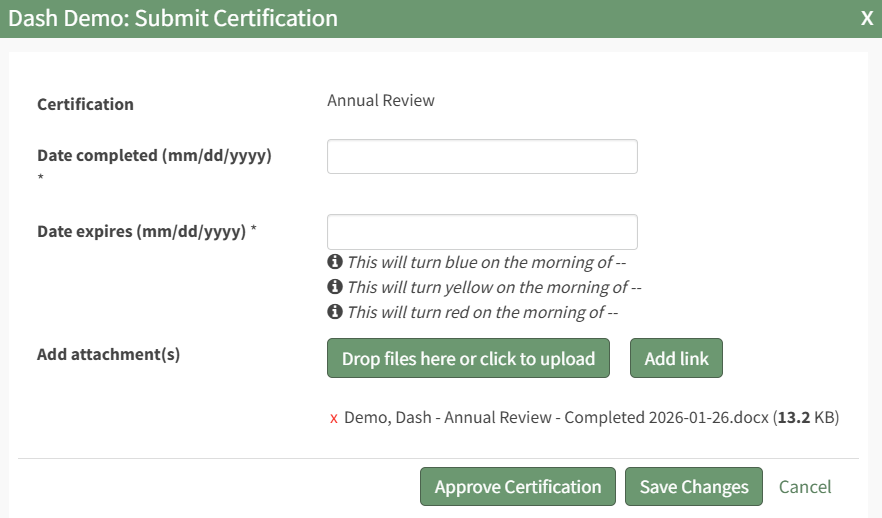
To submit the certification, include the date the certification was completed and select the Save Changes button.
To submit and approve the certification, include the date the certification was completed and select the Approve Certification button.
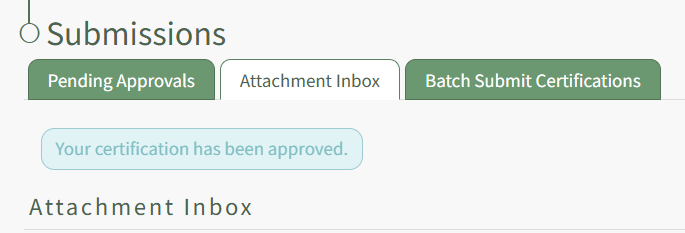
A textbox below the tabs confirms the completed action.