
Use a Communications Template when Sending A System Message
To use a communications template, the template must first be created.
How To: Create New Communication Templates
{{@107}}
To use a pre-existing communications template, go to the Send Communications Page in the Communications Module.Module from the Main Menu.
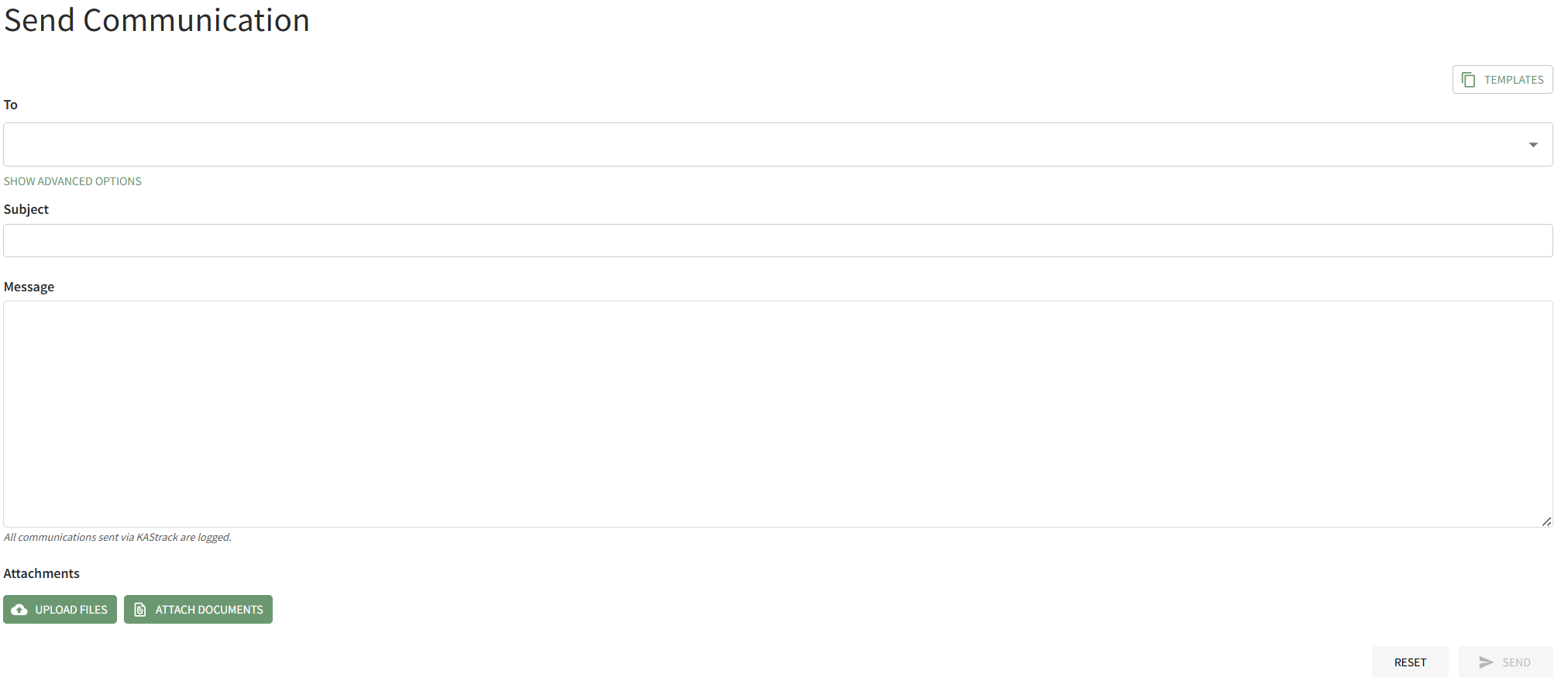
Select the Templates button on the right-hand side of the page iconabove the To field. This opens the Templates Modal.
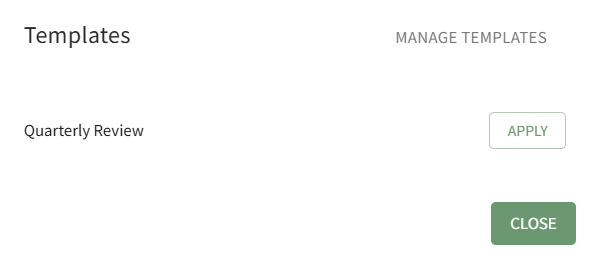
Click the Apply button to the right of the Send Communications Page Header opening the Choose A Template Modal.

Selecting “Replace” from the dropdown menu will remove any existing attachments on the Send Communication form.
Clicking the communication template you wish to use will input whofor the communicationSystem isMessage.
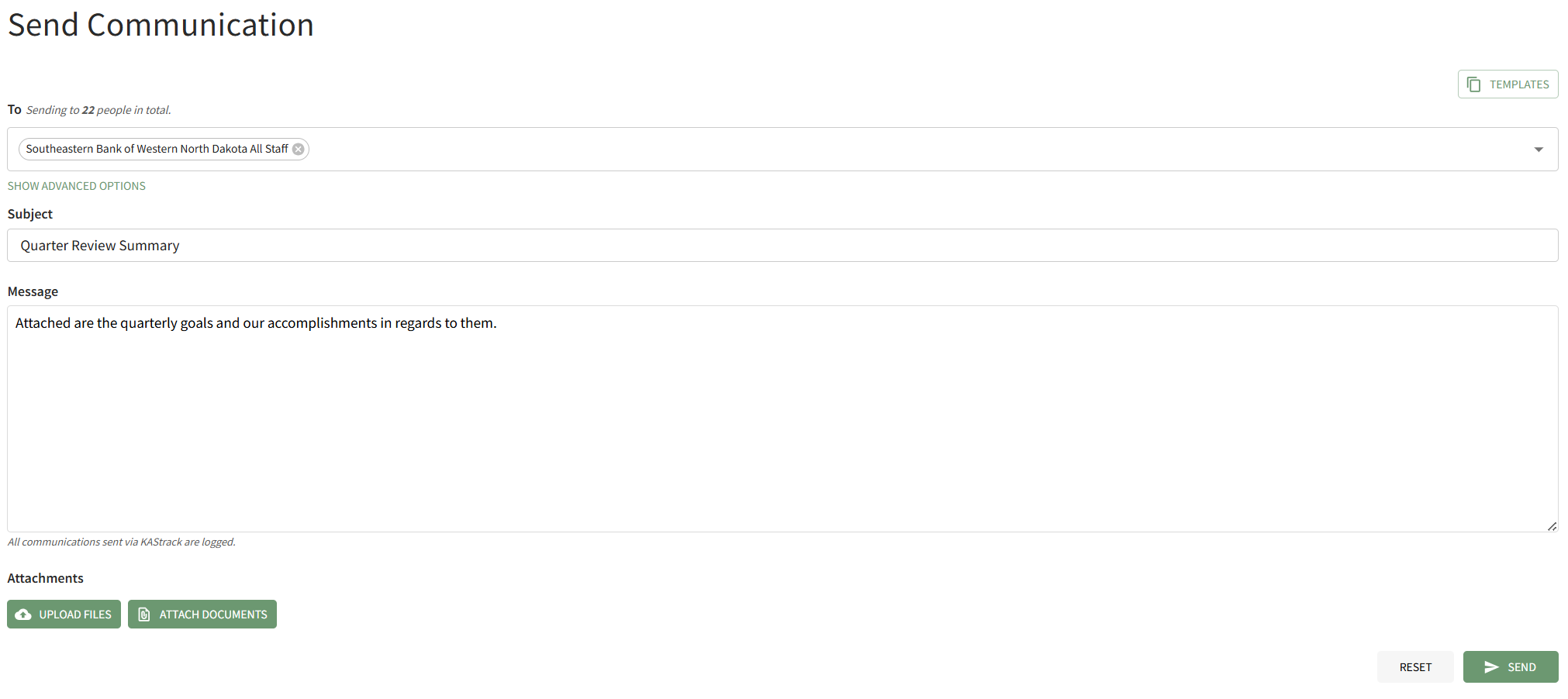
The to,Templates theModal subjectautomatically of the email,closes, and the bodyselected messagetemplate automatically,is asapplied well as add or replace attachments based on your selection into the dropdownSend menuCommunications above the template list.
