
Upload a Video / Document in the Courses Module
To upload a video/document to be used in a course, openyou must be on a page within the Coursescourse. ModuleAn Homeexplanation of how to access a course page is provided in the How To below.
How To: Access A Specific Page fromin a Course
{{@944}}
Once you are on the Mainspecific Menu.page Clickin the course, click the three-dot icon to the right of the coursepage title opening the CoursePage Context Menu and select “Pages”.Menu.
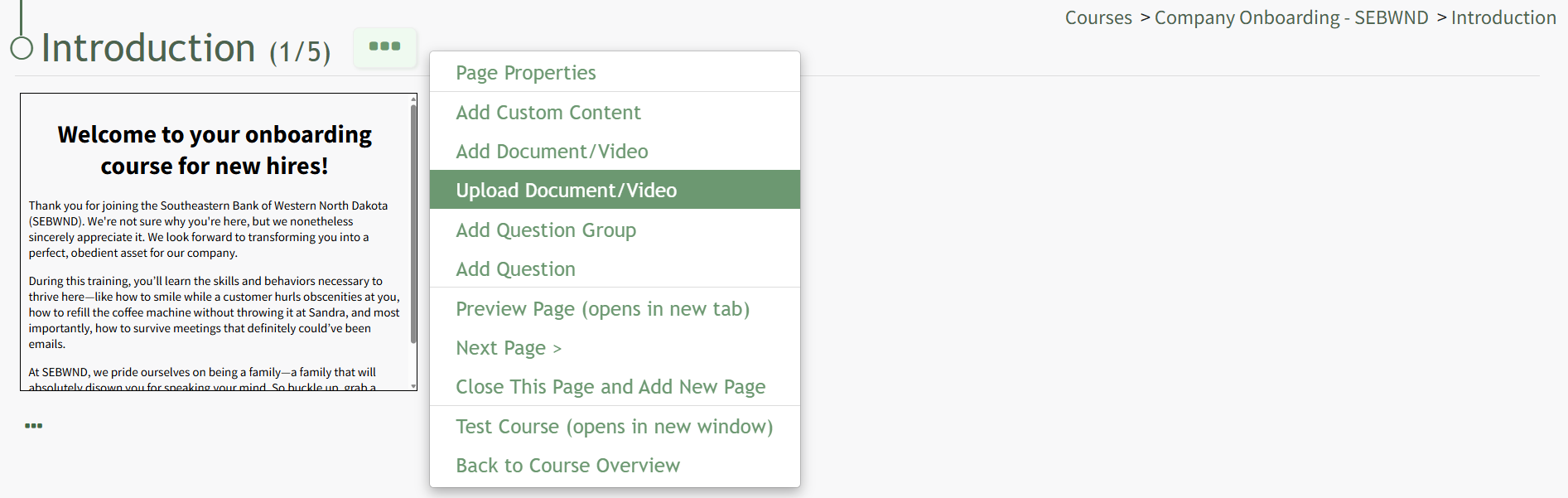
This opensSelect the Courseoption Overviewto Page"Upload PagesDocument/Video," for Course Name Page. Selectingopening the threeUpload dotFile (…)Modal.
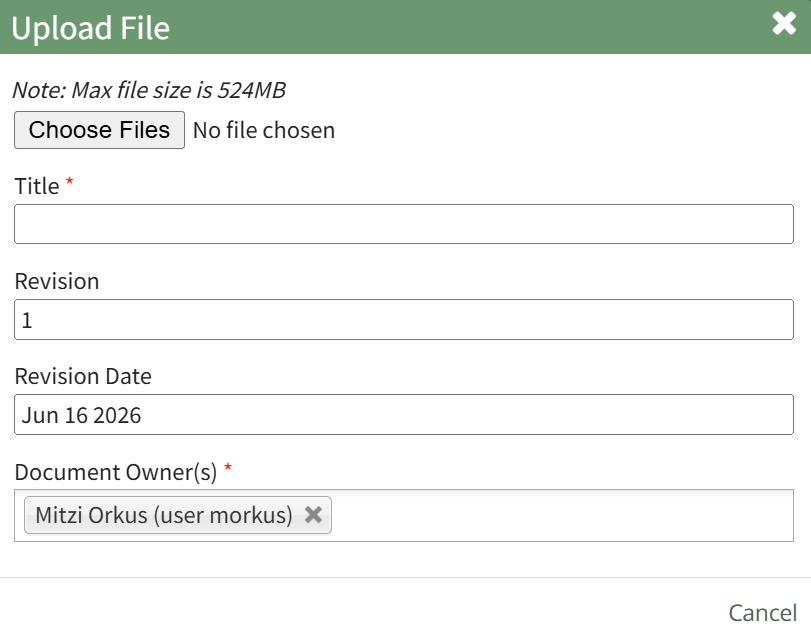
toClick the right"Choose ofFiles" thebutton. page header open a context menu.
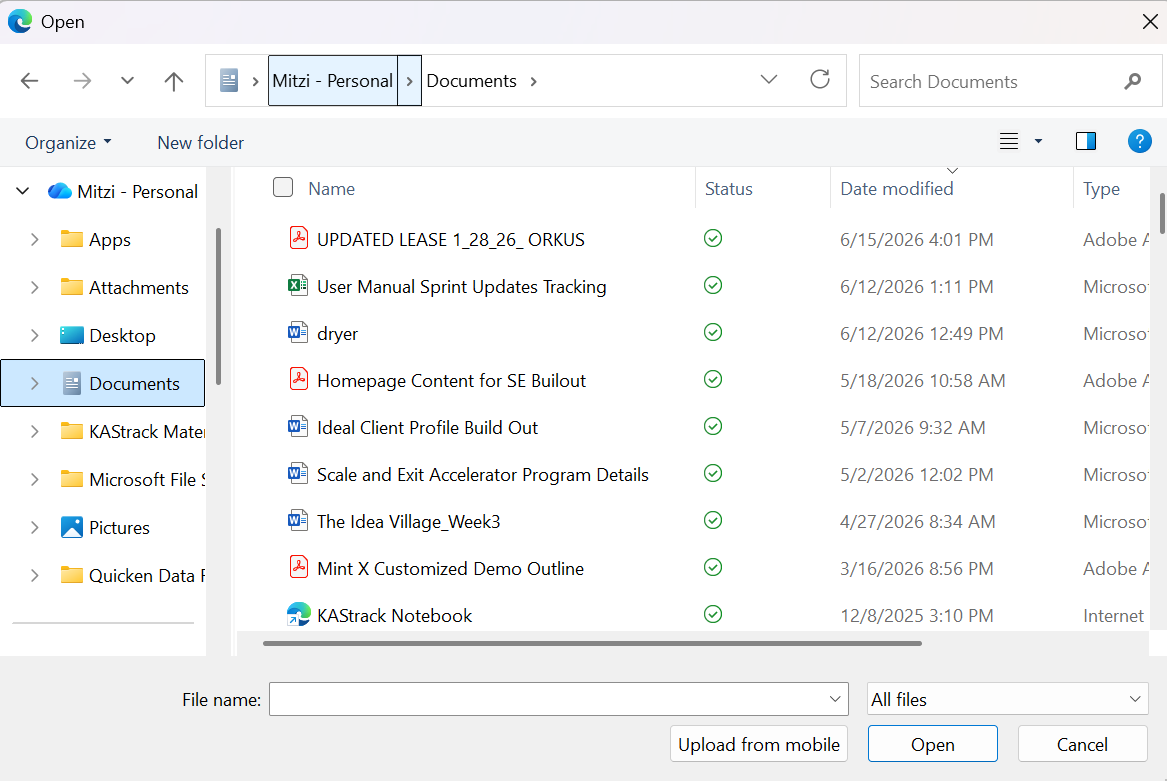
“Add Document/Video” opensSelect the AddFile Document/Videoyou modalwant thatto allowsupload from your personal device. Once it is uploaded, the userfile to select a previously uploaded document or video from a dropdown list. Any documents or videos in the Documents Module that the user has access toselected will show in the dropdownUpload list.File Modal.
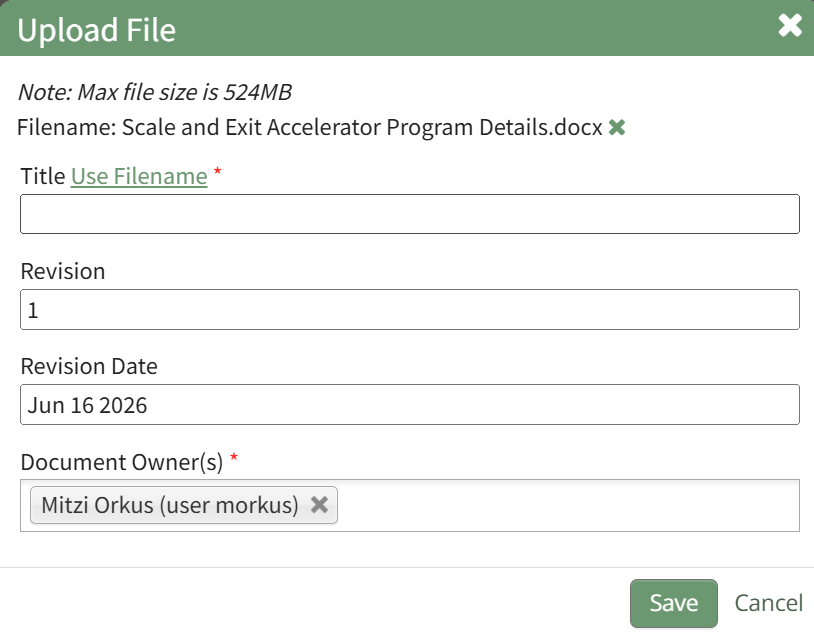
Enter a new title for the file or click the "Use Filename" clickable link for the original filename to be saved.
Indicate the revision number and revision date as well as the Document Owner(s).
Select "Save".
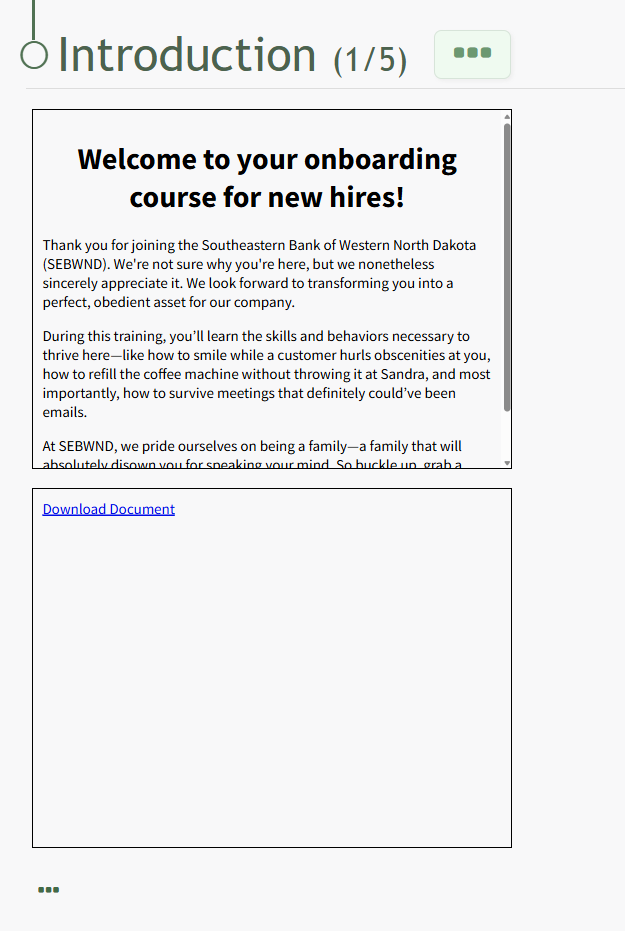
The checkboxuploaded allowsfile thenow user to designate whether they wish to use the latest approved revision of the item selected. Click “Save” and the selection will appear as a slideshows on the course homepage.page.
“Upload Document/Video” will open an Upload File modal.
Title the file (required).
The user has the option to indicate which revision is being uploaded and a revision date (defaults to the date of upload).
Leave “Document is public” unchecked.
Document owners can be designated via a drop-down list of users. In the Courses Module, identifying someone as a document owner allows users to see who is connected to a document. Document ownership does not have any other functional purposes for Courses.