Submit Entries Using a PDF
To be able to submit entries to a KAStrack Form via an external PDF, you must first create an external PDF in a form creator tool, such as "Prepare Form" in Adobe Acrobat. Through design of the Form, you can then link the PDF Form to your existing KAStrack Form. This allows for the PDF itself to be a submission method for Form Entries into the KAStrack system - someone can fill out the PDF, press a button to submit, and the data entered in the PDF gets sent to the associated KAStrack Form and automatically saved in the system.
When creating an external PDF Form, it is necessary to first have a KAStrack Form created to pair the external PDF Form with.
How To: Create a Form
{{@386}}
If your existing KAStrack Form doesn't have fields, you can either manually add the fields you want in KAStrack, or, by adding fields to the external PDF Form, you can have those fields imported from the external PDF Form to the KAStrack Form.
How To: Add a Field to a Form
{{@373}}
How To: Import Fields from a PDF Field Import
{{@400}}
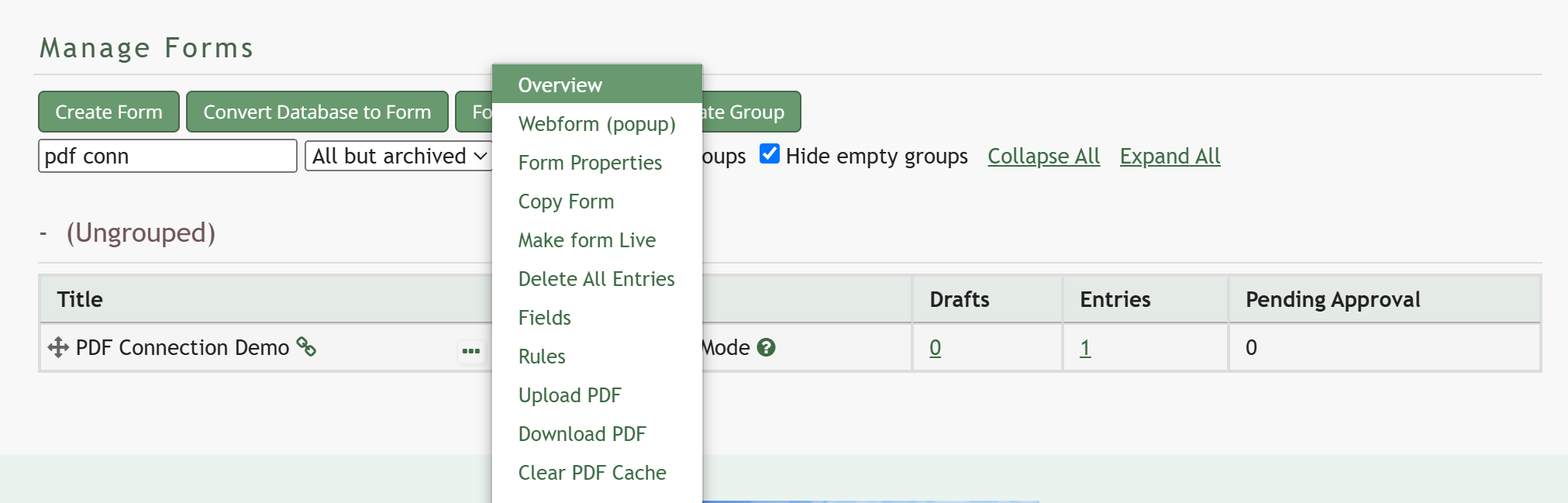
If you have manually added fields to both your KAStrack Form and your external PDF Form, you can still connect the two. First, go to the Home Page of the Forms Module.
Select the three-dot icon to the right of the Form Title opening the Form’s context menu. Select “Overview”. This opens the Overview Tab for a specific form.
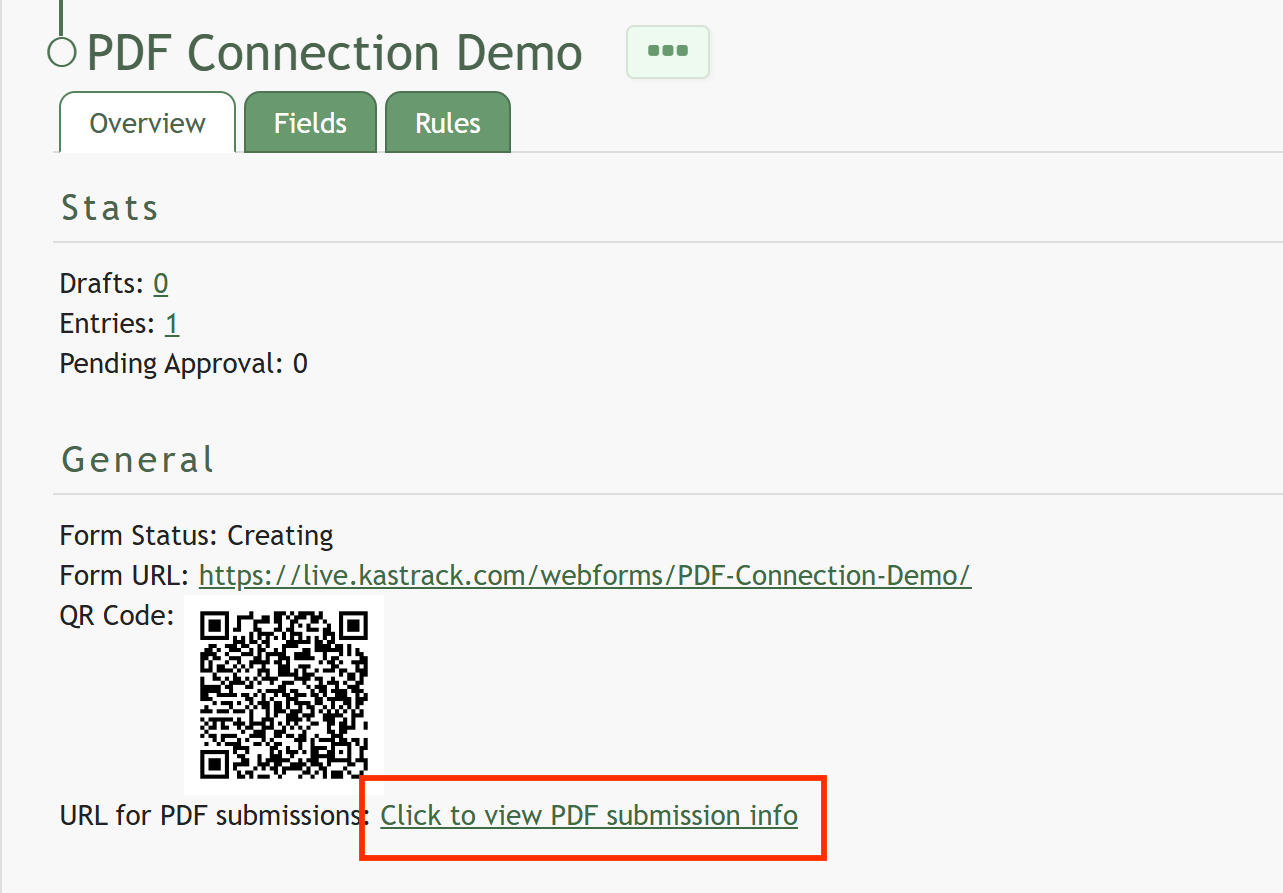
Select the “Click to view PDF submission info” linked text.
This opens the PDF Field Import Modal.
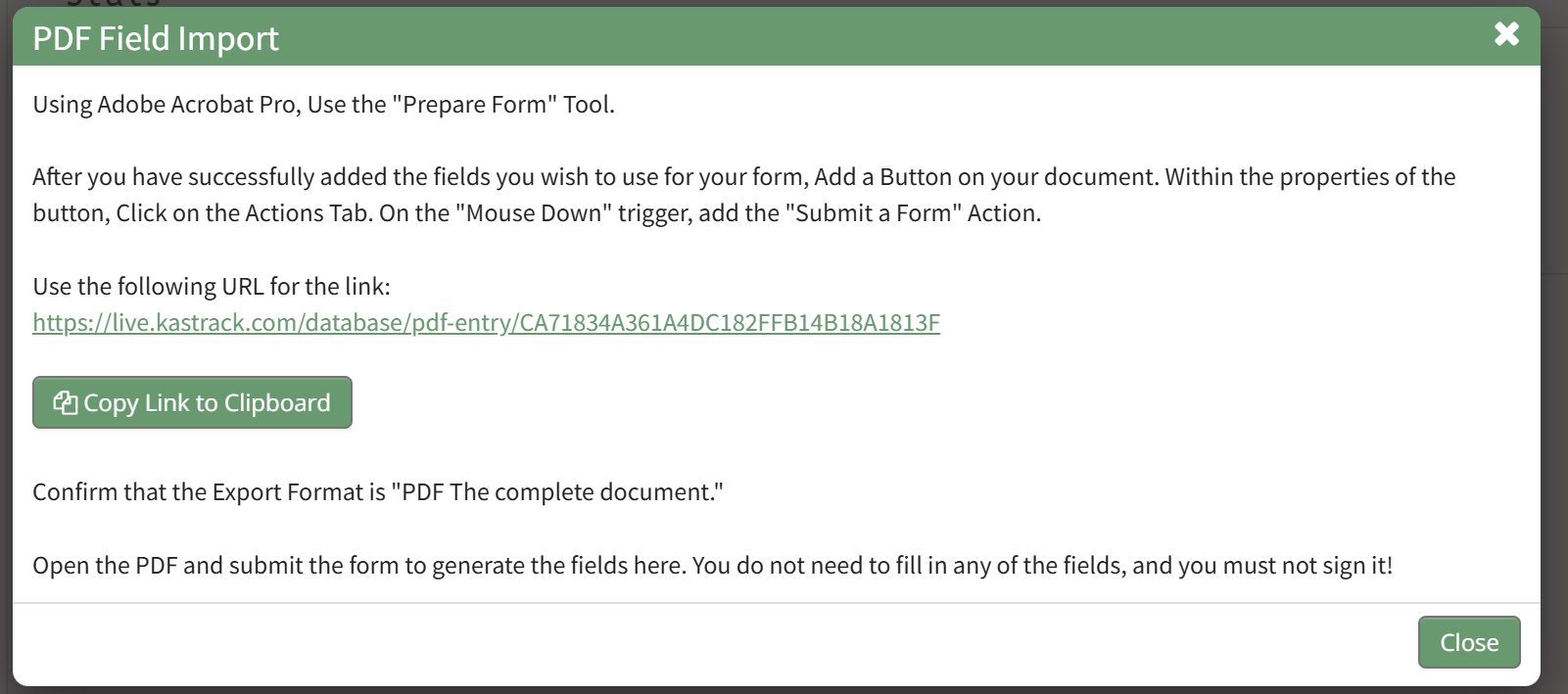
To import fields using a PDF, use the “Prepare Form” tool in Adobe Acrobat Pro. Add the fields you wish to use for your form. Add a button on your document.
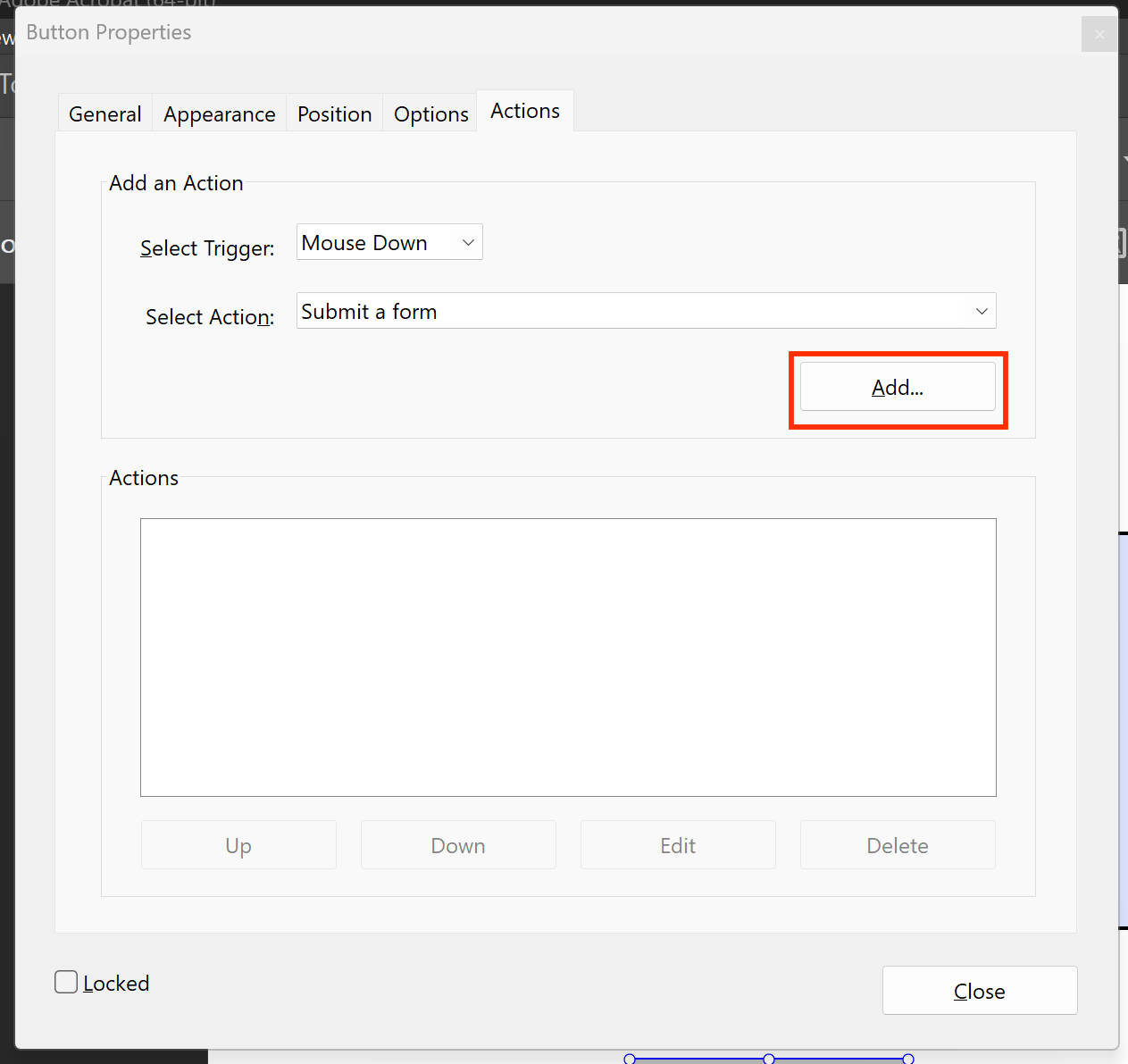
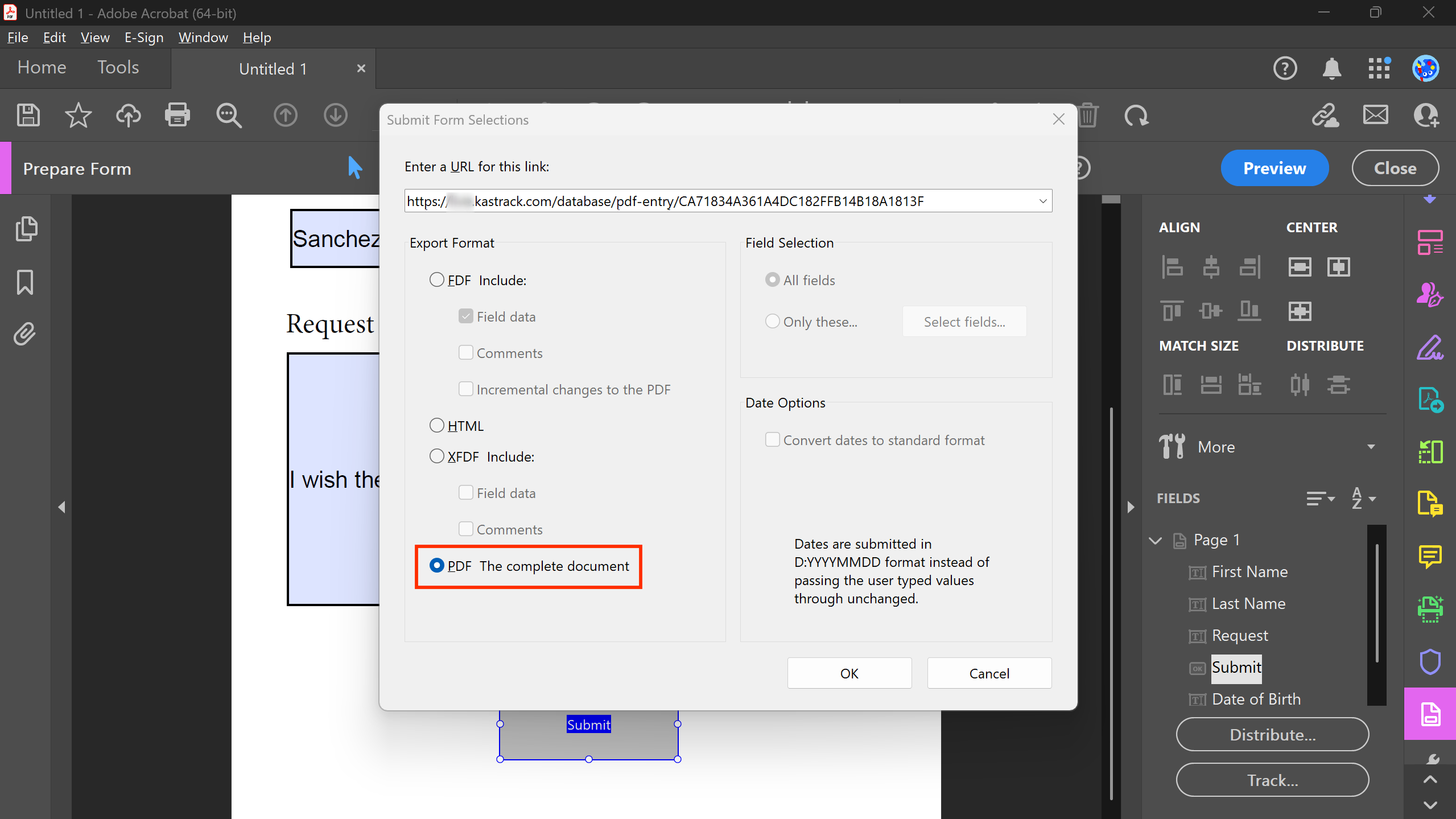
Use the URL link provided on the PDF Field Import Modal in KAStrack. Confirm that the Export Format is “PDF The complete document”.
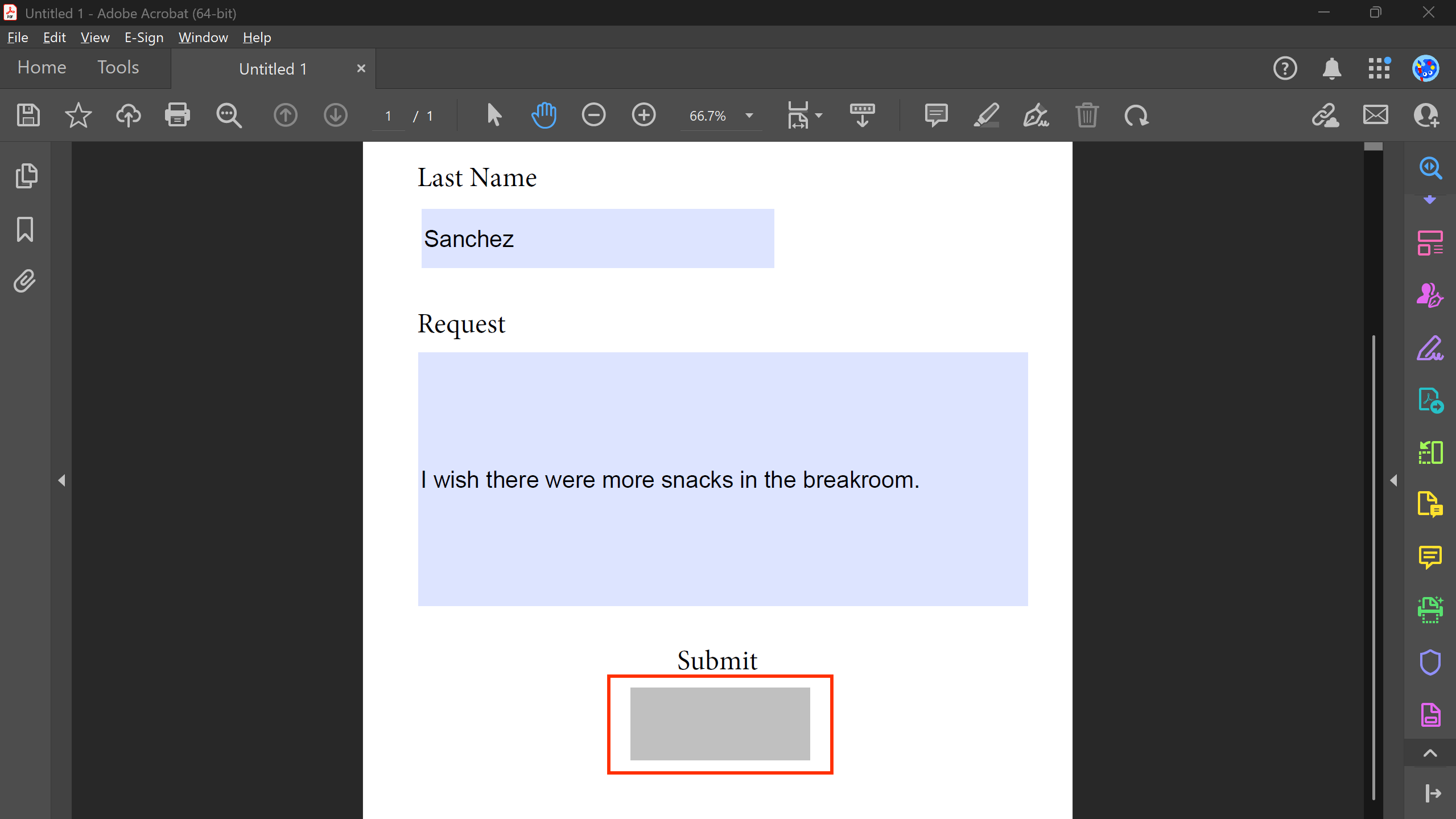
Open the PDF and submit the form to submit an entry into KAStrack.
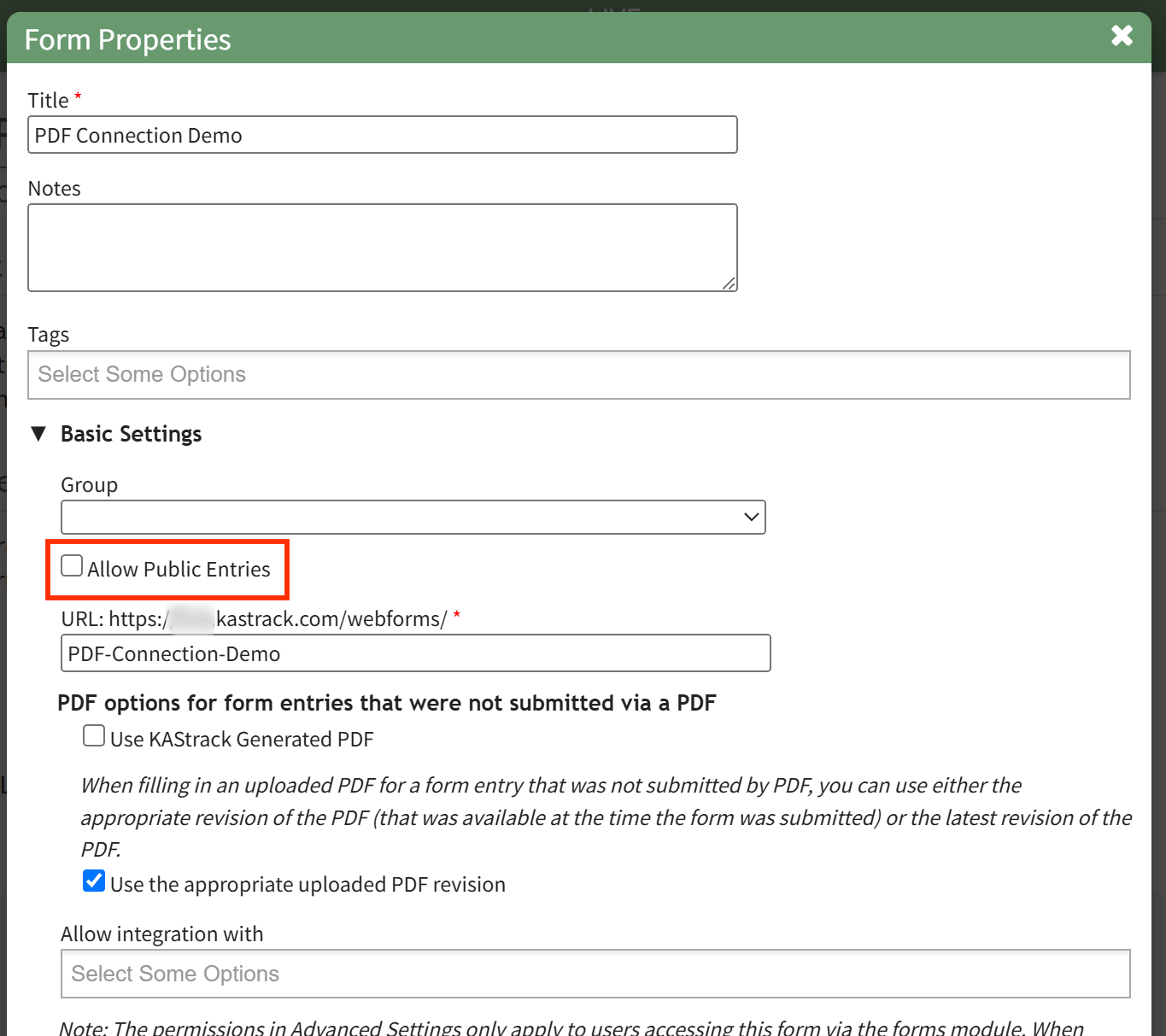
If after submitting the entry, you see the error "An error occurred - this form does not allow public entry", go to the Form's context neu and edit its Properties and enabling public entry submissions: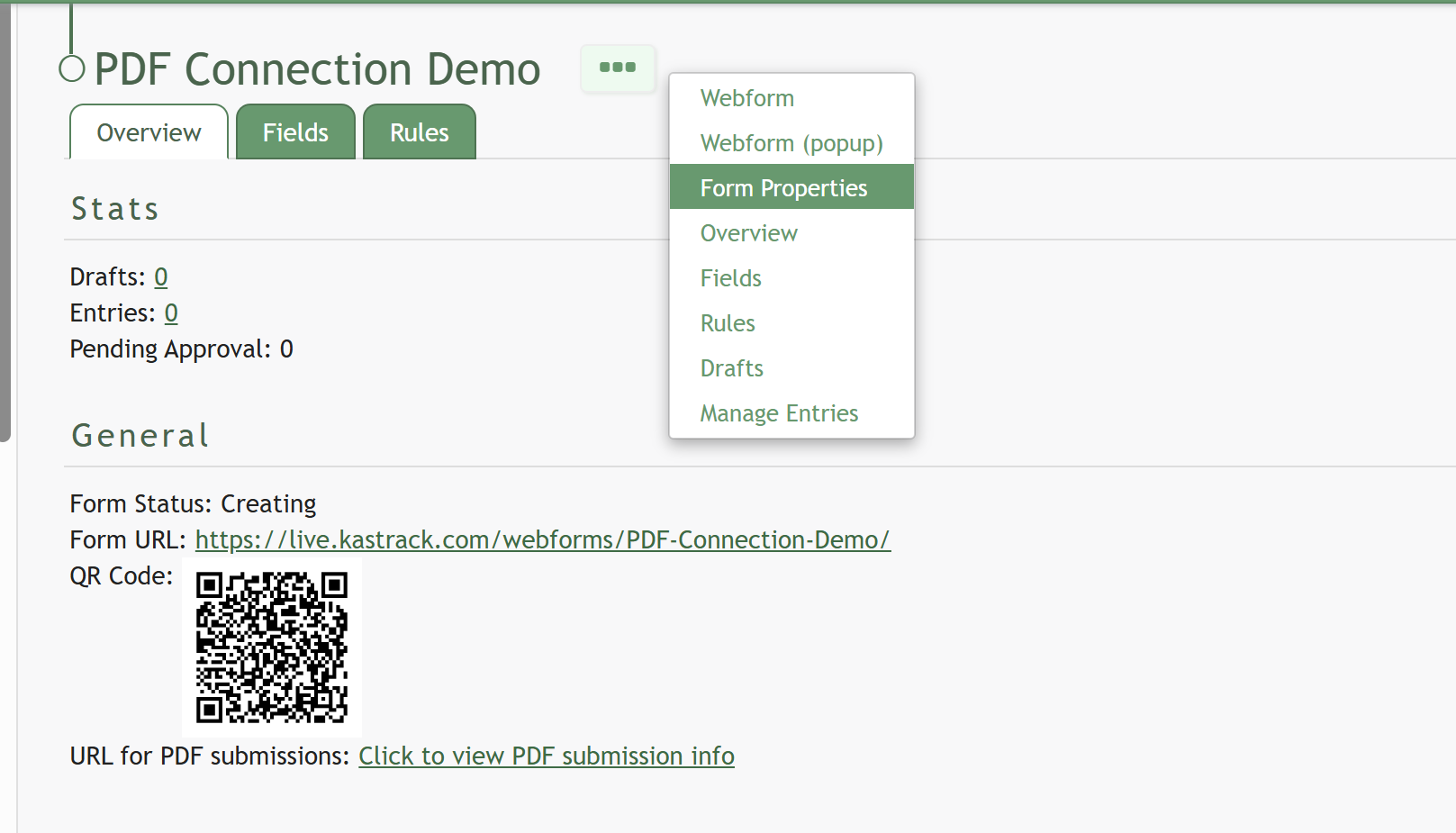
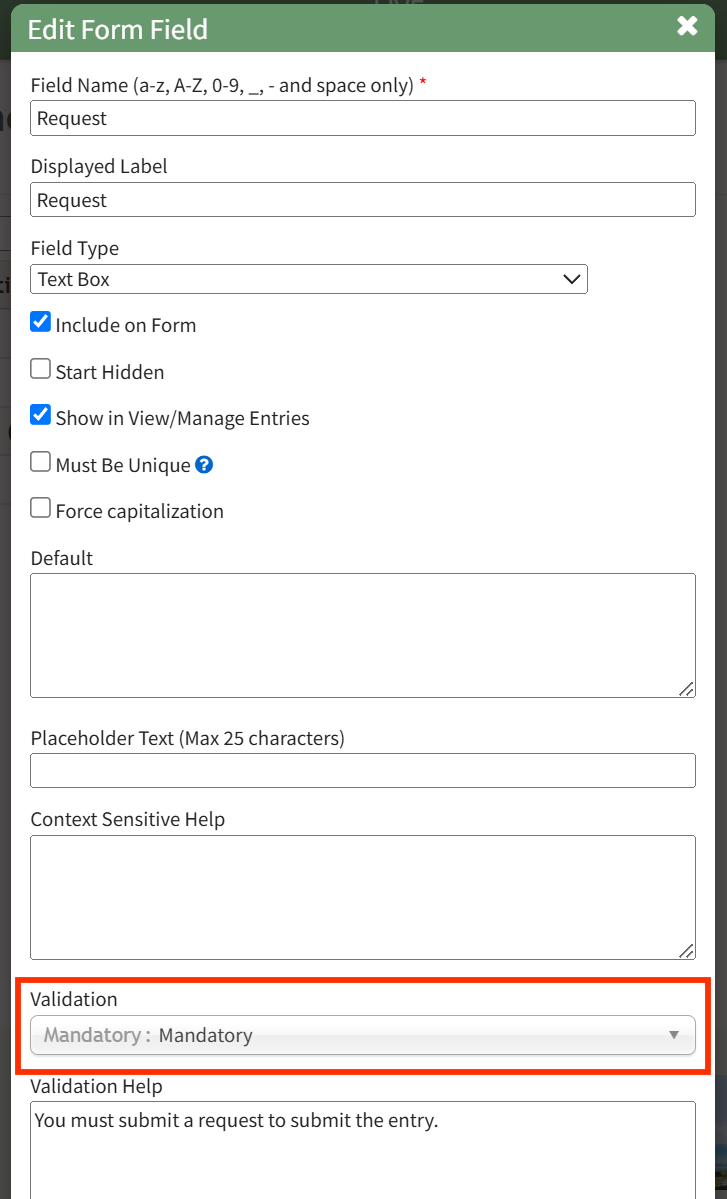
If your KAStrack Form has a required Field, and the person submitting the entry has left that field blank, another type of error can occur on submission.
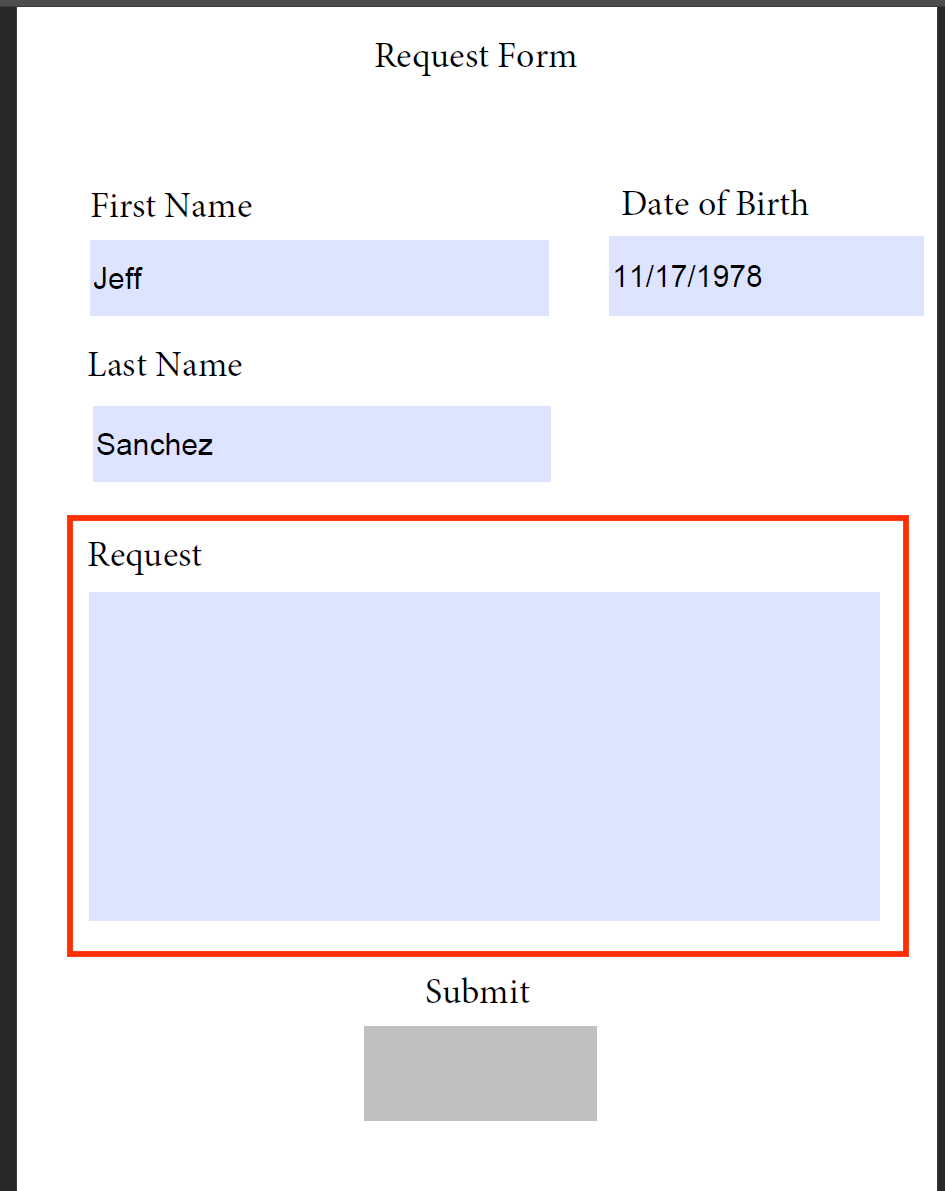
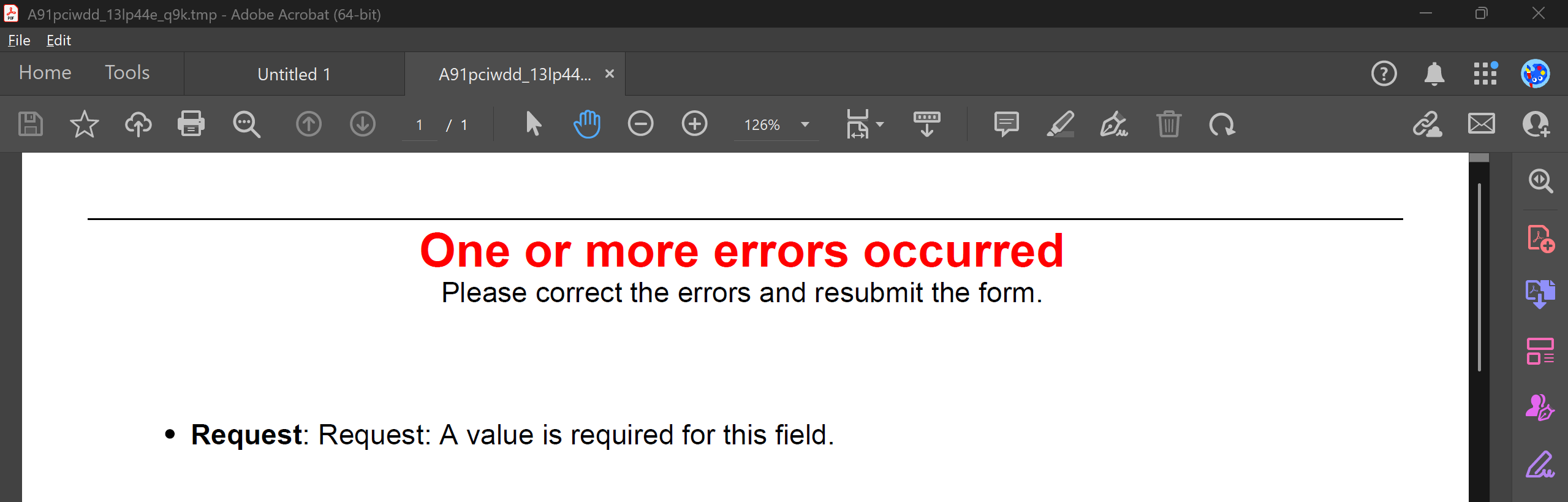
Once all fields have valid values, you can submit the entry successfully.
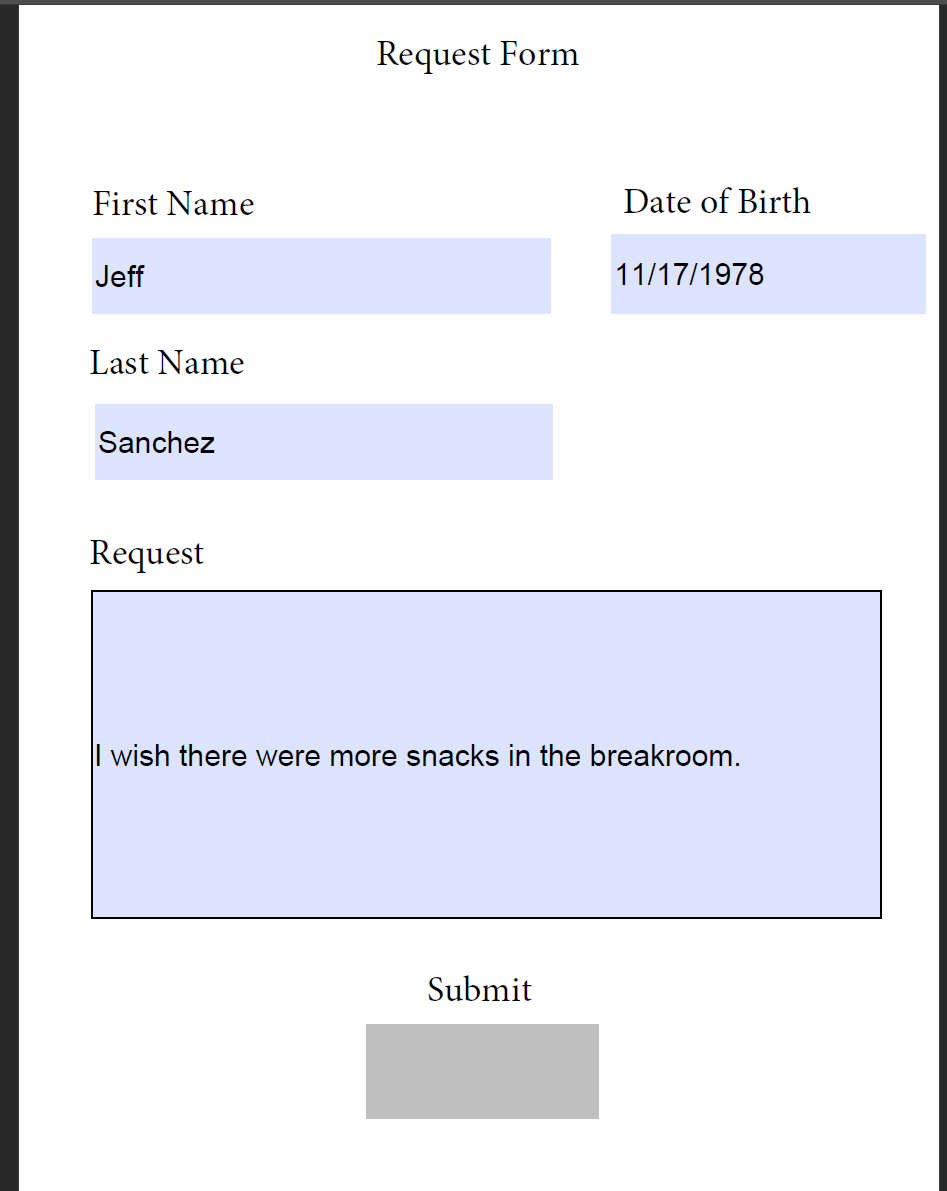
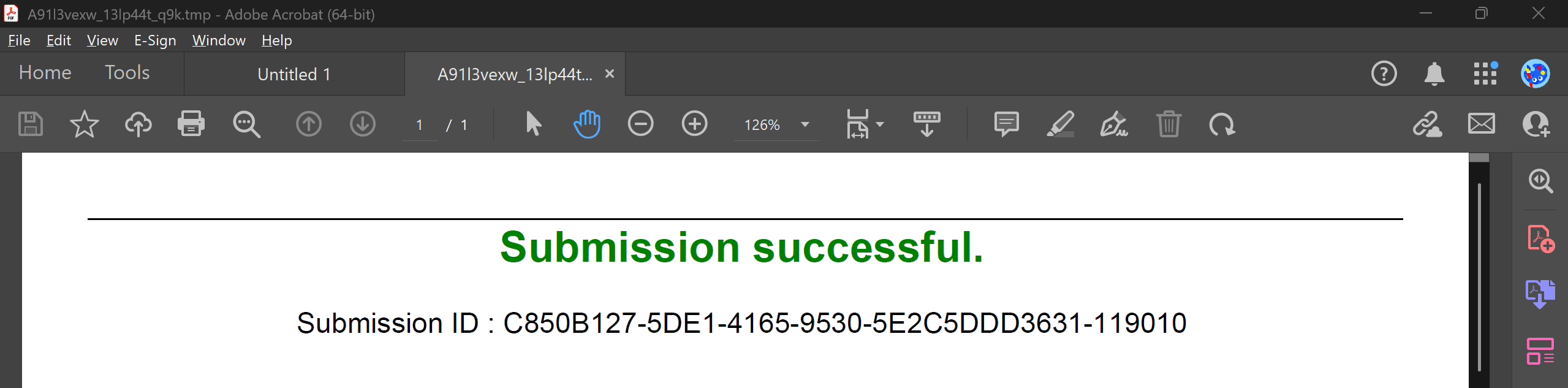
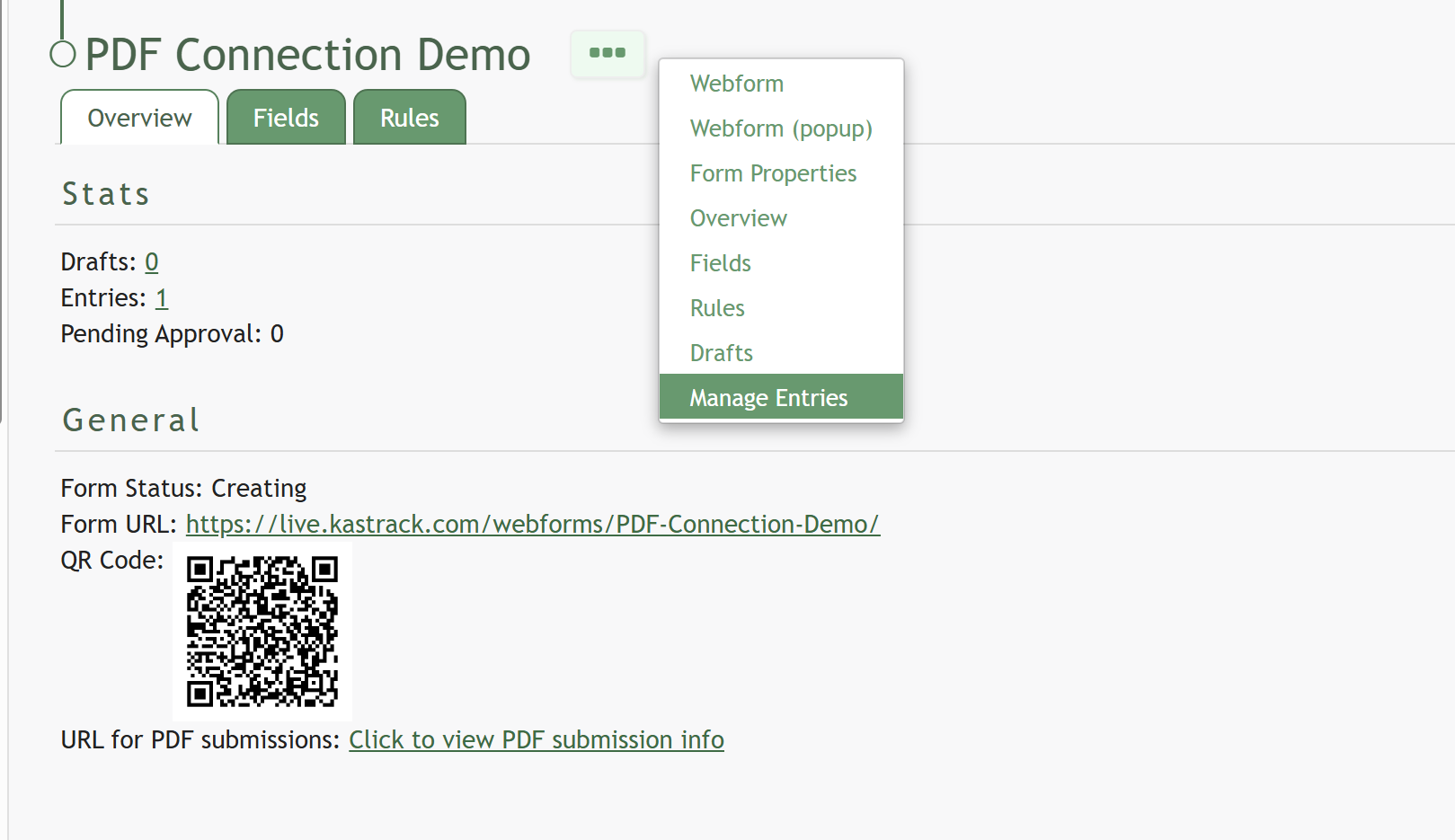
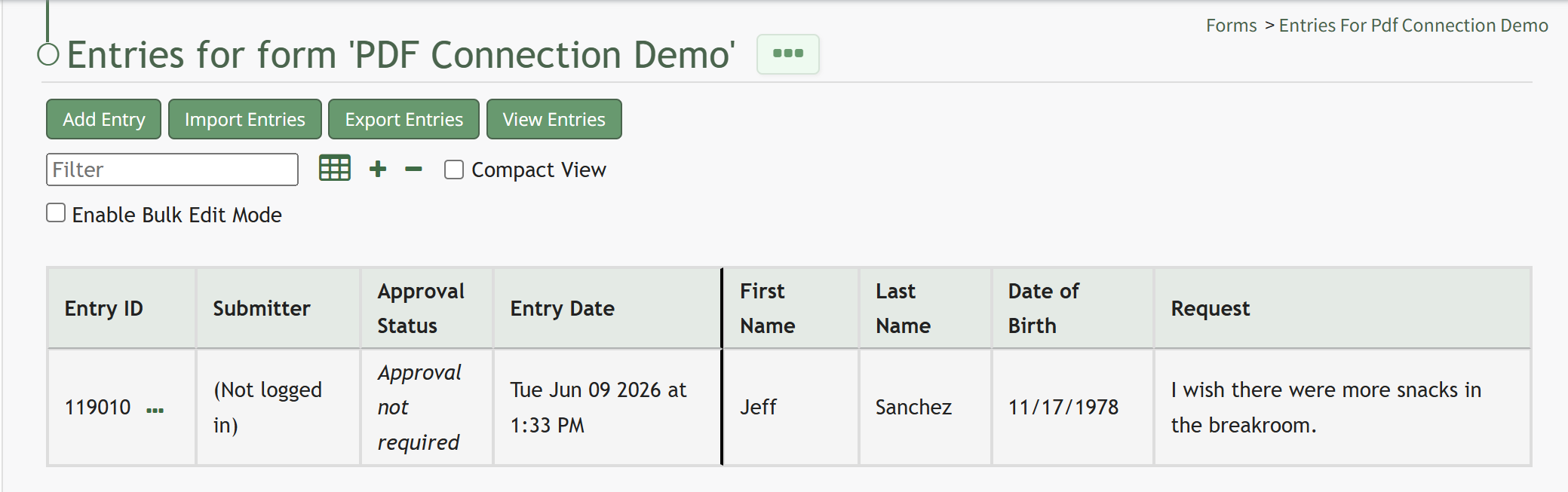
The entry will then show in the Form's Manage Entries page. From this point, you can save and send your external PDF Form to other users who can fill out the external PDF Form, and it will easily submit their entries into the KAStrack system.