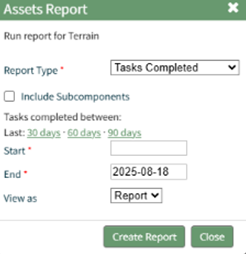
Run an Asset Report
To run an asset report, open the My Asset Page in the Assets Module on the Main Menu. Use filters as needed and identify the asset/component you want to run a report on. Click the three-dot icon to the right of the asset title opening a context menu.
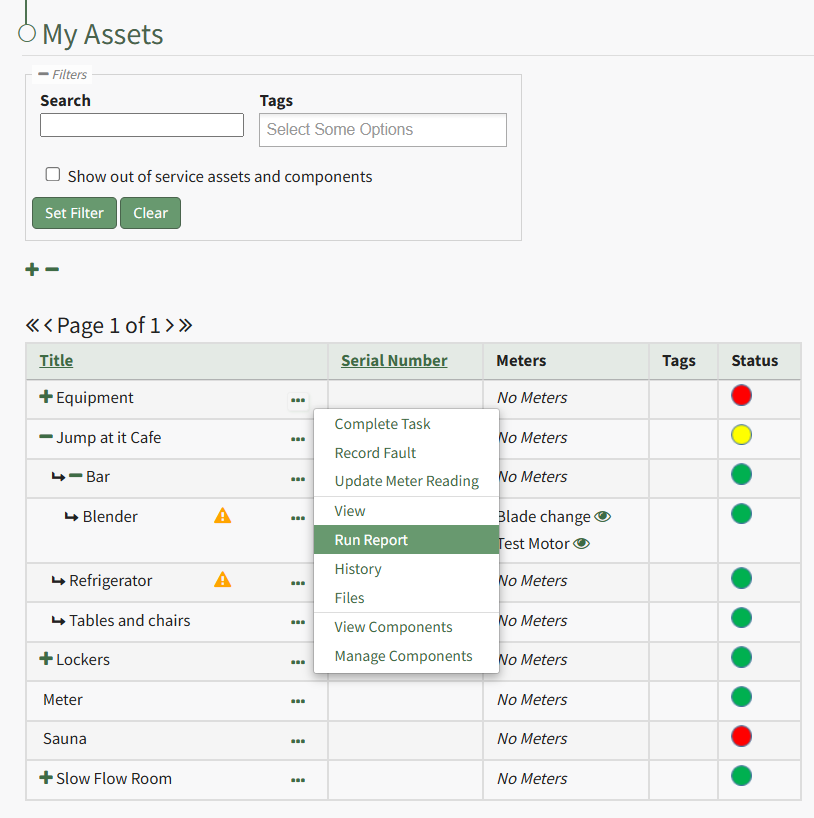
Select "Run Report" from the context menu opening the Assets Report Modal with options for running various types of reports.
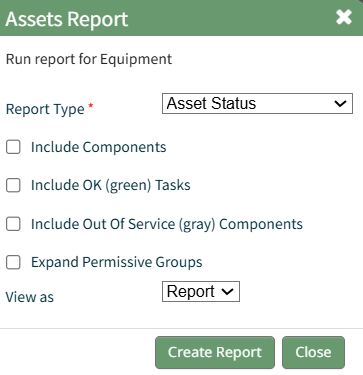
Reports can be run for an asset in its entirety, specific components or subcomponents. They type of report can be selected from a dropdown menu on the Assets Report Modal. An explanation of report types is included in the table below.
Asset Report Type Explanation Table | ||
| Assets Report Modal Image | Description / Notes |
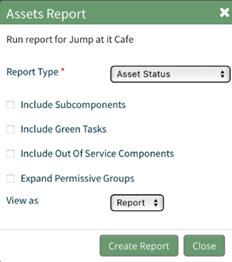
Asset Status Report Modal |
| Options to include within the report include the following, which are selectable via checkbox:
Include Subcomponents Include Green Tasks Include Out-of-Service Components Expand Permissive Groups |
|
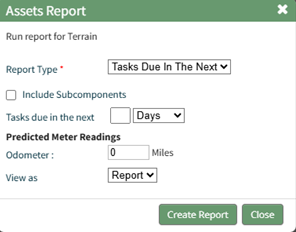
| The “Tasks Due in the Next” Report allows the user to identify all upcoming tasks due over a customizable period of days / weeks / months / years. The report can be generated based on a period or usage. |
|
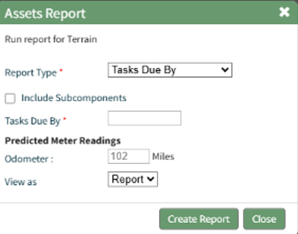
| The “Tasks Due By” Report provides the same information, but allows the user to enter a specific calendar date. Both reports allow the user to include subcomponents if desired. The report can be generated on a period or usage. |
|
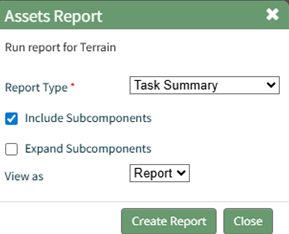
| The Task Summary Report provides a summary of the status of all tasks. This report does not list all tasks associated with an asset. |
|
|
|
Each Asset Report can be viewed as a report in KAStrack's Report Module, a PDF File, or an Excel Document. | ||