Record a New Competency Certificate
TheCompetency tracking allows your organization a way to track users’ fitness / competence to be assigned to a particular role. This provides a way to ensure users meet the necessary requirements and standards to perform the role they're in. When competency tracking is enabled for your KAStrack teaminstallation, you can set up individual Certification Roles to track competency by defining competency settings in the Certification Role's Details Page.
Define Competency Settings for a Role
{{@875}}
Once a Certification Role has Competency settings defined, there are three ways that the Competency can be marked complete for a user.
Recording Competency Certificates from an individual User's Page
Employees, their Supervisor(s), and site Admins can record Competency Certificates by visiting an individual User's page in the People Module.
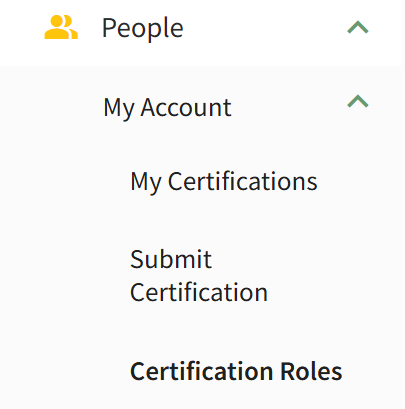
For an Employee looking to record their own Competency Certificate, click on People, then My Account, then Certification Roles from the Main Menu to access the Manage Roles/Certifications tab of the User page.
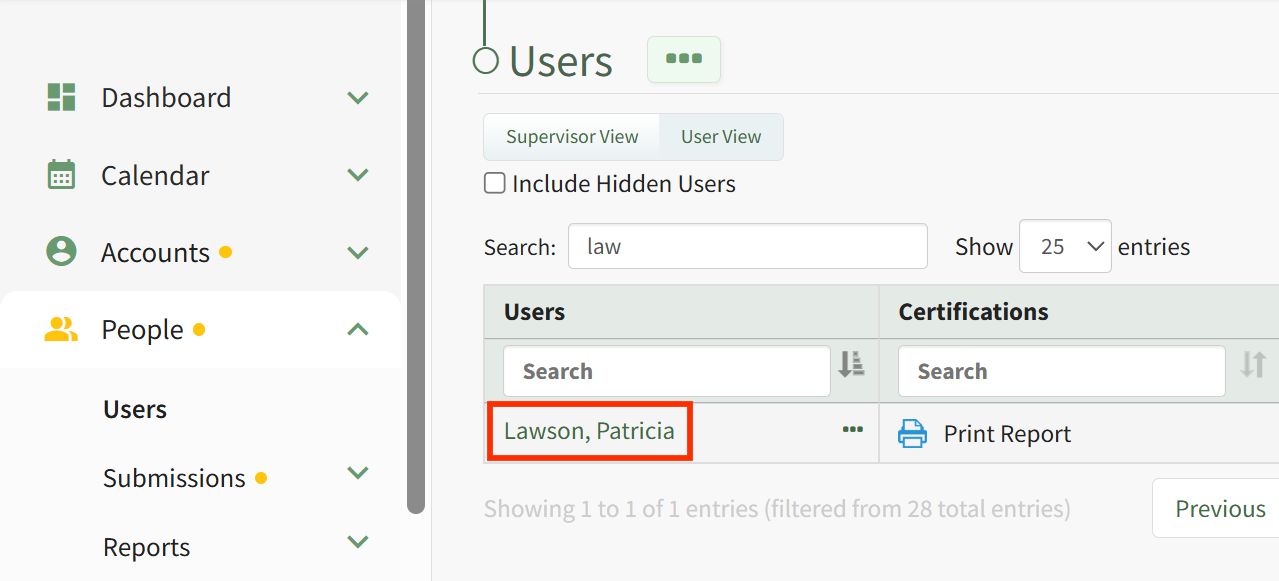
For a Supervisor or Admin looking to record Competency for another user, click on People, then Users from the Main Menu, then click on the name of the user you wish to record Competency for.
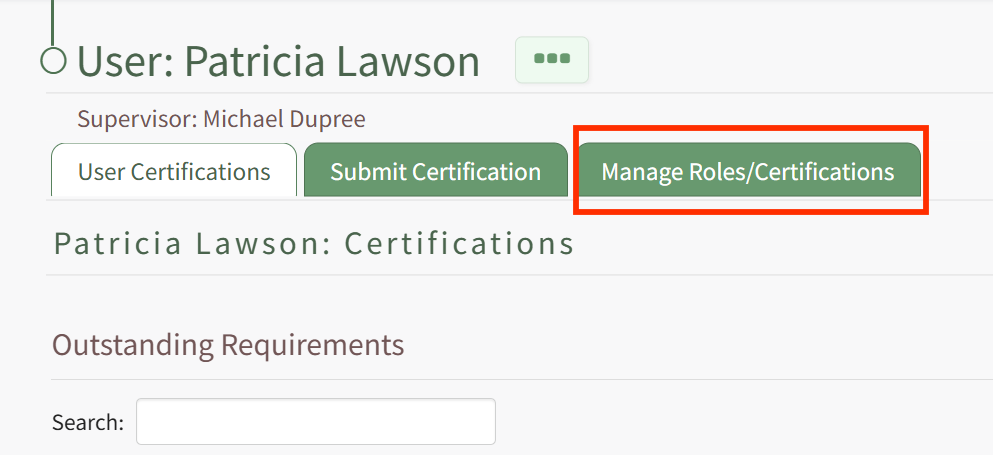
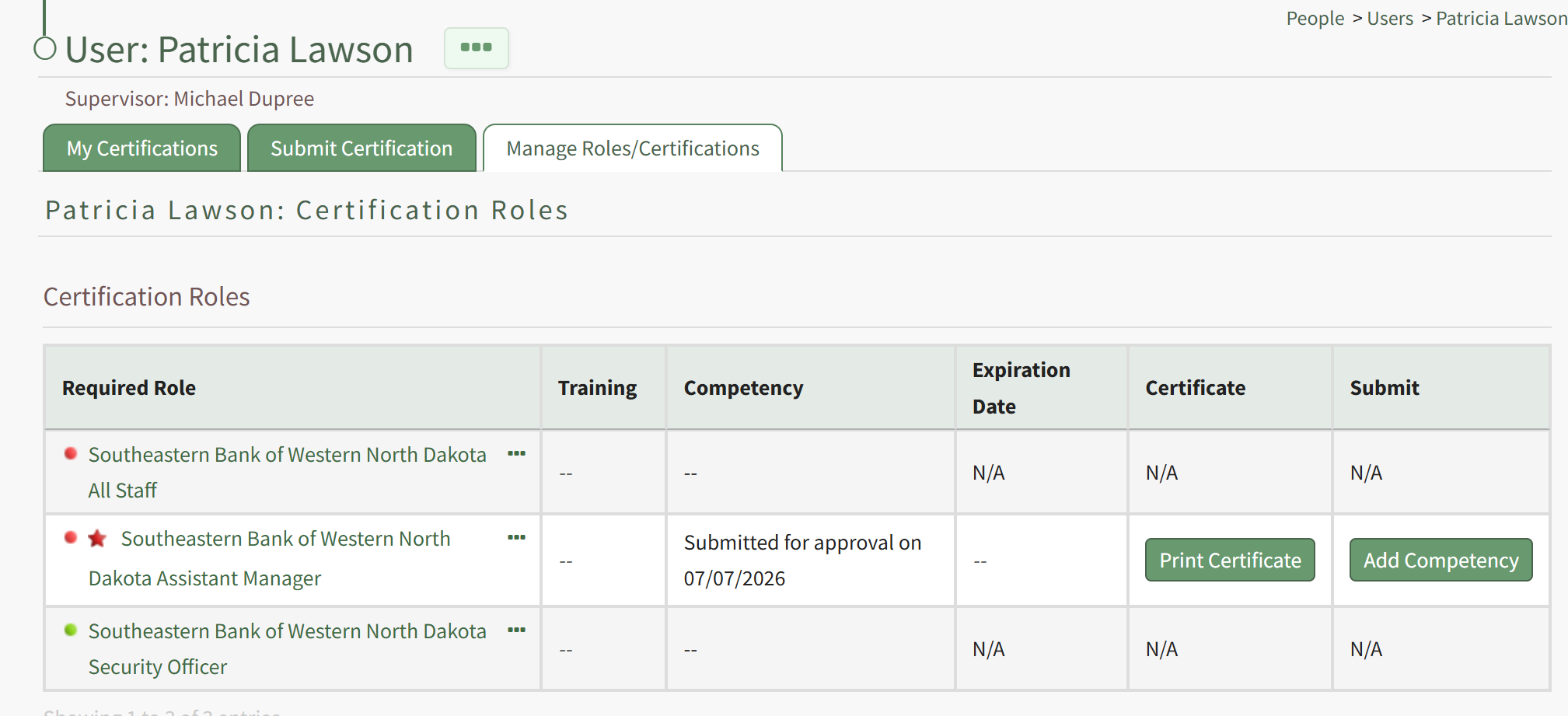
Once on the Manage Roles/Certifications tab, you will see the Certification Roles and Other Required Certifications tables. If the user is writingassigned a Certification Role that has Competency required, this will be indicated in the Certification Roles table by a star icon next to the Certification Role's Name in the Required Role column. The Competency column of the table will show a status message, an Expiration Date will be provided in the Expiration Column (if an approved submission already exists), a Certificate Template can be printed from the Certificate column (this may take a few minutes), and you can record the new Competency Completion from the Submit Column. Thus, to record a new howCompetency Completion for the associated Role, click the Add Competency button in the Submit column.
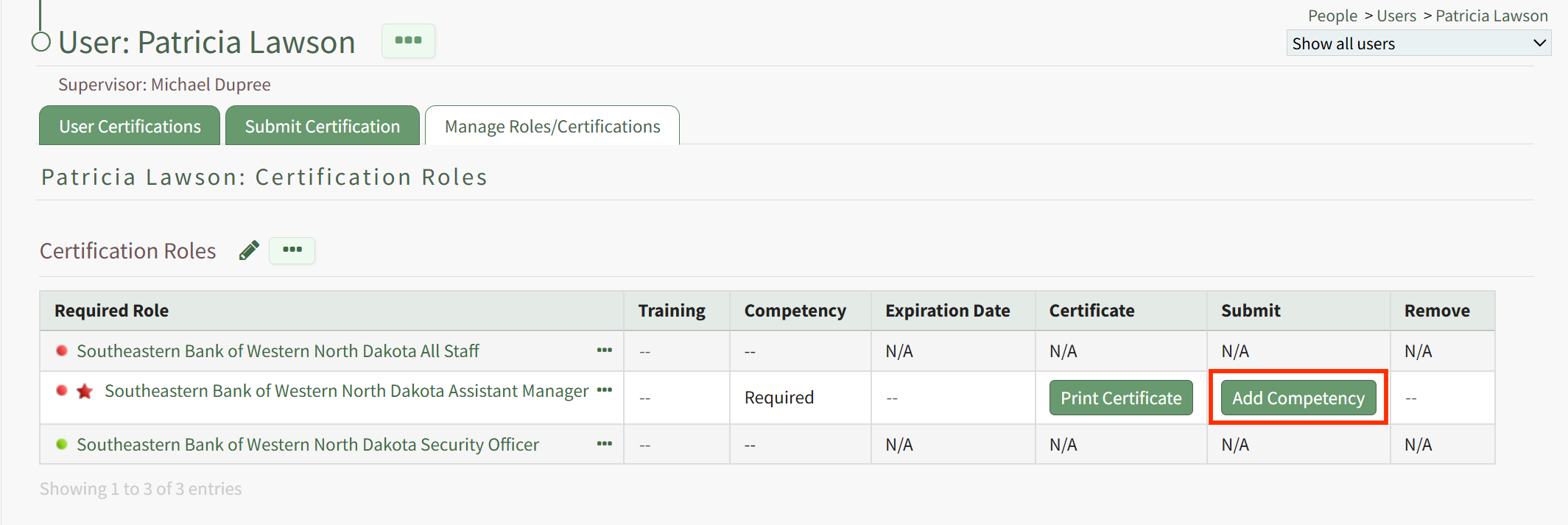
Clicking Add Competency launches the Add Competency to Required Role page for you!the Cominguser. soon!Fill in the fields on the page, including who has approved the completion and the Date Completed. If the competency expires, an expiration date will be filled in automatically for the user. If this expiration date is not acceptable, you can change it to a sufficient expiration date. If a Competency Certificate is required for completion, then select the Choose File button to upload the completed Certificate file.
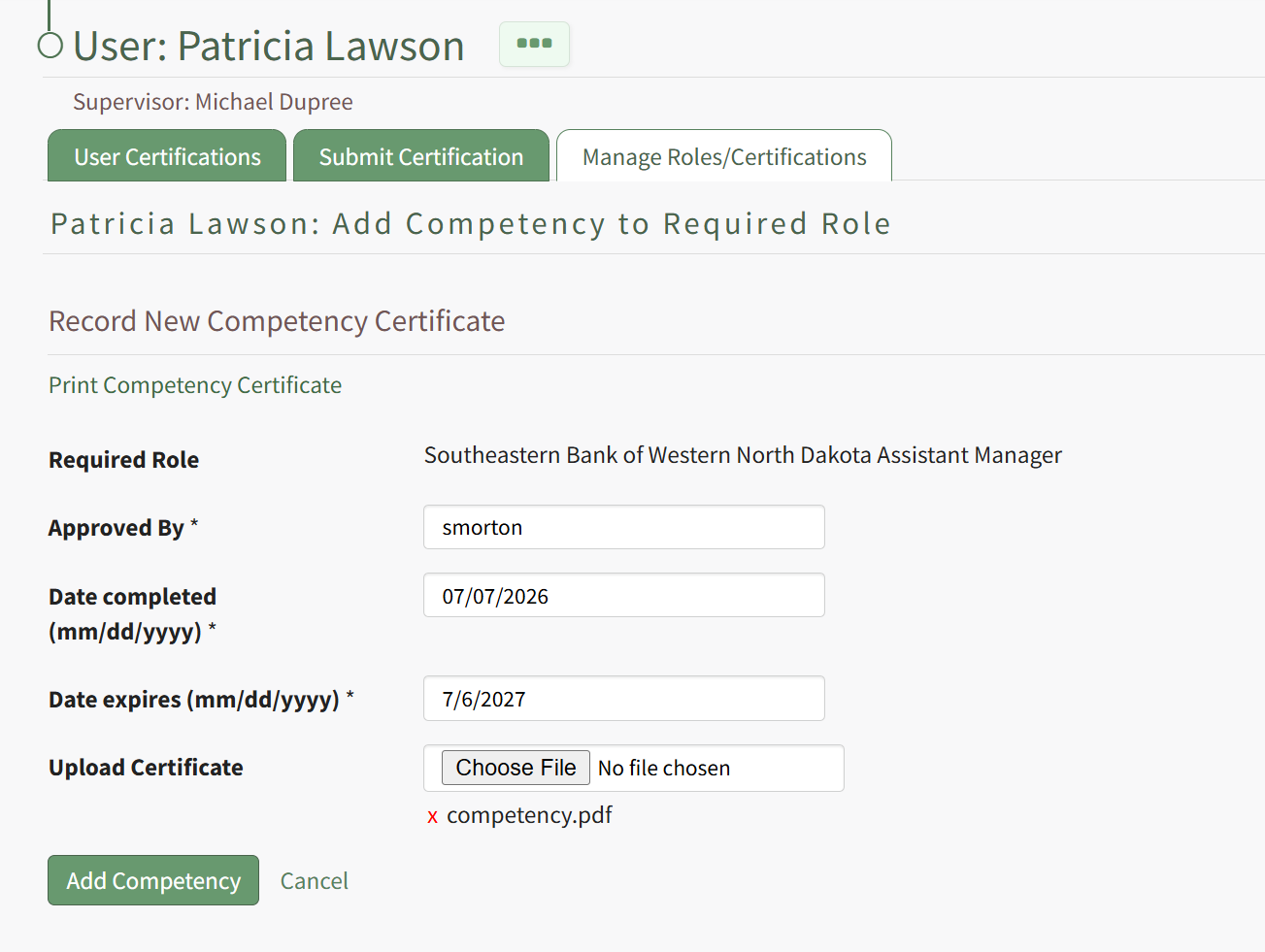
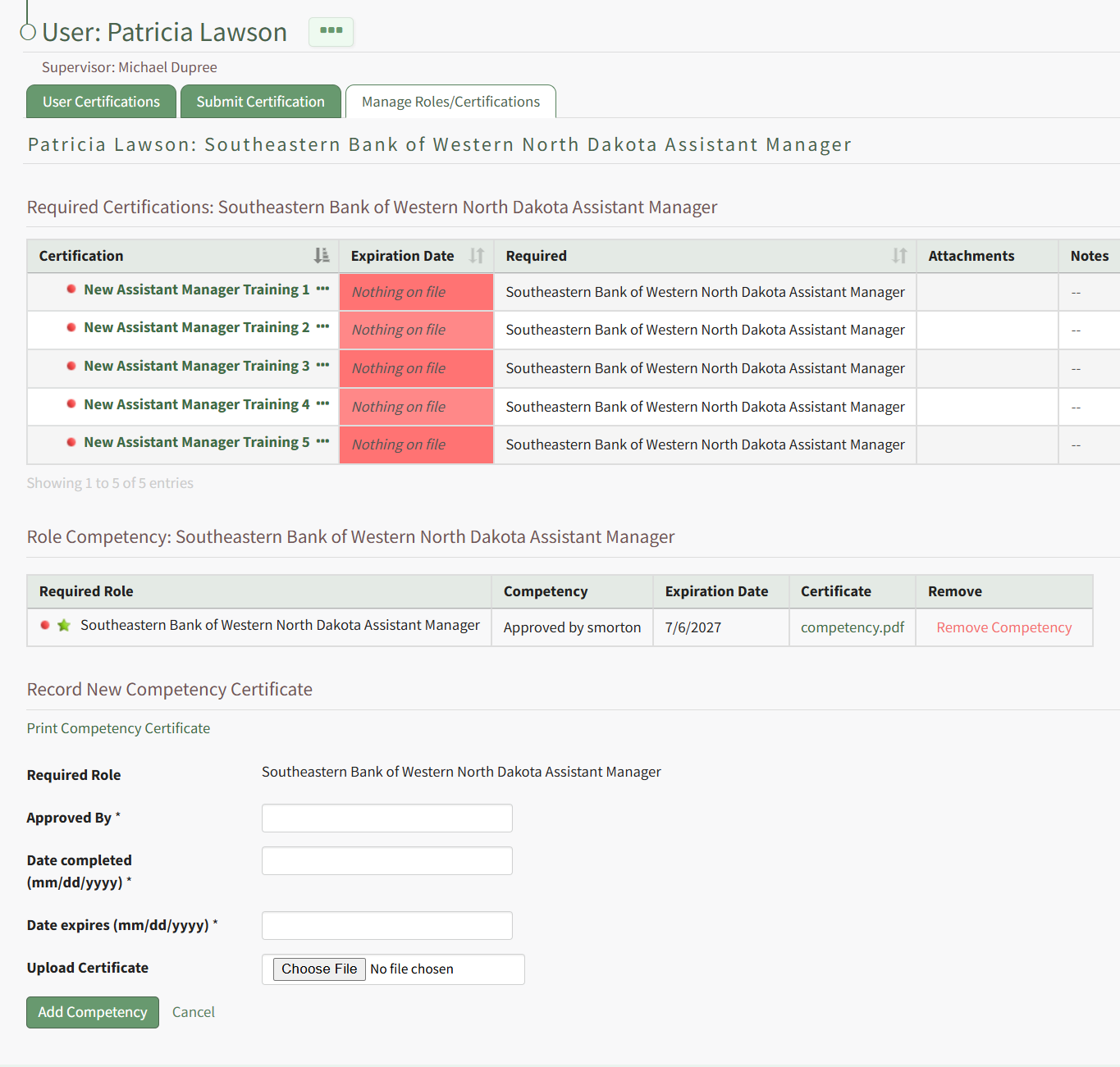
Hit the Add Competency button, and the completion will be submitted. This will redirect to the specific Role Page for this user, and show a summary of the Competency Completion submission.
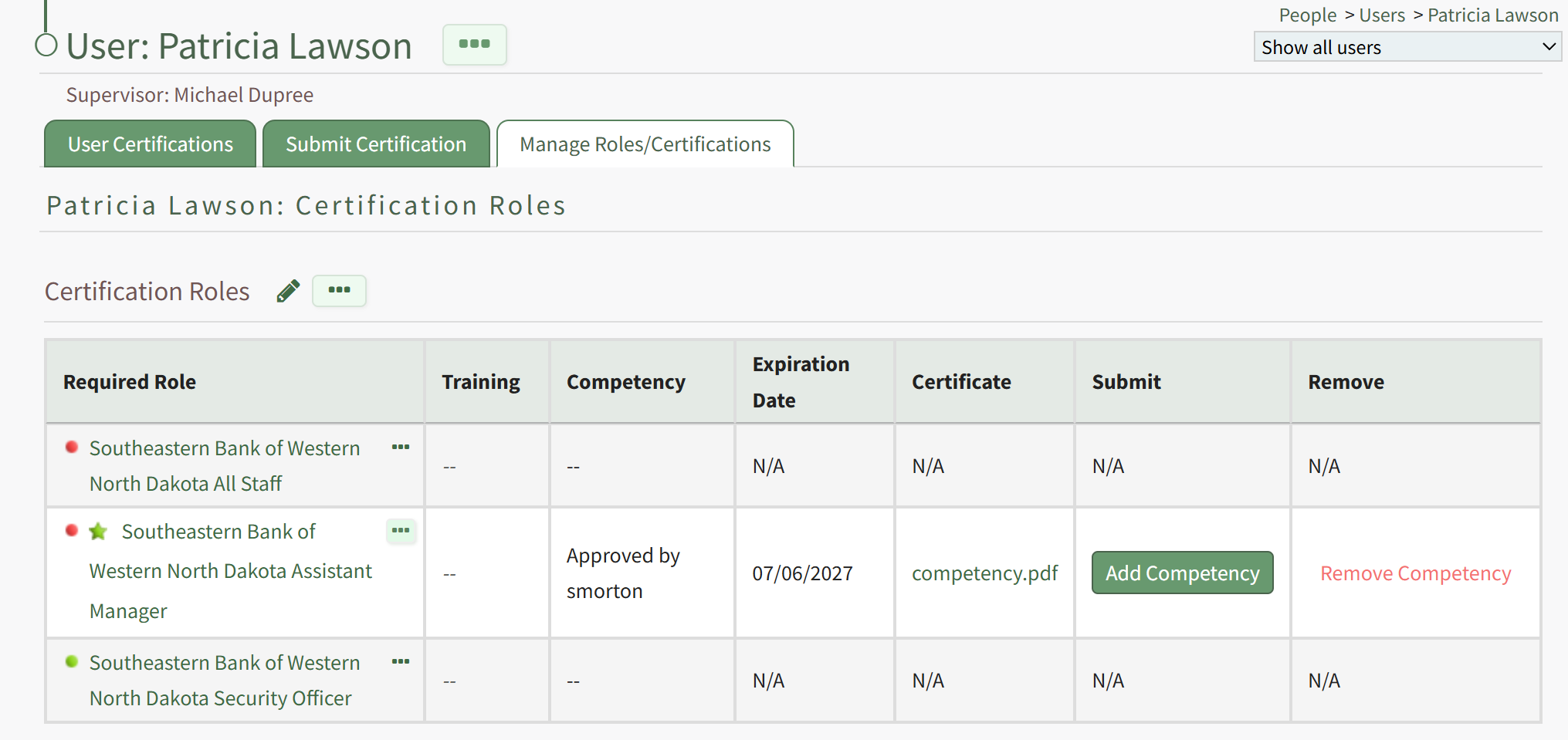
If submitted by an Admin or Supervisor, the Competency Completion will show as approved.
This is also reflected in the overall Certification Roles table for the user from the Manage Roles/Certifications tab.
If the Employee has submitted their own Competency Completion, the status will show as "Submitted for approval".
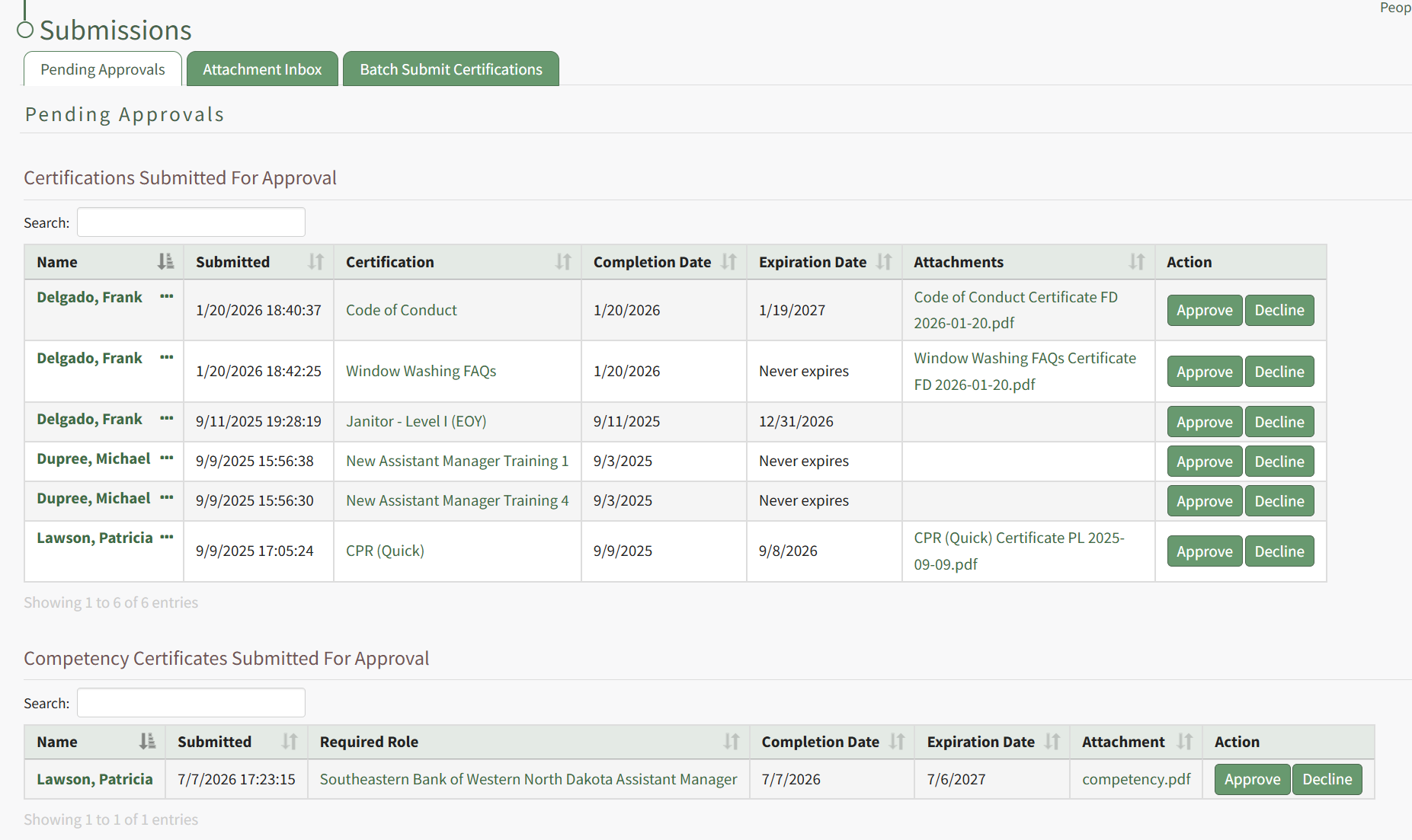
An Admin or Supervisor can then review the Competency Completion by going to People, then clicking Submissions, then Pending Approvals from the Main Menu. Competency Completions pending approval are shown in the bottom table, "Competency Certificates Submitted For Approval".
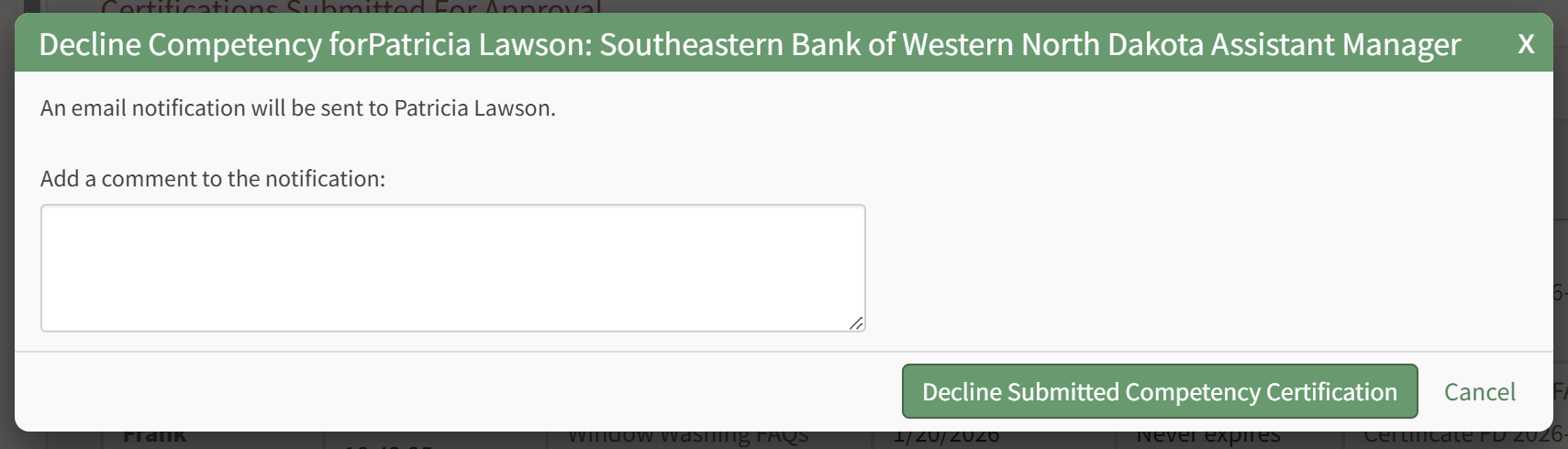
Click Approve to Approve the submission, or Decline if there are issues with the submission. If you select Decline, a modal appears allow for input of a message to the user of why the submission was declined.
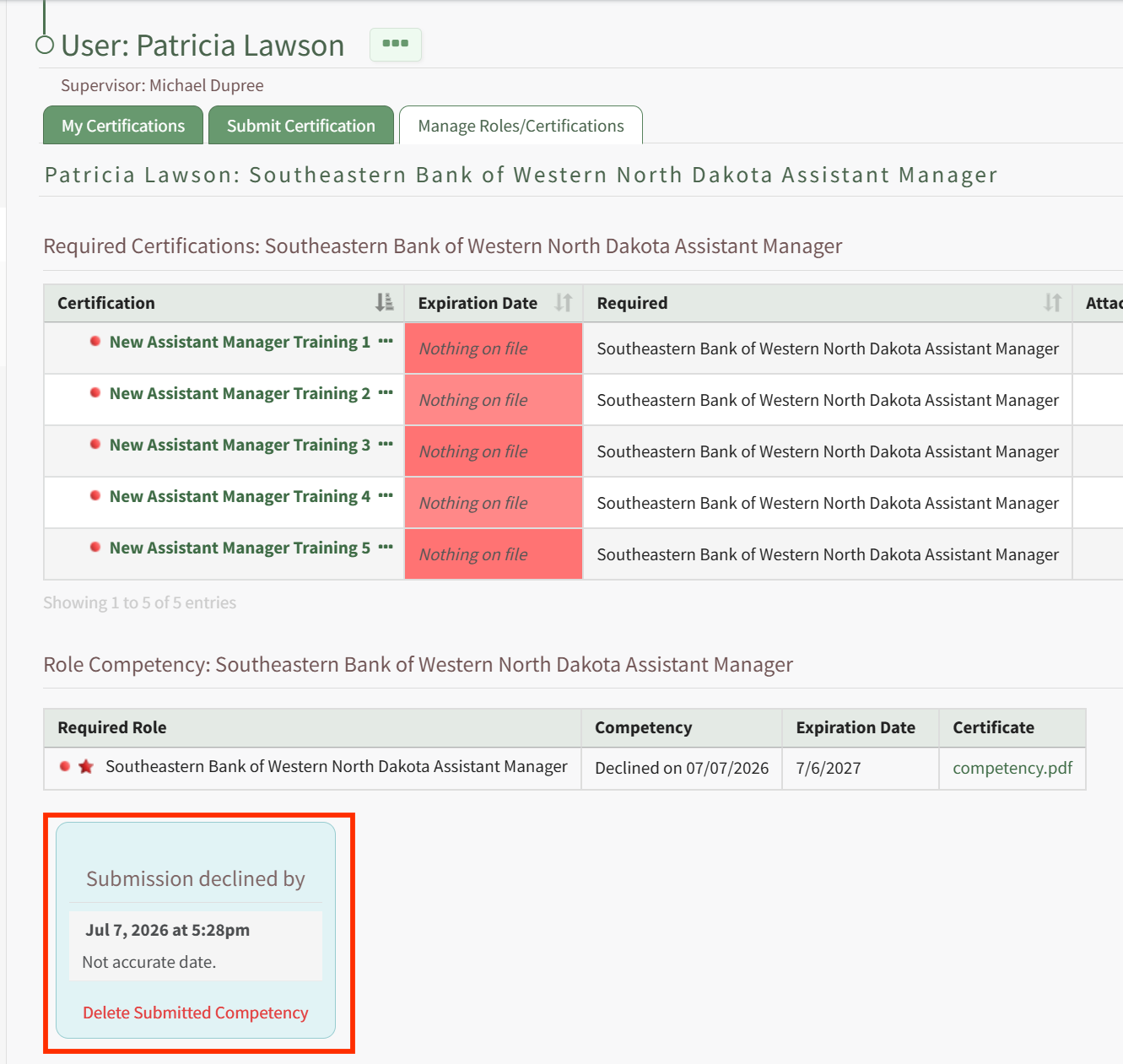
The user will see this message in the specific role page associated with that Competency.
Recording Competency Certificates from the Roles Page
A Supervisor or site Admin can record Competency Certificates by visiting the Roles page of the People Module.
To do this, click the "View/Edit (#)" link for the particular Certification Role with Competency under its associated Company.
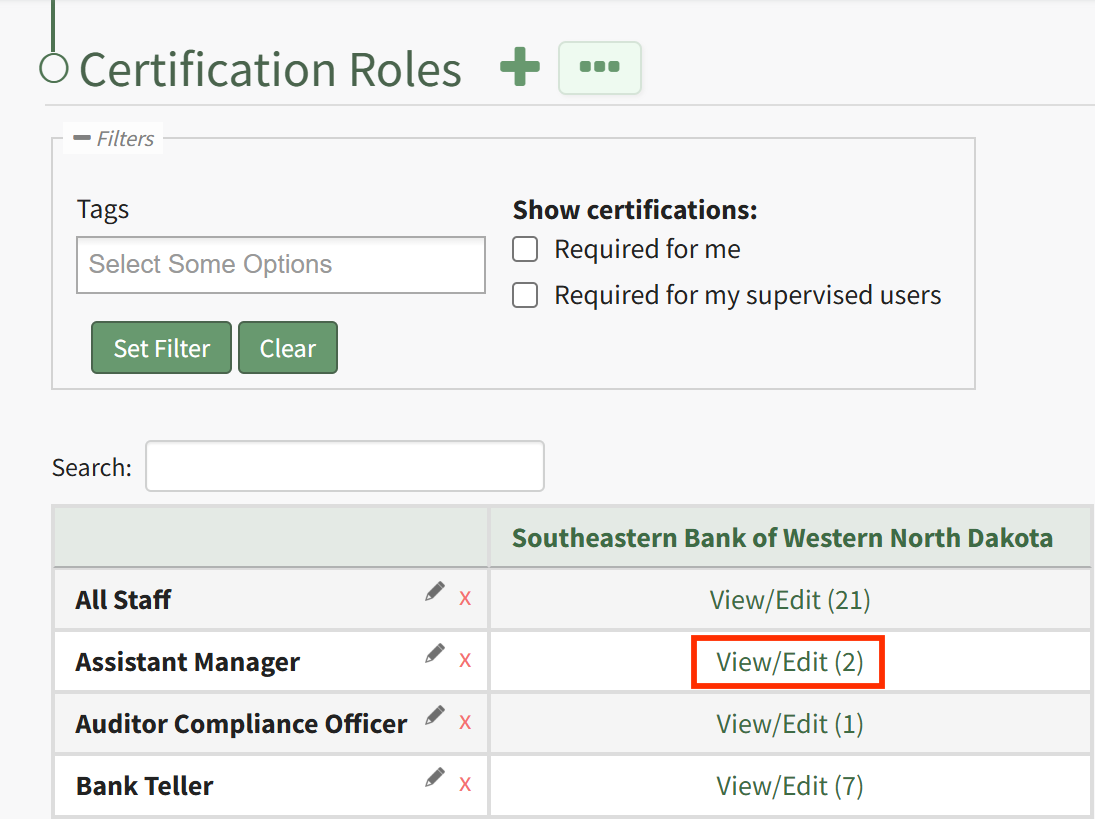
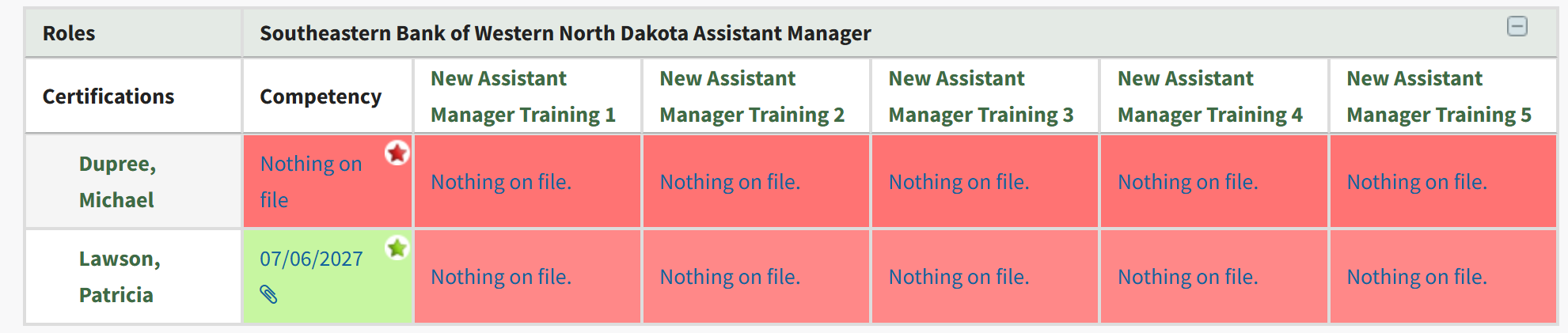
This launches the Roles page for this specific role. From the Assigned Users tab, locate the filtered matrix table of users assigned to this role. If Competency is required for this role, a star will be visible in the cell for users assigned a Competency requirement.
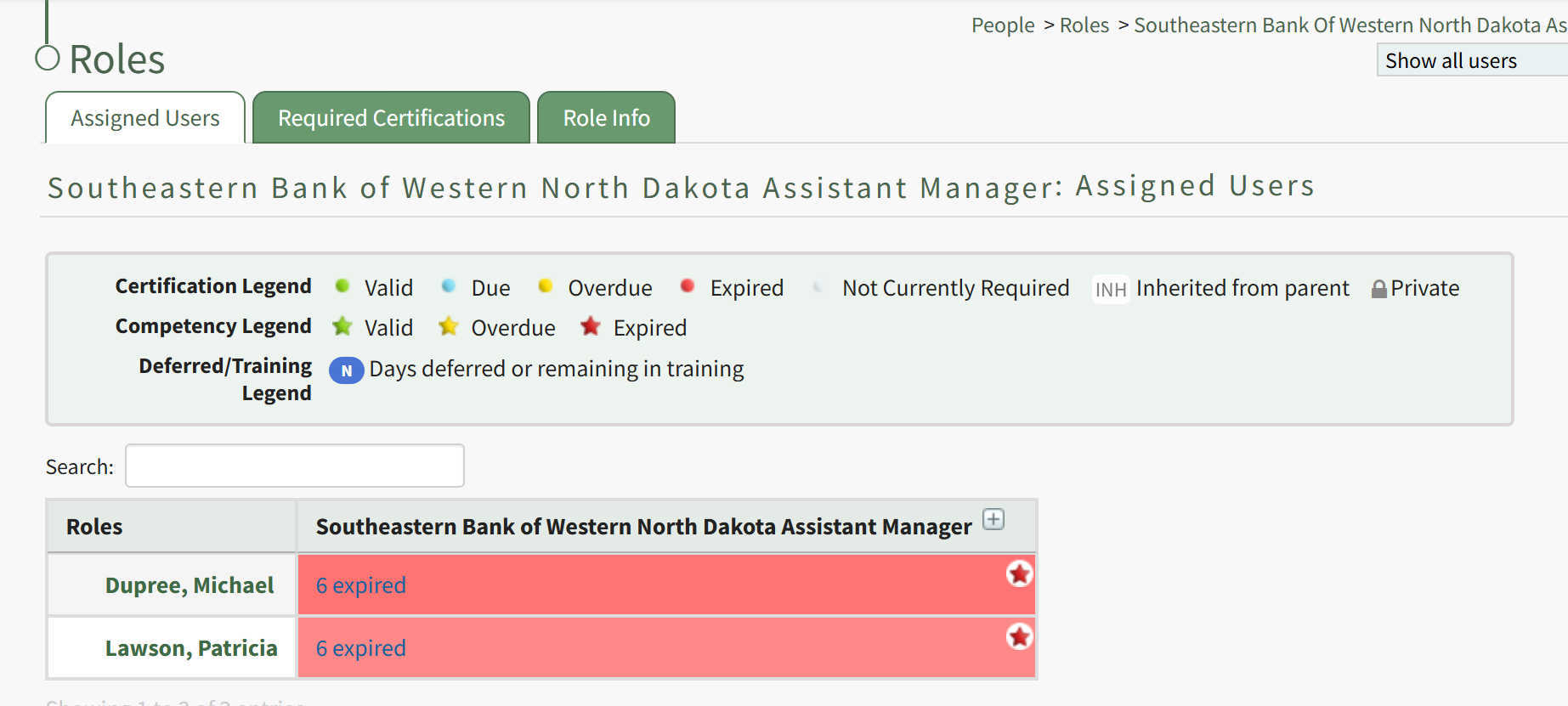
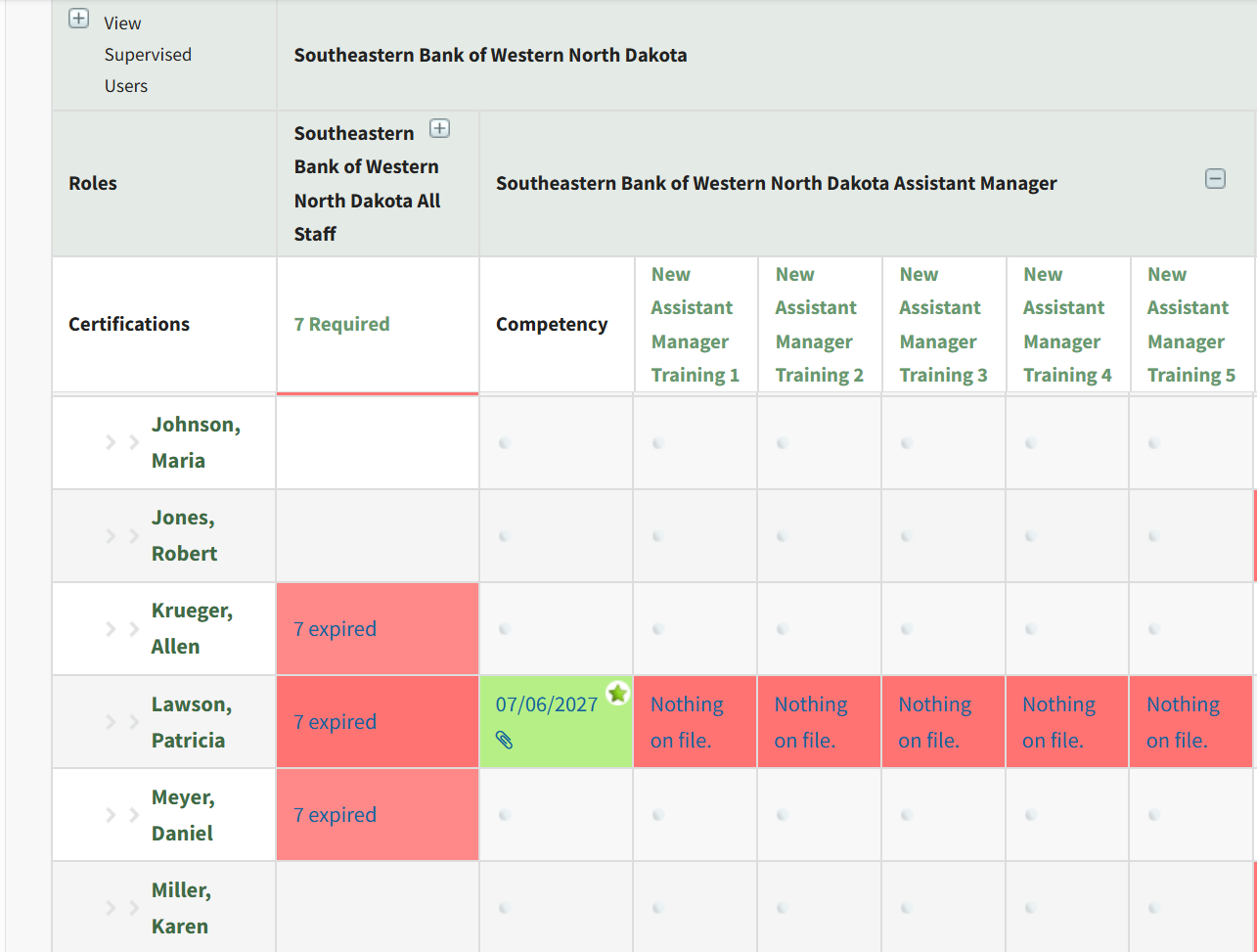
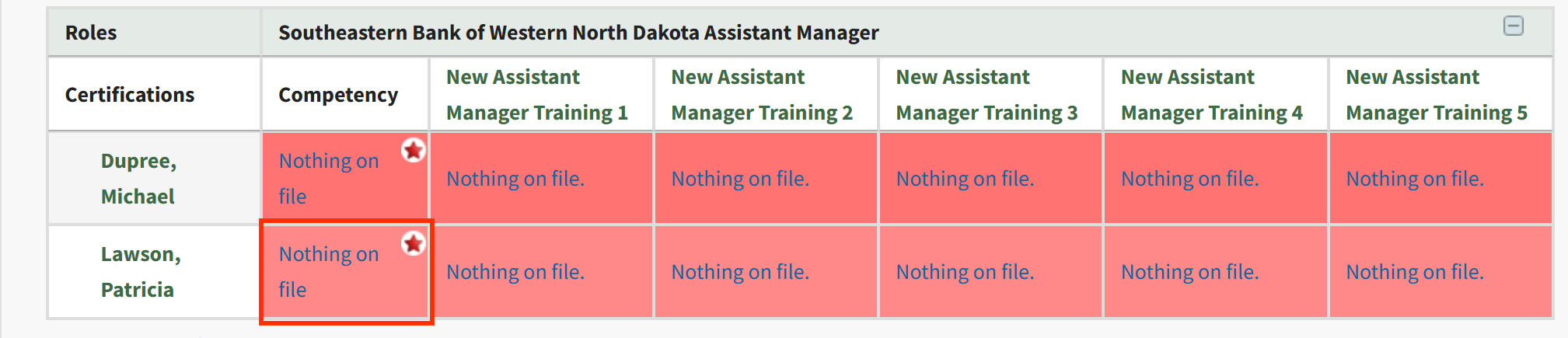
Click on the plus button next to the role name in the column heading for the matrix, or on a particular cell, to expand the table. When competency is enabled, the first column after assigned users' names will be a column for the Role's Competency, followed by columns for Certifications required by that Role. To record a new Competency Completion, click the cell for the user you wish to record Competency for.
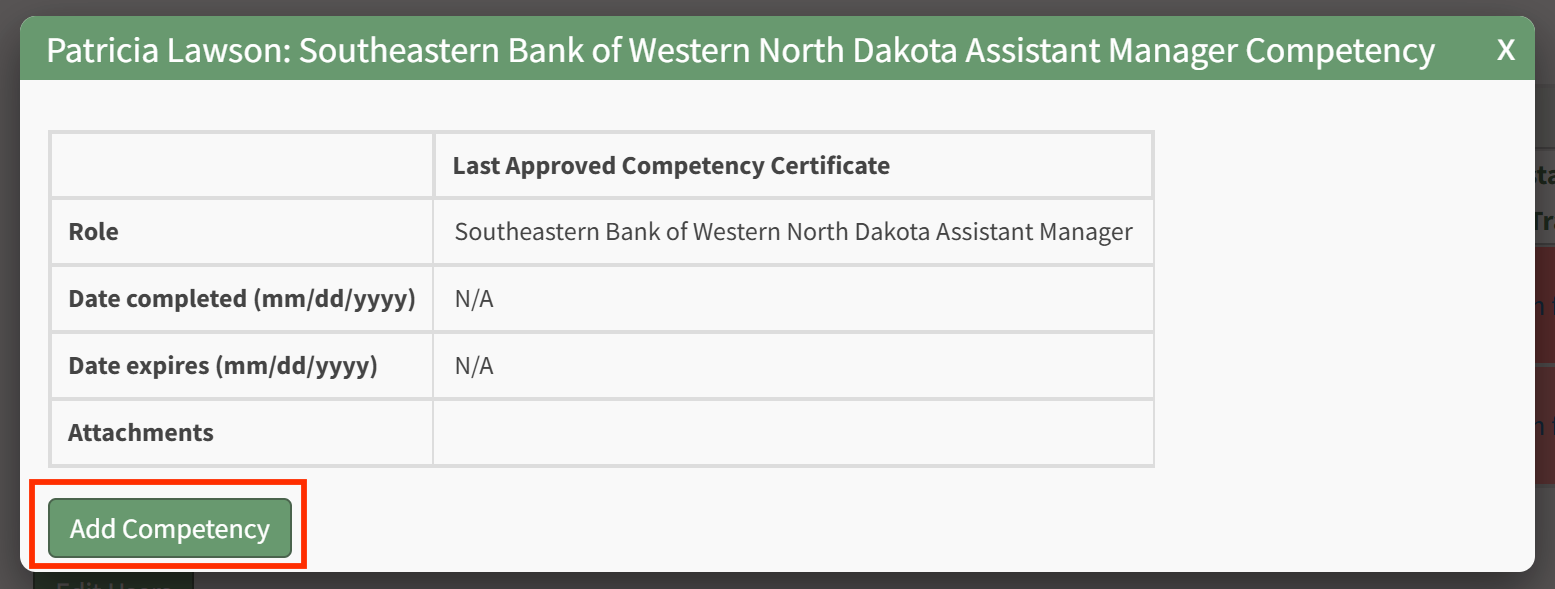
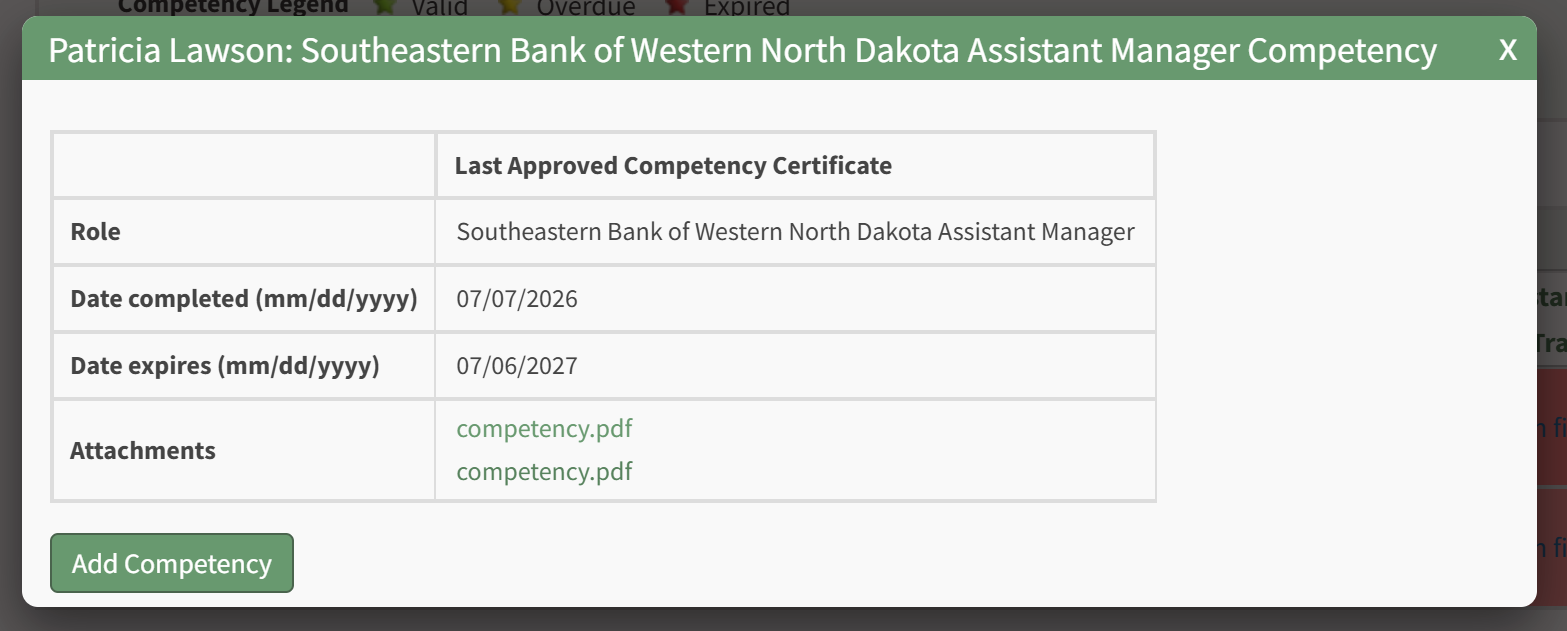
This will launch the Competency modal for this Assigned User. Click the Add Competency button to Add Competency as described in the section above.
After completion has been submitted and approved, you will be redirected to the specific Role Page for this user, and show a summary of the Competency Completion submission.
Recording Competency Certificates from the People Matrix
A Supervisor or site Admin can record Competency Certificates by visiting the Matrix page of the People Module.
This launches the Matrix page for all Certifications Roles and associated users. Locate the full matrix table of users and their associated Certification Roles. If Competency is required for a role, a star will be visible in the cell for users assigned a Competency requirement.
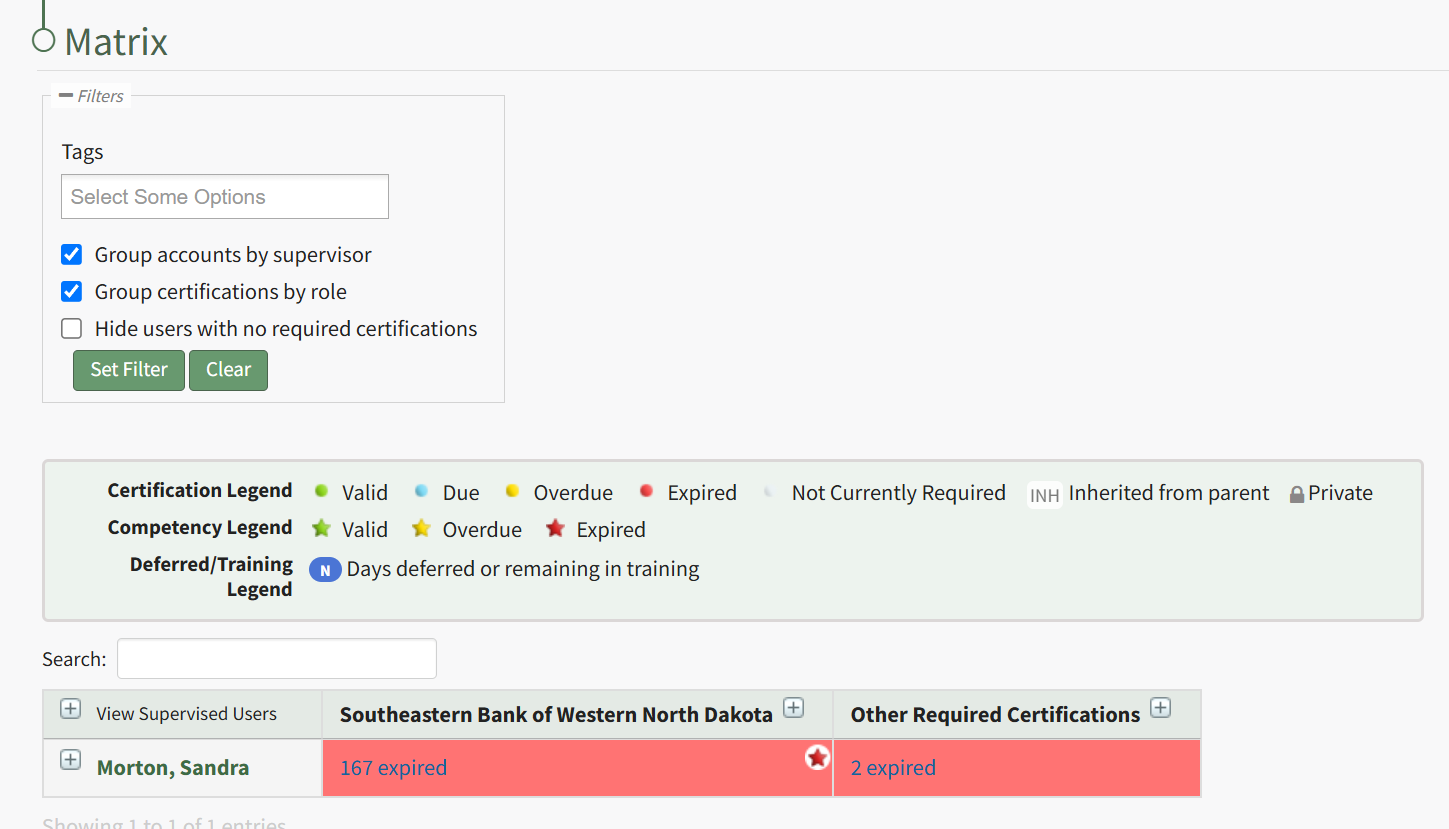
Click on the plus button next to the role name in the column heading for the matrix, or on a particular cell, to expand the table. When competency is enabled, the first sub-column under the Role Name heading will be for the Role's Competency, followed by columns for Certifications required by that Role. To record a new Competency Completion, click the cell for the user you wish to record Competency for.
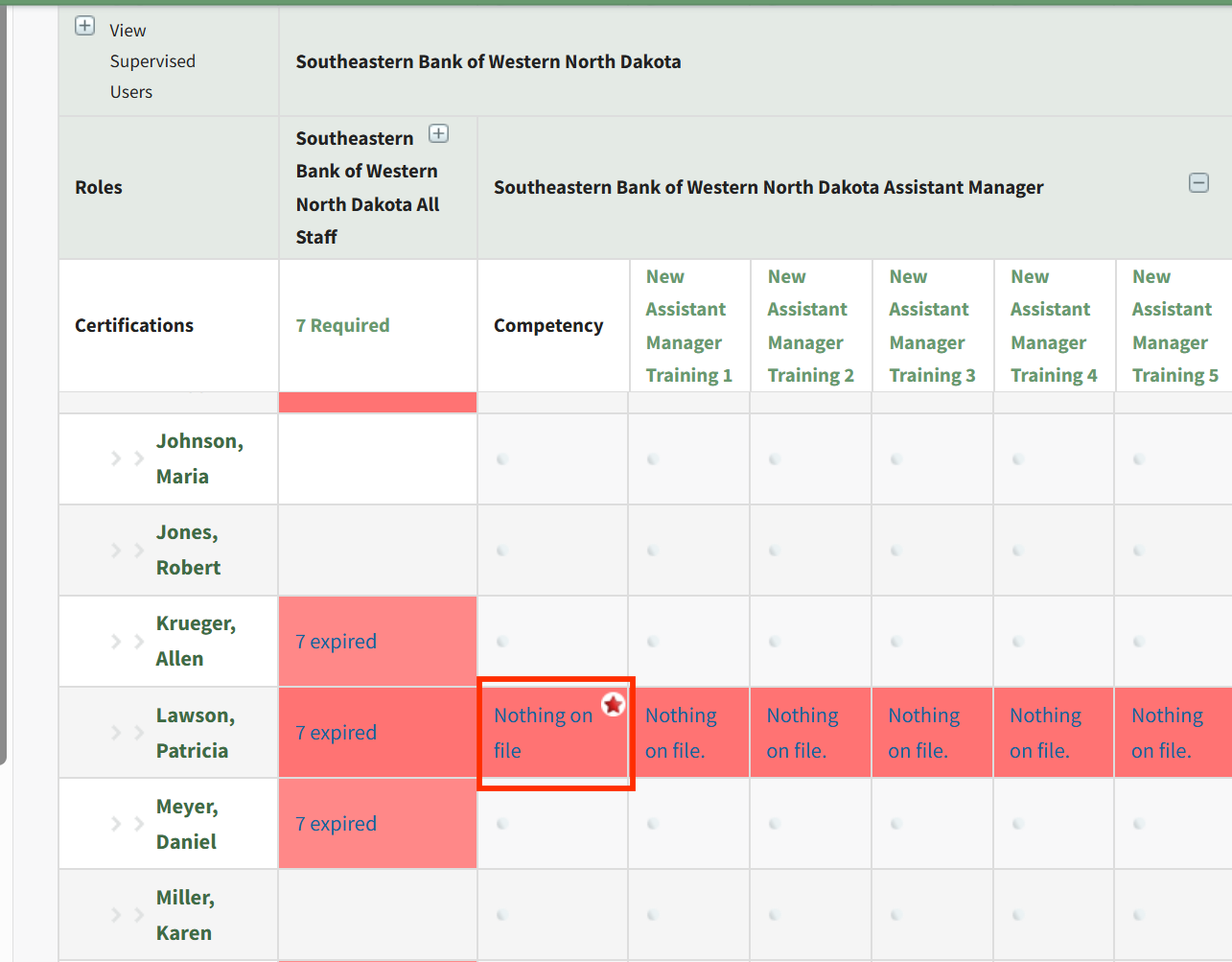
This will launch the Competency modal for this Assigned User. Click the Add Competency button to Add Competency as described in the section above.
After completion has been submitted and approved, you will be redirected to the specific Role Page for this user, and show a summary of the Competency Completion submission.