
Preview an Individual Page in a Course
To preview an individual page in a course, you must be on the specific page in the course. An explanation of how to access a course page is provided in the How To below.
How To: Access a Specific Page in a Course
{{@944}}
Once you are on the desired course page, click the three-dot icon to the right of the page title opening the Page Context Menu.
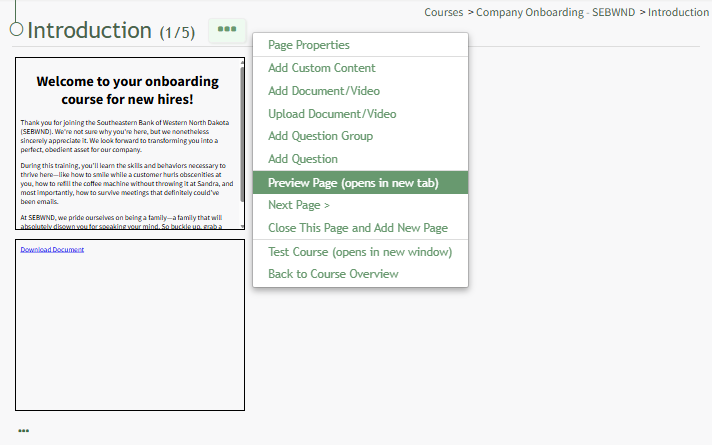
Select the "Page Preview" option, opening a preview of the course page in a new window.
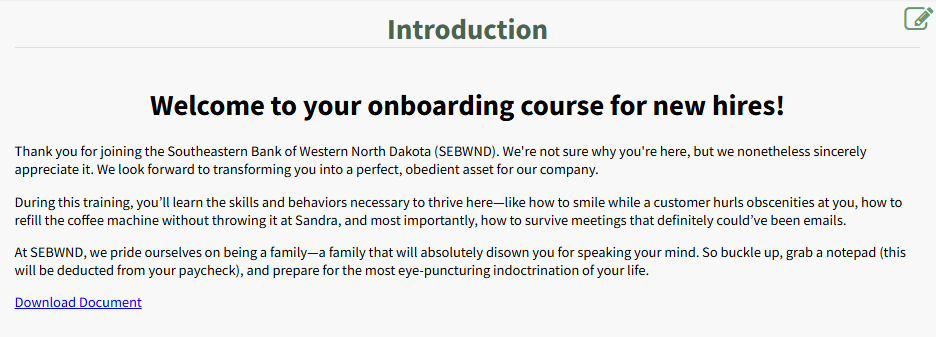
All buttons on the page are disabled in Preview Mode. You cannot navigate pages.
Clicking the paper and pencil icon in the top right corner will return you to the course page when you can continue editing.