
Manage QR Codes in Bulk
To manage multiple QR Codes at once, open the QR Codes Page in the Communications Module from the Main Menu.
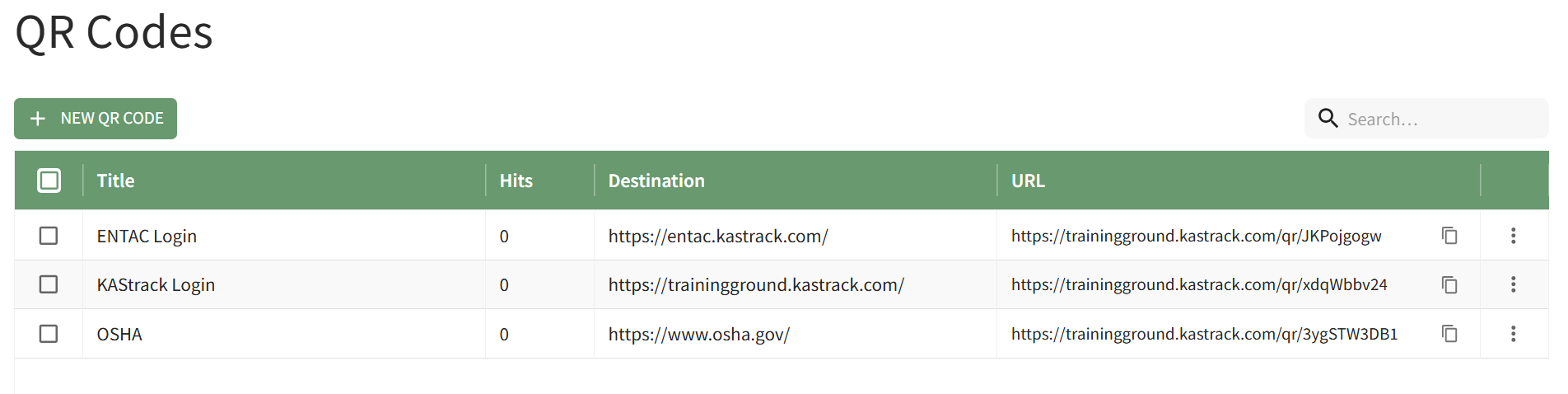
Selecting the checkbox in the top row of the QR Codes table will select all QR Codes in the table. You can also individually select or deselect multiple checkboxes as needed.
When checkboxes have been selected, buttons appear to the left of the search box.
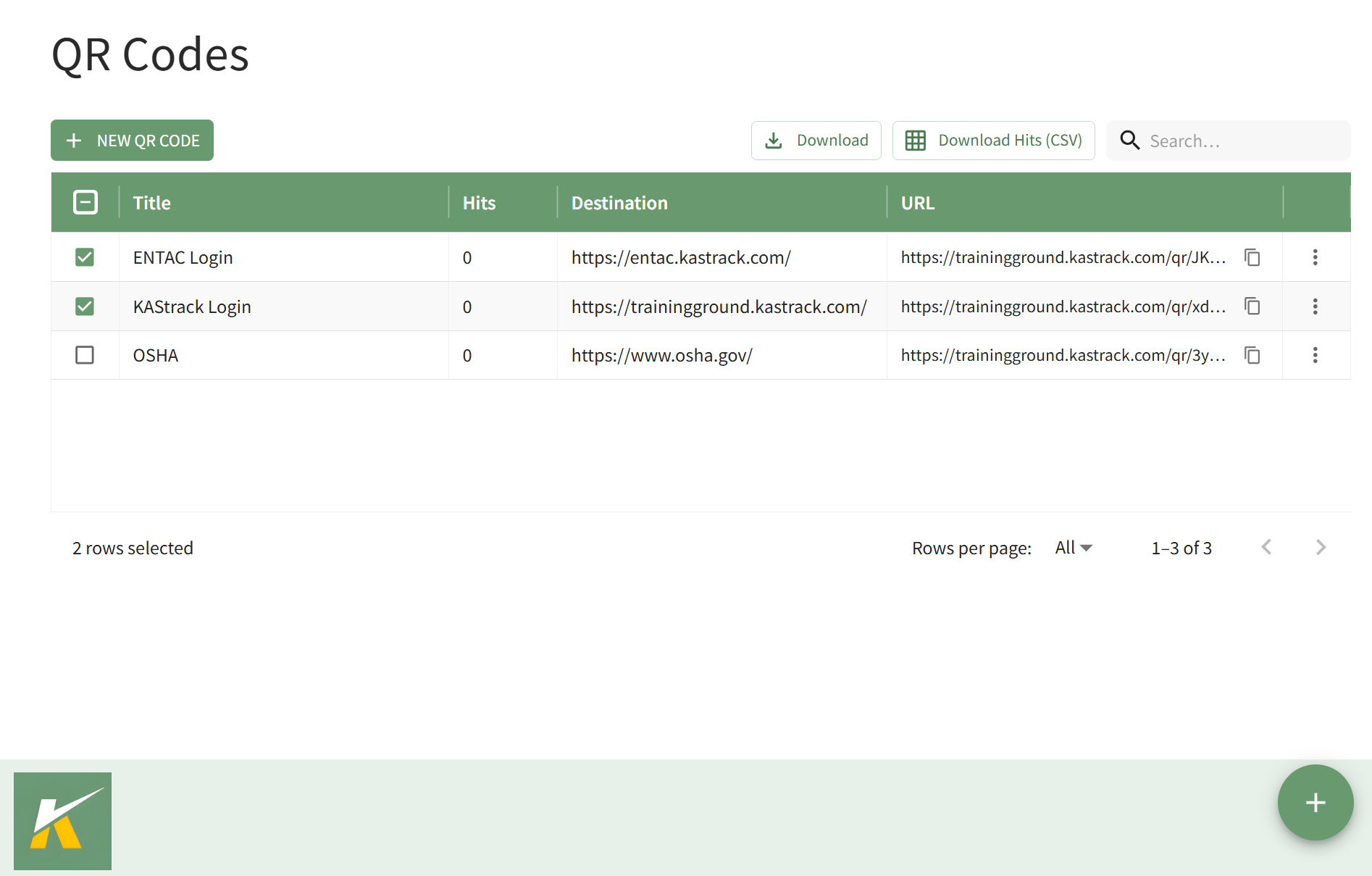
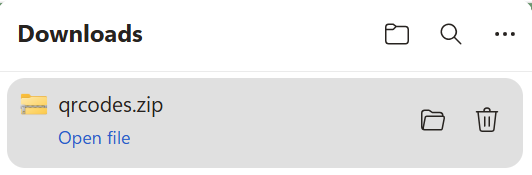
Selecting the "Download" button automatically downloads a .zip file that contains PNG files of each QR Code selected to your personal device.
Selecting the "Download Hits (CSV)" button automatically downloads a .csv file to your personal device.

Clicking the speed dial (green circle with the white plus signsign) in the bottom right-hand corner expands the widgetspeed dial to show additional icons.
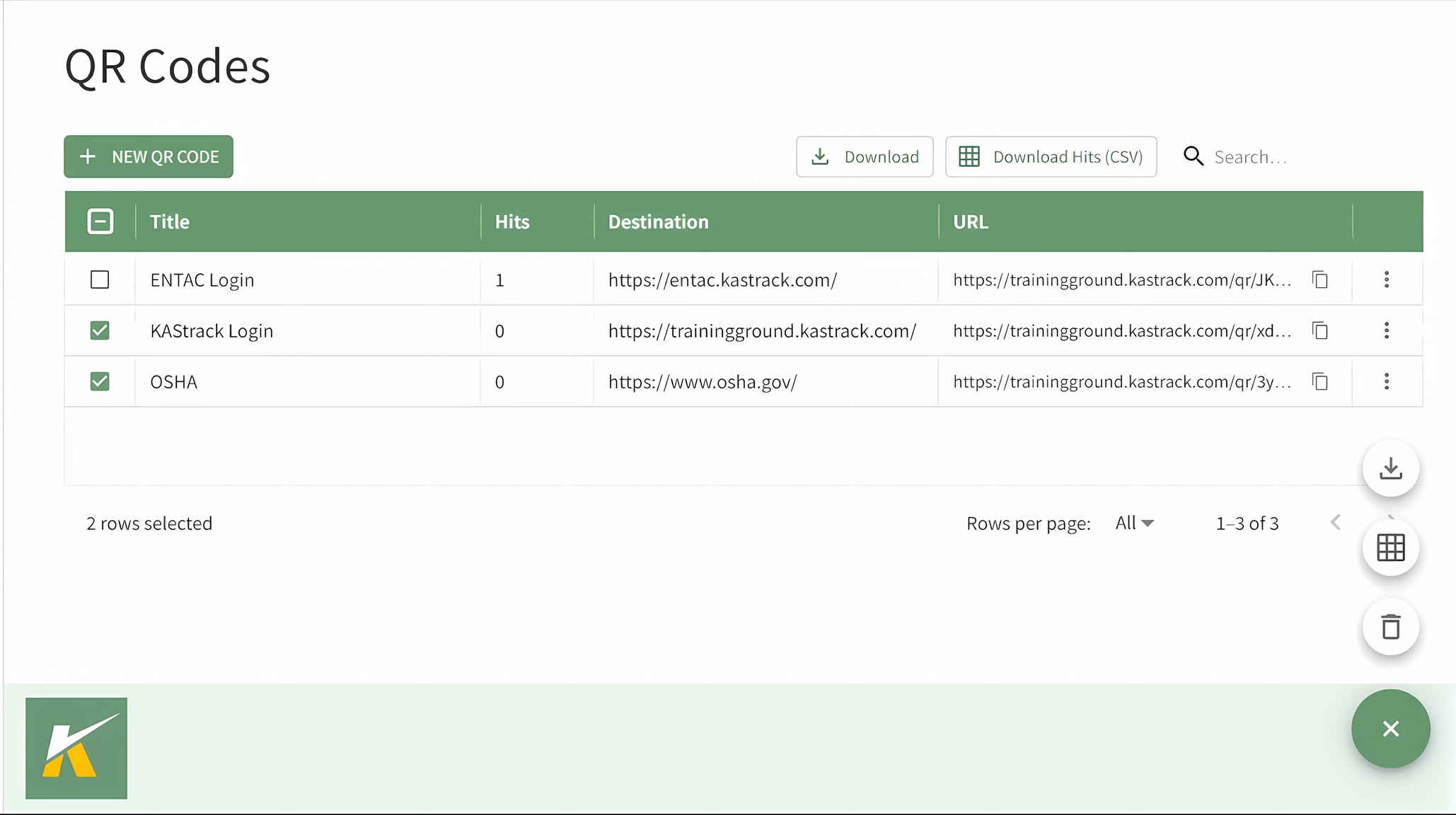
When the widgetspeed dial is expanded, the plus sign changes to an "x" that when clicked, will remove the icons.
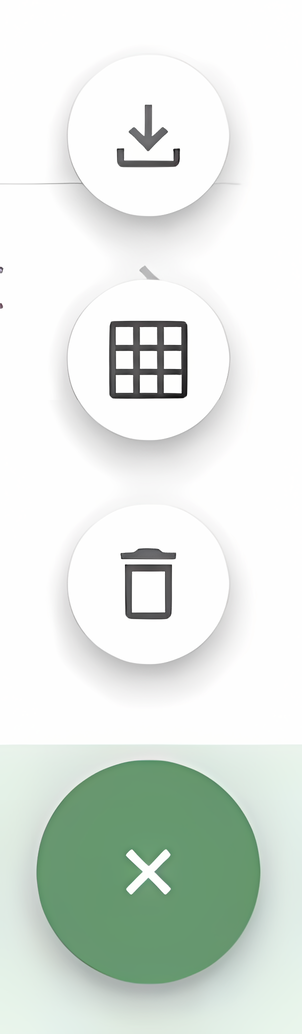
The icons can be used to download the selected QR Codes, to download the QR Code Hit data in a CSV file, or delete multiple QR Codes at once.