
Import Role/Certification Assignments
Certification assignments to Certification Roles can be imported in bulk into KAStrack. Select the Roles Page in the People Module from the Main Menu to display the Certification Roles Table. Click the three dot (…) icon to open a context menu and select “Import Role/Certification Assignments”.
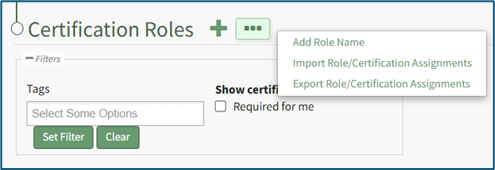
A template is provided to simplify importing.
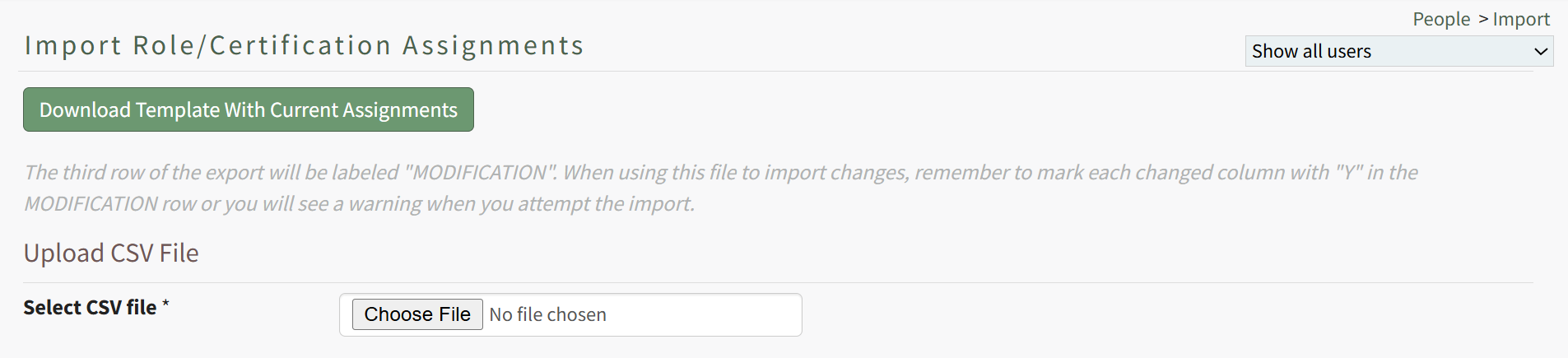
Click the “Download Template with Current Assignments” button to download the Role Certifications Template CSV to your device. This template includes the current assignment of Certifications to Certification Roles.
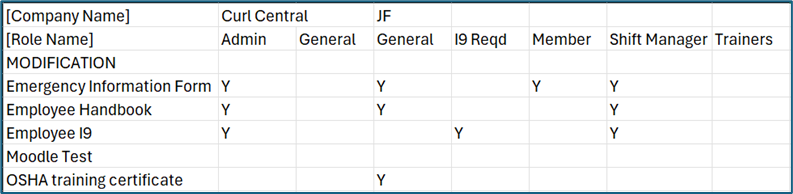
The first column of the template starting in the fourth row lists the name of all available Certifications in KAStrack. The first row of the template contains the name of the Company the Certification Role is associated with. The second row contains the names of Certification Roles. The Company Name will only be listed once in the [Company Name] row, in the cell above its first associated Certification Role. Thus, all Certification Roles to the right of that one are part of the same Company, until another Company Name appears in the top row (if applicable).
The third row of the template is labeled MODIFICATION. When using the downloaded template to import changes, each altered column must be marked with a capital ‘Y’ in the modification row to inform the system which roles have had changes made to their assigned certifications. (A warning will show when attempting to import if this is not done.)
To change which Certification Roles a Certification is assigned to, insert a capital ‘Y’ in the cell to the right of the desired Certification below the Certification Role you wish to have it assigned to. You can assign a Certification to any number of Certification Roles. To remove assignment of a Certification from a Role, simply remove the capital ‘Y’ from its cell (you will still need to enter a ‘Y’ in the MODIFICATION row to alert the system to this change). After making the desired changes to the template, save the spreadsheet with a UTF-8 CSV file format.
Back in KAStrack, click the “Choose File” button to select the file from your device.
Click the “Import role/certification assignments” to upload the file and import the changes into KAStrack. The screen will then display a success or fail message, and, if failed, alert to any changes that should be made to the imported file.