
Import Form Entries from a CSV File
To import form entries from a CSV, form fields must have already been created.
WIKI LINK HOW TO: ADD A FIELD TO A FORM
WIKI LINK HOW TO: IMPORT FIELDS FROM A CSV FILE
WIKI LINK HOW TO: IMPORT FIELDS FROM A PDF FIELD IMPORT
To import form entries from a CSV, go to the Home Page of the Forms Module and click the three-dot icon to the right of the form you wish to import entries into. Select “Manage Entries”.
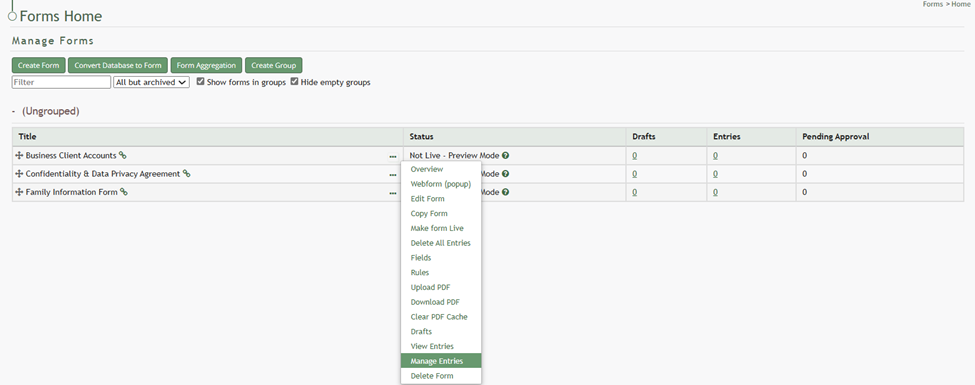
This opens the Manage Entries for (FORM NAME) Page.
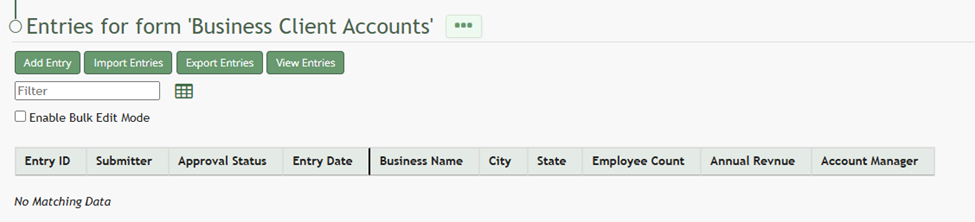
Click the “Import Entries” button beneath the page header. This opens the Upload CSV for (FORM NAME) Modal.
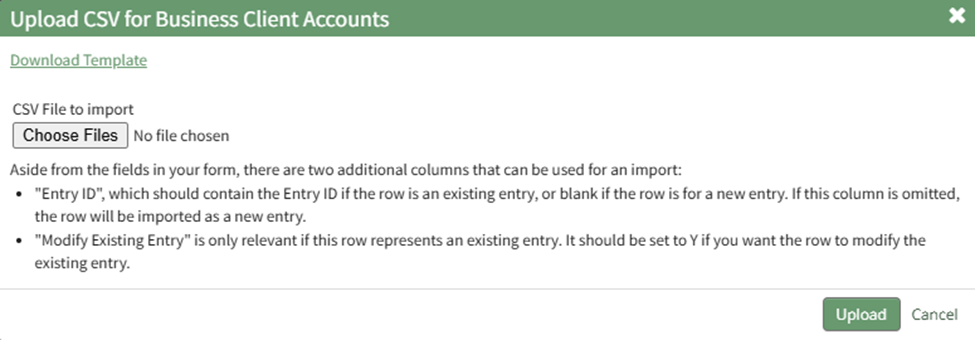
Click the “Download Template” link at the top of the modal and a CSV file will be downloaded to your personal device. Notes have been provided if you are using the downloadable template to Upload bulk CSV form entries. WIKI LINK NOTES REGARDING THE DOWNLOADABLE TEMPLATE FOR UPLOADING CSV FILES

After creating your Forms Entries CSV file, save it as a CSV UTF-8 for importing. Click the “Choose File” button on the Upload CSV Modal and open the relevant file from your personal device.

Confirm that the correct CSV file now shows in the Upload CSV Modal.
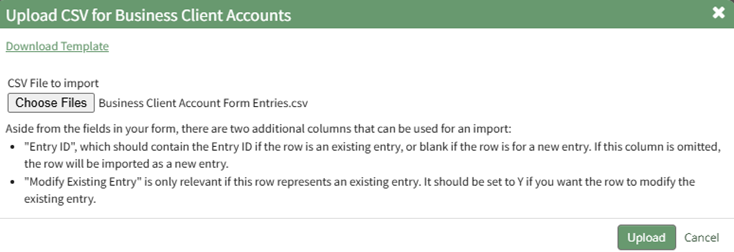
Select the “Upload” button.
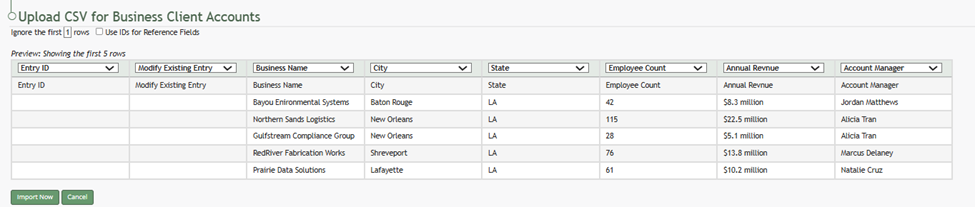
The entries imported from the CSV file will now show on the Upload CSV for (FORM NAME) Page.
The system automatically indicates to ignore the first row. Click “Import Now” if there are no errors.
A summary of the import will now show on the CSV Upload Page.
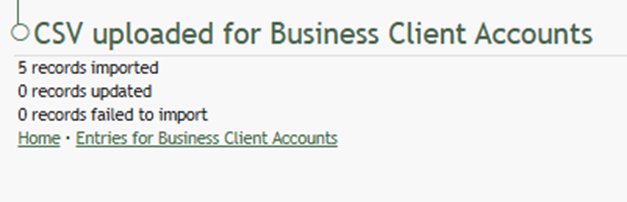
Click the “Entries for (FORM NAME)” link to see all imported entries on the Manage Entries Page.