Import Fields from a CSV File into a Database
If a field has already been added to a database, you are no longer able to bulk import database field names from a CSV file. You are now required to enter each field name individually. WIKI
How HOWTo: TO:Add ADDa ADatabase DATABASE FIELDField
{{@321}}
To import database field names from a CSV file, go to the Home Page of the Database Module.
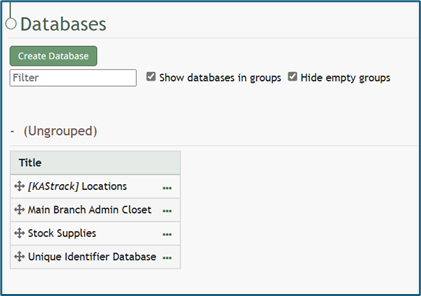
Click the three dot (…) icon to open the context menu of the database you wish to enter fields for.
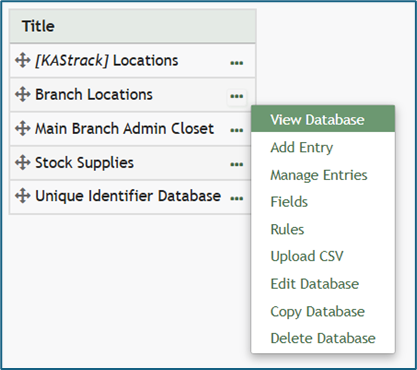
Select “Upload CSV” opening the Upload CSV for (DatabaseName) Modal.
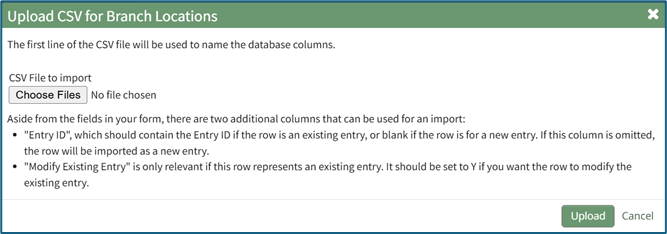
When creating your CSV file, the first row of the CSV file is used. Each individual cell in that row will be a database field used as columns for data entry. When importing bulk field names, the notes in the Upload CSV Modal on “Entry ID” and “Modify Entry ID” are not relevant.

After creating your Database Fields CSV File, save it as a CSV UTF-8 for importing.
Click the “Choose File” button and open the relevant file from your personal device.

Confirm that the correct CSV file now shows in the Upload CSV Modal.
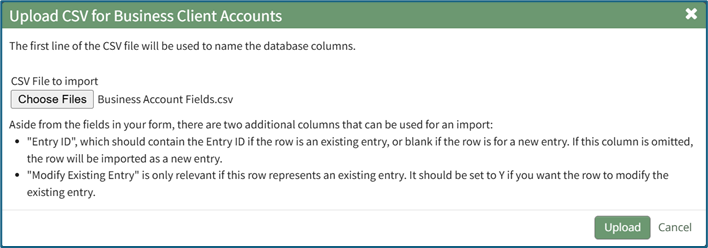
Select the “Upload” button.
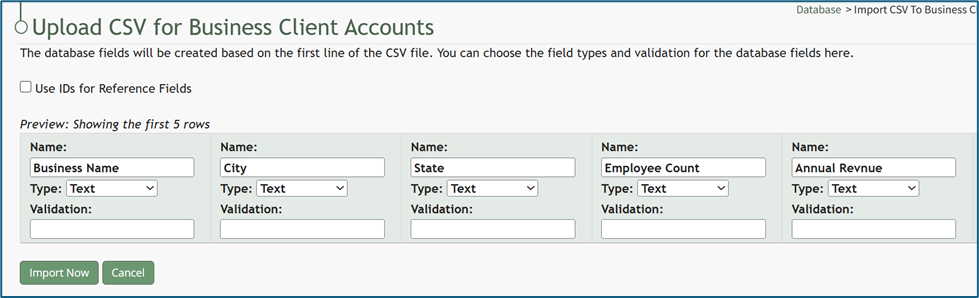
Configure each database field as desired. Field types shown on the dropdown menu include form fields: Text, Text Box, Checkbox, Dropdown, Radios, Data, and Data/Time.
Select “Import Now” and a summary of the import with show on the CSV Upload Page.
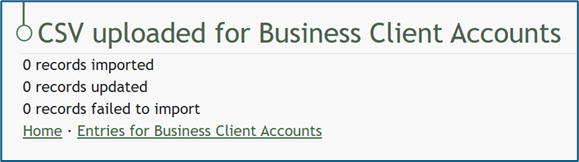
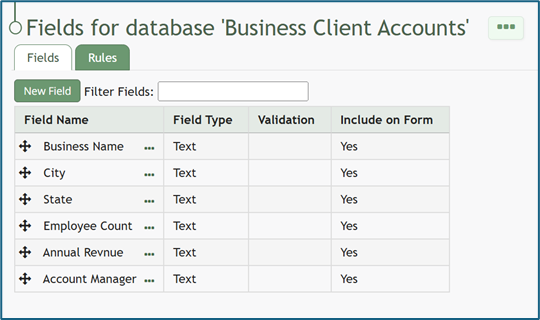
All imported field will now show on the Fields for database (DatabaseName) Page in the Fields Table.