
Edit A Report
System Reports cannot be edited.
To edit a report, go to the Custom Reports Tab of the Manage Reports Page in the Reports Module. Select the three-dot icon to the right of the Report Title opening the context menu.
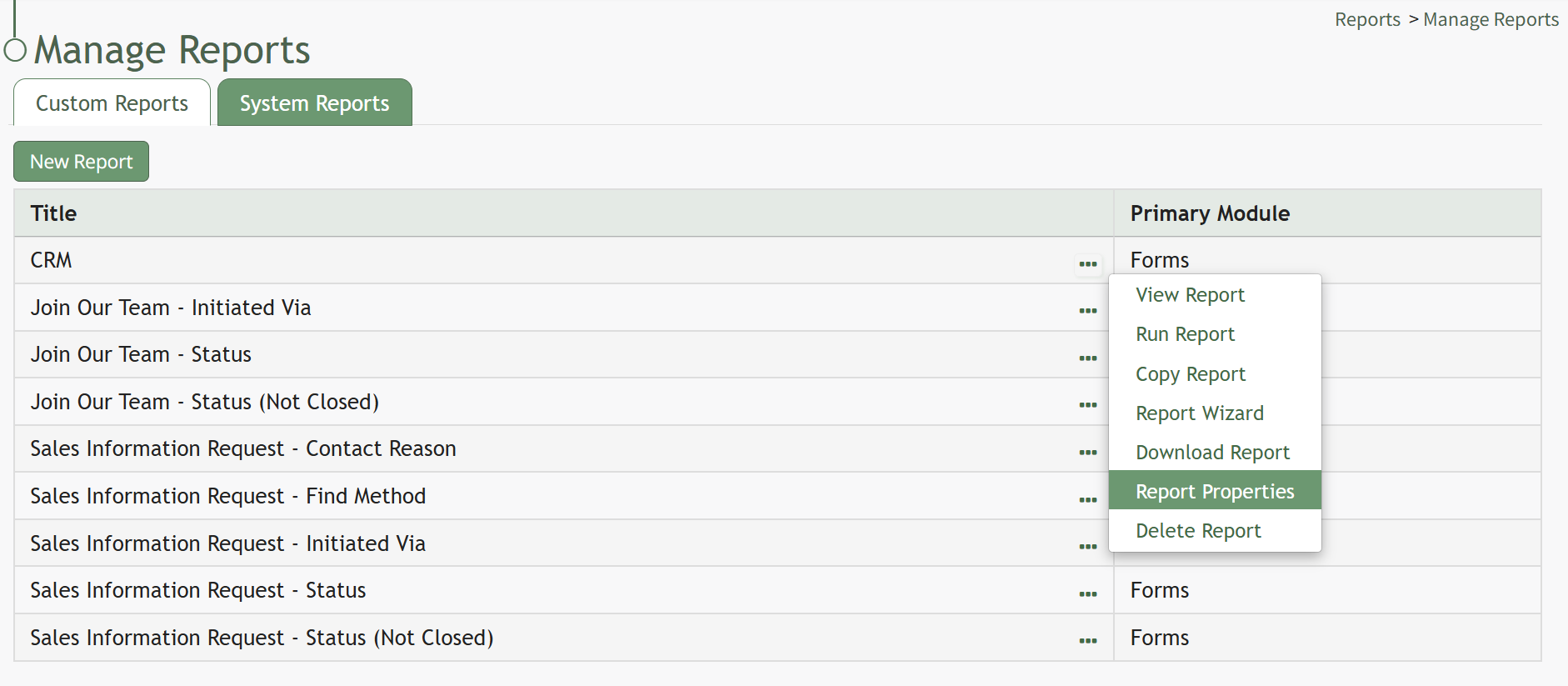
Select “Report Properties” opening the EditReport ReportProperties Modal.
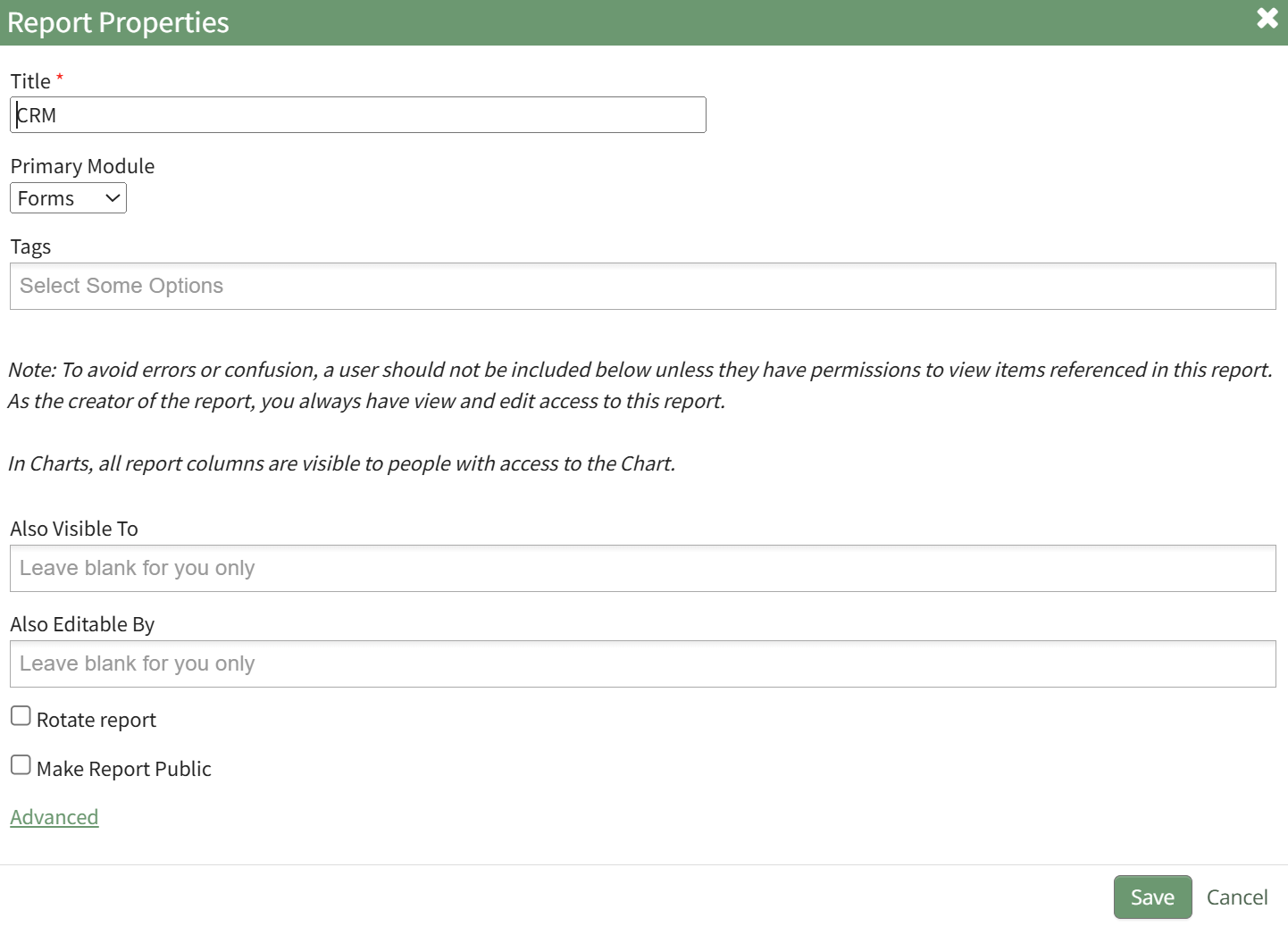
Refer to the New Report Modal Comments Table for an explanation of Edit Report Modal inputs.
New Report Modal Comments | ||
Input | Comments | |
Title | Input a title for the new report (a required field). | |
Primary Module | Select the primary module from a dropdown menu with the following options: Assets, Dispatch, Forms, Meetings, and People. | |
Tags | Select open, restrictive, or permissive tags as desired. | |
Also Visible To | A dropdown menu includes the options: People I Supervise, All Eligible Accounts, Certification Roles and Individual People. | To avoid errors or confusion, a user should not be included below unless they have permissions to view items referenced in this report. |
Also Editable By | ||
Rotate Report Checkbox | When the Rotate Report Checkbox is selected, the information in the rows of the first column become the column headers. (The x and y axis are switched.) | |
Make Report Public Checkbox | When the Make Report Public Checkbox is selected, the modal expands to include a textbox for the Link Path. The URL for the report will be https://[subdomainname].kastrack.com/reports/view-report[LinkPath} | |
Advanced Options | ||
Report SQL | Clicking the “Advanced” link opens a Report SQL textbox, an input area for writing SQL queries that can define the data the report will show. | |
Select the “Save” button after making your desired changes and you’ll return to the Custom Reports Table.