
Edit A Page In A Course
To edit a specific page in a course, open the Courses Module Home Page from the Main Menu. Click the three-dot icon to the right of the course whose page you want to edit, opening the Course Context Menu.
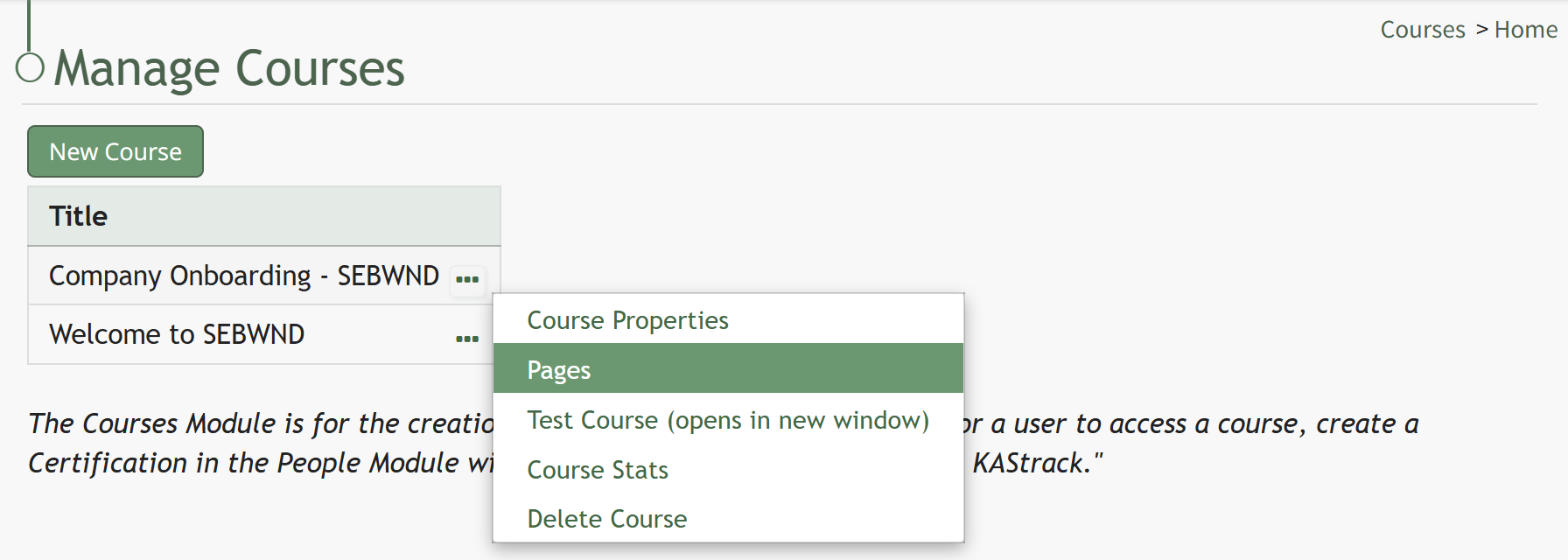
Select Pages, opening the Course Details Page.
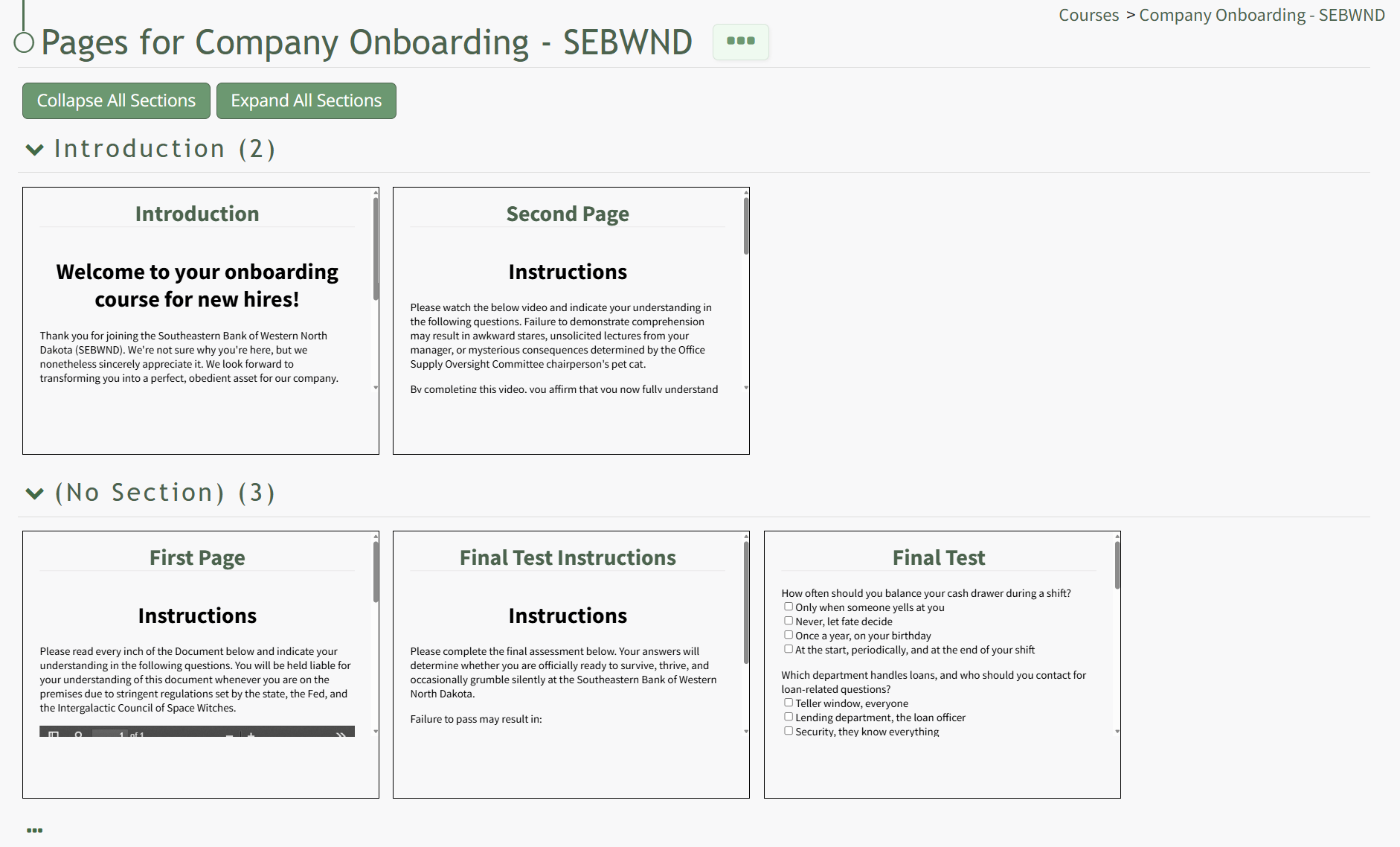
On the Course Details Page, all pages in the course are displayed. Hover the icon over the page you wish to edit to see the icons, then click the pencil and page icon. 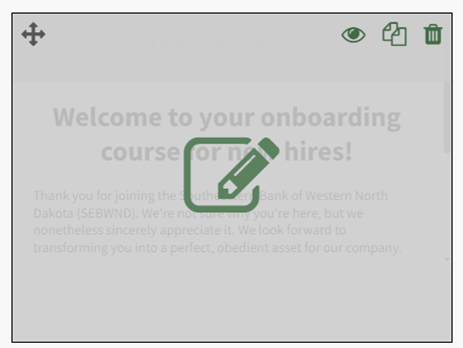
This opens the specific page and enables editing.
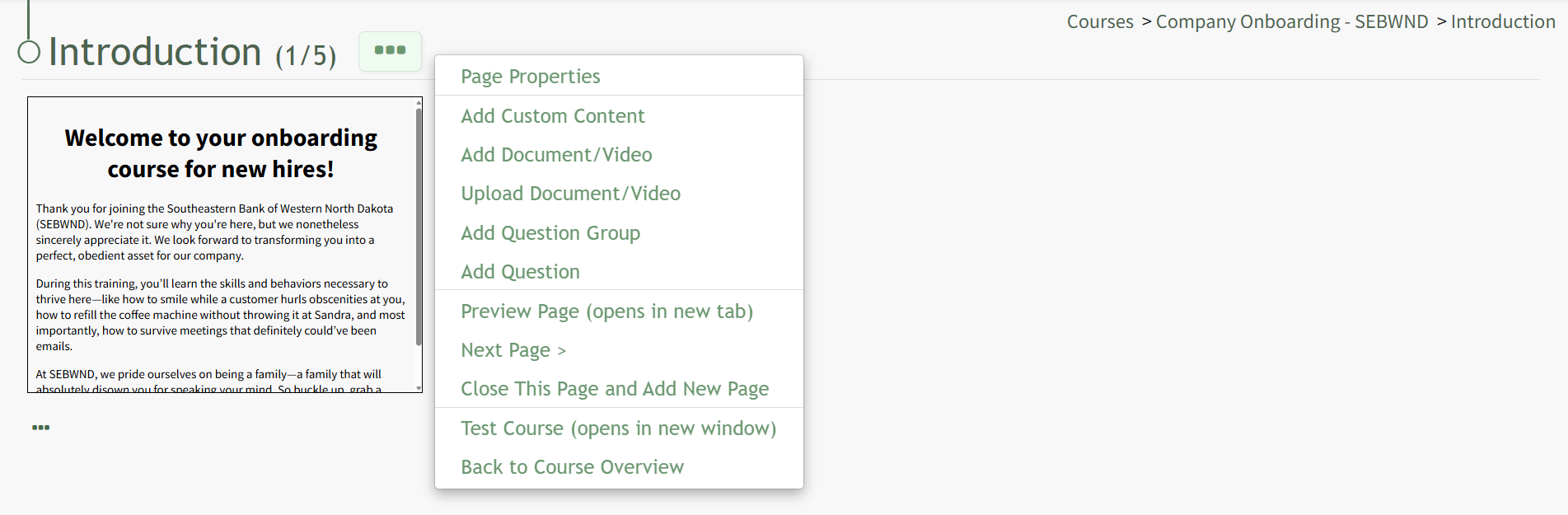
Click the three-dot icon to the right of the Page Title opening the Page Context Menu. Each of the options on the Page Context Menu are explained in the Page Context Menu Option Explanation Table below.
Page Context Menu Option Explanations | |
Page Properties | Selecting "Page Properties" from the Context Menu opens the Page Properties modal where users can edit the page title, section, and navigation options. Edit Page Properties{{@941}} |
Add Custom Content | Selecting "Add Custom Content" from the Context Menu opens the Add Custom Content Modal enabling you to add or edit the custom content on a page in a course. How To: Add Custom Content{{@240}} |
Add Docucment/Video | Selecting "Add Docucment/Video" from the Context Menu opens the Add Document / Video Modal enabling you to select the document / video you would like displayed on the page. To add a document/video to a course, it must be uploaded to KAStrack first. How To: Add Documents/Video to a Course Page{{@942}} |
Upload Document/Video | Selecting "Upload Document/Video" from the Context Menu opens the Upload File Modal. How To: Upload a Video/Document in the Courses Module{{@245}} |
Add Question Group | Selecting "Add Question Group" from the Context Menu opens the Add Question Group Modal. Question Groups must be created to pull a limited number of questions for a larger bank of possible questions or to add multiple questions to a course page. How To: Add Question Groups to a Course Page{{@235}} |
Add Question | Selecting "Add Question" from the Context Menu opens the Add Question Modal, enabling an individual question to be added to a Course Page. How To: Add a Question to a Course Page{{@236}} |
Preview Page | Selecting "Preview Page" from the Context Menu opens an individual page in a course in preview mode. How To: Preview an Individual Page in a Course{{@943}} |
< Previous Page | Selecting "< Previous Page" from the Context Menu allows you to go to the previous page in the course without going back to the course's Details Page. |
Next Page > | Selecting "Next Page >" from the Context Menu allows you to go to the next page in the course without going back to the course's Details Page. |
Close This Page and Add New Page | Selecting "Close This Page and Add New Page" from the Context Menu opens the New Page Modal. |
Test Course | Selecting "Test Course" from the Context Menu opens the course in a new page in Test Mode. Results of the course viewed in Test Mode are not accounted for in the Course Stats. How To: Take a Course in Test Mode{{@241}} |
Back to Course Overview | Selecting "Back to Course Overview" from the Context Menu opens the course's Details Page. |