
Create a Unique Items Database
To create a unique items database, go to the Home Page of the Database Module and create a new database. Click the “Create Database” button and input a database title and description. Select the appropriate database group from the dropdown menu. You can use default access parameters, or customize database specific parameters. WIKI LINK HOW TO: CREATE A DATABASE
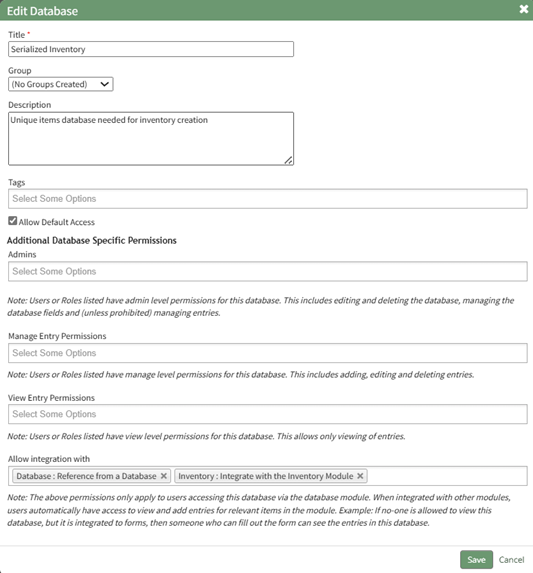
Select “Save” and the system will direct you to the Fields Page, where new fields can be added. Your unique items database can include a variety of fields, but for the Inventory Module to function properly, it must have field(s) that identify the inventory item (title) and field(s) that are used to identify the unique item.
WIKI LINK HOW TO: ADD A DATABASE FIELD
WIKI LINK HOW TO: IMPORT FIELDS FROM A CSV FILE
WIKI LINK HOW TO: IMPORT FIELDS FROM A PDF ENTRY
If no fields have been entered into the database yet, you can import fields in bulk via a PDF Entry or a CSV file. If fields have already been created in the database, new field must be added individually.
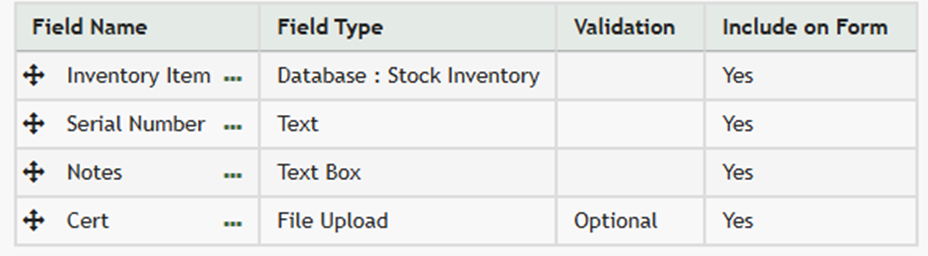
After your fields have been generated, unique inventory items can now be entered into the database in bulk via a CSV file import or entries can be added individually.
WIKI LINK HOW TO: IMPORT DATABASE ENTRIES FROM A CSV
WIKI LINK HOW TO: ADD AN INDIVIDUAL DATABASE ENTRY
Now that your unique items database has been created and filled with inventory item entries, it is ready to be integrated into an inventory.