
Create a Stock Database
To create a stock database, go to the Home Page of the Database Module and create a new database. Click the “Create Database” button and input a database title and description. Select the appropriate database group from the dropdown menu. You can use default access parameters, or customize database specific parameters. WIKI
How HOWTo: TO:Create CREATEa A DATABASEDatabase
{{@329}}
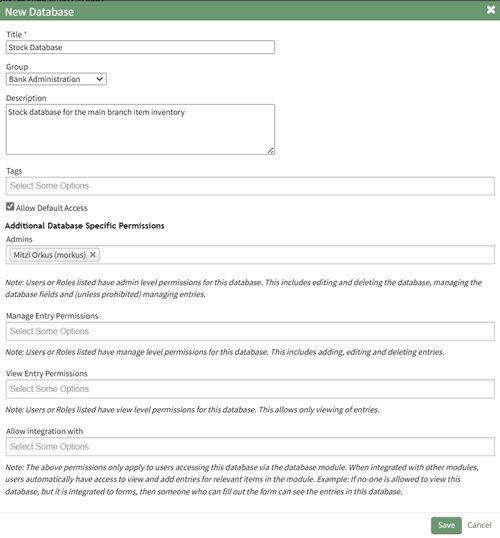
Select “Save” and the system will direct you to the Fields Page, where new fields can be added. Your stock database can include a variety of fields, but for the Inventory Module to function properly there are required fields.
If no fields have been entered into the database yet, you can import fields in bulk via a PDF Entry or a CSV file. If fields have already been created in the database, new field must be added individually. WIKI LINK HOW TO: ADD A DATABASE FIELD
How To: Add a Database Group
WIKI{{@322}}
How HOWTo: TO:Import IMPORTForm FIELDSFields FROMfrom Aa CSV FILEFile
{{@402}}
WIKI
How LINKTo: HOWImport TO:Fields IMPORTfrom FIELDS FROM Aa PDF ENTRY
{{@400}}
Stock Database Requirements | |
Required Fields* | Explanation |
Location | Inventory location can be defined through a single database, or multiple databases if desired. |
Inventory Item Title | This field will be used to identify the stock inventory item. Some examples of possible field names include title, item, part, etc. The Title will be comprised out of fields in the stock database. |
Quantity | This field will state the number of stock items currently in the inventory. |
Part Type | A inventory item must be specified as generic or unique if the inventory is integrated with a unique items database. Part Type is only a required field if you have both a stock and a unique database. |
* The actual field name for required fields can be customized to your preference. | |
All fields created in the database will show in the Fields Table.
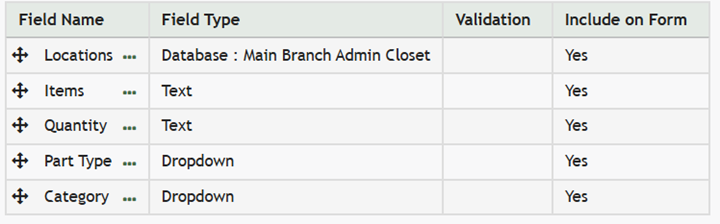
After your fields have been generated, stock inventory items can now be entered into the database in bulk via a CSV file import or entries can be added individually.
WIKI
How LINKTo: HOWImport TO:Database IMPORTEntries DATABASEfrom ENTRIES FROM Aa CSV
{{@338}}
How To: Add an Individual Database Entry
WIKI LINK HOW TO: ADD AN INDIVIDUAL DATABASE ENTRY{{@325}}
Now that your stock database has been created and filled with inventory item entries, it is ready to be integrated into an inventory.