
Create A New Action Group Template
To create a New Action Group Template, select Templates from the Actions Module Main Menu, opening the Manage Templates Page.
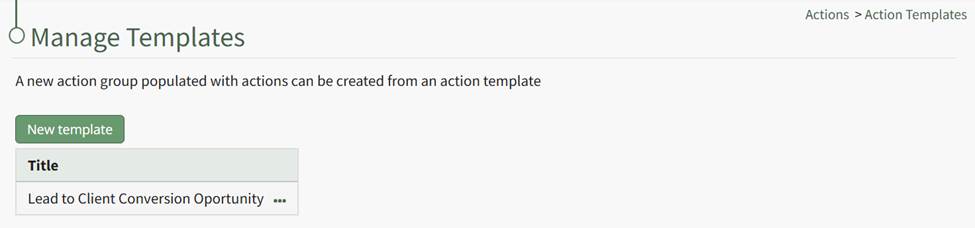
Select the “New Template” button, opening the New Template Modal.
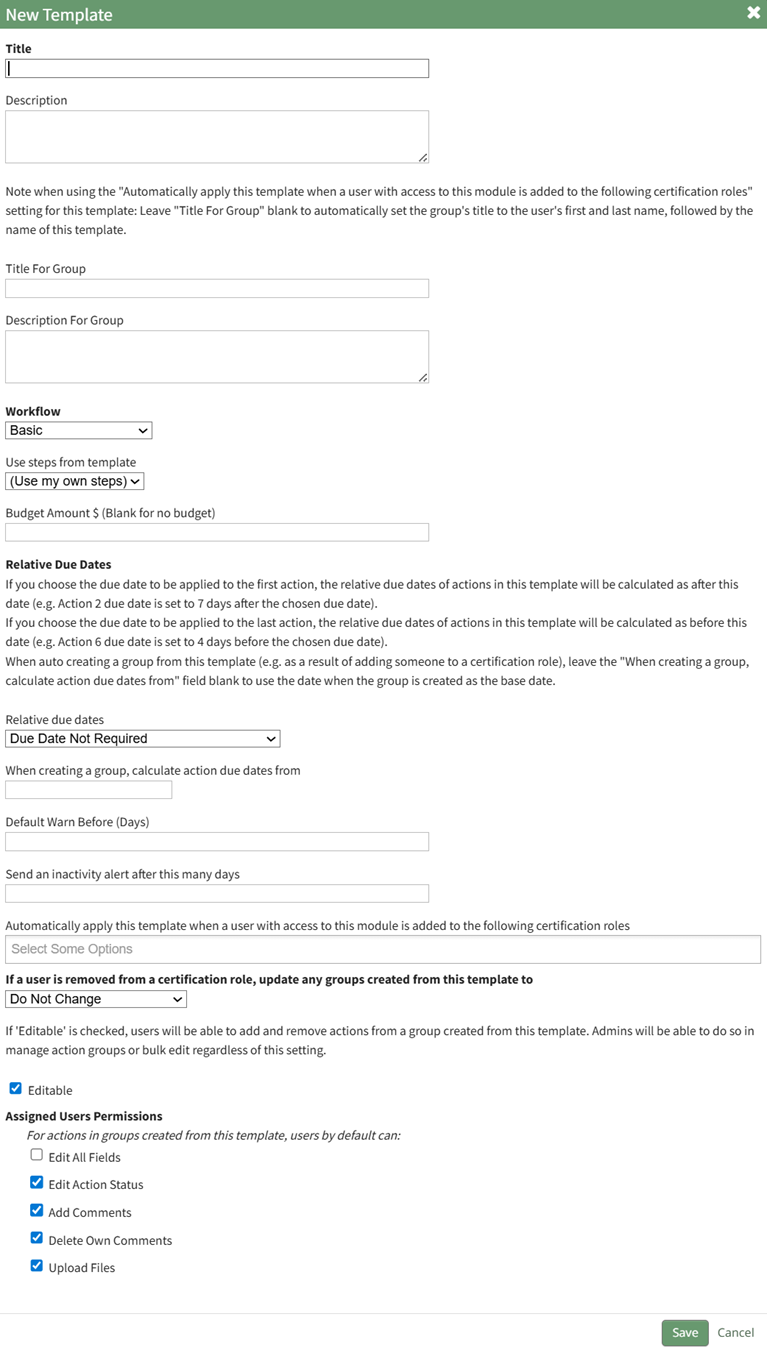
There are several fields associated with the creation of an action group template.
Action Group Field Input Explanations | |
Field | Explanation |
Title | Input the title for the new action group. |
Status | An action group can be assigned a status of Active, Needs Attention, Canceled, or Archived. Select the appropriate status from the Status dropdown menu on the modal.
How |
Workflow | The workflow dropdown menu will offer the system default workflows (Basic, Basic with Approval, Complex with Approval), as well as any workflows that have been created by your organization. WIKI LINK UNDERSTANDING WORKFLOWS |
Default Warn Before | Input a numerical value for the number of days a default warning will be sent. This input determines when action action within the action group will turn from blue (the action is outstanding) to yellow (the action is nearing its due date). |
Date | The Action Group Date is flexible in concept and can be used as bet fit by your organization. |
Description | Input a description for the action group. |
Tags | Include any open, permissive, or restrictive tags as desired. |
Budget ($) | Leave this blank if you do not want to generate a new budget in the Finance Module for the Action Group. Input a dollar amount to create the budget. |
Budget Alerts | Click "Add Alert" in the Budget Alerts Section to create a budget alert to be associated with the action group budget. This will expand the modal displaying budget alert preferences. How |
Budget Approvers | Select the desired budget approver group from the dropdown menu. Note: Budget approval groups at the Action Group level must be created on the Settings Page: Budget Approvers Tab. |
Send an Inactivity alert after # of days | An Action Group inactivity alert will be sent to the designated users / roles after a specified number of days of inactivity. Input a numerical value telling the system to send a notice after the specified days of inactivity. Within an action group, a workflow status change, creating or completing an action, a file upload, or action comment will reset the inactivity alert. Permission for comments to reset the inactivity alert is a customizable preference. |
Send the inactivity alert to | Input the users and roles you wish to receive the inactivity alert. |
Admins | Input the users who are to be identified as Admins for the Action Groups. |
Users / Roles who can view this group | Select the Users / Roles who can view this action group. The users / roles selected will have view only permissions for every action within the action group. |
Users / Roles who can edit their own actions | Select the Users / Roles who can edit their own actions. The users / roles selected will have the ability to edit any actions they created or are assigned to in the action group. |
Focal Point User For this Group | Identify the focal point user of the group. This field is purely informational. There are no permissions associated with the focal point designation. Organization can utilize this field to identify a key contact for an action group. If this action group is being utilized for certification or training processes, using the relevant individual’s name as the focal point provides a database reference that enables reports and organizational capabilities. Only one user can be designated as the focal point. |
Assigned User Permissions Section The permissions established in this section will be applied to all users in the group by default. | |
Edit All Fields | Selecting the "Edit All Fields" checkbox will remove all other checkboxes from the modal and will give all users in the action group the ability to edit action status, add comments, delete own comments, and upload files. |
Edit Action Status | Selecting the "Edit Action Status" checkbox will give all assigned users in the action group the ability to edit the action status. |
Add Comments | Selecting the "Add Comments" checkbox will give all users in the action group the ability to add comments to an action. |
Delete Own Comments | Selecting the "Delete Own Comments" checkbox will give all users in the action group the ability to delete their own comments made regarding an action. |
Upload Files | Selecting the "Upload Files" checkbox will give all users in the action group the ability to upload files to an action. |
After inputting the appropriate information into the modal, select “Save”.
The new Action Group Template will be displayed on the Templates Page in the Action Group Templates Table.