
Create a Database
To create a new database, go to the Home Page of the Database Module.
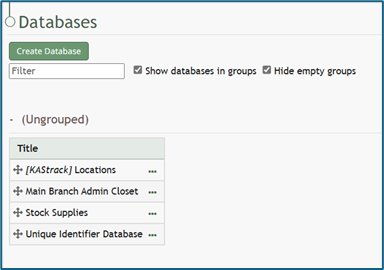
Click the “Create Database” button, opening the New Database Modal.
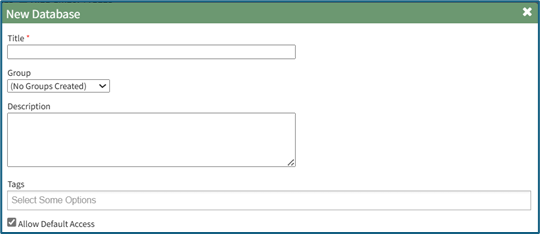
Input a Title for the new database. Select any groups the database should be associated with. Provide a description of the database and its purpose in the textbox provide. Select any tags desired.
Select the “Allow Default Access” checkbox to indicate that the database should follow the defaults established by module and access levels. If this checkbox is not selected, you will be required to establish user specific access based on individual or certification roles.
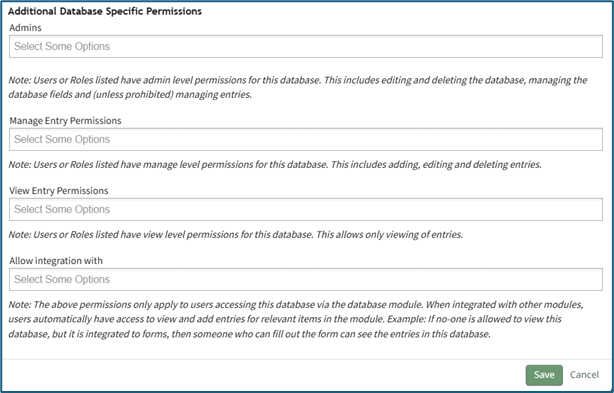
The following database specific permissions are selected via drop down menu lists that include all individuals and certification roles that can be assigned permission.
Admins allows users or role to have admin module level permissions for this particular database. A list of all admin module level permissions is shown in the table below.
Database Admin Module Level Permissions |
Manage roles (add/view/edit/delete, assign hidden roles, role permissions) Database (view/edit/delete/list/add, upload csv) Database Fields (edit/delete/view/list) Database Entry (view/edit/delete/list/add) Can delete entries from other modules |
Manage Entry Permissions gives the indicated users permission to view, add, edit, and delete database entries.
View Entry Permissions gives the indicated users permission to view database entries.
Allow Integration With denotes which other modules can link with and integrate with this database or forms for reference.
The Database Module can be integrated with the following modules:
- Forms
- Database
- Inventory
- Grid
Although the Grid Module is not explicitly listed, when building a grid, it is able to use all databases.
Click “Cancel” and return to the Database Module Home Page without any changes being made. Select “Save” to create the new database and you will be directed to the Fields Table for your newly copied database.
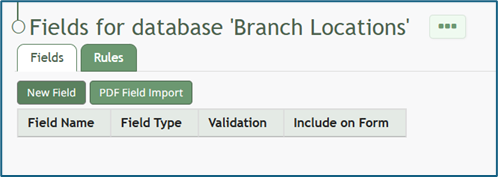
Once a database has been created, you can enter database fields into it.
How To: Import Fields from a CSV File Into a Database
{{@338}}
How To: Import Fields from a PDF Field Import
{{@340}}
How To: Add a Database Field
{{@321}}
Once you have entered database fields, you can add database entries into it.
How To: Add an Individual Database Entry
{{@325}}
How To: Import Database Entries from a CSV
{{@338}}