
Create a Custom QR Code
To create a custom QR Code, open the QR Code Page in the Communications Module from the Main Menu.

Click the plus sign icon immediately to the right of the page header. This opens the New QR Code Modal.
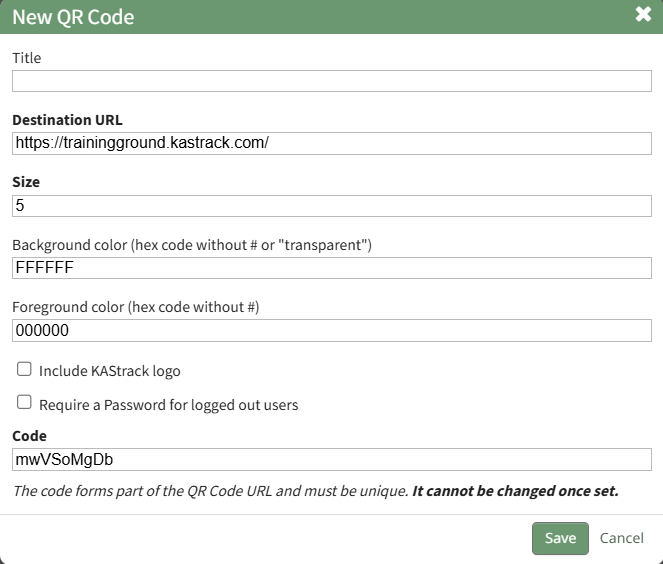
Input the Title for the new QR code.
The system will automatically input the login page for your KAStrack domain. Input your desired destination URL.
The system automatically inputs 5 as the size. A larger integer will increase the size. A smaller integer will decrease the size.
Both the background and foreground color of the QR Code can be customized. Input the desired hex code for each without the #.
Select the "Include a KAStrack logo" checkbox if you would like the KAStrack logo to be inserted into the middle of the QR code.
Select the "Require a password for logged out users" checkbox if you would like to require a password to access the destination URL.
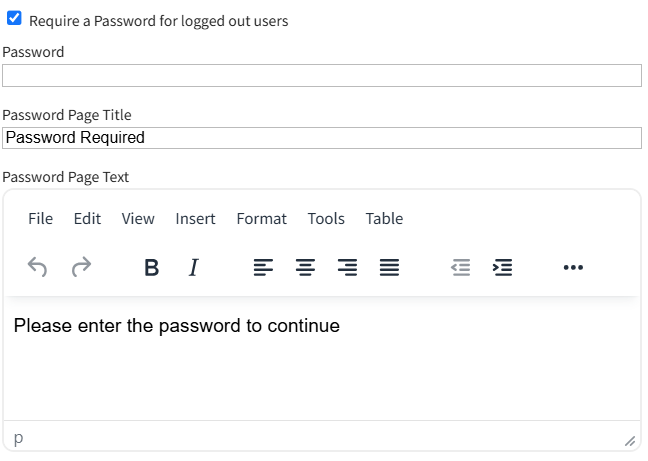
This expands the Modal so that you can input a password and design the Password Page.
If the Destination URL is a KAStrack page, only individuals with permission to access the page in the system will be able to access it through the QR code.
The System generates a default code for every new QR Code. It must be unique. You can edit this code if desired, but once the code is set it cannot be altered.
After making the desired customizations for your QR Code, click the "Save" button at the bottom of the modal.

The new QR Code is now visible in the QR Code Table.