
Add Question Groups In A Course
OnTo add a question group to a page in a course, you must be on a page within the Coursecourse. OverviewAn Page, all pagesexplanation of thehow to access a course page is provided in the How To below.
How To: Access a Specific Page in a Course
{{@944}}
Once you are displayedon with previews of theirthe page elements.you Use the dropdown menuwant to add a question group /to, questionclick the three-dot icon to the course.right of the page title opening the context menu and select the option to "Add Question Group".
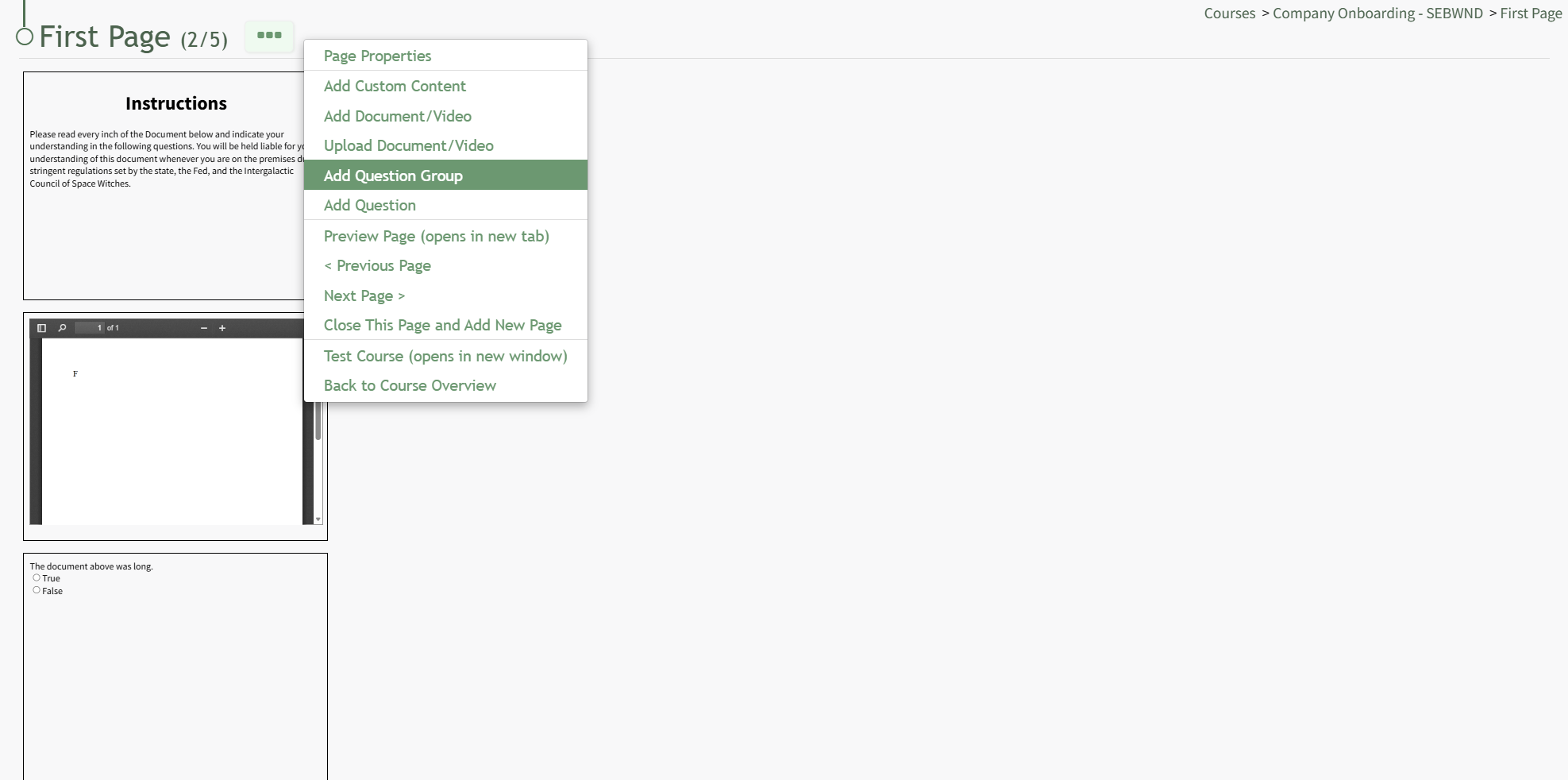
“Add Question Group”This opens the Add Question Group modal and allows the user to user to create a custom group of questions to be used for assessment purposesModal.
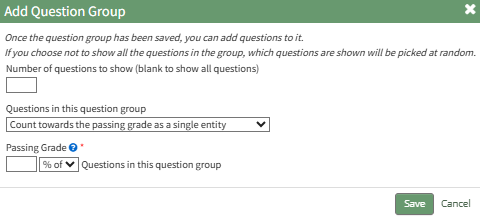
The user can choose for all questions in the Question Group to be asked or for a specific number of questions from the question group to be randomly generated in the course. (Leave this blank to show all questions.)
“Save” opens the Edit Question Group modal, allowing users to add questions.

Once a question group has been created, it will appear as a slide on the page being created. The slide can be dragged and dropped by clicking the multi-dimensional arrow that appears at the upper left-hand corner.
After the question group has been created and saved, you canwill continuebe able to add questions to it. If you chosechoose not to show all the questions in a questionthe group, the questions shownthat are randomlyshown selected.will be picked at random.
Indicate the number of questions to be shown from the question group. Leave this field blank if you would like to show all questions.
ClickingFrom the “+”dropdown menu, select if the questions in this question group "count towards the passing grade as a single entity," "count towards the passing grade as individual questions," or "do not count towards the passing grade".
Click the "Save" button on the modal, which opens the Edit Question Group Modal.
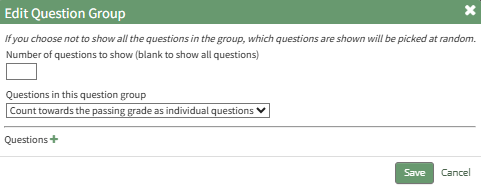
Click the plus sign icon to the right of Questions"Questions", opensopening the “Add Question”Questions modal,Modal. whichFor cana alsodetailed be accessed directlyexplanation on the Newdifferent types of questions (true/false, multiple choice, and free text) and how to add them refer to the How To below.
How To: Add a Question to a Course Page dropdown menu.
{{@236}}
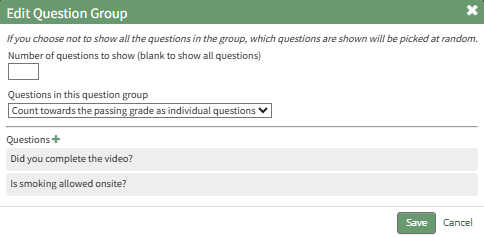
Once all questions have been added to the question group, select Save at the bottom of the modal.
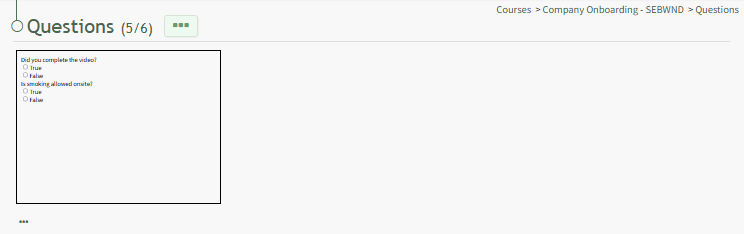
The question group now shows on the Course Page.