
Add Pages in a New/Existing Course
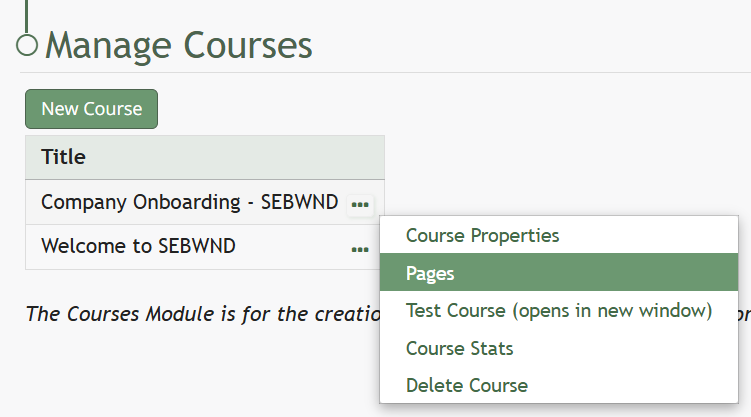
To add pages to a course, open the Courses Module Home Page from the Main Menu. Click the three-dot icon to the right of the course you wish to add pages to opening the Course Context Menu and select “Pages”.
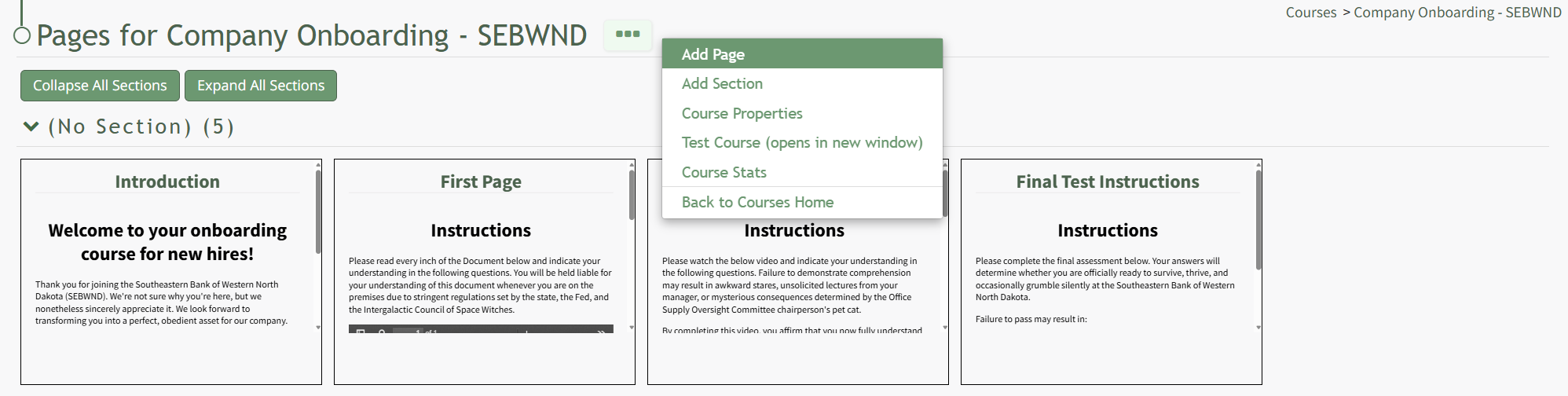
This opens the Course Overview Page Pages for Course Name Page. Selecting the three dot (…) icon to the right of the page header open a context menu. Selecting “Add Page” open the New Page modal.
Add a Title for the new page and select the desired navigation options.

If the course properties allow the user to navigate the course freely, in place of the checkbox options you will see “This course allows the user to navigate freely, so there are no per-page navigation options.” Select the “Save” button.
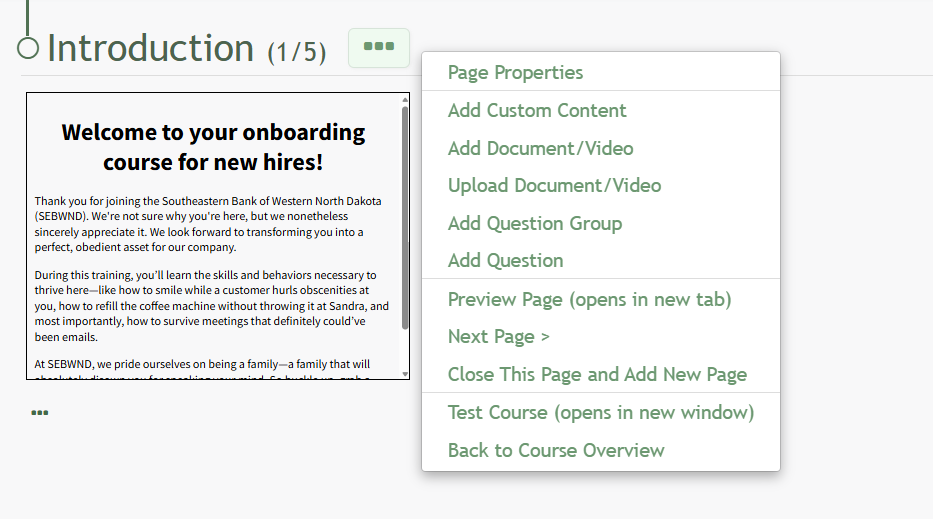
Selecting the three dot (…) icon displays a context menu that can be used to design the course.
Course Page Context Menu Option Explanations | |
Option | Explanation |
Page Properties | “Page Properties” will opens the Page Properties Modal which allows you to edit the title, section and navigation options for the specific page. |
Add Custom Content | “Add Custom Content” will open the Add Custom Content modal where one can input text, tables, images, videos and hyperlinks. Any information or added files will appear as individual slides, allowing for customizable edits, while still appearing together on one page. How To: Add Custom Course Content{{@240}} |
Add Document/Video | “Add Document/Video” opens the Add Document/Video modal that allows the user to select a previously uploaded document or video from a dropdown list. Any documents or videos in the Documents Module that the user has access to will show in the dropdown list.
The checkbox allows the user to designate whether they wish to use the latest approved revision of the item selected. Click “Save” and the selection will appear as a slide on the course homepage. |
Upload Document Video | “Upload Document/Video” will open an Upload File modal. Any document or video uploaded through this modal will not be visible in the Documents Module unless manually added to Documents. |
Add Question Groups | How To: Add Questions Groups in A Course{{@235}} |
Add Question | How To: Add Different Question Types{{@236}} |
