
Add a Question to a Course Page
To add a singular question to a page in a course, you must be on a page within the course. An explanation of how to access a course page is provided in the How To below.
How To: Access a Specific Page in a Course
To access a specific page in a course, open the Courses Module Home Page and click the three-dot icon to the right of the course title to open the Course Context Menu.
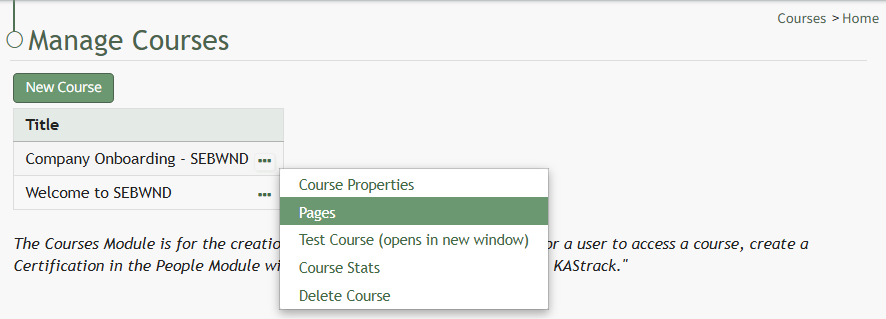
Select Pages from the Context Menu.
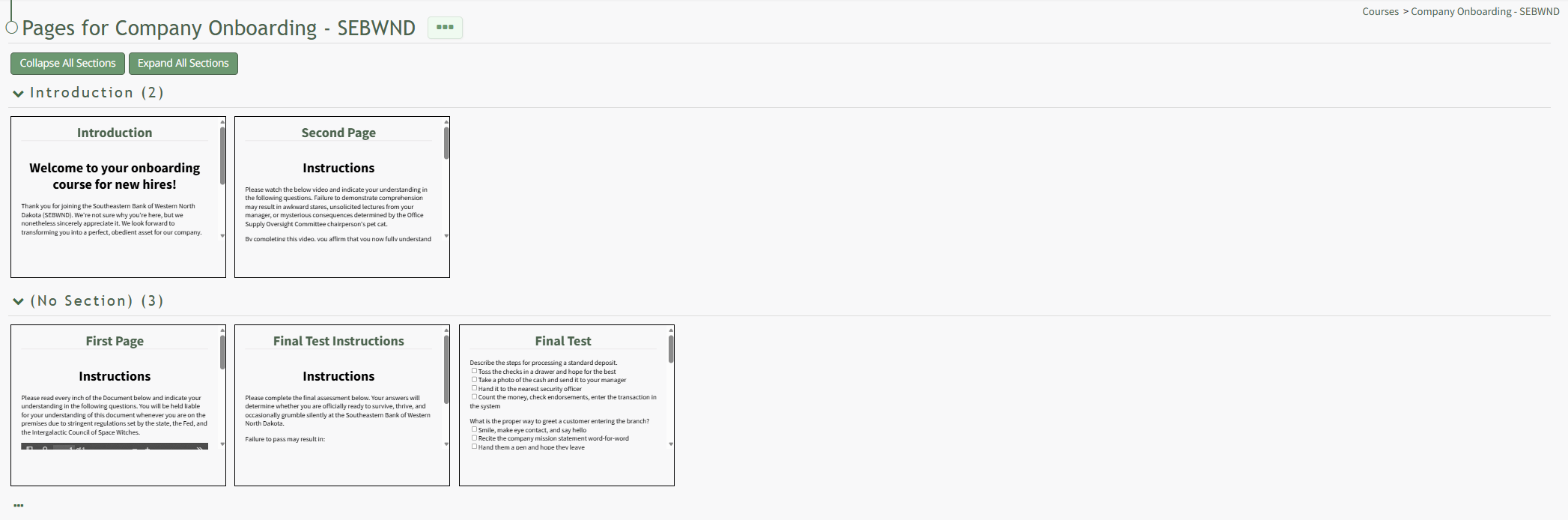
This opens a course's Details Page. Click the page you want to edit to access the page in the course.
Once you are on the page you wish to add a question to, click the three-dot icon to the right of the page title opening the Page Context menu and select the "Add Question" option.
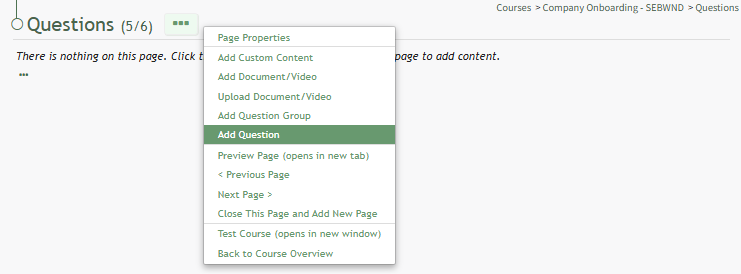
This opens the Add Question Modal. There are three possible types of questions in the Courses Modal. The fields in the Add Question Modal differ based on the question type selected. There are sections with images and an explanation of the unique fields for each question type below..
The checkbox for "This question is counted towards the passing grade." is selected by default for all question types.
Answer Notes can be used to include extra information about an answer is correct or why certain answers are wrong. They are shown to users in the Course Review.
After inputting the necessary information for the new question, select the "Save" button in the bottom right-hand corner of the modal.
True/False Questions
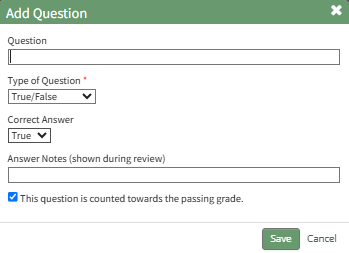
Input your question into the Question Field and select "True/False" as the Type of Question from the dropdown menu.
Indicate the correct answer by selecting True or False from the dropdown menu.
Multiple Choice Questions
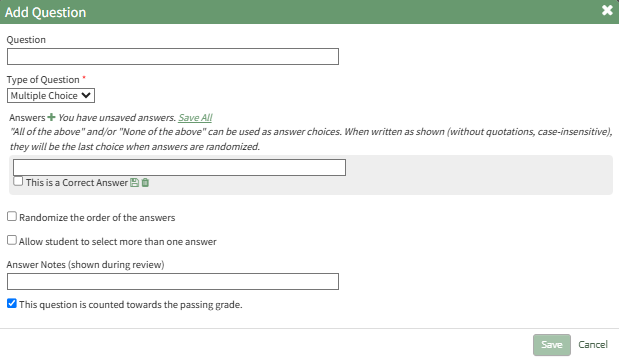
Input your question into the Question Field and select "Multiple Choice" as the Type of Question from the dropdown menu.
Click the plus sign to the right of "Answers" and the modal expands to display a text box. Enter the answer. Repeat the process for each potential answer. Select the "This is a Correct Answer" checkbox when appropriate.

Each answer must be saved on the modal, either individually by clicking the disc icon below the answer or by clicking the "Save All" clickable link to the right of Answers and the plus sign icon. The modal will state if any answers are not saved.
"All of the above" and/or "None of the above" can be used as answer choices. When written as shown (without quotations, case-insensitive), they will be the last choice when answers are randomized.
Select the "Randomize the order of the answers" if you would like the system to randomly list the order of the answers for the multiple-choice questions.
Select
A question can have multiple correct answers. If a question has multiple correct answers, all must be selected in order to receive full credit. The phrases “All of the above” and “none of the above” can be used as answers.
Both “All of the above” and “None of the above” can be used as an answer choice. If those two answer choices are written exactly as shown (without quotations), KAStrack will not randomize their placement. They will always be shown as the final multiple-choice answer options.
Free Text Questions
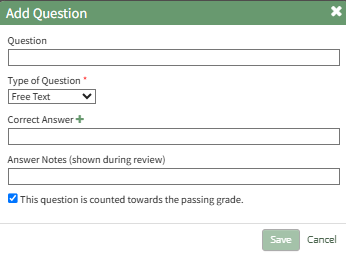
Input your question into the Question Field.