Add a Field to a Form
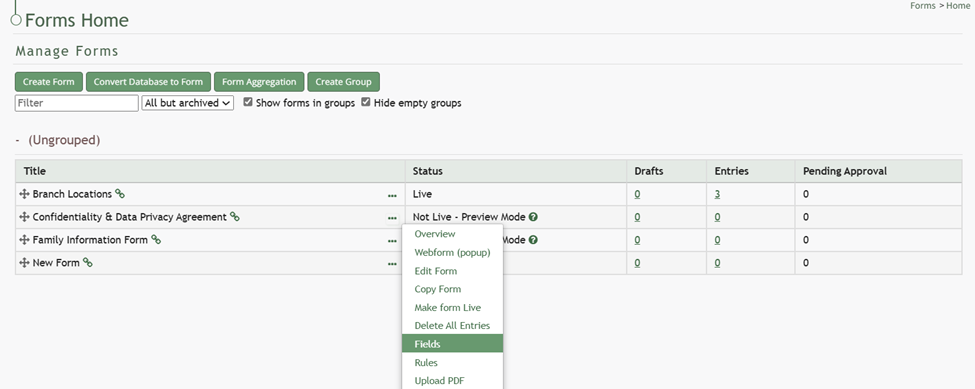
To add a field to a form, go to the Home Page of the Forms Module. . Click the three-dot icon to the right of the form title that you want to add a field to opening the Form context menu. Select “Fields”.
This opens the Fields Tab for the specific form of interest.
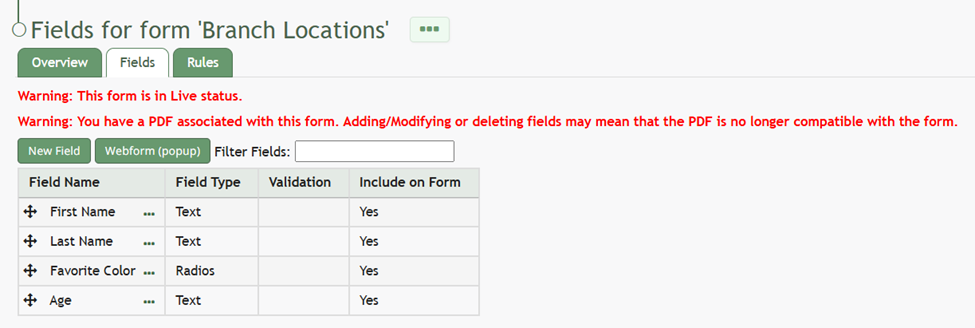
There are two ways to add an individual field to the Fields Table from here. Click the “New Field” button opening the New Form Field Modal.
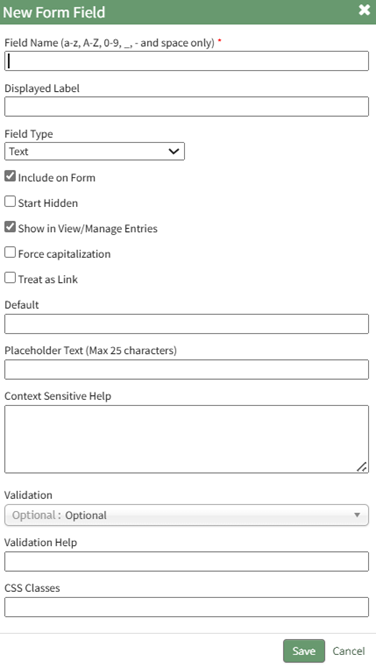
The creation of a new field will always require you to enter a field name. Include an input for the displayed label and select the field type from a dropdown menu. The inputs on the New Form Field Modal will vary based on the Field Type.
Possible field types in the Forms Module include Form Fields, Formatting Fields, Utility Fields, Account Fields, and Reference a Database Entry. For an explanation of field types and the formatting choices associated with each one, reference the Understanding Fields Section of the Forms Module in the User Manual. WIKI LINK FORMS MODULE > UNDERSTANDING FIELDS
A form field can only have on field type. If you need to utilize another (e.g., formatting purposes), you can set the displayed label to be the same but the field label must be unique.
Once you are finished inputting the information for the new field, select “Save” and the new database field will show in the Fields Table on the Fields Tab.
Fields can also be imported in bulk into a Form from a CSV file or PDF Field Import.
WIKI
How LINKTo: HOWImport TO:Form IMPORTFields FIELDSfrom FROM Aa CSV FILE
{{@402}}
WIKI
How LINKTo: HOWImport TO:Fields IMPORTfrom FIELDS FROM Aa PDF FIELDField IMPORT
{{@400}}