
Add a Document / Video to a Course Page
To uploadedit the properties of a video/documentspecific page in a course, openyou must be on a page within the Coursescourse. ModuleAn Homeexplanation of how to access a course page is provided in the How To below.
How To: Access a Specific Page fromin thea MainCourse
{{@944}}
Click the three-dot icon to the right of the coursepage title opening the CoursePage Context Menu and select “Pages”.the "Add Document/Video" option.
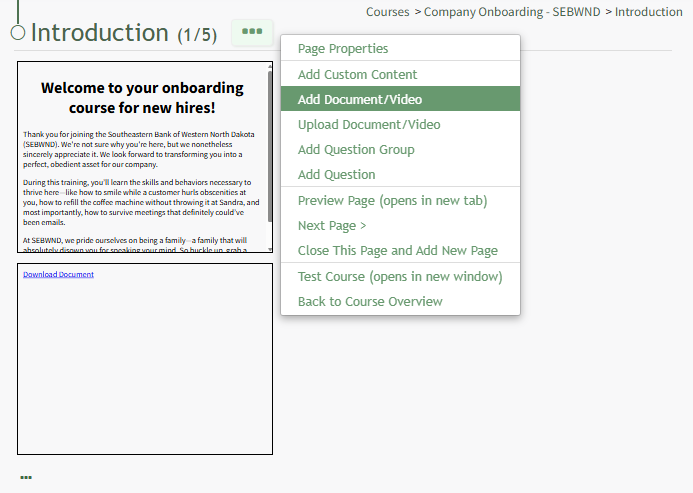
This opens the Course Overview Page Pages for Course Name Page. Selecting the three dot (…) icon to the right of the page header open a context menu.

“Add Document/Video” opens the Add Document/Video modalModal thatwhich allows the user to select a previously uploaded document or video from a dropdown list.menu Anythat will show all documents or videos in the Documents Module that the user has access to will show in the dropdown list.to.
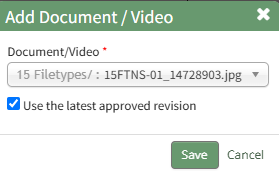
TheBy default, the checkbox allowsis selected telling the user to designate whether they wishsystem to use the latestmost recently approved revisionversion of the itemfile.
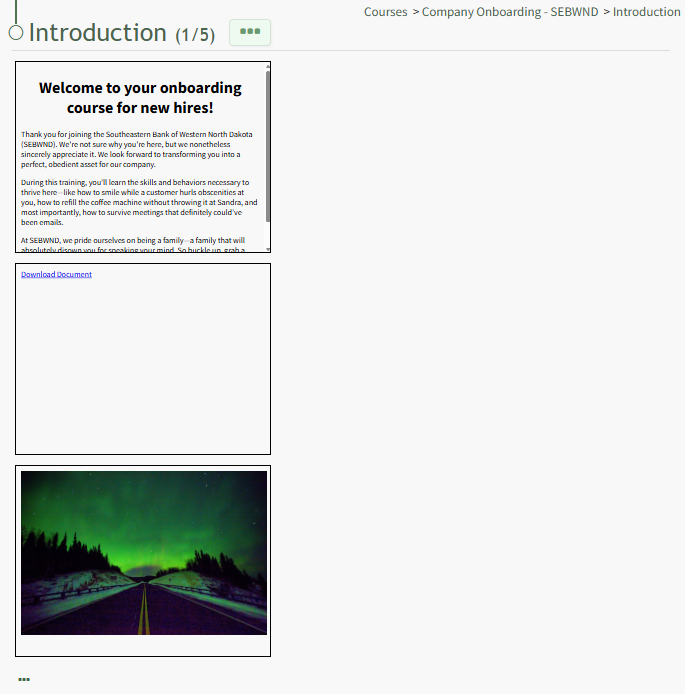
Click “Save”"Save" and the selectionnew willdocument appear/ asvideo anow slideshows on the course homepage.
“Upload Document/Video” will open an Upload File modal.
Title the file (required).
The user has the option to indicate which revision is being uploaded and a revision date (defaults to the date of upload).
Leave “Document is public” unchecked.page.
DocumentA ownersdocument/video must be uploaded to KAStrack before it can be designatedadded viato a drop-downcourse.
How ofTo: users.Upload Ina Video/Document in the Courses Module,Module
{{@245}}