Understanding Fields: Form, Formatting, and Utility Field Explanations
Fields are the individual data elements that makeup forms. You can think of them as a container for a type of information. They are the building blocks the Forms Module uses to collect, store, and process data in a structured way.
Every field has properties (or metadata) that define it: a Name/Identifier (what the field is called internally), the Data Type (what kind of data it can hold), Constraints (the rules that limit what data is valid), Default Value (what to use if no data is entered), and Validation Rules (checks to ensure the input meets expectations, e.g., email format, numeric range).
In KAStrack, individuals with Admin Access Levels can define custom fields that appear as form inputs that can be utilized in structured formats. There are three field types utilized in the Forms Module: form fields, formatting fields, and utility fields. Users can also reference data from a database in a field.
A form field can only have one field type. If you need to utilize another (e.g., for formatting purposes), you can set the displayed label to be same but the field label must be unique.
Form Fields
A form field is an individual input element within a digital form that allows a user to enter, select, or submit data. Each form field captures a specific piece of information after the form (or modal) is submitted.
The table below shows the type of form fields (that indicate the type of data/information to be input) utilized in the Forms Module and the customizable choices associated with them.
Form Field Type Choice Explanations | |||
Form Field Type | Customizable Choices | Comments | |
Text | Start Hidden | If selected, the field will be hidden when the modal first loads. | |
Show in View / Manage Entries | Selected by default; Deselect if the field is being used for data acquisition and you do not want it to be visible. | ||
Force Capitalization | Selecting “Force Capitalization” requires the information input to be capitalized. | ||
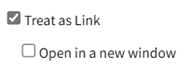
Treat As Link |
| When selected, the input becomes a clickable link. A checkbox selection forces the link to open in a new tab. | |
Text Box | Start Hidden | If selected, the field will be hidden when the modal first loads. | |
Show in View / Manage Entries | Selected by default; Deselect if the field is being used for data acquisition and you do not want it to be visible. | ||
Force Capitalization | Selecting “Force Capitalization” requires the information input to be capitalized. | ||
HTML Text Box | Start Hidden | If selected, the field will be hidden when the modal first loads. | |
Show in View / Manage Entries | Selected by default; Deselect if the field is being used for data acquisition and you do not want it to be visible. | ||
Checkbox | Start Hidden | If selected, the field will be hidden when the modal first loads. | |
Show in View / Manage Entries | Selected by default; Deselect if the field is being used for data acquisition and you do not want it to be visible. | ||
Checked By Default | If selected, the checkbox field created will be selected by default. | ||
Dropdown | Start Hidden | If selected, the field will be hidden when the modal first loads. | |
Show in View / Manage Entries | Selected by default; Deselect if the field is being used for data acquisition and you do not want it to be visible. | ||
Add Blank |
Select the plus sign icon to add additional entries. Textboxes must be saved individually through the disc icon or by the clickable “Save All” link. | ||
Add "Other" Option | If selected, “Other” will be included as a checkbox that when selected, opens a textbox for data input. | ||
Multiple | If selected, allows a user to pick more than one item from the dropdown menu. | ||
Options |
Select the plus sign icon to add additional entries. Textboxes must be saved individually through the disc icon or by the clickable “Save All” link. | ||
Radios | Start Hidden | If selected, the field will be hidden when the modal first loads. | |
Show in View / Manage Entries | Selected by default; Deselect if the field is being used for data acquisition and you do not want it to be visible. | ||
Options |
Select the plus sign icon to add additional entries. Textboxes must be saved individually through the disc icon or by the clickable “Save All” link. | ||
Date | Start Hidden | If selected, the field will be hidden when the modal first loads. | |
Show in View / Manage Entries | Selected by default; Deselect if the field is being used for data acquisition and you do not want it to be visible. | ||
Date / Time | Start Hidden | If selected, the field will be hidden when the modal first loads. | |
Show in View / Manage Entries | Selected by default; Deselect if the field is being used for data acquisition and you do not want it to be visible. | ||
File Upload | Start Hidden | If selected, the field will be hidden when the modal first loads. | |
Show in View / Manage Entries | Selected by default; Deselect if the field is being used for data acquisition and you do not want it to be visible. | ||
Max File Size | If left blank, the maximum upload file size is 500 MB. | ||
Allowed Extensions | Any extension | Allow anything to be uploaded. | |
Images | .jpg, .jpeg, .png, .gif, .bmp, .svg | ||
Documents | .doc, .docx, .odt, .pdf | ||
MS Word Document | .doc, .docx | ||
Spreadsheets | .xls, .xlsx, .csv | ||
MS Excel Spreadsheet | .xls, .xlsx | ||
MS Powerpoint Presentation | .ppt, .pptx | ||
Custom | Allows the form creator to specify what can be uploaded | ||
Allow Multiple Files | If selected, multiple files can be uploaded. | ||
Mandatory | If selected, a file upload will be required. | ||
Image | Start Hidden | If selected, the field will be hidden when the modal first loads. | |
Show in View / Manage Entries | Selected by default; Deselect if the field is being used for data acquisition and you do not want it to be visible. | ||
Max File Size | If left blank, the maximum upload file size is 500 MB. | ||
Allow Multiple Files | If selected, multiple images can be uploaded. | ||
Mandatory | If selected, an image will be required. | ||
Password | Start Hidden | If selected, the field will be hidden when the modal first loads. | |
Show in View / Manage Entries | Selected by default; Deselect if the field is being used for data acquisition and you do not want it to be visible. | ||
Signature Field | Start Hidden | If selected, the field will be hidden when the modal first loads. | |
Require 2FA | 2FA stands for two factor authorization. If selected, KAStrack will require a second method of authorization. | ||
All field types include a checkbox option to "Include on Form" that is selected by default. | |||