
Manage Form Entries Page
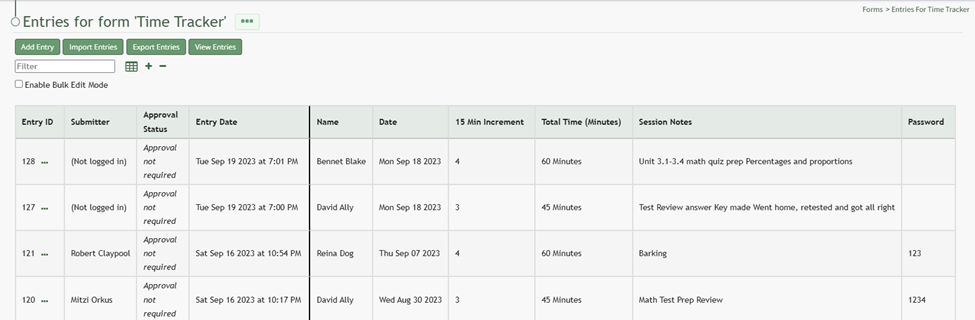
Manage Entries Page Icon Explanations Table | |
Icon | Explanation |
| The spreadsheet icon converts the table into a datatables table format. |
| The plus sign icon expands all form columns, showing all information collected by the form that might have be truncated because of space limitations. Individual entry rows can expand / collapse by selecting the clickable Less/More links in a cell. |
| The minus sign collapses all form columns, reverting back to truncated formatting. Individual entry rows can expand / collapse by selecting the clickable Less/More links in a cell. |


Forms Table Context Menu Option Explanations | |
Option | Explanation |
Webform | |
Webform (popup) | Selecting “Webform (popup)” from the context menu will open a modal allowing an individual to input another form entry. If the form is not live, the modal will state so in bold under the header. Any submissions made before a form is live can be deleted. This modal will vary, as it opens a unique form. |
Edit Form | Selecting “Edit Form” from the context menu will open the Edit Form Modal, allowing an individual to make changes to the Form Title and Tags, as well as the Basic / Advanced Settings and Form Styling established when the form was created. |
Overview | Selecting “Overview” from the context menu will open the Overview Tab related to the specific Form. The Overview Tab includes Form Stats (# of drafts, # of entries, # of pending approvals), the form status, form access (URL Link and QR Code) as well as a URL link for PDF submission info. |
Fields | Selecting “Fields” from the context menu will open the Fields Tab for a specific form, where all existing fields are listed and where new fields can be added and managed. If a form is live, a checkbox will have to be selected in order for fields to be edited. |
Rules | Selecting “Rules” from the context menu will open the Rules Tab for a specific form, where existing field rules are listed and where new rules can be added and managed. If a form is live, a checkbox will have to be selected in order for field rules to be edited. |
Drafts | Selecting “Drafts” from the context menu will open the Drafts for (FORM NAME) Page showing the form draft history. |
Manage Entries | Selecting “Manage Entries” from the context menu will open the Entries for (FORM NAME) Page which displays the Form Entries Table. Entries can be added, imported, and exported from this page. Bulk edits can also be enabled for efficiency. |
Clear PDF Cache | Selecting “Clear PDF Cache” from the context menu will clear the PDF cache and force the system to recreate the form PDF (in case the system pulled old form data). |
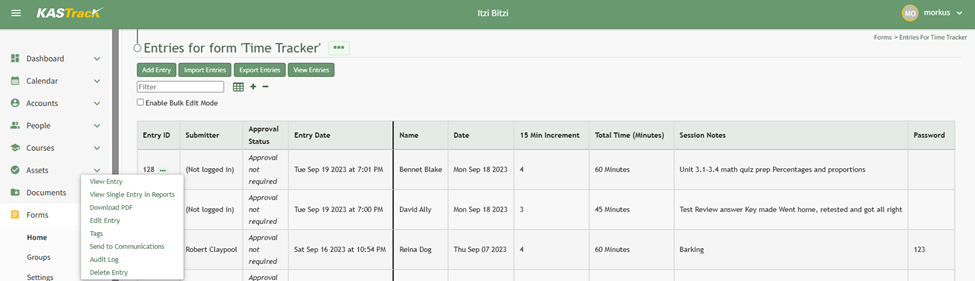
Forms Entry Context Menu Explanations | |
Options | Explanation |
View Entry | Selecting “View Entry” from the Forms Entries Table context menu will open the View Forms Entry Modal, showing all of the form field inputs for a specific entry. You can select the “Edit” button from this modal to open the Edit Database Modal and make any desired changes. |
View Single Entry in Reports | Selecting “View Single Entry In Reports” from the Form Entries Table context menu will open the single entry in the Reports Module with a table listing all fields and the inputs associated with the specific entry. |
Download PDF | Selecting “Download PDF” from the context menu will download the PDF that have been associated with the form. |
Edit Entry | Selecting “Edit Entry” from the Forms Entries Table context menu will open the Edit Form Entry Modal where an individual can edit any entry inputs. |
Tags | Selecting “Tags” from the Forms Entries Table context menu will open the Forms Entry Tags Modal where an individual can add open, permissive, and restrictive tags to the forms entry. |
Send to Communications | Selecting “Send to Communications” from the Forms Entries Table context menu will open the Send Communications Page in the Communications Module. The form entry will be attached to a communications email with options to store the entry in documents, require acknowledgement, and require acknowledgement at Login. |
Audit Log | Selecting “Audit Log” from the Forms Entries Table context menu will open the read only Audit Log that shows the date and time a user completed an action in regards to a forms entry. |
Delete Entry | Selecting “Delete Entry” from the Forms Entries Table context menu will open the Delete Forms Entry Confirmation Modal that states, “Are you sure you want to delete this Form Entry?” |