
Settings Page
The Settings Page allows the user to customize and designate permissions for the Documents Module.
The Module Levels Tab showsof Settings Page can be accessed from the differentMain Menu. The system default module levels for the Documentsmodule are visible in the Module andLevels theTable. defaultNew module levels with customizable permissions thatcan arebe grantedcreated toand eachmanaged moduleon level.this The eyeball icon under the “Actions” column opens a modal that allows the user to view the permissions granted to the users with that role.tab.

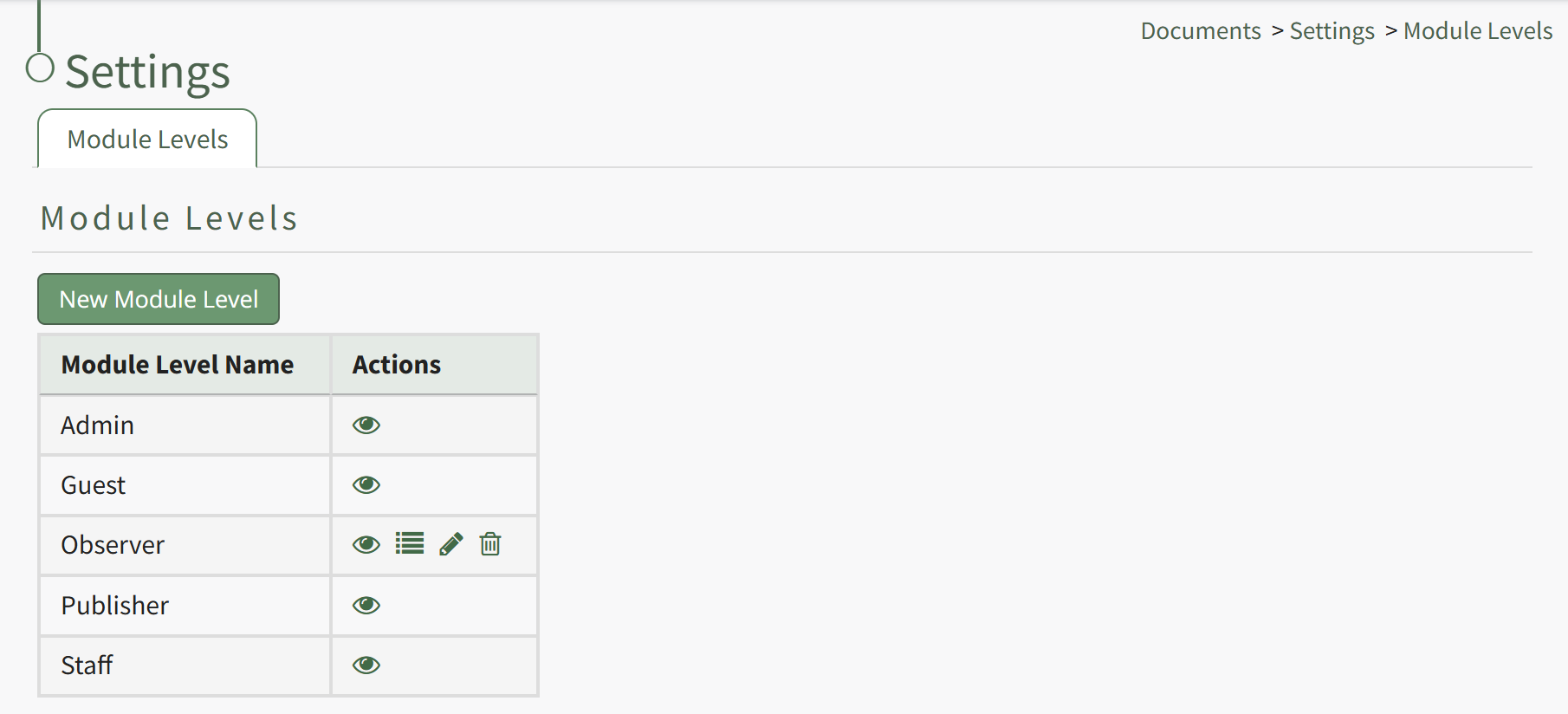
There are four basesystem Moduledefault Levelsmodule levels associated with the Documents Module. An explanation of the permissions associated with each default permissionsmodule level are shown in the Documents Module thatLevel Permissions Table below.
System default module levels cannot be altered by the user. The permissions associated with each are explained in the table below.customized.
Documents Module - Module Level Permissions | |
Module Level | Permissions |
Admin | Manage users (view, edit, delete), Manage groups (add, view, edit, edit group defaults, delete), Manage roles (permissions, add, assign, unassign, view, edit, and delete), Download and view documents, can view documents from all modules, own-moc, Upload (new documents, revisions), View (deleted, rejected, abandoned, superseded, submitted, non-approved, pending documents), view document status and detailed document history, Edit (documents, document status, document approvers, document acknowledgers, document notifications, document review date, document owners, document acknowledgment message), Delete documents and approved documents, Distribute documents, Add/Delete/Edit Comments |
Guest | Download documents, view documents, own-moc |
Publisher | Download documents and old versions, view documents, own-moc, Manage groups (view, edit, edit group deafults, delete), Upload (new revisions, new documents), View (deleted, rejected, abandoned, superseded, submitted, non-approved, pending documents), view document status and detailed document history, Edit (documents, document status, document approvers, document acknowledgers, document notifications, document review date, document owners, document acknowledgment message), Delete documents and approved documents, Distribute documents, Add/Delete/Edit Comments |
Staff | Download documents, view documents, own-moc, Upload (new revisions, new documents), View (deleted, rejected, abandoned, superseded, submitted, non-approved, pending documents), View document status and detailed document history, Edit (documents, document approvers, document acknowledgers, document notifications, document review date, document owners, document acknowledgment message), Delete documents, approved documents, pending files, Add/Delete Comments |
New Module Levels with customizable permissions can be created in order to customize module level permissions. An explanation of the icons associated with customized module levels have been provided in the table below.
Module Level Customization Icons | |
Icon | Explanation |
| The eyeball icon allows you to view users assigned to the module level as |
| The bulleted list icon allows you to assign permissions to customized module levels. |
| The pencil icon opens the Edit Module Level Modal. |
| The trashcan icon opens the Delete Module Level Confirmation Modal. |


How To: Create a New Module Level (Documents)
{{@227}}
A complete list of all permissions associated with the Documents Module have been provided below.