
Settings Page
The Settings Page allows the user to customize and designate permissions for the Documents Module.
The Module Levels Tab shows the different module levels for the Documents Module and the default permissions that are granted to each module level. The eyeball icon under the “Actions” column opens a modal that allows the user to view the permissions granted to the users with that role.

There are four base Module Levels with default permissions in the Documents Module that cannot be altered by the user. The permissions associated with each are explained in the table below.
Documents Module - Module Level Permissions | |
Module Level | Permissions |
Admin | Manage users (view/edit/delete), Manage groups (add, view, edit, delete), Manage roles (permissions, add, assign, unassign, view, edit, and delete), Download and view documents, can view documents from all modules, own-moc, Upload (new documents, revisions), View (deleted/ rejected/ abandoned/ superseded/ submitted/ non-approved/ pending documents), view document status and detailed document history, Edit (documents, document status, document approvers, document acknowledgers, document notifications, document review date, document owners, document acknowledgment message), Delete documents and approved documents, Distribute documents, Add/Delete/Edit Comments |
Guest | Download documents, view documents, own-moc |
Publisher | Download documents and old versions, view documents, own-moc, Manage groups (view,edit,delete), Upload (new revisions, new documents), View (deleted/rejected/abandoned/superseded/submitted/non-approved/ pending documents), view document status and detailed document history, Edit (documents, document status, document approvers, document acknowledgers, document notifications, document review date, document owners, document acknowledgment message), Delete documents and approved documents, Distribute documents, Add/Delete/Edit Comments |
Staff | Download documents, view documents, own-moc, Upload (new revisions, new documents), View (deleted/rejected/abandoned/superseded/submitted/non-approved/pending documents), View document status and detailed document history, Edit (documents, document approvers, document acknowledgers, document notifications, document review date, document owners, document acknowledgment message), Delete documents/approved documents/pending files, Add/Delete Comments |
New Module Levels with customizable permissions can be created as needed by your organization.
How To: Create a New Module Level (Documents)
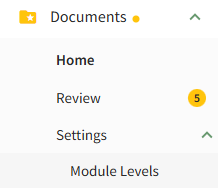
To create a new Module Level with customized permissions in the Documents Module, select Module Levels under Settings in the Documents Module on the Main Menu, opening the Settings Page to the Module Level Tab.
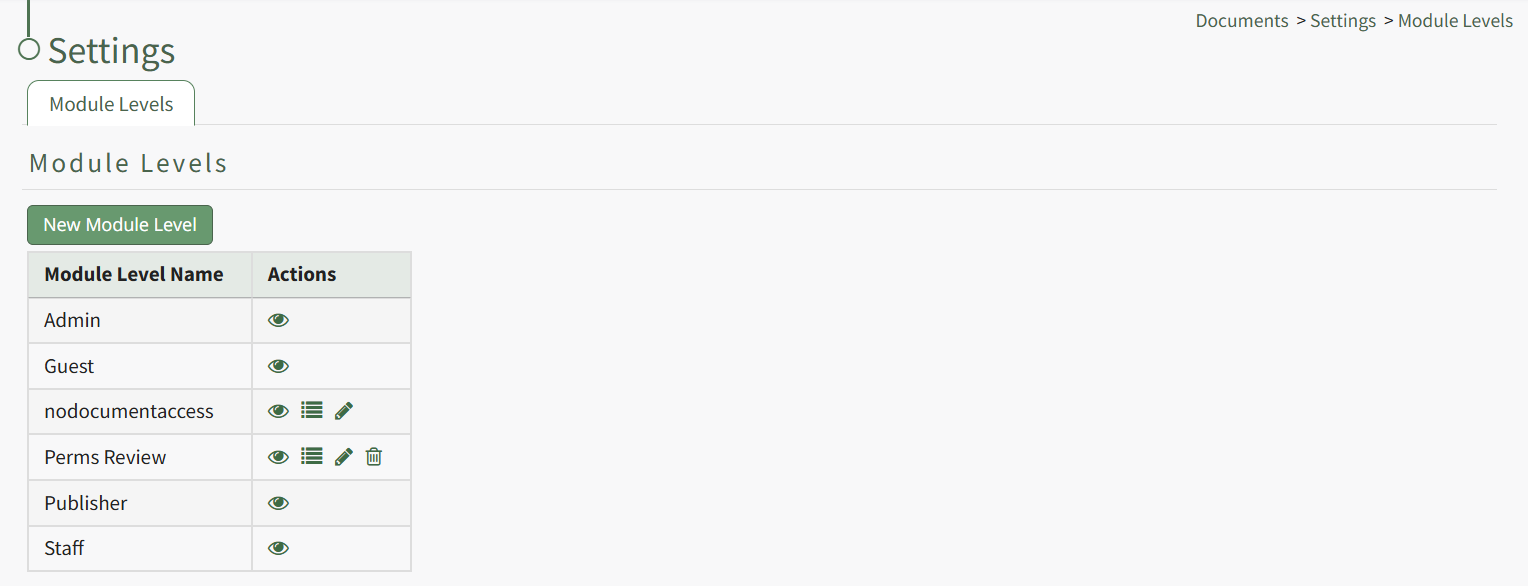
System default module levels cannot be customized. Module levels that are specific to your organization have additional actions to enable customization.
To create a new module level, select the New Module Level button opening the New Module Level Modal.
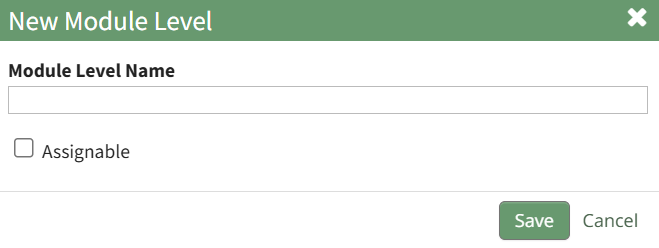
Input the name of the customized module level.
Check the box for Assignable to give permission for the new module level to be assigned to users if desired and click the Save button. Module levels will be listed alphabetically in the Module Level Table.
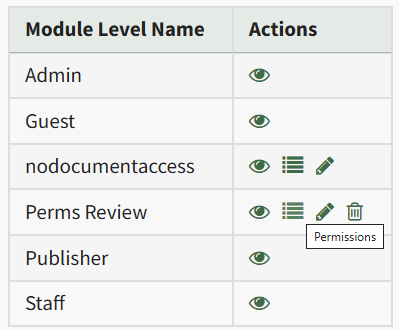
Select the Permissions icon (the bullet point list to the right of the eye) in order to assign the customized permissions to the new Module Level. Click the checkbox to the left of the permissions you want to assign.
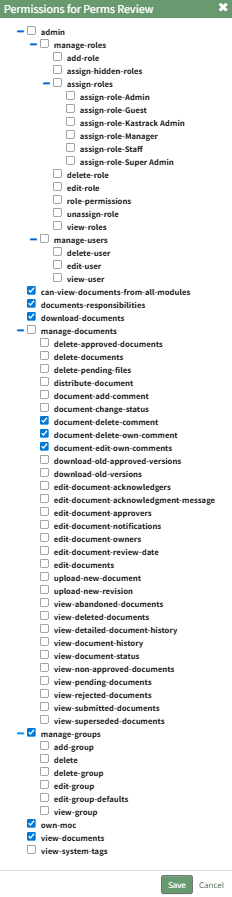
Select the Save button.

A pop-up confirms that the permissions were saved.
Access levels for all modules can also be managed in the Site Settings Module on the Access Levels Tab.