
Review Page: Actions Tab
The Review page allows the user to view any files that require action and/or have been flagged for their attention. It is comprised of three tabular subpages: Review, Notifications, and Updates. The Review tab on the Review Page categorizes the documents that need review into four groups: Approvals, Publish, Acknowledgements, and Continued Suitability. Each section of the Review Page: Actions Tab are explained in detail below.
Approvals Section
When new documents or new document revisions are uploaded, the Advanced Settings Tab offers the ability to select the users, roles, and/or access levels that are required to approve new and future revisions of a specified document. Document approvers have the ability to preview the submitted document for content, quality, typos, etc. and approve or decline the document. When this feature is activated for new or revised documents, the requests for document approval will show on the Approvals List on the Actions Tab of the Review Page. The document approval function is, essentially, a voting system enabling individuals to vote to approve or decline the document and make notes of their reasoning.
The Approval List for a specific file is also accessible on the Actions Tab of the file's Details Page.
The user(s) listed as the owner(s) of a document requiring approval will see the file in the Approvals Section of the Review Page as a way to monitor the voting process for that document's revision.
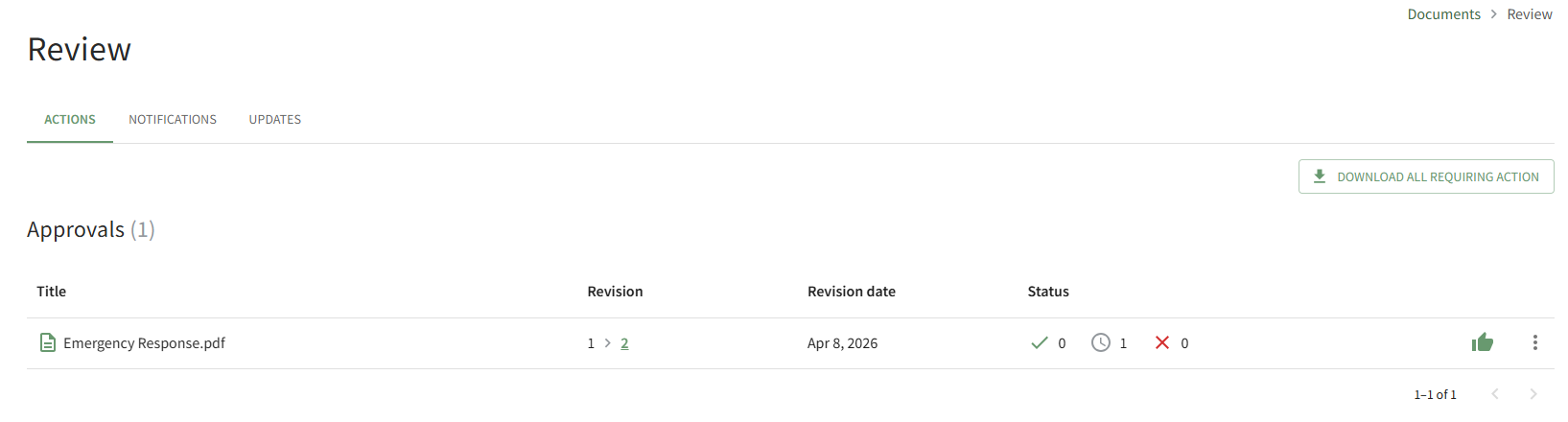
The icons used in the Approvals Section are explained in the table below.
Approval Section Icon Explanations | |
Icon | Explanation |
| The check icon and number to the right identify the number of users that approved the file. |
| The clock icon and number to the right identify the number of users yet to approve to approve the file. |
| The X icon and number to the right identify the number of users that declined approval. |
| The thumbs up icon is used to approve the file. |
| The vertical three dot icon opens a context menu that is used to View Revision, Approve, View, Download, and Decline Approval. |


How To: Approve a File Submitted for Review
{{@893}}
How To: Decline Approval of a File Submitted for Review
{{@894}}
Publish Section
When a new document/revision is uploaded and requires approval, the users identified as the document owners will also see the file in their Publish Section. Document Owners can choose to publish or reject the revision at any point in time, once all approvers have reviewed the revision or earlier if desired.
Before a document is published, it is not visible to users. When a document is published, it goes live and is accessible to other users.
When a document owner elects to reject publishing, the document upload is cancelled. A document owner can make the required edits and upload the new revision for approval/publishing.

The icons used in the Publish Section are explained in the table below.
Publish Section Icon Explanations | |
Icon | Explanation |
| The check icon and number to the right identify the number of users that have approved publishing the file. |
| The clock icon and number to the right identify the number of users yet to approve publishing the file. |
| The X icon and number to the right identify the number of users that declined publishing the file. |
| The publish icon publishes the document. |
| The vertical three dot icon is used to open a context menu allowing to View Revision, Publish, Reject and Download. |


How To: Publish a Document/File
{{@900}}
How To: Reject a Document/File and Prevent Publishing
{{@901}}
Acknowledgements Section
When new documents or new document revisions are uploaded, the Advanced Settings Tab offers the ability to select the users, roles, and/or access levels that are required to acknowledge the new/revised document. When this feature is activated, the requests for document acknowledgement will show on the Acknowledgements List on the Actions Tab of the Review Page.
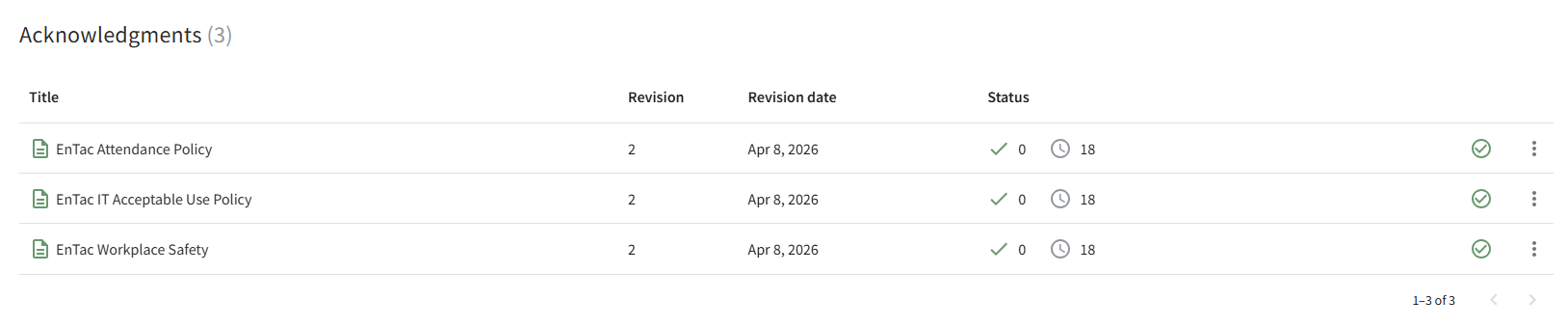
The icons used in the Acknowledgements Section are explained in the table below.
Acknowledgement Section Icon Explanations | |
Icon | Explanation |
| The check icon and number to the right identify the number of users that have acknowledged viewing the file. |
| The clock icon and number to the right identify the number of users yet to acknowledge they have seen the file. |
| The check within a circle icon allows the user to acknowledge the file. |
| The vertical three dot icon opens a context menu with the options to Acknowledge, View, and Download. |


How To: Send an Acknowledgment Reminder Alert for a Document/File
{{@905}}
Continued Suitability Section
When new documents or new document revisions are uploaded, the Advanced Settings Tab offers the ability to require future review of the document by a document owner. When this feature is activated, the documents requiring review will show in the Continued Suitability List on the Actions Tab of the Review Page.

The icons used in the Continued Suitability Section are explained in the table below.
Continued Suitability Category Icon Explanations | |
Icon | Explanation |
| The check within the circle icon indicates that user affirms suitability. |
| The vertical three dot icon opens a context menu with the options to Affirm Suitability and Download. |


How To: Affirm a Document/File's Suitability
{{@892}}