
Review Page: Actions Tab
The Review page allows the user to view any files that have been flagged for their attention and is comprised of three tabular subpages: Review, Notifications, and Updates.
The Review tab on the Review Page categorizes the documents that need review into four groups: Approvals, Publish, Acknowledgements, and Continued Suitability.
Approvals Section
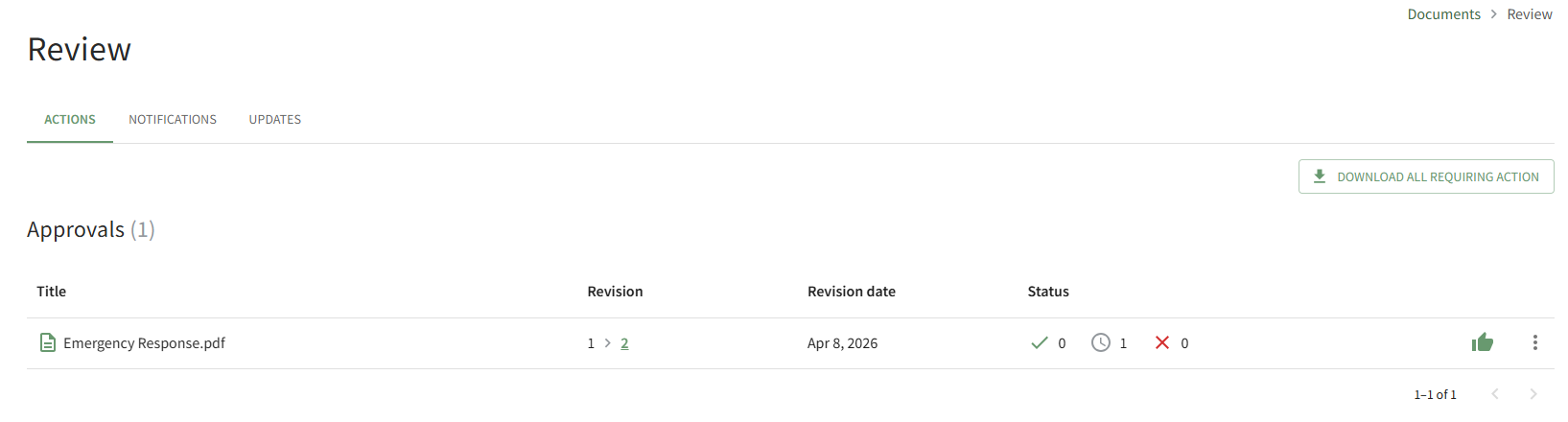
The Approvals list shows the files that have an upload or revision that requires user approval. The icons used in the Approvals Section are explained in the table below.
Approval Section Icon Explanations | |
Icon | Explanation |
| The check icon and number to the right identify the number of users that approved the file. |
| The clock icon and number to the right identify the number of users yet to approve to approve the file. |
| The X icon and number to the right identify the number of users that declined approval. |
| The thumbs up icon is used to approve the file. |
| The vertical three dot icon opens a context menu that is used to View Revision, Approve, View, Download, and Decline Approval. |


Publish Section

The Publish list shows the files that are ready to be published. The icons used in the Publish Section are explained in the table below.
Publish Section Icon Explanations | |
Icon | Explanation |
| The check icon and number to the right identify the number of users that have approved publishing the file. |
| The clock icon and number to the right identify the number of users yet to approve publishing the file. |
| The X icon and number to the right identify the number of users that declined publishing the file. |
| The publish icon publishes the document. |
| The vertical three dot icon is used to open a context menu allowing to View Revision, Publish, Reject and Download. |


Acknowledgements Section
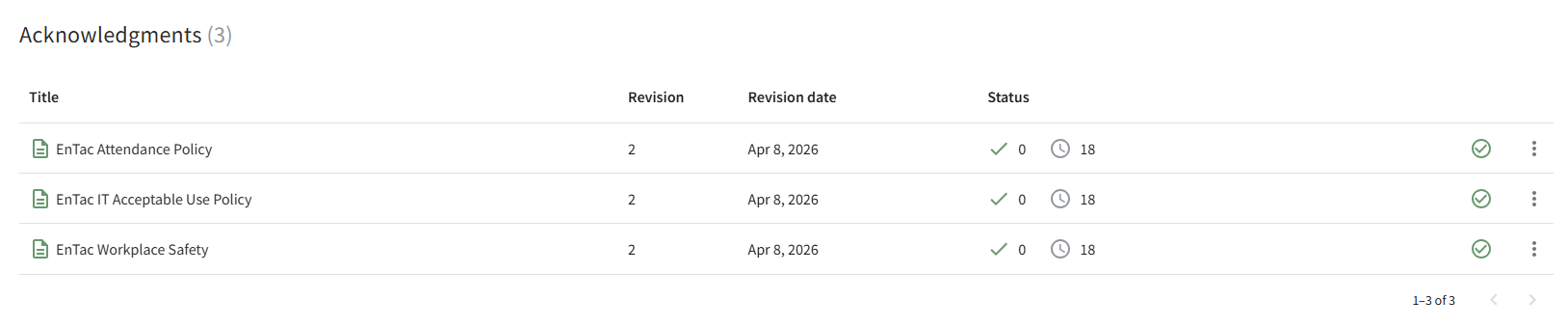
The Acknowledgements list shows the files that require a user to demonstrate that the file has been viewed and acknowledged. The icons used in the Acknowledgements Section are explained in the table below.
Acknowledgement Section Icon Explanations | |
Icon | Explanation |
| The check icon and number to the right identify the number of users that have acknowledged viewing the file. |
| The clock icon and number to the right identify the number of users yet to acknowledge they have seen the file. |
| The check within a circle icon allows the user to acknowledge the file. |
| The vertical three dot icon opens a context menu with the options to Acknowledge, View, and Download. |


Continued Suitability Section

The Continued Suitability list shows the files that have a deadline for review. The icons used in the Continued Suitability Section are explained in the table below.
Continued Suitability Category Icon Explanations | |
Icon | Explanation |
| The check within the circle icon indicates that user affirms suitability. |
| The vertical three dot icon opens a context menu with the options to Affirm Suitability and Download. |

